The Docker daemon (dockerd) is the program that runs your containers. Its
behavior is set in three places: the /etc/docker/daemon.json file, the launch
line of its systemd service and, on your workstation, the contexts of the
docker client, that is, the addresses of the daemons it talks to. The first two
can contradict each other, and the third decides which machine you are talking
to. This lesson teaches you to change daemon.json without breaking the daemon,
to find and close a network listener opened by a service drop-in file, and to
administer a second machine through an SSH context rather than through an open
API. It targets Docker Engine 29.9.2 on Debian 13. The gestures that modify the
daemon are played on a throwaway VM, never on a shared host.
Log rotation is set in this same file, under the log-driver and log-opts
keys, whose values are written as strings; the
dockerd reference lists their
options. Their effect on containers has its own lesson: Rotate Docker logs and reclaim disk space.
Here, you learn the mechanism by which a setting reaches the daemon.
What you will learn
- You identify where the daemon gets its configuration and its listeners.
- You change
daemon.jsonby merging, you validate it, then you reload it. - You explain and fix the conflict between
hostsand-H fd://. - You find a TCP listener set by a systemd drop-in and you close it for good.
- You create an SSH context, you prove which engine it reaches and you check that an unauthorized identity is refused.
- You read the API version bounds that the daemon accepts.
Prerequisites
You must have a Docker 29.9.2 engine installed on Debian 13
(Install Docker Engine 29 and prove that it works)
and know what a client context is
(Images, containers and registries: the anatomy).
You need sudo, the jq tool to merge JSON (sudo apt-get install -y jq) and,
for the two sections on the SSH context, a second machine where Docker is
installed and where you can log in over SSH with an account in the docker
group. The examples name this machine recette.lab and its account
exploitant.
Where does the daemon read its configuration?
The daemon receives its configuration from two sources that must not overlap:
the options of its launch line, written in the systemd unit, and the
/etc/docker/daemon.json file. A systemd unit is the file that tells systemd
how to start a service; the daemon's is called docker.service. Whatever
neither of them specifies gets a default value.
On Debian, the docker-ce package provides a launch line that contains
-H fd://. This option tells the daemon not to open its socket itself: systemd
opens it on its behalf, through the docker.socket unit, then hands it over. A
Unix socket is a file through which two programs on the same machine
exchange data; here /run/docker.sock, reachable by root and by the docker
group. The daemon.json file, for its part, does not exist after installation:
it is up to you to create it.
systemctl cat docker.service | grep -E '^(ExecStart|ExecReload)='ls -l /etc/docker/ /run/docker.sockdocker info --format '{{.Name}} {{.ServerVersion}}'Look at the ExecStart line first: it must contain -H fd://, and this flag is
what makes it impossible to also put hosts in the file, as the next section
shows. Then look at the listing of /etc/docker/: daemon.json may be missing,
which is not an anomaly. Finally, look at the socket, whose owning group is
docker: whoever belongs to this group talks to the daemon and therefore acts
as root on the machine.
How do you change daemon.json without breaking the daemon?
To change daemon.json without breaking it, you merge it with a tool that
understands JSON, you validate the resulting file before putting it in
place, then you reload the daemon. Never overwrite the file with hand-typed
content: the write erases all the options already present, without any warning.
The example sets a label on the daemon with labels, a list of key=value
pairs that docker info displays. This setting has the advantage of reloading
without stopping the daemon. The block first keeps a copy of the file, writes the
result of the merge to a neighboring file, validates it, and only then puts it in
place. If a labels key already existed, the merge replaces it: reread the
resulting file before going on.
sudo test -f /etc/docker/daemon.json || echo '{}' | sudo tee /etc/docker/daemon.json >/dev/nullsudo cp -a /etc/docker/daemon.json /etc/docker/daemon.json.avant-labelssudo jq '. + {"labels": ["zone=recette"]}' /etc/docker/daemon.json.avant-labels \ | sudo tee /etc/docker/daemon.json.nouveausudo dockerd --validate --config-file /etc/docker/daemon.json.nouveauecho "validation rc=$?"The output first shows the merged file, with your old options and the label
added. dockerd --validate then answers configuration OK, and the return code 0
confirms that the file is acceptable. With an unknown directive, for example
lables instead of labels, the command returns code 1 and names the faulty
directive: this is the error you want to see before the restart, not after it.
The validation checks the syntax of the file and its values. You run it by hand, without the unit's options: it therefore does not see a conflict with the launch line, of which the next section gives an example. Now put the file in place, reload the daemon and reread the label:
sudo mv /etc/docker/daemon.json.nouveau /etc/docker/daemon.jsonsudo systemctl reload dockerdocker info --format '{{.Labels}}'systemctl reload sends the daemon the SIGHUP signal, which makes it reread
its configuration without stopping. The docker info command must display
[zone=recette]. Not all options reload this way: the
dockerd reference lists the
ones that do, and the others require a full restart, with
systemctl restart docker.
A restart stops the containers, unless live-restore is active. This daemon
option lets containers keep running while the daemon itself is stopped. On Docker
Engine 29.9.2, a sleep container started before the restart exits with code 137
without live-restore, and keeps running with the same PID when the option is
active. The lesson Upgrade Docker Engine without stopping containers
details this behavior, along with the backup of /etc/docker to make before
every change.
To roll back, you repeat the same gesture in reverse, with one difference: a
reload does not erase a key that the file no longer carries, and the daemon
keeps the value it had. So put back the copy kept before the merge, then restart
the daemon. On a throwaway VM, the restart costs nothing; on a host that carries
containers, it stops them, unless live-restore is active.
sudo cp -a /etc/docker/daemon.json.avant-labels /etc/docker/daemon.jsonsudo systemctl restart dockerdocker info --format '{{.Labels}}'The output must show an empty list []. With reload instead of restart, it
would still display [zone=recette], even though the file no longer contains the
label. So check the state of the daemon, not only the contents of the file:
your configuration can only be restored if you kept the copy from before.
What happens when daemon.json and the systemd unit contradict each other?
An option set both on the daemon's command line and in daemon.json prevents
it from starting. The typical case is hosts, the list of addresses the daemon
listens on: the unit's -H fd:// already sets it, and some tutorials
nevertheless recommend writing it in the file too.
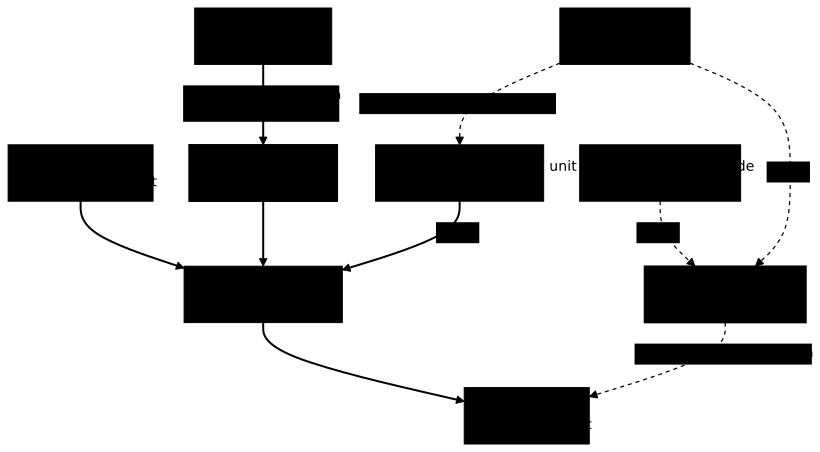
The diagram shows the three paths by which the daemon receives requests. Follow
the thick arrows: the local client goes through the Unix socket, and the remote
client goes through sshd, which authenticates it before reaching that same
socket. Then look at the dotted arrows: a drop-in of the unit (a configuration
file that systemd adds to docker.service) or the hosts key of the file open
an unauthenticated TCP listener, and this listener gives the first comer the
same powers as the docker group.
Reproduce the conflict on a throwaway VM. The block adds to daemon.json the
hosts list that these tutorials recommend, with a listener limited to the
loopback interface, validates the file, puts it in place and restarts the daemon.
sudo cp -a /etc/docker/daemon.json /etc/docker/daemon.json.avant-hostssudo jq '. + {"hosts": ["fd://", "tcp://127.0.0.1:2475"]}' /etc/docker/daemon.json.avant-hosts \ | sudo tee /etc/docker/daemon.json.nouveausudo dockerd --validate --config-file /etc/docker/daemon.json.nouveau; echo "validation rc=$?"sudo mv /etc/docker/daemon.json.nouveau /etc/docker/daemon.jsonsudo systemctl restart docker; echo "restart rc=$?"sudo journalctl -u docker.service --no-pager -n 15 -o cat | grep -i 'directives'Read the three results in order. The validation answers configuration OK with
code 0: it does not see the conflict. The restart fails with a non-zero code. The
service journal gives the cause, a message that contains
unable to configure the Docker daemon with file /etc/docker/daemon.json then
the following directives are specified both as a flag and in the configuration file: hosts, followed by the value that came from the flag and the
one that came from the file. The daemon is stopped, and docker ps no longer
answers.
To fix it, put the previous copy back, reset systemd's failure counter (it refuses to restart a service that has failed too many times in a short period, which the upgrade lesson details), then start the daemon.
sudo cp -a /etc/docker/daemon.json.avant-hosts /etc/docker/daemon.jsonsudo systemctl reset-failed dockersudo systemctl start docker; echo "start rc=$?"docker info --format '{{.ServerVersion}}'The return code must be 0 and the version must be displayed. To open an extra
listener without a conflict, you must choose a single place: either -H
stays in the unit and hosts does not appear in the file, or a drop-in of the
unit removes the -H and hosts carries the whole list. This lesson goes the
other way: it teaches you to find and close these listeners, because an
unauthenticated TCP listener gives root rights to the first comer.
How do you find and close a TCP listener set by a systemd drop-in?
A TCP listener opened by a systemd drop-in is found by reading the sockets that actually listen, and it is closed by deleting the drop-in file, then reloading systemd and restarting the daemon. Each of these three steps counts, and so does the order.
A drop-in is a .conf file placed in the docker.service.d/ directory,
which systemd reads in addition to the original unit. To take over a host left by
someone else, you start from the opposite of the state you want. The block builds
it on the throwaway VM: the first, empty ExecStart= line clears the original
command, since a unit of this type accepts only one start command, and the second
sets a new one with a TCP listener on the loopback interface.
sudo mkdir -p /etc/systemd/system/docker.service.dsudo tee /etc/systemd/system/docker.service.d/ecoute-tcp.conf >/dev/null <<'EOF'[Service]ExecStart=ExecStart=/usr/bin/dockerd -H fd:// -H tcp://127.0.0.1:2475 --containerd=/run/containerd/containerd.sockEOFsudo systemctl daemon-reloadsudo systemctl restart dockerNow look for what the daemon does, without reading the files first, because a file says what is requested, not what is applied.
sudo ss -ltnp | grep dockerdcurl -s -m 3 http://127.0.0.1:2475/_ping; echosystemctl show docker.service -p FragmentPath -p DropInPathssudo jq .hosts /etc/docker/daemon.jsonThe first command must show a LISTEN line on 127.0.0.1:2475 attached to the
dockerd process: that is the proof. If the local address had been 0.0.0.0 or
*, the listener would be open on all the network interfaces of the machine. The
second command answers OK without anyone having asked you for anything, and the
same would go for any account on the machine or, with a non-local address, for
any machine on the network: this API authenticates no one.
The third command names the drop-in file that opened the listener, and the fourth
checks that hosts is not also set in daemon.json: jq must display null,
since the key is absent from the file.
The table summarizes where a listener can be set. The third row concerns
docker.socket, the unit that opens the Unix socket: a drop-in can make it open
a TCP port as well. For all three cases, ss is the check that settles it,
because it reads the real state of the machine.
| Where the listener is set | How to see it | How to remove it |
|---|---|---|
A docker.service drop-in (-H tcp://…) | systemctl cat docker.service | delete the file from docker.service.d/, then systemctl daemon-reload and systemctl restart docker |
The hosts key of daemon.json | sudo jq .hosts /etc/docker/daemon.json | remove the key, then systemctl restart docker |
A docker.socket drop-in (ListenStream=) | systemctl cat docker.socket | delete the file from docker.socket.d/, then systemctl daemon-reload and systemctl restart docker.socket; since docker.service declares Requires=docker.socket, this command also restarts the daemon and stops the containers without live-restore (measured: code 137) |
Now close the listener. The deleted file changes nothing until systemd has reread its units, and the daemon keeps its launch line until it is restarted: without a reload, a restart would even relaunch the old command.
sudo rm /etc/systemd/system/docker.service.d/ecoute-tcp.confsudo rmdir --ignore-fail-on-non-empty /etc/systemd/system/docker.service.dsystemctl show docker.service -p NeedDaemonReloadsudo systemctl daemon-reloadsudo systemctl restart dockersudo ss -ltnp | grep dockerd || echo "no TCP listener"curl -s -m 3 http://127.0.0.1:2475/_ping; echo "curl rc=$?"systemctl is-active docker.socket docker.serviceThe first reading must answer NeedDaemonReload=yes: systemd knows that the unit
has changed on disk, without having reread it yet. After the restart, ss must
no longer list any TCP listener of the daemon, and curl must fail with code 7
(connection refused). Both units must answer active, since the Unix socket
stayed open.
A systemctl reload docker would have closed nothing: it rereads the
reloadable configuration, but changes neither the launch line nor the open
sockets. A firewall rule that hides the port does not close the listener either,
it conceals it. If a network API is really needed, the Docker documentation
describes its protection with mutual TLS;
the next section shows the other way, which opens no port.
How do you administer a remote host with an SSH context?
A context is a named target that the docker client keeps in memory: the address
of a daemon and what is needed to reach it. An ssh:// context makes the client
go through SSH: it opens an SSH connection to the remote host and runs
docker system dial-stdio there, which relays its requests to the local socket
over there. No TCP listener is opened on the host, and sshd does the
authenticating.
The remote host must therefore have Docker installed, and the account used must
be able to reach the socket, that is, belong to the docker group:
sudo usermod -aG docker exploitant, to be run on the remote host. The group
only applies to the account's new SSH connections. Without this step, two
symptoms appear. First, ssh hote-recette 'docker info' answers
permission denied while trying to connect to the docker API at unix:///var/run/docker.sock.
Then, once the context is created (next section), docker --context recette info
displays a misleading message, Cannot connect to the Docker daemon at http://docker.example.com. Is the docker daemon running?, although the daemon is running: the refusal comes from the socket, not
from the network.
This group has a cost that must not be ignored: an account that can reach the socket is equivalent to root on the host. Remove direct access to the Docker daemon explains why; so open an account dedicated to this use, rather than reusing a personal account.
First prepare a key reserved for this context and an alias in ~/.ssh/config
(the SSH client guide details this
file). The alias carries the machine name, the account and the key, and the
context only has to cite it. The key is generated without a passphrase for the demonstration;
in production, protect it with a passphrase and an agent.
ssh-keygen -t ed25519 -N '' -C "contexte docker recette" -f ~/.ssh/id_recettecat >> ~/.ssh/config <<'EOF'Host hote-recette HostName recette.lab User exploitant IdentityFile ~/.ssh/id_recette IdentitiesOnly yesEOFssh-copy-id -i ~/.ssh/id_recette.pub exploitant@recette.labssh hote-recette 'docker info --format "{{.Name}} {{.ID}}"'The ssh-copy-id command adds the public key to the remote account's
authorized_keys file. To do so, it usually connects with that account's
password
(ssh-copy-id(1));
if the account accepts none, add the public key by another means.
The last command displays the name and identifier of the remote engine. It also
records the host's fingerprint in ~/.ssh/known_hosts: SSH asks you about it at
the first connection, and you must compare it to the one the host's administrator
gave you, without disabling the verification.
Then create the context, without selecting it, and have it tell you which engine it reaches.
docker context create recette --docker "host=ssh://hote-recette" \ --description "Moteur de recette"docker context lsdocker context showdocker --context recette info --format '{{.Name}} {{.ID}} {{.ServerVersion}}'docker --context default info --format '{{.ID}}'Look at three things. docker context ls must list recette with the address
ssh://hote-recette, and docker context show must still answer with the
previous context, default if you have never changed it: creating a context does
not change the active one.
The info line of the recette context must give the name and identifier of the
remote machine, identical to those read over SSH and different from those of
the local engine, which the last command displays. It is this comparison of
identifiers that proves which engine answers: an alias that loops back to your
own machine by mistake would give the local identifier, and the context would
appear to work.
This proof assumes that the two engines were installed separately. The daemon
writes its identifier, a UUID, in the engine-id file of its data directory
(/var/lib/docker by default): a VM cloned after Docker's first start therefore
keeps the same identifier. On a clone, stop docker.socket and
docker.service, delete this file, then start the daemon again: it generates a
new one (measured on 29.9.2).
Prefer --context recette on each command to docker context use recette: a
context selected for the session makes the next command, typed an hour later,
target the staging host. As for priority, the DOCKER_HOST variable takes
precedence over the selected context, as the anatomy lesson
shows. The --context option, for its part, takes precedence over DOCKER_HOST,
according to the Docker client documentation.
The context contains no secret: docker context inspect recette displays the
engine's address, not the key, which is SSH's business.
How do you prove that an unauthorized identity is refused?
To prove that access is limited to the authorized key, use a second key that the remote host does not know and check that it is refused, then check that the right key still works. The refusal alone proves nothing: a badly written context fails too.
Close password authentication on the remote host first
This proof only makes sense if sshd refuses passwords for the account.
Otherwise, the foreign key fails, but a password is enough to get in: measured
with PasswordAuthentication yes, the recette-intrus context reached the
engine as soon as the account's password was supplied to it.
On the remote host, the command
sudo sshd -T -C user=exploitant,host=x,addr=127.0.0.1 | grep -i passwordauthentication
must answer passwordauthentication no. On the reference VM (Debian 13 cloud
image, OpenSSH 10.0p2), this value comes from the image, not from OpenSSH: the
default documented in sshd_config(5) is
yes, so a Debian installed from the ISO accepts passwords until you close them.
To see where your host's value comes from, run
grep -r PasswordAuthentication /etc/ssh/. If it is not no, impose it on this
account in a /etc/ssh/sshd_config.d/00-docker.conf file that contains
Match User exploitant, then PasswordAuthentication no on the next line; the
section Turn off password authentication (server side)
details the global version. Check the syntax with sudo sshd -t, run
sudo systemctl reload ssh, then run the command sshd -T -C user=exploitant,host=x,addr=127.0.0.1 again: sshd -t only checks the syntax,
and only the second command shows the value actually applied.
Try a key the host does not know
Create the foreign key, a second alias that designates it, then a context that uses it. Do not copy this key anywhere: it is precisely its non-authorization that you are measuring.
The hote-intrus alias adds BatchMode yes and PreferredAuthentications publickey:
SSH then tries only keys and never asks for a password, so the command never
stays blocked on a prompt. The sleep 60 before the control test is justified
below.
ssh-keygen -t ed25519 -N '' -C "clé non autorisée" -f ~/.ssh/id_intruscat >> ~/.ssh/config <<'EOF'Host hote-intrus HostName recette.lab User exploitant IdentityFile ~/.ssh/id_intrus IdentitiesOnly yes BatchMode yes PreferredAuthentications publickeyEOFssh hote-intrus true; echo "ssh rc=$?"docker context create recette-intrus --docker "host=ssh://hote-intrus"docker --context recette-intrus info --format '{{.ID}}'; echo "docker rc=$?"sleep 60docker --context recette info --format '{{.ID}}'; echo "control test rc=$?"Read the two refusals, then the control test
Read the three codes. The direct connection must fail with code 255 and the
message exploitant@recette.lab: Permission denied (publickey). The parenthesis
lists the methods that the host offers. The refusal comes from sshd, before any
Docker request is sent.
The Docker command of the recette-intrus context must fail as well, with a
non-zero code. The error begins with error during connect: Get "http://docker.example.com/v1.56/info": command [ssh … hote-intrus docker system dial-stdio] has exited with exit status 255, and ends with stderr= followed by
SSH's message. Measured on Docker 29.9.2 with OpenSSH 10.0p2, this message is
kex_exchange_identification: read: Connection reset by peer, followed by
Connection reset by <address> port 22, or sometimes Connection closed by <address> port 22. The text Permission denied (publickey) does not appear in
Docker's output.
This change of text comes from sshd. Since OpenSSH 9.8, it accumulates a
5-second penalty for each client that disconnects after an authentication
failure, and it refuses connections from the address once the total exceeds 15
seconds, for 10 minutes at most (the PerSourcePenalties directive, enabled by
default and described in
sshd_config(5)).
The right key is refused too during this delay. The penalty depends on the
failures accumulated by your address, including those of the lesson's earlier
attempts, such as the direct connection refused just before: hence the 60-second
pause, after which the control test answered in our measurements. If it still
answers kex_exchange_identification, wait longer: the penalty can last up to 10
minutes. Once the penalty is lifted, the control test shows that the recette
context, with the right key, still answers: the refusal is therefore due to the
key, not to a typo.
Remove an access, then clean up
To remove a person's or a machine's access, you delete its line from the remote
account's ~/.ssh/authorized_keys file, provided that passwords are closed for
that account: with PasswordAuthentication yes, once the key is removed, ssh
asks for the account's password (exploitant@recette.lab's password:) and waits
for the answer. No Docker configuration is involved.
Finally, check on the remote host that no TCP listener was needed:
sudo ss -ltnp | grep dockerd must show no port 2375 or 2376 there. Then delete
the trial context with docker context rm recette-intrus.
What limits does the API impose on the client?
The daemon only accepts clients whose API version lies between a minimum bound
and its current version. The client usually negotiates the version downward on
its own; if you force it with DOCKER_API_VERSION, the negotiation no longer
takes place. A client older than the bound is refused.
Read your engine's bounds, then force a client that is too old.
docker version --format 'client={{.Client.APIVersion}} server={{.Server.APIVersion}} minimum={{.Server.MinAPIVersion}}'DOCKER_API_VERSION=1.24 docker info; echo "rc=$?"On Docker Engine 29.9.2, the server announces API version 1.56 and minimum 1.40.
The second command must therefore fail with the message
client version 1.24 is too old. Minimum supported API version is 1.40, please upgrade your client to a newer version. The same message appears in
Put a proxy in front of the Docker API,
when a tool written for a very old Docker talks to a recent engine. The fix is to
update the tool, not to downgrade the engine.
These bounds are not a protection. The API does not distinguish rights:
without an authorization plugin (a module that the daemon consults before
executing each request), anyone who reaches it can create a privileged container,
whether through the Unix socket, a TCP listener or an SSH context. Only the way
of reaching the API changes, and with it what authenticates: membership of the
docker group, nothing at all on an open TCP listener, or the SSH key.
To give a tool reduced access, the way is the allow-list proxy of the lesson
cited above. To find out who is already in the docker group, see the lesson on
direct access.
Put it into practice
The first lab applies the lesson's method to a logging setting: you change the daemon's configuration without losing the settings already present, you validate it, then you restart the daemon. The tests do not read your commands: they create a container with no options themselves, look at what it inherits from the configuration, then make it write a large log to check that rotation applies. The cleanup restores the daemon's initial configuration.
The second lab has you administer a second machine through a named SSH context, with no TCP API and without changing the default context. Its tests check four things: the named context targets the prepared SSH alias and not a socket, it reaches the second machine's real engine, a distinct unauthorized key is refused by the same SSH service, and the context selected at the start stays selected.
Key points
The daemon is configured through its file and its unit, and it is reached through
a Unix socket, a TCP listener or SSH: each of these choices decides who can act as
root on the machine.
- You merge
daemon.jsonwithjq, you validate it withdockerd --validate --config-file, then you reload it; you keep the previous copy, and you roll back through a restart, because a reload does not remove a key that has disappeared from the file. - A restart stops the containers, unless
live-restoreis active. dockerd --validatedoes not see a conflict with the unit's launch line:hostsin the file and-H fd://in the unit giveconfiguration OK, then a daemon that does not start.- You choose a single place for the listening addresses, and you look for any
listener in
systemctl cat docker.service,hostsanddocker.socket. - You prove that a TCP listener exists with
ss -ltnp, and you close it by deleting the drop-in, thensystemctl daemon-reloadandsystemctl restart docker;reloadcloses nothing. - An
ssh://context opens no port:sshdauthenticates, and the remote account hasrootrights through thedockergroup. - You prove the engine reached by comparing its identifier with that of the remote
host and with that of the local engine. You prove the refusal with a foreign
key, provided that
sshdrefuses the account's passwords, with the right key as the control test. - The 29.9.2 engine accepts API clients between 1.40 and 1.56; these bounds protect against nothing.
Knowledge check
Check that the essentials are in place. The questions cover the merge of
daemon.json, the conflict between the file and the unit, closing a TCP
listener, SSH contexts and the API bounds.
Knowledge check
Check what you have learned with this interactive quiz
How it works
- The timer starts when you click Start
- Multiple choice, true/false and short answer questions
- You can move between questions
- Detailed results are shown at the end
Starts the quiz and the timer
Review
(0/0)Score by domain
A domain groups several guides and gets several questions, so its score is more reliable than a per-topic score, which often rests on a single question.
Summary
Strengths
No topic passed at 80% on at least two questions yet.
Weak areas
No topic below the pass mark.
Recommended next
Hints before you try again?
Continue the course: Rotate Docker logs and reclaim disk space
A new full quiz with random questions
Work again only on the questions you missed