A container runs on a machine, and nothing on that machine says anything about it: no configuration file, no startup script, no trace in the shell history. This is the normal situation, not a documentation accident. The information you are looking for exists, but it is held by the container engine (the Docker service that creates and supervises containers), which does not publish it on its own: you have to ask for it. This lesson teaches the four questions you ask a running container first, the command that answers each one, and what stopping the container makes disappear for good.
All the outputs on this page were taken on Docker Engine 29.9.2.
What you will learn
- Read a container's output with
docker logs, from its start - Get its IP address with
docker container inspect, in a form that does not break - Tell the container port from the host port with
docker port - Copy a file out of the container with
docker cp, and check that the copy is faithful - Recognize what a stop destroys: the address and the port table, but neither the logs nor the files
Prerequisites
A running Docker engine, obtained from the Docker installation guide, and the three basic verbs covered in the Docker command line: start, stop, delete.
- An account allowed to talk to the engine, through the
dockergroup or throughsudo - A terminal, and no other tool: everything is done with the
dockerclient
Why a running container leaves almost nothing on the host
A container does not write its configuration on the host, because it has none in the classic sense. What an administrator used to system services would go looking for in /etc exists nowhere: the container was created by a call to the engine, with arguments passed on a command line that vanished along with the shell that typed it. The engine, for its part, kept everything in its own database, under /var/lib/docker, in a format not meant to be read by hand.
This shift is a frequent source of blocking for a beginner. The "I look for the file" reflex returns nothing, and the lack of a result is easily read as a lack of information. It is not: the information is complete, it is simply held by a process rather than by a file system. Changing reflex means going from "where is the file" to "which command returns this value".
During an incident, four questions come up in this order, and each has its command: what did the container say when it started, which address did it get, through which port can it be reached, and what has it written since? The four sources are disjoint: none gives the answer to another, which is why you have to know all four.
Where does each answer live, and which command returns it?
The diagram below reads from left to right. The dotted link to the host's files is the one that returns nothing, and it is the one we take spontaneously. The other four start from the engine, and each ends on a concrete value, taken during a different run from the outputs below: addresses and ports vary from one launch to the next.
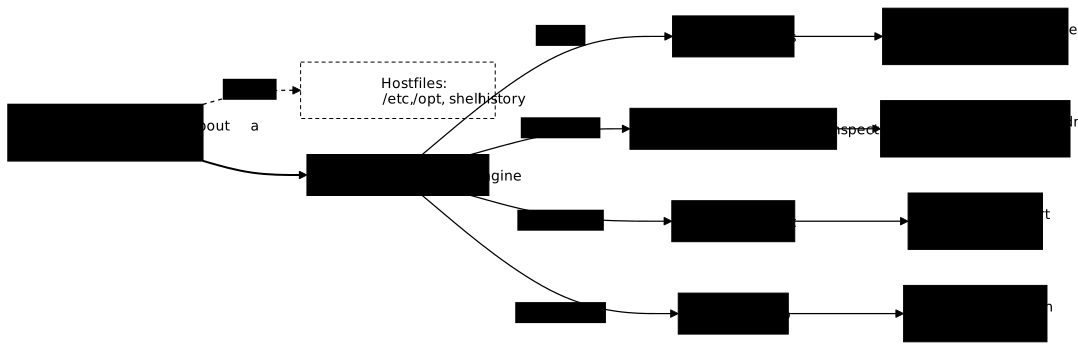
The examples that follow all use the same container named courtier, which you can launch yourself. Its script draws a random opening token, announces it on its output, writes an audit file, then waits; the -p 0:80 option asks the engine to publish the container's port 80 on a free host port.
docker run -d --name courtier -p 0:80 alpine:3.24@sha256:be2656061b536c1883c4034790e21d0a09c5aaaf51968b89368a3c0371ea2c9a sh -c ' jeton=$(head -c 6 /dev/urandom | sha256sum | cut -c1-12) mkdir -p /var/log/courtier date +%s > /var/log/courtier/audit.log echo "courtier: demarrage" echo "courtier: 2 files ouvertes" echo "courtier: jeton-d-ouverture=$jeton" echo "courtier: pret, en attente" exec sleep infinity'The container starts in the background; the outputs below show random values (token, address, port) that will be different on your machine, only their shape matters.
What does a container say at startup, and where do you read it?
docker logs returns everything the container wrote to its standard output and its error output since it started. It is the first command to type, because a service almost always says at startup what it read, what it found, and what it is missing.
docker logs courtiercourtier: demarragecourtier: 2 files ouvertescourtier: jeton-d-ouverture=cf8f20d6ae43courtier: pret, en attenteThis token appears in no configuration. It is not in the image, nor in a file, nor in the command that launched the container: the process drew it at random at startup and only announced it. The container's output is the only place to read it, which is exactly why you start there.
Two options change how you read a chatty container:
# The last two lines, timestamped by the enginedocker logs --timestamps --tail 2 courtier2026-11-01T22:45:10.997237672Z courtier: jeton-d-ouverture=cf8f20d6ae432026-11-01T22:45:10.997238934Z courtier: pret, en attenteThe timestamp comes from the engine, not from the program: it is therefore present even on a service that does not timestamp its own lines, which lets you place an incident in time. --follow follows the output live, and --since 10m returns only the last ten minutes.
With the default logging driver (json-file), the engine keeps these lines in a file it maintains itself on the host, and inspecting the container gives its path:
docker container inspect courtier --format '{{.LogPath}}'/var/lib/docker/containers/7a3cb00b8e3a5c1203ab4098f7e11c02f1b409b8b2d43fb4258e9dfa83bc2312/7a3cb00b8e3a5c1203ab4098f7e11c02f1b409b8b2d43fb4258e9dfa83bc2312-json.logThis file can be read, but it belongs to root: an account that is a member of the docker group gets a Permission denied error on it while docker logs answers it just fine. The path remains useful when you want to measure the size of the logs, or read them from a backup of the host.
Which address did the engine give the container?
The engine assigns an IP address to the container when it creates it, and only inspecting the container says which one. This address is neither in the image nor in the launch command, and it is reassigned at every creation: it is not memorized, it is asked for.
docker container inspect returns a full JSON document, several hundred lines long, holding the state, the requested configuration, the mounts and the network. You do not read it whole: the --format option applies a template (the template syntax of the Go language) and returns only the value you want.
docker container inspect courtier \ --format '{{range .NetworkSettings.Networks}}{{.IPAddress}}{{end}}'172.17.0.2The range goes through the networks the container is attached to, and returns the address on each. On a container attached to the default network, there is only one, hence a single line. To see the network name at the same time, which becomes necessary as soon as a container has several:
docker container inspect courtier \ --format '{{range $reseau, $conf := .NetworkSettings.Networks}}{{$reseau}} {{$conf.IPAddress}}{{end}}'bridge 172.17.0.2Here is what changed, measured on the same machine. NetworkSettings now carries only four keys, SandboxID, SandboxKey, Ports and Networks: the old flat fields IPAddress, Gateway and MacAddress were moved under Networks.<network name>. Engine 29.9.2 serves API 1.56: asking for API 1.51 through the socket, NetworkSettings.IPAddress is still present, and it disappears at API 1.52. An older engine, whose API predates 1.52, therefore still accepts both forms.
The variant that names the network, .NetworkSettings.Networks.bridge.IPAddress, only answers on the default network, called bridge: on a network you created, the name changes and the value is missing. This is why the range, which goes through all the networks without naming them, remains the form to remember.
The rest of the inspection is read with the same mechanism, and two values are worth knowing right away:
# The container state, and the PID of its main process on the hostdocker container inspect courtier --format '{{.State.Status}} {{.State.Pid}}'running 6806This number is a PID, the process identifier assigned by the host: the container's process is an ordinary process of the system, visible in ps. It is the number seen from the host: inside the container, that same process is PID 1. The lesson Namespaces and cgroups: measure a container's isolation details this separation. docker top gives the same information in a more readable form:
docker top courtierUID PID PPID C STIME TTY TIME CMDroot 6806 6782 0 22:45 ? 00:00:00 sleep infinityWhich host port is the container published on?
A published container exposes one of its ports on a host port, and the two numbers have no reason to be the same. This is a common confusion, and it has a simple consequence: a container listening on its port 80 is not necessarily reachable on port 80 of the machine, the host-side number being either chosen by you or drawn by the engine.
docker port courtier80/tcp -> 0.0.0.0:3276880/tcp -> [::]:32768You read from left to right: 80/tcp is the port of the container, 32768 is the port of the host. Two lines appear because publishing happens on both address families, IPv4 then IPv6, with the same host-side number. To query a single mapping:
docker port courtier 80/tcp0.0.0.0:32768[::]:32768This high number is no accident. The container was launched with -p 0:80, which asks the engine to pick a free port in the system's ephemeral range itself: nobody wrote it, and it changes at every creation. The same value is read in the port table of the inspection, which is handy in a script:
docker container inspect courtier \ --format '{{(index .NetworkSettings.Ports "80/tcp" 0).HostPort}}'32768And it is confirmed from the system side, without going through the engine, since it is indeed the host that listens:
ss -ltn | grep 32768LISTEN 0 4096 0.0.0.0:32768 0.0.0.0:*LISTEN 0 4096 [::]:32768 [::]:*Three paths, a single value: that is the sign the measurement is good. Port publishing, its pitfalls and its listening restrictions are the subject of the lesson on publishing a port.
How do you get a file the container wrote out of it?
docker cp copies a file between the container and the host, in both directions, without stopping the container. It is the gesture you make to take away a log, a fingerprint or a dump before destroying a container, because everything the container wrote outside a volume (a storage space managed separately from the container) disappears with it.
The command also works on a stopped container, in both directions. A file copied out of an exited container arrives intact, and a file copied into it is still there at its next start. Files are therefore among the answers that a stop does not destroy.
You first spot the files born after startup, because they are in no image:
docker diff courtierC /varC /var/logA /var/log/courtierA /var/log/courtier/audit.logA marks an addition, C a change, and D a deletion. This list is that of the container's writable layer, that is the modifiable layer the engine places on top of the image's read-only layers, and the only one that belongs to it alone: it says exactly what has moved since launch. The copy is then done by naming the container, a colon, then the internal path, the destination here being the host's current directory:
docker cp courtier:/var/log/courtier/audit.log audit.logA silent transfer is not proof, and the check fits on one line: you read the file again in the container and compare it to the copy.
docker exec courtier cat /var/log/courtier/audit.log | diff - audit.logAn empty output, hence a zero return code, means the two contents are identical byte for byte. docker exec here runs an extra command inside the running container, without disturbing it: the docker exec -it courtier sh command opens a shell, useful to explore, useless to retrieve a file.
What stopping a container makes disappear
Stopping a container to dig into it destroys two of the four answers. The engine keeps neither the IP address nor the port table of a stopped container: these values belong to its active network, which is torn down with it. The measurement is done on a second container, temoin, which also publishes its port 80 on a free host port and does nothing but wait:
docker run -d --name temoin -p 0:80 alpine:3.24@sha256:be2656061b536c1883c4034790e21d0a09c5aaaf51968b89368a3c0371ea2c9a sleep infinityWhile it runs, the inspection returns its address (here [172.17.0.3]) and docker port temoin 80/tcp a host port (here 0.0.0.0:32773 then [::]:32773). You then stop it with docker stop temoin, and ask the same questions:
docker container inspect temoin \ --format '{{range .NetworkSettings.Networks}}[{{.IPAddress}}]{{end}}'[invalid IP]docker port temoin 80/tcpno public port '80/tcp' published for temoinThe inspection does show a network entry, but its address is empty: docker container inspect temoin --format '{{json .NetworkSettings.Networks}}' reads "IPAddress":"" there. The template, for its part, does not handle that string but the engine's IP address type, whose zero value prints as invalid IP instead of printing nothing. The port table is an empty object ({}), and docker port exits with code 1. docker start brings the container back, but the engine then reassigns these values, and nothing guarantees they are the old ones. Measured here, on the default bridge: the host port changed (32773 then 32774), the address came back identical (172.17.0.3) because nobody had taken it in the meantime, and it changed (172.17.0.4) when another container had been launched during the stop. Noting an address and then restarting therefore means holding a value that may be stale.
The logs, however, survive the stop: docker logs still answers on a stopped container, since the engine wrote those lines to its own file as they came. The container's files survive too, since docker cp still copies them out of a stopped container. The rule to remember fits in one sentence: you query a live container, you do not stop it to dig into it.
Troubleshooting: the four common errors
Each row links a symptom met with the commands of this lesson to its cause and to the gesture that fixes it.
| Symptom | Cause | Solution |
|---|---|---|
docker logs returns nothing | The program writes to a file, not to its standard output | docker exec <name> cat <path>, after spotting the file with docker diff |
map has no entry for key "IPAddress" | The flat field was removed from NetworkSettings on recent engines | Switch to {{range .NetworkSettings.Networks}}{{.IPAddress}}{{end}} |
| The service does not answer on the expected port | The container port was mistaken for the host port | docker port <name> and read the number on the right of the arrow |
docker port exits with an error, the address is empty or prints invalid IP | The container was stopped before being queried | docker start <name>, then read all the values again |
How do you clean up after the measurements?
Two containers remain, courtier running and temoin stopped, and a file lingers in the current directory: docker rm -f courtier temoin deletes the former, rm audit.log the latter. The -f option stops a running container before deleting it, which saves a prior docker stop, and the file copied by docker cp is an ordinary host copy, which the engine never deletes on its own.
docker rm -f courtier temoinrm audit.logThe docker rm command prints the names of the deleted containers (courtier then temoin), and docker ps -a --filter name=courtier --filter name=temoin then returns only the table header.
Practice
The lab puts you in front of a container delivered by a contractor who left without documentation: it runs, and that is all that is known about it. The validation does not look at any typed command. It queries the engine at grading time, recomputes the four expected values, then compares them to what you wrote: the token announced at startup, the address given by the engine, the host port, and the file written after startup, copied out of the container, which must be identical byte for byte to the one it holds. The four values are drawn at random at each run, so nothing can be copied from a previous attempt, and a container stopped in order to dig into it costs two checks out of four.
Key points
- A running container leaves almost nothing on the host: the information is held by the engine, and you get it by asking with a command.
docker logsreturns everything the container wrote to its outputs since startup, and it is often the only place where a startup value can be read.docker container inspect --formatextracts a precise value from the state document. For the IP address, the portable form is{{range .NetworkSettings.Networks}}{{.IPAddress}}{{end}}: the flat field.NetworkSettings.IPAddresshas disappeared on Docker 29.9.2.docker porttells the container port, to the left of the arrow, from the host port, to the right. The two can differ, and with random publishing they always differ.docker cpcopies a file out of the container without stopping it, anddocker difftells which ones were written since launch.- A stop destroys the address and the port table, which the engine does not keep, whereas the logs and the files survive. A restart reassigns these values: the port changes, the address may change, and the old readings are worthless.
Knowledge check
Check that the essentials of this guide stuck. The questions cover only what has just been explained here.
Knowledge check
Check what you have learned with this interactive quiz
How it works
- The timer starts when you click Start
- Multiple choice, true/false and short answer questions
- You can move between questions
- Detailed results are shown at the end
Starts the quiz and the timer
Review
(0/0)Score by domain
A domain groups several guides and gets several questions, so its score is more reliable than a per-topic score, which often rests on a single question.
Summary
Strengths
No topic passed at 80% on at least two questions yet.
Weak areas
No topic below the pass mark.
Recommended next
Hints before you try again?
Continue the course: Read a Docker startup failure: exit codes and loops
A new full quiz with random questions
Work again only on the questions you missed