A volume that no container uses is called orphan by Docker, but that does not prove it is useless: it may hold the database of a project you stopped or renamed. This lesson shows you how to find that volume among others, read its contents without any risk, keep a copy that can be read back, reattach it to a Compose service without recreating it, and then delete only what is disposable. The measurements come from a Debian 13 VM with Docker Engine 29.9.2 and Compose 5.6.1.
What you will learn
Each step is checked against the real state of the engine, not against an assumption.
- You tell a named volume from an anonymous volume, and you know what
docker rm,docker rm -vanddocker run --rmdo with each. - You find a volume by its labels, its name or its container, and you read its contents with a disposable container mounted read-only.
- You back up a volume with
tar, then read the archive back before deleting anything. - You reattach the old volume of a renamed Compose project with
external: true, without recreating it. - You predict what
docker volume pruneanddocker compose down -vremove, and you delete a volume by its name only.
Prerequisites
You must know how to create a named volume, see how it differs from an anonymous
volume and filter it with dangling=true: the lesson
Docker volumes: keep your data and mount files
explains it. You must also know the Compose project name and the effect of
down -v, covered in
Persist the data of a recreated stack.
To back up the database of a Compose stack with a logical export rather than a
copy of the volume, the guide
Back up and restore a Compose application
takes over.
Run the blocks in order and in a single terminal: they reuse the IMAGE
variable and the current folder. Every object of the demonstration carries the
c41b-m- prefix, which lets you target them and nothing else. Do not run this
lesson on a host that holds volumes of your own: docker volume ls would show
them too, and you could mistake them for those of the demonstration.
export IMAGE="alpine:3.24.3@sha256:be2656061b536c1883c4034790e21d0a09c5aaaf51968b89368a3c0371ea2c9a"mkdir -p ~/donnees-orphelines/ctx ~/donnees-orphelines/projetcd ~/donnees-orphelinesdocker volume lsDRIVER VOLUME NAMEThe list is empty on the measurement VM. If yours already contains volumes, note them down so you can check at the end that they did not move, but prefer a disposable VM.
What is an orphan volume, and why is it not necessarily useless?
A volume is orphan when no container references it, even a stopped one.
Docker lists it with the dangling=true filter, which groups named volumes and
anonymous volumes without distinction. This filter only says that no container
uses the volume: it says nothing about the value of what the volume contains.
A named volume carries the name you give it, for example
docker volume create c41b-m-data. An anonymous volume is born without a
name, when a container declares a path with no source or when the image declares
a VOLUME instruction: Docker then gives it a name made of 64 hexadecimal
characters. The following Dockerfile declares VOLUME /donnees, after writing a
file in that folder.
cat > ctx/Dockerfile <<EOFFROM $IMAGERUN mkdir /donnees && echo graine > /donnees/graine.txtVOLUME /donneesCMD ["sleep","300"]EOFdocker build -q -t c41b-m-img:1 ctxdocker run -d --name c41b-m-v1 c41b-m-img:1ANON=$(docker inspect -f '{{range .Mounts}}{{.Name}}{{end}}' c41b-m-v1)docker volume lssha256:3e5fd844868389b03664723cfcd37d39ecc4aa0f667dde67e8bd4314e260ed9bfb988cb1a0266f90a6f3b50c5e2dbfed6be3050b600e77a7760f7e6cdcdf8d7bDRIVER VOLUME NAMElocal 7eecf463ce016e35092868234b465ae42e53e9c80d58b32db65843383677c0d6In the last output, look at the name: 64 hexadecimal characters, no readable
name. docker run created this volume by itself, and the ANON variable keeps
its name for the rest of the lesson. What was written in /donnees before
VOLUME is copied into the volume at the first start: graine.txt shows up
again further down.
docker volume inspect confirms its origin: the com.docker.volume.anonymous
label marks an anonymous volume, and CreatedAt gives its creation date in UTC.
docker volume inspect "$ANON"[ { "CreatedAt": "2026-11-04T18:32:38Z", "Driver": "local", "Labels": { "com.docker.volume.anonymous": "" }, "Mountpoint": "/var/lib/docker/volumes/7eecf463ce016e35092868234b465ae42e53e9c80d58b32db65843383677c0d6/_data", "Name": "7eecf463ce016e35092868234b465ae42e53e9c80d58b32db65843383677c0d6", "Options": null, "Scope": "local" }]A mount with no name, such as -v /donnees2, gave the same result: a volume
named with 64 hexadecimal characters. The guide
Docker volumes already shows how to
spot and delete an anonymous volume; this lesson is about what you do with one
when you no longer remember what it was for.
What happens to an anonymous volume when you remove its container?
Removing a container with docker rm leaves its anonymous volume in place.
The volume then becomes orphan: it shows up with dangling=true, and nothing
will delete it until you ask. To remove the volume together with the container,
you need the -v option, or you must start the container with --rm.
The table below sums up what each action leaves behind. The demonstration
removes c41b-m-v1 without -v and checks that its volume stays, orphan: it
also serves as the basis for the following sections.
| Action | Anonymous volume of the container |
|---|---|
docker rm or docker rm -f | stays, orphan |
docker rm -v or docker rm -fv | removed with the container |
docker run --rm | removed when the container stops |
docker rm -f c41b-m-v1docker volume ls --filter dangling=truec41b-m-v1DRIVER VOLUME NAMElocal 7eecf463ce016e35092868234b465ae42e53e9c80d58b32db65843383677c0d6As long as c41b-m-v1 existed, it referenced its volume, which was therefore
not orphan. After docker rm -f, the volume appears in the list, as the first
row of the table says. With -v or --rm, the volume leaves with the
container.
A stopped container, and even a container only created and never
started, keeps its volume referenced. The test below creates a container from
the image that declares VOLUME, lets it stop, then lists the volumes that are
still referenced with dangling=false.
docker run --name c41b-m-v3 c41b-m-img:1 truedocker volume ls --filter dangling=falsedocker rm -v c41b-m-v3DRIVER VOLUME NAMElocal 6b739925f13f30bf22dfdc4aa3b64984bc6d37d67ae7a95d94284406cbba421fc41b-m-v3The volume of c41b-m-v3 appears under dangling=false because the stopped
container still exists. Remember it: a volume that is "not mounted" may still
be referenced, and that is a good thing, since docker volume rm then refuses
to delete it.
How do you find the right volume among several?
You find a volume by its labels, by its name or by the container that references it. Labels are the most direct marker, but they exist only if you set them at creation: a volume with no label can be told apart only by its name or its date. The demonstration therefore creates three named volumes, one of them without a label, and writes data into the first.
docker volume create --label c41b-m-test=1 --label c41b-m-role=donnees c41b-m-datadocker volume create --label c41b-m-test=1 --label c41b-m-role=jetable c41b-m-jetabledocker volume create c41b-m-sanslabeldocker run --rm -v c41b-m-data:/d "$IMAGE" \ sh -c 'echo commande-42 > /d/recu.txt; mkdir /d/sub; echo x > /d/sub/a'docker volume ls --filter dangling=truec41b-m-datac41b-m-jetablec41b-m-sanslabelDRIVER VOLUME NAMElocal 7eecf463ce016e35092868234b465ae42e53e9c80d58b32db65843383677c0d6local c41b-m-datalocal c41b-m-jetablelocal c41b-m-sanslabelAll four volumes are orphan, named or not, and the list does not say which one
holds data. The label filter sorts them out. A key alone, or a key=value
pair, works, and two label filters combine with AND.
docker volume ls --filter dangling=true --filter label=c41b-m-testdocker volume ls --filter label=c41b-m-role=jetabledocker volume ls --filter label=c41b-m-test=1 --filter label=c41b-m-role=donneesDRIVER VOLUME NAMElocal c41b-m-datalocal c41b-m-jetableDRIVER VOLUME NAMElocal c41b-m-jetableDRIVER VOLUME NAMElocal c41b-m-dataThe name filter accepts a substring of the name: --filter name=c41b-m-
found the three named volumes. The --format Go template prints the labels as
key=value,key=value. A volume with no label is recognized by its empty
column.
docker volume ls --filter dangling=true --filter name=c41b-m- \ --format '{{.Name}}|{{.Labels}}'c41b-m-data|c41b-m-role=donnees,c41b-m-test=1c41b-m-jetable|c41b-m-role=jetable,c41b-m-test=1c41b-m-sanslabel|To read one precise value, docker volume inspect --format '{{json .Labels}}'
returns a JSON object.
The other way in is the container. docker ps -a --filter volume= lists the
containers, stopped or only created, that reference a volume; the output is
empty when none does. To see it, create a container that mounts c41b-m-data
on /lu read-only, without starting it.
docker create --name c41b-m-user -v c41b-m-data:/lu:ro "$IMAGE" sleep 300docker ps -a --filter volume=c41b-m-data --format '{{.Names}} {{.Status}}'docker ps -a --filter volume=c41b-m-jetable --format '{{.Names}} {{.Status}}'docker ps -a --filter volume=/lu --format '{{.Names}}'5939ba135634f49dd570b7b35b2cffb2f1e9bf3a74efc0aefa5405e198d84045c41b-m-user Createdc41b-m-userThe first command finds the container, even with the Created status. The
second returns nothing: no container references c41b-m-jetable. The third
shows that the filter also accepts a mount point (/lu). As soon as this
container exists, c41b-m-data goes from dangling=true to dangling=false,
and docker volume rm refuses to delete it.
docker volume rm c41b-m-dataError response from daemon: remove c41b-m-data: volume is in use - [5939ba135634f49dd570b7b35b2cffb2f1e9bf3a74efc0aefa5405e198d84045]This refusal is a safeguard: the engine does not delete a referenced volume, even when the container that references it is not running. It also tells you which container holds it. Remove that container before going on.
docker rm c41b-m-userc41b-m-userHow do you read a volume without attaching it to the service?
To see what a volume contains, mount it read-only in a disposable container.
The :ro suffix forbids any write, so reading changes nothing, and --rm
removes the container at the end. The volume stays orphan, since the container
no longer exists when the command ends.
docker run --rm -v c41b-m-data:/d:ro "$IMAGE" ls -la /ddocker run --rm -v c41b-m-data:/d:ro "$IMAGE" cat /d/recu.txttotal 16drwxr-xr-x 3 root root 4096 Nov 4 18:32 .drwxr-xr-x 1 root root 4096 Nov 4 18:32 ..-rw-r--r-- 1 root root 12 Nov 4 18:32 recu.txtdrwxr-xr-x 2 root root 4096 Nov 4 18:32 subcommande-42Look at the size of recu.txt: 12 bytes, that is commande-42 and its
trailing newline. The same read checks that the protection works: an attempted
write fails with exit code 1.
docker run --rm -v c41b-m-data:/d:ro "$IMAGE" \ sh -c 'echo piege > /d/ecriture.txt'sh: can't create /d/ecriture.txt: Read-only file systemThe long form --mount type=volume,src=c41b-m-data,dst=/d,readonly gives the
same result, and reading also works on an anonymous volume designated by its
64-hexadecimal-character name. Here is the anonymous volume from the start,
which ANON has designated since the container was created: the first command
reads graine.txt, copied from the image, and the second proves that no
container references it. Noting this name while the container existed saves you
from searching among all the orphan anonymous volumes of the host, some of
which are not yours.
docker run --rm -v "$ANON":/d:ro "$IMAGE" cat /d/graine.txtdocker ps -a --filter volume="$ANON"graineCONTAINER ID IMAGE COMMAND CREATED STATUS PORTS NAMESThe docker ps -a command prints only its header: no container references this
volume. You now know what each candidate contains, which keeps you from deleting
a volume on its looks alone.
How do you back up a volume before deleting it?
A backup uses a disposable container that mounts the volume read-only, and a second mount, writable, for the archive. The archive must live outside the volume you may be about to delete, otherwise it disappears with it. Here, a folder on the host plays that role.
mkdir -p /tmp/c41b-m-bakdocker run --rm -v c41b-m-data:/source:ro -v /tmp/c41b-m-bak:/backup \ "$IMAGE" tar -czf /backup/data.tgz -C /source .ls -l /tmp/c41b-m-baktotal 4-rw-r--r-- 1 root root 184 Nov 4 18:32 data.tgzThe archive weighs 184 bytes and belongs to root, since the container writes
as root. An archive that has not been read back proves nothing. Two
complementary reads check it: the list of its contents, which shows that the
files are there, and the contents of one precise file, which shows that it is
readable.
docker run --rm -v /tmp/c41b-m-bak:/backup:ro "$IMAGE" tar -tzf /backup/data.tgzdocker run --rm -v /tmp/c41b-m-bak:/backup:ro "$IMAGE" \ tar -xzOf /backup/data.tgz ./recu.txt././recu.txt./sub/./sub/acommande-42The contents of ./recu.txt are indeed commande-42. To detect a later
alteration, take the checksum of the archive and then verify it with
sha256sum -c: the check answers OK as long as the file is intact.
cd /tmp/c41b-m-bak && sha256sum data.tgz > data.tgz.sha256 && cat data.tgz.sha256 && sha256sum -c data.tgz.sha256cd ~/donnees-orphelines6f951f3499084cd184ef95b023f5b12a1544aed2d4d52b24a0d6195f333a9577 data.tgzdata.tgz: OKA truncated archive is also detected. Cut a copy at 50 bytes, then run the
same read: Alpine's tar answers with exit code 1.
head -c 50 /tmp/c41b-m-bak/data.tgz > /tmp/c41b-m-bak/cass.tgzdocker run --rm -v /tmp/c41b-m-bak:/backup:ro "$IMAGE" tar -tzf /backup/cass.tgztar: unexpected end of filetar: short readThe unexpected end of file message signals a cut archive: never delete a
volume whose only copy gives this answer. One last test proves that the archive
is usable: extracted into a new volume, it gives back the original file.
docker volume create --label c41b-m-test=1 c41b-m-restoredocker run --rm -v c41b-m-restore:/d -v /tmp/c41b-m-bak:/backup:ro \ "$IMAGE" tar -xzf /backup/data.tgz -C /ddocker run --rm -v c41b-m-restore:/d:ro "$IMAGE" cat /d/recu.txtc41b-m-restorecommande-42This copy suits a volume that nobody is writing to. For a running database, use the logical export described in Back up and restore a Compose application.
What happens to the volume when a Compose project is renamed?
Compose names its volumes project_volume: changing the project name changes
the volume name, so Compose creates a new, empty one, and the old one
becomes orphan. The demonstration reproduces it with an Alpine service that
keeps a file in its volume: a real PostgreSQL database is not needed to see
where the data goes.
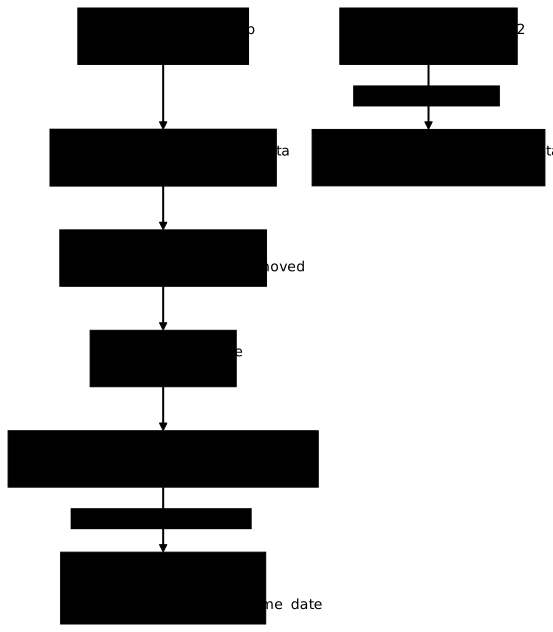
The diagram follows the same path as the commands that come next. Look first at
the branch of the project c41b-m-app2, which creates an empty volume, then at
that of the project c41b-m-app3, which finds the old volume without recreating
it.
Save this file as ~/donnees-orphelines/projet/compose.yaml. The volume carries
a label of your own, so you can find the demonstration again at cleanup time.
The exec command writes a file into the volume, then down removes the
container.
services: db: image: ${IMAGE} command: ["sleep","600"] volumes: - dbdata:/var/lib/datavolumes: dbdata: labels: c41b-m-test: "1"cd ~/donnees-orphelines/projetdocker compose -p c41b-m-app up -ddocker compose -p c41b-m-app exec db sh -c 'echo "ligne-ancienne" > /var/lib/data/etat.txt'docker compose -p c41b-m-app downdocker volume ls --filter name=c41b-m-app --filter dangling=true Network c41b-m-app_default Creating[...] Container c41b-m-app-db-1 Started Container c41b-m-app-db-1 Stopping[...] Container c41b-m-app-db-1 Removed Network c41b-m-app_default RemovedDRIVER VOLUME NAMElocal c41b-m-app_dbdataThe volume stayed after down, and it is orphan. Running the same file again
under another project name, with the -p option, creates a volume that does not
have the data.
docker compose -p c41b-m-app2 up -ddocker compose -p c41b-m-app2 exec db cat /var/lib/data/etat.txtdocker volume ls --filter name=c41b-m-appcat: can't open '/var/lib/data/etat.txt': No such file or directoryDRIVER VOLUME NAMElocal c41b-m-app2_dbdatalocal c41b-m-app_dbdataThe file is not found in the new volume: this is the classic symptom of a
renamed project, "my data has disappeared". It has not disappeared, it is in the
old volume. The com.docker.compose.* labels that Compose sets point to it:
com.docker.compose.project holds the name of the old project, and
com.docker.compose.volume the name of the volume in the file.
docker volume ls --filter dangling=true --filter label=com.docker.compose.project=c41b-m-app \ --format '{{.Name}} {{.Labels}}'docker ps -a --filter volume=c41b-m-app_dbdata --format '{{.Names}} {{.Status}}'docker run --rm -v c41b-m-app_dbdata:/d:ro "$IMAGE" cat /d/etat.txtdocker volume inspect --format '{{.Name}} {{.CreatedAt}}' c41b-m-app_dbdatac41b-m-app_dbdata c41b-m-test=1,com.docker.compose.config-hash=b84a3080856fee3da845527dc5e95d6594d6379216aca293fa56b9ad3a380d4d,com.docker.compose.project=c41b-m-app,com.docker.compose.version=5.6.1,com.docker.compose.volume=dbdataligne-anciennec41b-m-app_dbdata 2026-11-04T18:32:45ZThe label filter found the old volume. The second command printed nothing: no
container references it. The read-only read confirmed ligne-ancienne, and the
last command records the creation date of the volume, to compare further down.
On a real host, the backup from the previous section is required before any
reattachment; the demonstration skips it because this volume is disposable.
Then stop the project that is no longer needed.
docker compose -p c41b-m-app2 downTo reattach the old volume without recreating it, declare it external,
with its exact name. Compose does not create it and does not manage it: it
mounts it as is. The service only needs to read, so the mount is read-only. Save
this file as ext.yaml, in the same folder.
services: db: image: ${IMAGE} command: ["sleep","600"] volumes: - dbdata:/var/lib/data:rovolumes: dbdata: external: true name: c41b-m-app_dbdatadocker compose -p c41b-m-app3 -f ext.yaml up -ddocker compose -p c41b-m-app3 -f ext.yaml exec db cat /var/lib/data/etat.txtdocker compose -p c41b-m-app3 -f ext.yaml exec db sh -c 'echo x > /var/lib/data/n.txt'docker volume inspect --format '{{.Name}} {{.CreatedAt}}' c41b-m-app_dbdata Network c41b-m-app3_default Creating Network c41b-m-app3_default Creating Network c41b-m-app3_default Created Network c41b-m-app3_default Created Container c41b-m-app3-db-1 Creating Container c41b-m-app3-db-1 Created Container c41b-m-app3-db-1 Starting Container c41b-m-app3-db-1 Startedligne-anciennesh: can't create /var/lib/data/n.txt: Read-only file systemc41b-m-app_dbdata 2026-11-04T18:32:45ZLook at three things. The data is served, the write is refused, and the creation
date is the same as the one recorded before the reattachment
(2026-11-04T18:32:45Z): the volume was not recreated. No
Volume ... Creating line appears in the output of up, some of whose lines
show up twice when Compose writes outside an interactive terminal. An external
volume is not removed by down -v: stop this project with down -v and
check that the volume is still there.
docker compose -p c41b-m-app3 -f ext.yaml down -vdocker volume ls --filter name=c41b-m-app_dbdata Container c41b-m-app3-db-1 Stopping[...] Network c41b-m-app3_default RemovedDRIVER VOLUME NAMElocal c41b-m-app_dbdataWhy is a volume name without external dangerous?
Writing only name: c41b-m-app_dbdata in the volumes section, without
external: true, seems to work but exposes the volume: Compose does reuse
the existing volume, but it considers it its own, and a down -v of the new
project deletes it. The following test demonstrates it with nom.yaml, a copy
of ext.yaml without the external: true line. It deletes c41b-m-app_dbdata:
on the demonstration VM, this volume is of no further use, but never replay this
test on a volume that holds real data.
grep -v 'external: true' ext.yaml > nom.yamldocker compose -p c41b-m-app4 -f nom.yaml up -ddocker compose -p c41b-m-app4 -f nom.yaml exec db cat /var/lib/data/etat.txtdocker compose -p c41b-m-app4 -f nom.yaml down -vdocker volume ls --filter name=c41b-m-apptime="2026-11-04T18:33:18Z" level=warning msg="volume \"c41b-m-app_dbdata\" already exists but was created for project \"c41b-m-app\" (expected \"c41b-m-app4\"). Use `external: true` to use an existing volume" Network c41b-m-app4_default Creating[...]ligne-ancienne Container c41b-m-app4-db-1 Removing Volume c41b-m-app_dbdata Removing Volume c41b-m-app_dbdata RemovedDRIVER VOLUME NAMElocal c41b-m-app2_dbdataThe warning of the first up names the problem, but it stops nothing: the data
is served. Then down -v deleted c41b-m-app_dbdata, the volume of another
project, which the final list no longer shows. Only external: true protects
the volume, and that is why the backup comes before any reattachment. Once the
volume is deleted, an external file that designates it does not recreate it,
and replaying ext.yaml shows it.
docker compose -p c41b-m-app3 -f ext.yaml up -decho "exit code: $?"external volume "c41b-m-app_dbdata" not foundexit code: 1This is a safeguard: a typo in the name does not silently produce an empty volume.
Why does a down without -v leave an image volume orphaned?
A docker compose down without -v abandons the anonymous volume that comes
from an image's VOLUME. This volume does not have the
com.docker.compose.project label: the project filter does not find it, and
no later down -v will remove it, since Compose no longer ties it to the
project. The demonstration reuses the c41b-m-img:1 image built earlier, with a
service that declares no volume. It chains an up, a down without -v, a
second up and a down -v.
Save this file as anon.yaml, in the project folder.
services: app: image: c41b-m-img:1cd ~/donnees-orphelines/projetdocker compose -p c41b-m-anon -f anon.yaml up -dV=$(docker inspect -f '{{range .Mounts}}{{.Name}}{{end}}' c41b-m-anon-app-1)docker compose -p c41b-m-anon -f anon.yaml downdocker volume ls --filter dangling=true --filter label=com.docker.compose.project=c41b-m-anondocker volume inspect --format '{{json .Labels}}' "$V"docker compose -p c41b-m-anon -f anon.yaml up -ddocker compose -p c41b-m-anon -f anon.yaml down -vdocker volume ls -q --filter name="$V" Network c41b-m-anon_default Creating[...] Network c41b-m-anon_default RemovedDRIVER VOLUME NAME{"com.docker.volume.anonymous":""} Network c41b-m-anon_default Creating[...] Network c41b-m-anon_default Removed4ca8a39ca46f1e2bedbf3171ec38709cc882d529d94977f478bccd9c6565c8f5The first list by label is empty: the volume has no project label, only
{"com.docker.volume.anonymous":""}. The down without -v therefore left it
orphan. The second up created a different volume from the first, and down -v
did remove the one of the current container: the volume printed by the last
command is the first one, the one that the down without -v had abandoned. A
down -v finds only what Compose ties to the project, and this volume is not
tied. It can be spotted only by dangling=true and by its contents. Read it
back read-only as above before deleting it by name, and back it up if it holds
data.
docker volume rm "$V"4ca8a39ca46f1e2bedbf3171ec38709cc882d529d94977f478bccd9c6565c8f5What does docker volume prune remove, with and without --all?
docker volume prune deletes the orphan volumes, but without --all it
removes only anonymous volumes. With --all, it also removes orphan named
volumes. A volume referenced by a container, even one only created, is never
deleted. The default prompt recalls it:
WARNING! This will remove anonymous local volumes not used by at least one container.
The demonstration prepares a precise state, under a common label c41b-m-prune,
distinct from c41b-m-test: a prune with --all would otherwise also target the
volumes of the previous sections. Three labelled anonymous volumes are created:
that of a started container, that of a container only created, and that of a
container removed without -v, which is the only orphan of the three. On the
named volumes side: one labelled orphan, one attached to a created container,
and one without a label.
docker run -d --name c41b-m-run \ --mount type=volume,dst=/a,volume-label=c41b-m-prune=1 "$IMAGE" sleep 600docker create --name c41b-m-stopped \ --mount type=volume,dst=/a,volume-label=c41b-m-prune=1 "$IMAGE" truedocker create --name c41b-m-gone \ --mount type=volume,dst=/a,volume-label=c41b-m-prune=1 "$IMAGE" truedocker rm c41b-m-gonedocker volume create --label c41b-m-prune=1 c41b-m-n-orphandocker volume create --label c41b-m-prune=1 c41b-m-n-useddocker volume create c41b-m-n-nolabeldocker create --name c41b-m-nuser -v c41b-m-n-used:/n "$IMAGE" truedocker volume ls --filter dangling=true --filter label=c41b-m-prune -q3ae78b972bc95ecd2281bb9d0463f6a3c82b5f9140202a65feed5a3090807f4edb0482628760f62726383aeda6acb107b03bf0cb9ae8fe6d84d537765caaaf2b1559ae4ae4a1ec0a224a00adac21f7d37506c9f9684d7b2f56e4e2d0281ff753c41b-m-gonec41b-m-n-orphanc41b-m-n-usedc41b-m-n-nolabelf27cd73187864635f0035d431728c2e5e43a596df81ef7fe397226723b8653215f55b44d6625bfa2b74c89b5a35e93e8efce8590759be3d8670b56ac8ab478bcc41b-m-n-orphanThe volume-label option of --mount sets a label on the anonymous volume
that Docker creates: it is the way to mark it without giving it a name. The
first lines of the output are the identifiers and names that the creation
commands print; the last two are the list, which shows what prune can reach: one
anonymous and one named volume. Without -f, docker volume prune asks for
confirmation, and with an empty stdin it cancels and deletes nothing. Here is
the prune without --all:
docker volume prune -f --filter label=c41b-m-prunedocker volume ls --filter label=c41b-m-prune -qdocker volume ls -q --filter name=c41b-m-n-Deleted Volumes:5f55b44d6625bfa2b74c89b5a35e93e8efce8590759be3d8670b56ac8ab478bc
Total reclaimed space: 0B05da6f2d3ddd5b08c531e7550f0ac4bc8621870b65016758fb337c1362823109c41b-m-n-orphanc41b-m-n-usedcd23fa2890790174c466808d3df4d697ef3b07cedda6dfc4b1d3ea497ee8082dc41b-m-n-nolabelc41b-m-n-orphanc41b-m-n-usedOnly the orphan anonymous volume is gone. What remains is the two anonymous
volumes attached to a container, the orphan named volume, the attached named
volume and the named volume without a label. The same prune with --all
additionally removes the labelled orphan named volume.
docker volume prune -f --all --filter label=c41b-m-prunedocker volume ls --filter label=c41b-m-prune -qdocker volume ls -q --filter name=c41b-m-n-Deleted Volumes:c41b-m-n-orphan
Total reclaimed space: 0B05da6f2d3ddd5b08c531e7550f0ac4bc8621870b65016758fb337c1362823109c41b-m-n-usedcd23fa2890790174c466808d3df4d697ef3b07cedda6dfc4b1d3ea497ee8082dc41b-m-n-nolabelc41b-m-n-usedThe named volume attached to a container that never started, and the named
volume without a label, stayed: the label of the filter protects the second, and
the container's reference protects the first. --all is therefore the action
that deletes named data: use it only with a filter that designates nothing but
the disposable. The prune also refuses the filter you would need to target the
orphans: dangling is not a valid filter for prune.
docker volume prune -f --all --filter label=c41b-m-prune --filter dangling=trueError response from daemon: invalid filter 'dangling'An anonymous volume that comes from an image's VOLUME has no usable label: a
prune without a filter would touch all the orphan anonymous volumes of the
host, including those that are not yours. Delete it by its name, like any volume
you have doubts about.
How do you remove only what is disposable?
Delete by exact name, after checking the three pieces of information that decide: the labels, the container that references the volume, and the contents. Each check rules out a dangerous case: a label that does not match the project, a stopped container that holds the volume, contents that nobody has backed up.
docker volume inspect --format '{{json .Labels}}' c41b-m-jetabledocker ps -a --filter volume=c41b-m-jetable --format '{{.Names}} {{.Status}}'docker run --rm -v c41b-m-jetable:/d:ro "$IMAGE" ls -la /ddocker volume rm c41b-m-jetable{"c41b-m-role":"jetable","c41b-m-test":"1"}total 8drwxr-xr-x 2 root root 4096 Nov 4 18:32 .drwxr-xr-x 1 root root 4096 Nov 4 18:33 ..c41b-m-jetableThe four commands answered in order: the label, an absent container (the output is empty), the empty contents of the folder, then the name of the deleted volume.
If the volume is still referenced, docker volume rm answers volume is in use
and stops: do not force it, first remove the container that holds it, after
checking that it is disposable too. To make the next sorting possible, set your
own labels at creation: --label for docker volume create, and labels:
under the volume in compose.yaml. The c41b-m-data volume of this lesson
carried c41b-m-role=donnees, and that label is what set it apart from
c41b-m-jetable at a glance.
How do you clean up the demonstration?
First remove the containers, then the volumes, the image and the folders created
for the lesson. Each command targets the c41b-m- prefix, never a whole
category: your other resources stay in place. The cleanup deletes the volumes of
the demonstration by their labels and names, and the anonymous volume of
c41b-m-v1 by its exact name.
cd ~docker ps -aq --filter name=c41b-m- | xargs -r docker rm -fvdocker volume rm "$ANON"docker volume ls -q --filter label=c41b-m-test | xargs -r docker volume rmdocker volume ls -q --filter label=c41b-m-prune | xargs -r docker volume rmdocker volume ls -q --filter name=c41b-m- | xargs -r docker volume rmdocker volume ls -q --filter label=com.docker.compose.project=c41b-m-app | xargs -r docker volume rmdocker image ls -q --filter reference='c41b-m-*' | xargs -r docker image rmrm -rf /tmp/c41b-m-bak ~/donnees-orphelinesdocker volume lsDRIVER VOLUME NAMEThe last command must return the starting list. The anonymous volume of
c41b-m-v1 has no label: the cleanup deleted it separately, by the name that
ANON has kept since the beginning. The Alpine image pulled for the lesson
stays in place.
Put it into practice
The lab has you practice the same sequence on a Compose project whose service
has lost its volume. Two volumes are orphan, one holds data to keep, the other is
disposable. You reconnect the volume to keep to the service, read-only, without
recreating it, then you delete only the disposable volume, after reading its
labels. The statement forbids docker volume prune, docker system prune and
the deletion of a volume without a label or unrelated to the lab. Its tests check
that a service is running with the original volume mounted read-only, that its
ownership labels are intact, that its creation date has not changed, that the
data served is identical to what is expected, and that the disposable volume is
gone. The names, paths and values differ from those of the demonstration.
Key points
An orphan volume is judged on its contents, not on its status.
- A volume is orphan when no container, even stopped or only created,
references it:
dangling=truesays nothing about the value of its data. docker rmleaves the container's anonymous volume;docker rm -vanddocker run --rmremove it with the container.- You find a volume by its labels, by
--filter name=(substring) or bydocker ps -a --filter volume=, then you read its contents with a disposable container mounted with:ro. - You back up with
taroutside the volume, then you read the archive back withtar -tzfandsha256sum -c:unexpected end of filesignals a truncated archive. - A renamed Compose project creates an empty volume; the old one is found by
com.docker.compose.projectand reattached withexternal: true, never withname:alone, whose volumedown -vdeletes. - A
docker compose downwithout-vabandons the anonymous volume of an image'sVOLUME: it has no project label, and no laterdown -vfinds it. Delete it by its name. docker volume prunewithout--allremoves orphan anonymous volumes, with--allorphan named volumes too; alabelfilter bounds the effect, and thedanglingfilter is refused.- You delete by exact name, after reading the labels, the container and the contents.
Knowledge check
Check that you can predict what a deletion leaves or removes, and that you find the right volume before acting.
Knowledge check
Check what you have learned with this interactive quiz
How it works
- The timer starts when you click Start
- Multiple choice, true/false and short answer questions
- You can move between questions
- Detailed results are shown at the end
Starts the quiz and the timer
Review
(0/0)Score by domain
A domain groups several guides and gets several questions, so its score is more reliable than a per-topic score, which often rests on a single question.
Summary
Strengths
No topic passed at 80% on at least two questions yet.
Weak areas
No topic below the pass mark.
Recommended next
Hints before you try again?
Continue the course: Exam: harden a service without breaking it
A new full quiz with random questions
Work again only on the questions you missed