On Debian 13, sudo apt install docker.io does install a Docker, but it is Docker 26. The official Docker repository offers version 29.9.2. This lesson has you install Docker Engine from that official repository, naming every version: Engine 29.9.2, containerd 2.4.2, Compose 5.6.1 and Buildx 0.38.1. This is called pinning them. You then gather four proofs that the installation is right: the expected versions and where they come from, the service active and enabled at boot, an account that drives Docker without sudo, and a container that runs.
This lesson is for you if you know what a container is and want an environment where you know every version. Only the installation on Debian 13 was replayed. Docker Desktop, macOS and Windows are described, not replayed, and the lesson reminds you of it whenever it matters.
What you will learn
- Tell Docker Engine, Docker Desktop and a Linux virtual machine apart
- Explain why you install from the official Docker repository and not from the distribution's one
- Install Engine, Buildx and Compose in a pinned version on Debian 13
- Record the versions, the CPU architecture and the context of an environment
- Check that an engine is usable, not just installed
- Diagnose the three failures that follow an installation
Prerequisites
You must know what a container is: an isolated process that shares the kernel of the machine. This is what the lesson on containers and virtual machines establishes. You also need to have read the anatomy of a Docker command, which explains what the client, the daemon and the context are, the things this lesson has you record.
As for the machine, you need a disposable Debian 13 VM or server (codename trixie), an account with sudo and network access. The installation changes the packages of the system. Do not do it on a machine you want to keep untouched.
Docker Engine, Docker Desktop or a VM: which one to install?
Docker Engine is made of the dockerd daemon, which runs the containers, and the docker client, the command you type. The anatomy of a Docker command details these two roles. Engine runs directly on the Linux kernel of the machine. You install it on a server or on a working VM, and this is what this course uses.
A Linux container needs a Linux kernel. Docker Desktop, offered for macOS, Windows and Linux, therefore runs Engine inside a virtual machine that it manages itself, and adds a graphical interface. Your docker client then talks to a daemon that lives in that VM. This is why file paths, networking and performance differ from a native Linux. Desktop requires a paid license from large organizations. Read the Docker subscription terms before installing it in a company.
The diagram puts the two cases side by side. Look at where the daemon sits: directly on the machine with Engine, inside a VM with Desktop. The client is the same in both cases.
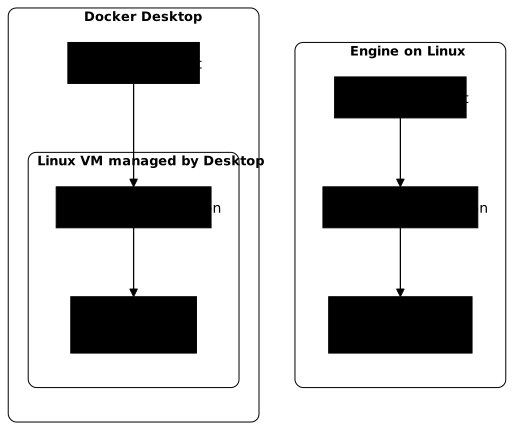
The table lists these cases and shows which ones the lesson replayed.
| Environment | Where the daemon runs | Replayed in this lesson |
|---|---|---|
| Engine on Linux (Debian 13) | Directly on the host | Yes |
| Docker Desktop on macOS or Windows | In a VM managed by Desktop | No, described |
| Docker Desktop on Linux | In a VM managed by Desktop | No, described |
| A Linux VM that you administer | Engine installed in the VM | Yes, this is the Debian 13 case |
One point remains to know before installing: the processor architecture. A common PC or server is amd64, also called x86_64. An Apple Silicon Mac or an ARM server is arm64, which the Linux kernel names aarch64. Packages, and above all images, exist per architecture. An image built for one does not run as is on the other. Record it from the installation: if a container refuses to start, you will already know whether the architecture is the cause.
Why not the docker.io package from Debian?
Debian 13 ships docker.io as Docker 26, whereas the vendor publishes 29. Between the two, inspection fields disappear, error messages change and options evolve. Documentation written for 29 cannot be checked on 26.
The official repository download.docker.com provides five main packages: docker-ce (the daemon), docker-ce-cli (the client), containerd.io, docker-compose-plugin and docker-buildx-plugin. containerd.io is the component that actually starts the containers for the daemon. docker-compose-plugin adds the docker compose command, which manages an application made of several containers, and docker-buildx-plugin the docker buildx command, which builds images.
APT, the Debian package manager, also installs the packages that docker-ce recommends without requiring them, because it follows recommendations by default. On a fresh machine, these are docker-ce-rootless-extras, git and pigz, and each brings its own dependencies. The command of this lesson also names docker-ce-rootless-extras, to pin its version. You therefore ask for six packages, but APT installs 22 in total. The complete list appears in the installation output, further down.
The next diagram shows the two possible sources on the left, the packages of the official repository in the middle and what they install on the machine on the right. Look at the dotted line: it is the path that this lesson rules out.
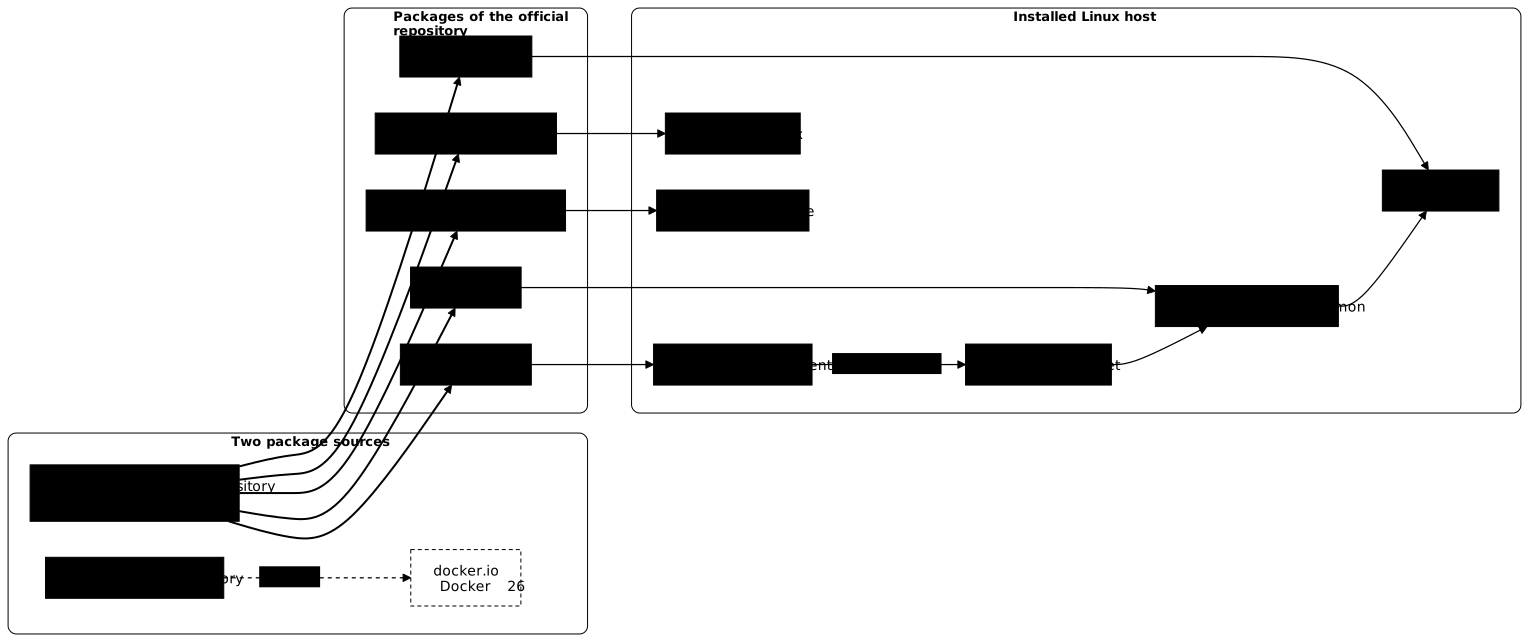
Installing from the vendor's repository means trusting a second package provider. You declare its signing key, then its repository, and APT then checks every package with that key. You thus follow the vendor's pace. This is also why you pin the version: an automatic update must not change your Docker version without your decision.
How to install Docker Engine 29.9.2 on Debian 13?
The procedure follows the official installation documentation for Debian and takes five steps: remove the conflicting packages, declare the key, declare the repository, choose the versions, then install.
Remove the conflicting packages
The packages of the distribution (docker.io, containerd, runc…) conflict with those of the official repository. This command comes from the official documentation. It removes only the packages that are actually installed, and does nothing on a fresh machine.
sudo apt-get remove $(dpkg --get-selections docker.io docker-compose docker-doc docker-buildx podman-docker containerd runc | cut -f1)dpkg: no packages found matching docker.iodpkg: no packages found matching docker-composedpkg: no packages found matching docker-docdpkg: no packages found matching docker-buildxdpkg: no packages found matching podman-dockerdpkg: no packages found matching containerddpkg: no packages found matching runcReading package lists...Building dependency tree...Reading state information...0 upgraded, 0 newly installed, 0 to remove and 1 not upgraded.The dpkg: no packages found lines confirm that no conflicting package is installed, and the last line that APT removed nothing. The count of "not upgraded" packages depends on your machine and on the date of the image: the installation block, further down, shows 3. You can ignore it.
Declare the signing key and the repository
The key lets APT check that the packages really come from Docker. This first block downloads it into /etc/apt/keyrings/. The repository is then declared in a file in the .sources format, where each field sits on its own line.
sudo apt-get updatesudo apt-get install -y ca-certificates curlsudo install -m 0755 -d /etc/apt/keyringssudo curl -fsSL https://download.docker.com/linux/debian/gpg -o /etc/apt/keyrings/docker.ascsudo chmod a+r /etc/apt/keyrings/docker.asc[...]Hit:6 https://deb.debian.org/debian-security trixie-security InReleaseReading package lists...[...]0 upgraded, 0 newly installed, 0 to remove and 1 not upgraded.There is nothing special to read in this output. It only shows that the commands finished without error. You now declare the repository.
sudo tee /etc/apt/sources.list.d/docker.sources <<EOFTypes: debURIs: https://download.docker.com/linux/debianSuites: $(. /etc/os-release && echo "$VERSION_CODENAME")Components: stableArchitectures: $(dpkg --print-architecture)Signed-By: /etc/apt/keyrings/docker.ascEOFsudo apt-get updateGet:1 file:/etc/apt/mirrors/debian.list Mirrorlist [30 B]Get:3 file:/etc/apt/mirrors/debian-security.list Mirrorlist [39 B]Hit:2 https://deb.debian.org/debian trixie InReleaseGet:7 https://download.docker.com/linux/debian trixie InRelease [32.5 kB]Hit:4 https://deb.debian.org/debian trixie-updates InReleaseGet:8 https://download.docker.com/linux/debian trixie/stable amd64 Packages [51.9 kB]Hit:5 https://deb.debian.org/debian trixie-backports InReleaseHit:6 https://deb.debian.org/debian-security trixie-security InReleaseFetched 84.4 kB in 0s (632 kB/s)Reading package lists...The tee command first echoes to the screen the six lines it writes into the file, with the codename and the architecture already substituted. The output above keeps only that of apt-get update. Look at the line https://download.docker.com/linux/debian trixie/stable amd64 Packages: it shows that APT did read the new repository.
The two Mirrorlist lines come from the Debian cloud image used for this lesson, which declares its mirrors in /etc/apt/mirrors/. A machine whose sources point directly to a mirror does not show them.
The Suites and Architectures lines of the file fill themselves in. They take the codename (trixie) and the architecture of your machine, and these are the ones the repository will serve.
Choose the versions to install
apt-cache madison lists the versions that the repository offers for a package. The first four commands below look in it for the wanted version of Engine, Compose, Buildx and containerd, and keep its exact name. You have nothing to copy by hand. The last command prints the four names before any installation.
VERSION_ENGINE=$(apt-cache madison docker-ce | awk '/29\.9\.2/ {print $3; exit}')VERSION_COMPOSE=$(apt-cache madison docker-compose-plugin | awk '/5\.6\.1/ {print $3; exit}')VERSION_BUILDX=$(apt-cache madison docker-buildx-plugin | awk '/0\.38\.1/ {print $3; exit}')VERSION_CONTAINERD=$(apt-cache madison containerd.io | awk '/2\.4\.2/ {print $3; exit}')echo "$VERSION_ENGINE $VERSION_COMPOSE $VERSION_BUILDX $VERSION_CONTAINERD"5:29.9.2-1~debian.13~trixie 5.6.1-1~debian.13~trixie 0.38.1-1~debian.13~trixie 2.4.2-3~debian.13~trixieapt-cache madison lists several revisions of containerd 2.4.2 (2.4.2-3, 2.4.2-2, 2.4.2-1). awk keeps the first line, hence the most recent revision. If one of the four variables is empty, the repository no longer offers that version. Do not install in that case. List what exists with apt-cache madison docker-ce and choose knowingly.
Install pinned versions
To pin a version is to name it in the command (package=version). Without it, APT installs the most recent one, and two machines installed a month apart no longer have the same Docker version. The second command, apt-mark hold, then forbids APT from updating these packages.
sudo apt-get install -y \ docker-ce="$VERSION_ENGINE" \ docker-ce-cli="$VERSION_ENGINE" \ docker-ce-rootless-extras="$VERSION_ENGINE" \ containerd.io="$VERSION_CONTAINERD" \ docker-buildx-plugin="$VERSION_BUILDX" \ docker-compose-plugin="$VERSION_COMPOSE"sudo apt-mark hold docker-ce docker-ce-cli docker-ce-rootless-extras containerd.io docker-buildx-plugin docker-compose-pluginThe following additional packages will be installed: dbus-user-session git git-man libcurl3t64-gnutls liberror-perl libgdbm-compat4t64 libjansson4 libnftables1 libngtcp2-16 libngtcp2-crypto-gnutls8 libperl5.40 nftables patch perl perl-modules-5.40 pigz[...]The following NEW packages will be installed: containerd.io dbus-user-session docker-buildx-plugin docker-ce docker-ce-cli docker-ce-rootless-extras docker-compose-plugin git git-man libcurl3t64-gnutls liberror-perl libgdbm-compat4t64 libjansson4 libnftables1 libngtcp2-16 libngtcp2-crypto-gnutls8 libperl5.40 nftables patch perl perl-modules-5.40 pigz0 upgraded, 22 newly installed, 0 to remove and 3 not upgraded.[...]Setting up docker-buildx-plugin (0.38.1-1~debian.13~trixie) ...Setting up containerd.io (2.4.2-3~debian.13~trixie) ...Created symlink '/etc/systemd/system/multi-user.target.wants/containerd.service' → '/usr/lib/systemd/system/containerd.service'.Setting up docker-compose-plugin (5.6.1-1~debian.13~trixie) ...Setting up docker-ce-cli (5:29.9.2-1~debian.13~trixie) ...Setting up docker-ce-rootless-extras (5:29.9.2-1~debian.13~trixie) ...Setting up docker-ce (5:29.9.2-1~debian.13~trixie) ...Created symlink '/etc/systemd/system/multi-user.target.wants/docker.service' → '/usr/lib/systemd/system/docker.service'.Created symlink '/etc/systemd/system/sockets.target.wants/docker.socket' → '/usr/lib/systemd/system/docker.socket'.docker-ce set on hold.docker-ce-cli set on hold.docker-ce-rootless-extras set on hold.containerd.io set on hold.docker-buildx-plugin set on hold.docker-compose-plugin set on hold.The six set on hold lines at the end of the output confirm that the hold is in place. From now on, apt upgrade no longer moves these packages forward, containerd included. Docker changes version only on the day you decide it.
The command also names the version of docker-ce-rootless-extras, and the hold covers it. This package is not essential for the engine to work, and the install command of the official documentation does not mention it. But APT installs it, because docker-ce recommends it, and nothing ties its version to that of Docker Engine: without a named version, APT takes the most recent one. Measured on 2026-11-04, it was installed that way as 29.9.3 next to a 29.9.2 engine. On the day you change version, you remove the hold with apt-mark unhold, then replay the procedure with the new version.
According to the official documentation, the Docker service starts by itself at installation on Debian. Do not take it for granted: the section "How to check that the installation is right?" checks it.
What should you record to describe a Docker environment?
A Docker environment is described by six facts: the client version, the daemon version, those of the two Compose and Buildx plugins, the architecture and the active context. Record them in that order. You get a description that you can paste into a ticket or compare with a colleague's. These six facts describe the environment, they do not yet prove that the installation is right: the proofs come in the next section.
Your account does not belong to the docker group yet, you add it further down. The daemon socket, the file through which the client talks to it, is open only to root and to this group. Here, the commands that reach the daemon are therefore run with sudo. Those that only read the client configuration do not need it: docker compose version, docker buildx version and docker context.
sudo docker versiondocker compose versiondocker buildx versionClient: Docker Engine - Community Version: 29.9.2 API version: 1.56 Go version: go1.26.10 Git commit: a82e528 Built: Tue Oct 20 18:45:13 2026 OS/Arch: linux/amd64 Context: default
Server: Docker Engine - Community Engine: Version: 29.9.2 API version: 1.56 (minimum version 1.40) Go version: go1.26.10 Git commit: 0367cbe Built: Tue Oct 20 18:45:13 2026 OS/Arch: linux/amd64 Experimental: false containerd: Version: v2.4.2 GitCommit: b7a25261e029d68978bbf290df0a62fc819b3c51 runc: Version: 1.5.2 GitCommit: v1.5.2-0-g29dd3dc2 docker-init: Version: 0.19.0 GitCommit: de40ad0
Docker Compose version v5.6.1
github.com/docker/buildx v0.38.1 0dbe87f36ed472fe36b6796c3f70b4210a731fc5docker version prints two blocks, Client and Server. First check that both versions are 29.9.2. The Server block appears only if the client reached the daemon. Otherwise, the client prints a connection error (permission denied, Cannot connect or failed to connect). It points to a missing right or an unreachable daemon, not to an unknown version. The two other commands read the version of the plugins, programs separate from Docker Engine: Compose 5.6.1 and Buildx 0.38.1.
You record the architecture in three places, and the three must match down to the name: the machine, the installed package and the daemon.
uname -mdpkg --print-architecturesudo docker info --format '{{.OSType}}/{{.Architecture}}'x86_64amd64linux/x86_64The three names designate the same architecture: x86_64 for the kernel, amd64 for Debian and linux/x86_64 for the daemon. Each tool uses its own vocabulary. On an ARM machine, uname -m prints aarch64 and dpkg --print-architecture prints arm64: it is still the same architecture, named twice. What remains is the active context, which says which daemon the client talks to.
docker context showdocker context lsdefaultNAME DESCRIPTION DOCKER ENDPOINT ERRORdefault * Current DOCKER_HOST based configuration unix:///var/run/docker.sockAs a reminder, a context is the named target that the client aims at. It can be the local socket, a remote host or the daemon of the Docker Desktop VM. The anatomy of a Docker command details it. On a fresh Engine installation, the context is default, the local socket. On Docker Desktop, the active context is Desktop's own: it points to a local endpoint on your workstation, which Desktop relays to the daemon of its VM. This is a difference to know before comparing two machines.
What remains is the functional test. A container that starts proves the whole chain, from the client to the process, through the daemon and containerd. The image is Alpine, pinned by its digest, a fingerprint that identifies it without ambiguity. The command prints the architecture seen from inside the container.
sudo docker run --rm alpine:3.24@sha256:be2656061b536c1883c4034790e21d0a09c5aaaf51968b89368a3c0371ea2c9a uname -mUnable to find image 'alpine:3.24@sha256:be2656061b536c1883c4034790e21d0a09c5aaaf51968b89368a3c0371ea2c9a' locallydocker.io/library/alpine@sha256:be2656061b536c1883c4034790e21d0a09c5aaaf51968b89368a3c0371ea2c9a: Pulling from library/alpine7b229517ed22: Pulling fs layer7b229517ed22: Download complete3da1513d2124: Download complete3ec36f3670df: Download complete7b229517ed22: Pull completeDigest: sha256:be2656061b536c1883c4034790e21d0a09c5aaaf51968b89368a3c0371ea2c9aStatus: Downloaded newer image for alpine@sha256:be2656061b536c1883c4034790e21d0a09c5aaaf51968b89368a3c0371ea2c9ax86_64On the first run, Docker downloads the image from Docker Hub. These are the Pulling and Download complete lines. The last line, x86_64, is the architecture seen from the container, and it must be the same as the one recorded above. If this test fails while docker version displayed fine, the network or the DNS is the more likely cause, not the installation.
How to check that the installation is right?
An installation is right when four things are true at the same time: the installed versions are the expected ones and come from Docker's repository, the service is active and enabled at boot, your account talks to the daemon without sudo, and a container runs. Check them one by one, because each can fail on its own. An installed package proves nothing about the other three.
Start with the versions and where they come from. apt-cache policy shows the repository the package comes from. If the line of the installed version points to download.docker.com, it is the Docker package and not the Debian one. The second command prints the client version, then the daemon version.
apt-cache policy docker-cesudo docker version --format '{{.Client.Version}} {{.Server.Version}}'docker-ce: Installed: 5:29.9.2-1~debian.13~trixie Candidate: 5:29.9.2-1~debian.13~trixie Version table: *** 5:29.9.2-1~debian.13~trixie 500 500 https://download.docker.com/linux/debian trixie/stable amd64 Packages 100 /var/lib/dpkg/status[...]29.9.2 29.9.2You must read download.docker.com under the installed version, then 29.9.2 29.9.2: the client and the daemon have the same version.
Next comes the service. is-active answers the question "is it running now?" and is-enabled answers "will it come back at the next reboot?". The two questions are independent, and only a reboot of the machine really confirms the second. Here you expect active then enabled.
systemctl is-active dockersystemctl is-enabled dockeractiveenabledFinally, check the rights. By default, only root opens the daemon socket. If you add your account to the docker group, you no longer need sudo. In usermod -aG docker, the -a option adds the group to the existing list. Without -a, -G replaces the whole list: the account loses its other groups, sudo included. Another trap: Linux reads the groups of an account only at login, so the session that is already open does not see the change. id -nG lists the groups of your session, getent group docker those that the system has recorded.
sudo usermod -aG docker "$USER"id -nGgetent group dockerstudent sudodocker:x:989:ansible,studentThe group number and the member list depend on the machine. On yours, the docker line ends with your name, after any other accounts already allowed. Here, ansible is the account that built the test machine. Only the presence of your name matters. id -nG does not list docker yet, so the open session did not take the change into account.
Log in again, or open a shell that takes the group into account with newgrp docker. Then rerun the test container of the previous section without sudo. It must print the same architecture as the test made with sudo, with no permission denied message. If it runs, your rights and the container are checked, and with the versions and the service, the four proofs are gathered.
The daemon settings, such as the daemon.json file, belong to the daemon configuration (in French). They are not needed for these checks.
What about Docker Desktop, macOS or Windows?
These platforms are described here, not replayed. The procedure below summarizes the official documentation, but it was not run for this lesson.
On macOS and Windows, you download the Docker Desktop installer from the official product page and run it. It installs the client, Compose, Buildx and a Linux VM that hosts Engine. On a Mac, choose the package that matches your processor: Apple Silicon (arm64) or Intel (amd64).
On Windows, the Docker Desktop installation documentation requires Windows 10 version 22H2 or Windows 11 version 23H2 or later, 64-bit, with virtualization enabled in the BIOS or UEFI. It also lists the supported Windows editions: check them before installing.
Desktop ships its own version of Engine, which is not the one of this lesson. Read it with docker version, run without sudo, as in the section "What should you record to describe a Docker environment?". The OS/Arch line of that output also gives the architecture. The other commands of this lesson (apt-cache policy, systemctl, usermod, sudo) are specific to Linux and make no sense on macOS or Windows.
The same six facts can be recorded, with particular attention to the context. On Desktop, the context points to a local endpoint on your workstation, a socket on macOS, a named pipe on Windows, which Desktop relays to the daemon of its VM. To reproduce exactly the Docker of this lesson, the most direct way remains a Debian 13 VM that you administer. The client of your workstation can connect to it through a remote context.
What to do when the installation does not work?
Three failures come back after a package installation. The table links each symptom to its probable cause and to the command that confirms it.
| Symptom | Probable cause | Check then fix |
|---|---|---|
docker version shows a version 26 server, or docker compose is not found | The docker.io package of the distribution is still installed, or the official Docker repository is not declared | apt-cache policy docker-ce and dpkg -l docker.io; remove the distribution package, check the .sources file, rerun the pinned installation |
permission denied on the daemon socket | The account does not belong to the docker group, or the open session has not taken it into account yet | id -nG; add the account to the group, then log in again |
Cannot connect to the Docker daemon, or failed to connect to the docker API with no such file or directory | The service is stopped, disabled or failed at startup | systemctl status docker and sudo journalctl -u docker -n 50; start the service with sudo systemctl enable --now docker, then check the rights again |
apt-cache policy docker-ceid -nGsystemctl status dockerdocker-ce: Installed: 5:29.9.2-1~debian.13~trixie Candidate: 5:29.9.2-1~debian.13~trixie Version table: *** 5:29.9.2-1~debian.13~trixie 500 500 https://download.docker.com/linux/debian trixie/stable amd64 Packages 100 /var/lib/dpkg/status[...]
student sudo docker
● docker.service - Docker Application Container Engine Loaded: loaded (/usr/lib/systemd/system/docker.service; enabled; preset: enabled) Active: active (running) since Mon 2026-11-02 06:44:53 UTC; 38s ago Invocation: 31a16f5425184bc3a2f7173b292a0162TriggeredBy: ● docker.socket Docs: https://docs.docker.com Main PID: 4615 (dockerd) Tasks: 11 Memory: 42.3M (peak: 46.1M) CPU: 414ms CGroup: /system.slice/docker.service └─4615 /usr/bin/dockerd -H fd:// --containerd=/run/containerd/containerd.sockThis output is that of a healthy installation. The listed repository is download.docker.com, id -nG lists docker and systemctl status shows Active: active (running). If one of these lines differs, look for the matching failure in the table.
The last two symptoms are told apart by their exact message, recorded on Docker 29.9.2 with docker ps. The third takes two forms, depending on whether the socket file still exists. Without the docker group, the client stops on the access right to the socket. With the group but without the service (sudo systemctl stop docker.service docker.socket), it finds no daemon. If in addition the machine rebooted while the service is disabled, the socket file no longer exists.
permission denied while trying to connect to the docker API at unix:///var/run/docker.sockCannot connect to the Docker daemon at unix:///var/run/docker.sock. Is the docker daemon running?failed to connect to the docker API at unix:///var/run/docker.sock; check if the path is correct and if the daemon is running: dial unix /var/run/docker.sock: connect: no such file or directorypermission denied comes from the rights of the socket file (root:docker, mode 0660). It says nothing about the state of the daemon. It also appears when the service has just been stopped, as long as the account is not in the group.
Cannot connect appears for an account of the docker group when the socket file is still there but the service is stopped. After a reboot with the service disabled, the file no longer exists: all accounts, in the group or not, then receive failed to connect, with no such file or directory at the end of the message. In both cases, the daemon does not answer.
So read the message before acting. If it talks about permission, fix the rights. If it says the daemon does not answer or the socket does not exist, bring the service back first, with sudo systemctl enable --now docker, then check the rights again: an account outside the group then receives permission denied, and that is the time to add it.
Putting it into practice
The lab gives you a machine where Docker is "installed" and nothing works as announced. The validation reads the state of the system, never your commands. It checks that the service answers, that it will restart with the machine, that your account belongs to the group that opens the socket and that a container was really run. Two different paths that lead to the same state both succeed.
The validation does not compare versions: the first proof, the expected versions and where they come from, remains for you to record with the commands of the section "How to check that the installation is right?".
Key points
An installed Docker is not yet a usable Docker. There are four proofs to gather: the expected versions and where they come from, the service active and enabled, the account that drives Docker without sudo, and a container that runs.
On Debian 13, the docker.io package of the distribution gives a Docker 26. The reference is the official repository download.docker.com and its five main packages, docker-ce, docker-ce-cli, containerd.io, docker-buildx-plugin and docker-compose-plugin. You install them in a pinned version (Engine 29.9.2, containerd 2.4.2, Compose 5.6.1, Buildx 0.38.1), with docker-ce-rootless-extras, which docker-ce recommends and whose version is also named. You then hold them with apt-mark hold.
Docker Desktop runs Engine in a virtual machine, with its own context and its own version.
Six facts describe an environment: the client version, the daemon version, those of Compose and Buildx, the processor architecture (amd64 or arm64, which uname -m names x86_64 or aarch64, because images exist per architecture) and the active context. You record them with docker version, docker compose version, docker buildx version, uname -m and docker context show, then a test container confirms the architecture. The three classic failures are recognized by their message. A version 26 server points to the wrong package, permission denied to a missing right, Cannot connect or failed to connect to a stopped daemon or a missing socket. Finally, the docker group gives root rights on the machine.
Knowledge check
Check that the essentials of this guide stuck. The questions cover only what has just been explained here.
Knowledge check
Check what you have learned with this interactive quiz
How it works
- The timer starts when you click Start
- Multiple choice, true/false and short answer questions
- You can move between questions
- Detailed results are shown at the end
Starts the quiz and the timer
Review
(0/0)Score by domain
A domain groups several guides and gets several questions, so its score is more reliable than a per-topic score, which often rests on a single question.
Summary
Strengths
No topic passed at 80% on at least two questions yet.
Weak areas
No topic below the pass mark.
Recommended next
Hints before you try again?
Continue the course: Run a Docker container and choose what it runs
A new full quiz with random questions
Work again only on the questions you missed