You have a working Docker and an image to run. The docker run command turns that image into an isolated process, the container. What you add to the command (a name, variables, arguments) decides what that process does. This lesson teaches you to run a container, to configure it from the outside without touching the image, and to predict which command it will execute.
One trap comes back often. Two images that look identical react differently to the same argument, because their commands are not declared the same way. By the end of the page, you will know how to read that declaration and predict the effect of an argument before running anything.
What you will learn
- Run a container in the foreground, then in the background, and find its output again
- Name a container and understand why a name can be used only once
- Run a command in a running container, with
docker exec - List, stop and remove a container, three actions that do not overlap
- Configure a service through environment variables, and prove it with a request
- Read the exit code of a command that cannot be found or of an option that Docker refuses
- Tell
ENTRYPOINTandCMDapart, and predict what the arguments ofdocker runreplace
Prerequisites
You need a working Docker (Docker installation) and the notion of a container, explained in the lesson on containers and virtual machines. An image is the template, made of files and metadata, from which a container starts. The outputs of this page were recorded on Docker Engine 29.9.2.
The images used are pinned by their digest, the SHA-256 fingerprint that designates an image without ambiguity. A tag such as 3.24 can be republished on another image. The digest always designates the one we used.
What does docker run do, exactly?
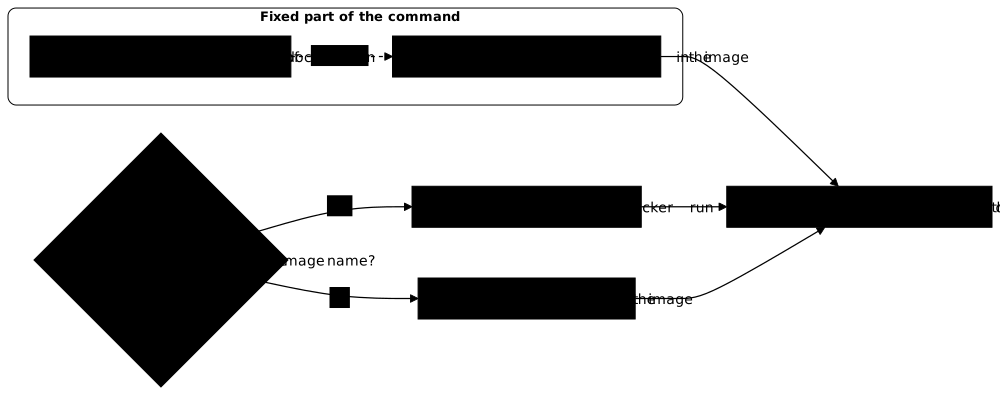
docker run creates a container from an image, then starts it. Its general form is docker run [options] IMAGE [command [arguments]]. Everything before the image name is addressed to Docker: a name, variables, ports. Everything after it is addressed to the program launched in the container. Keep this boundary in mind: an option written after the image name goes to the application, not to Docker.
The diagram cuts a typical command into four pieces. The first three are read by Docker. The last one is read by the program. The image name, highlighted, marks the boundary.

The following command runs a container that prints a sentence, then stops. The --rm option asks Docker to delete the container as soon as it ends, which avoids piling up test containers.
docker run --rm alpine:3.24@sha256:be2656061b536c1883c4034790e21d0a09c5aaaf51968b89368a3c0371ea2c9a echo "un mot, puis fin"un mot, puis finYou read the sentence in your terminal, then you get control back. The echo process has finished, so the container has too. A container runs only as long as its main process runs. This rule explains most of the "my container stops by itself" cases.
Stopped does not mean removed. Without --rm, the container stays in place once the process has ended, as the section on removal shows. The lesson container lifecycle and clean shutdown details the states of a container, pausing and signals.
Attached or detached: where does the container output go?
By default, docker run stays attached: your terminal is linked to the output of the container, and the command gives you control back only when the process ends. The -d option (for detach) runs the container in the background. Docker then prints its identifier and immediately gives you the terminal back.
A detached container no longer has a screen. Docker therefore keeps its output, and you read it again with docker logs. The example runs a process that writes one line per second. Wait a few seconds between the two commands, otherwise docker logs has nothing to show yet.
docker run -d --name horloge alpine:3.24@sha256:be2656061b536c1883c4034790e21d0a09c5aaaf51968b89368a3c0371ea2c9a sh -c 'while true; do date +%T; sleep 1; done'docker logs horlogeb4003b3e631b730c2b904bb1f153c65931f75cb584b573c8724f5d6361105c0d06:49:5606:49:5706:49:5806:49:59The first command prints the identifier of the container. The second prints the lines already written, one per second. To follow the output live, add -f. Ctrl+C quits the follow mode without stopping the container.
To work inside a container, you need two more options, written together as -it. The -i option keeps standard input open, that is, what you type on the keyboard. The -t option allocates a pseudo-terminal, a simulated terminal. The command docker run --rm -it debian:13-slim@sha256:f6b08b09a05725f9431502d3b5714f5c4576e82c1a84fa1debe0c24a7e0c3ec4 bash opens a shell in a disposable Debian container, and exit closes it. Without -it, this shell reads an empty input and ends immediately.
How to give a container a name?
The --name option gives the container a readable name that every command can then use (docker logs horloge). Without it, Docker picks one at random, of the adjective_noun kind, hard to remember. The name is unique: as long as a container carries it, even stopped, no other can take it.
The horloge container already exists. Try to run a second one under the same name.
docker run -d --name horloge alpine:3.24@sha256:be2656061b536c1883c4034790e21d0a09c5aaaf51968b89368a3c0371ea2c9a sleep 60docker: Error response from daemon: Conflict. The container name "/horloge" is already in use by container "b4003b3e631b730c2b904bb1f153c65931f75cb584b573c8724f5d6361105c0d". You have to remove (or rename) that container to be able to reuse that name.
Run 'docker run --help' for more informationThis second run fails, because horloge already exists. The message quotes the conflicting name and the identifier of the container that carries it. docker run returns code 125, which signals an error from Docker itself.
To reuse the name, first remove the first container, as the section on removal shows. Restarting an existing container and creating a new one under the same name are two different actions, which the lesson on the life cycle compares.
How to run a command in a running container?
docker exec NAME command starts one more process in a container that is already running. It does not restart the container and does not touch its main process. It is the action to look inside: read a file, list the processes, check a variable. The horloge container is still running, it serves as the target.
docker exec horloge cat /etc/alpine-releasedocker exec horloge ps3.24.3PID USER TIME COMMAND 1 root 0:00 sh -c while true; do date +%T; sleep 1; done 15 root 0:00 sleep 1 22 root 0:00 psThe first command reads the Alpine version contained in the image. The second lists the processes of the container. The main process has number 1. The ps command you just ran appears next to it, then disappears as soon as it is done. The container keeps running.
To open a shell inside, add the same options as at launch. docker exec -it horloge sh gives you a prompt, and exit closes it without stopping the container, since only the added shell ends. docker exec requires a running container. On a stopped container, Docker refuses with the message container … is not running.
How to list, stop and remove a container?
Running is only the first of the actions. You also need to see what exists, stop what runs and remove what is no longer useful. Each has its command: docker ps, docker stop and docker rm. They do not overlap. A stopped container still exists, and only docker rm makes it disappear.
What does docker ps show?
docker ps lists the running containers: their short identifier, their image, their command, their age, their status and their name. Run three containers that wait for ten minutes, so that the list has several lines. The A variable is a mere typing shortcut, which avoids repeating the image name three times.
A=alpine:3.24@sha256:be2656061b536c1883c4034790e21d0a09c5aaaf51968b89368a3c0371ea2c9adocker run -d --name web-a $A sleep 600docker run -d --name web-b $A sleep 600docker run -d --name web-c $A sleep 600docker psCONTAINER ID IMAGE COMMAND CREATED STATUS PORTS NAMES4bbf8897950c alpine:3.24 "sleep 600" Less than a second ago Up Less than a second web-c5511ead08bbb alpine:3.24 "sleep 600" Less than a second ago Up Less than a second web-bc0abb65e7893 alpine:3.24 "sleep 600" Less than a second ago Up Less than a second web-aThe STATUS column starts with Up for a container that is running. The IMAGE column shows only the tag, even when the launch quoted the digest.
The following commands use the --format option, which chooses the columns to display and keeps outputs short. The word table asks for a header line. Each {{.Field}} designates a column: {{.Names}} for the name, {{.Status}} for the status.
Stopping is not removing
docker stop NAME stops the main process of the container, but keeps the container. Its name, its logs and its configuration stay in place. It disappears from docker ps. Only docker ps -a (for all) still shows it.
docker stop web-bdocker ps --format 'table {{.Names}}\t{{.Status}}'docker ps -a --format 'table {{.Names}}\t{{.Status}}'web-bNAMES STATUSweb-c Up 10 secondsweb-a Up 10 secondsNAMES STATUSweb-c Up 10 secondsweb-b Exited (137) Less than a second agoweb-a Up 10 secondsThe first line is the name that docker stop repeats. web-b left the first list, but it appears in the second with the Exited status and an exit code.
docker stop also took about ten seconds to return, and the code is 137. sleep did not react to the stop request, and Docker killed it after ten seconds. The lesson on the life cycle and the clean shutdown explains why.
Removing a container
docker rm NAME removes a stopped container and frees its name. On a container that is still running, Docker refuses, to avoid cutting a service by mistake.
docker rm web-aError response from daemon: cannot remove container "web-a": container is running: stop the container before removing or force removeThe message offers two solutions. You can first stop the container with docker stop, or force with docker rm -f, which stops and removes it in a single command. On a container that is already stopped, docker rm simply repeats the name removed.
The following block removes horloge, started above and still running. It is the one that blocked the name during the conflict. It then removes the three containers of this section, and lists what remains.
docker rm -f horlogedocker rm web-bdocker rm -f web-a web-cdocker ps -a --format 'table {{.Names}}\t{{.Status}}'horlogeweb-bweb-aweb-cNAMES STATUSThe last list contains only its header. No container exists anymore, stopped or running, and all the names are free again.
Configure a service through the environment
An environment variable is a name-value pair that the system passes to every process at startup. Most containerized applications read their configuration this way. You can therefore run the same image with two different configurations, without rebuilding it. Docker supplies them with -e NAME=value, or with --env-file file to pass several at once.
docker run --rm -e REGION=nord -e NIVEAU=debug debian:13-slim@sha256:f6b08b09a05725f9431502d3b5714f5c4576e82c1a84fa1debe0c24a7e0c3ec4 printenv REGION NIVEAUnorddebugprintenv prints the values received, in the order requested. You can also read the configuration of an existing container without entering it, with docker container inspect NAME --format '{{json .Config.Env}}'. The list contains your variables and those that the image already set. The lesson inspect a running container details this tool.
Demonstration: one service, two configurations
To see the effect of a configuration, query the service itself. Here is a small Python HTTP server that answers with the value of the ACCUEIL variable it received. You write it in a local directory. The -v option then makes this directory visible in the container, read-only thanks to the :ro suffix. The image therefore does not need to be modified.
mkdir demo-config && cd demo-configcat > app.py <<'EOF'import osfrom http.server import BaseHTTPRequestHandler, HTTPServer
class Reponse(BaseHTTPRequestHandler):    def do_GET(self):        corps = f"accueil={os.environ.get('ACCUEIL', 'non-defini')}\n".encode()        self.send_response(200)        self.send_header("Content-Type", "text/plain; charset=utf-8")        self.send_header("Content-Length", str(len(corps)))        self.end_headers()        self.wfile.write(corps)
    def log_message(self, *args):        pass
HTTPServer(("0.0.0.0", 8000), Reponse).serve_forever()EOFprintf 'ACCUEIL=bonsoir\n' > reglages.env
The service listens on port 8000, inside the container. The option -p 127.0.0.1:8081:8000 publishes this port on port 8081 of your machine, and only from your machine. The two containers start from the same image and the same file. Only the way of passing the setting changes.
docker run -d --name accueil-a -p 127.0.0.1:8081:8000 -e ACCUEIL=bienvenue -v "$PWD:/appli:ro" python:3.14.10-slim-trixie@sha256:3cabfd7d7aaf394e6040e79fa1eec6ca1c52b74ed9188650472695d9a9326999 python3 /appli/app.pydocker run -d --name accueil-b -p 127.0.0.1:8082:8000 --env-file reglages.env -v "$PWD:/appli:ro" python:3.14.10-slim-trixie@sha256:3cabfd7d7aaf394e6040e79fa1eec6ca1c52b74ed9188650472695d9a9326999 python3 /appli/app.py4558dddff32465b3f18644dbcb4cea8490ae1beb14494e39e60aa2d47e5d6fb728dd14bb707f5d12ee84cfe8ddc89b0eb125419f67faea632812e7b20a38510cThe two commands print only identifiers. On the very first run, Docker first downloads the python image, which adds progress lines before the first identifier. To check the setting, send a request to each service. Each must announce its value, the one you gave it, and not a setting of the image.
curl -s http://127.0.0.1:8081/curl -s http://127.0.0.1:8082/accueil=bienvenueaccueil=bonsoirThe first call must print accueil=bienvenue, and the second accueil=bonsoir. If an answer is slow or fails right after the launch, the server is still starting. Send the request again after a second, or read docker logs accueil-a to look for a Python error.
Remember the method more than the example. To know whether a setting was taken into account, query the application. Rereading the command you typed proves nothing.
What happens to an invalid command?
When the requested command does not exist in the image, or cannot be started, docker run tells you through its exit code. Your shell keeps this code in the $? variable until the next command. Docker reserves three values. 125 means that the error comes from Docker itself, for example an unknown option. 126 means that the command exists but cannot be executed. 127 means that it cannot be found.
docker run --rm alpine:3.24@sha256:be2656061b536c1883c4034790e21d0a09c5aaaf51968b89368a3c0371ea2c9a commande-inexistanteecho "code rendu : $?"docker run --rm --option-inconnue alpine:3.24@sha256:be2656061b536c1883c4034790e21d0a09c5aaaf51968b89368a3c0371ea2c9aecho "code rendu : $?"docker: Error response from daemon: failed to create task for container: failed to create shim task: OCI runtime create failed: runc create failed: unable to start container process: error during container init: exec: "commande-inexistante": executable file not found in $PATH
Run 'docker run --help' for more informationcode rendu : 127unknown flag: --option-inconnue
Usage: docker run [OPTIONS] IMAGE [COMMAND] [ARG...]
Run 'docker run --help' for more informationcode rendu : 125The first command returns 127 and the second 125. Being able to tell them apart saves you time. With 127, look at the content of the image and at the command you typed. With 125, reread the options of docker run.
The lesson reading a startup failure covers code 126, a command that is present but not executable, as well as the complete method for reading a startup failure. Any other code comes from the process that was started: either the code it returned when ending (0 for success), or 128 + n if it was killed by signal n, such as 137 after a SIGKILL or 143 after a SIGTERM. The lesson life cycle and signals explains these last two cases.
ENTRYPOINT and CMD: what do your arguments replace?
An image carries, in its metadata, the command to run by default. The Dockerfile, the recipe file that builds the image (see write a Dockerfile), declares it with two instructions, ENTRYPOINT and CMD.
ENTRYPOINT sets the program the image is made to run. CMD provides the default arguments or command. The two combine, but what you type after the image name does not treat them the same way.
Remember two rules. The arguments of docker run always replace CMD entirely. They never replace ENTRYPOINT, which stays at the head of the command, unless you add the --entrypoint option. These rules describe an ENTRYPOINT in exec form, the one used in the examples below. Written in shell form, an ENTRYPOINT ignores the arguments you add.
Build two tiny images. They differ only by the declaration of their command. The first has only a CMD, the second has an ENTRYPOINT followed by a CMD. Both are written in exec form: a list between square brackets, where each word is an element, which Docker runs without going through a shell.
mkdir ../demo-commande && cd ../demo-commandeprintf 'FROM alpine:3.24@sha256:be2656061b536c1883c4034790e21d0a09c5aaaf51968b89368a3c0371ea2c9a\nCMD ["echo", "vert"]\n' > Dockerfile.cmdprintf 'FROM alpine:3.24@sha256:be2656061b536c1883c4034790e21d0a09c5aaaf51968b89368a3c0371ea2c9a\nENTRYPOINT ["echo", "feu"]\nCMD ["vert"]\n' > Dockerfile.epdocker build -q -f Dockerfile.cmd -t eco-cmd:1.0 .docker build -q -f Dockerfile.ep -t eco-ep:1.0 .sha256:bc69187ef7cc85b7161d600f5271aa162c2e27dc995962947ee75a51ea5778d8sha256:35259c579bb11efa3c11d3af62e55f6d0c04862532a17ef8a2d40b7259ba359fIn each docker build, -f designates the file, -t gives the image its name and version, and -q prints only the identifier of the image built. Now run the image that has only a CMD, first without an argument, then with an argument that is not a command. Read the exit code of the second attempt.
docker run --rm eco-cmd:1.0docker run --rm eco-cmd:1.0 orangeecho "code rendu : $?"vertdocker: Error response from daemon: failed to create task for container: failed to create shim task: OCI runtime create failed: runc create failed: unable to start container process: error during container init: exec: "orange": executable file not found in $PATH
Run 'docker run --help' for more informationcode rendu : 127The first attempt prints vert, the default value. The second does not print "orange". The argument replaced the whole CMD, echo included. Docker therefore looked for a program named orange, and the code is 127, as in the previous section. To change only the word, give the whole command again: docker run --rm eco-cmd:1.0 echo orange.
The image that has an ENTRYPOINT behaves differently. echo feu is the fixed part, and only the final word can change. Run it without an argument, then with the argument orange, then with --entrypoint echo.
docker run --rm eco-ep:1.0docker run --rm eco-ep:1.0 orangedocker run --rm --entrypoint echo eco-ep:1.0 orangefeu vertfeu orangeorangeThe first two attempts print feu vert then feu orange. In the second, the argument took the place of CMD, behind the ENTRYPOINT that was kept. The third bypasses the ENTRYPOINT with --entrypoint, and the output is reduced to orange. The CMD of the image is not reused. The option replaces the fixed part, and you supply the arguments yourself.
Docker keeps in its metadata what an image declares and what a container actually ran. The two inspect commands below read the image, then the essai-ep container that the docker run in the middle has just created.
docker image inspect eco-ep:1.0 --format 'entrypoint={{json .Config.Entrypoint}} cmd={{json .Config.Cmd}}'docker run --name essai-ep eco-ep:1.0 orangedocker container inspect essai-ep --format 'programme={{.Path}} arguments={{json .Args}}'entrypoint=["echo","feu"] cmd=["vert"]feu orangeprogramme=echo arguments=["feu","orange"]The essai-ep container is not run with --rm, so that docker container inspect can still read it. The program is echo, and the list of arguments contains feu then orange. This is the effective command, assembled by Docker. When two images react differently to the same argument, compare these two fields: they give you the reason.
One last thing to know. With the shell form of CMD, plain text without brackets, Docker runs the command through /bin/sh -c. This changes which process receives the signals, a point that the lesson on the life cycle covers.
How to clean up after the experiments?
The named containers of this page do not remove themselves, and the two images you built take up space. First remove the containers, with -f to stop those that are still running, then the images, then the demonstration directories. The cd .. command takes you out of these directories before deleting them.
docker rm -f accueil-a accueil-b essai-epdocker rmi eco-cmd:1.0 eco-ep:1.0cd .. && rm -r demo-config demo-commandeaccueil-aaccueil-bessai-epUntagged: eco-cmd:1.0Deleted: sha256:bc69187ef7cc85b7161d600f5271aa162c2e27dc995962947ee75a51ea5778d8Untagged: eco-ep:1.0Deleted: sha256:35259c579bb11efa3c11d3af62e55f6d0c04862532a17ef8a2d40b7259ba359fdocker rm repeats on screen each container name removed. It cites neither horloge nor the web-* containers, which you already removed in the previous sections. With -f, docker rm silently ignores a container that does not exist and returns code 0. You can therefore rerun this cleanup without error, even if a container has already disappeared.
The containers started with --rm left nothing behind. The alpine, debian and python images that Docker downloaded stay on the machine.
Putting it into practice
Two labs extend the page, in order. The first is played on a machine where containers already exist, in different states. The validation does not read your commands. It reads the state of Docker. A container you started must be running and carry a precise line in its logs. Another must still exist, stopped. A third must no longer exist. Each of these three states is checked separately.
The second lab provides two images whose command declaration differs. You produce four containers, which show the four behaviors of the section on ENTRYPOINT and CMD. The validation reads the logs of each. It also checks absences. A container whose logs mix the default and your text has replaced nothing. A container that keeps the prefix of the ENTRYPOINT has not bypassed it.
Key points
A container is only a process started by docker run. It stops as soon as that process ends, but it does not disappear for all that, unless --rm asked for it. Everything before the image name is addressed to Docker, everything after it is addressed to the program launched.
Attached mode links your terminal to the output of the container. Detached mode (-d) keeps that output for docker logs. A name given with --name stays taken as long as its container exists, stopped or not. docker ps lists only the running containers, and docker ps -a also shows the stopped ones. docker stop stops without removing, and docker rm removes. docker exec adds a process in a running container, without touching its main process.
A variable passed with -e or --env-file configures a service without rebuilding the image. To prove the setting, query the application itself. An exit code of 127 signals a command that cannot be found, and 125 an error from Docker.
The arguments of docker run replace CMD entirely and are added behind an ENTRYPOINT in exec form, which only the --entrypoint option replaces. An ENTRYPOINT in shell form ignores these arguments. To predict the effective command, read .Config.Entrypoint and .Config.Cmd on the image, then .Path and .Args on the container.
Knowledge check
Check that the essentials of this guide stuck. The questions cover only what has just been explained here.
Knowledge check
Check what you have learned with this interactive quiz
How it works
- The timer starts when you click Start
- Multiple choice, true/false and short answer questions
- You can move between questions
- Detailed results are shown at the end
Starts the quiz and the timer
Review
(0/0)Score by domain
A domain groups several guides and gets several questions, so its score is more reliable than a per-topic score, which often rests on a single question.
Summary
Strengths
No topic passed at 80% on at least two questions yet.
Weak areas
No topic below the pass mark.
Recommended next
Hints before you try again?
Continue the course: Exam: get a service running
A new full quiz with random questions
Work again only on the questions you missed