During development, you mount your sources into the container to see every change without rebuilding. If this mount leaves for deployment along with the rest of the stack, the server serves your local files instead of the image you had planned. You already know how to write a Compose stack: this lesson teaches you to split it into a common base, which serves in both cases, and two explicit variants, development and deployment, that you assemble on demand. You then check, on the configuration that Compose computes after merging the files (the effective configuration), that the deployment variant contains no mount.
You also see how Compose merges several files, how to reserve a service for a profile, how to find the files of a project that is already running, and what docker compose watch does.
What you will learn
- Explain why
compose.override.yamlis read without being asked, and replace it with two named variants, assembled with-fon top of a base. - Check a variant with
docker compose config, on the effective configuration and not on the input file. - Predict the merge of ports,
environmentandcommand, and use!resetand!override. - Reserve an optional service with
profiles. - Find the files of a running project with
docker compose lsand a label. - Use
docker compose watchinsyncandrebuildmodes, and know what stopping it leaves in place.
Prerequisites
You need a Linux host with Docker Engine 29.9.2 and its Compose 5.6.1 plugin, installed from the official repository as shown in the lesson on installing Docker. The images are pinned by their digest. The lesson also uses python3, to read a JSON output, and curl, to query the web server. Check them with python3 --version and curl --version, and install any that is missing with the package manager of your distribution.
You know how to write a stack thanks to the lesson Describe an application with Compose, and you have read the previous lesson, Limit resources and restarts of a Compose stack, whose restart key comes back here in the deployment variant. Mounts (bind) and volumes are explained in the lesson Docker volumes: keep your data and mount files, and publishing a port in Publish a Docker port without exposing the whole host. What changes with the environment by a simple value (${VAR}, .env) belongs to Interpolation and environment files in Compose: this lesson deals with what changes by structure, a mount that is present or absent, an extra port, one service fewer.
You work in a ~/vitrine folder, which the lesson has you create. Its name becomes the project name: the containers are called vitrine-....
Why must a development mount not reach deployment?
Because a mount replaces the content of the image with a folder of the host: the container then serves whatever the folder contains, whichever image you built and tested. In development, this is intended, since a change to a file is visible right away. In deployment, it is a failure that Compose does not report. A folder left on an old version makes the service answer 200 with the old content. A missing or empty folder does not break startup either, but nginx answers 403 Forbidden, since the folder contains no page. When you write the mount in its short form (./site:/usr/share/nginx/html), Docker itself creates a missing folder, owned by root.
The same reasoning applies to a debug port opened as an extra. It breaks nothing visibly, but it exposes in deployment an access that nobody decided to leave there.
The remedy comes down to one rule: deployment starts from a base without any mount, and development adds what it needs. The direction of the addition matters. If deployment has to remove things that development added, a single oversight is enough to let them through.
Create the folder and a page to serve, then write the base in a compose.yaml file.
mkdir -p ~/vitrine/sitecd ~/vitrineecho '<h1>Vitrine, version du dossier</h1>' > site/index.htmlservices: web: image: nginx:1.30.6-alpine@sha256:0e52bd054126cdc040b1276c0af347aeb02a41b9cfe305d6094767ac30e97949 ports: - "127.0.0.1:8088:80"
outils: image: alpine:3.24@sha256:be2656061b536c1883c4034790e21d0a09c5aaaf51968b89368a3c0371ea2c9a command: ["sleep", "infinity"] profiles: ["outils"]This compose.yaml describes a web server, web, published on the local interface of the host, and an outils service reserved for a profile, which the section on profiles explains. It contains no mount: it is the base.
Why is compose.override.yaml a trap?
Because Compose reads this file without being asked. When you run docker compose without any -f option, it looks for compose.yaml (or compose.yml, and docker-compose.yaml or docker-compose.yml for older projects) and then automatically merges compose.override.yaml if it exists in the same folder. The original idea is to keep your workstation settings next to the base. The risk is that they become invisible: nobody types the name of the file, so nobody thinks of it.
See it for yourself. Create a compose.override.yaml that mounts the site folder into the container, in place of the content of the image, then ask for the configuration with no option at all.
services: web: volumes: - ./site:/usr/share/nginx/htmldocker compose -p vitrine config volumes: - type: bind source: /home/ansible/vitrine/site target: /usr/share/nginx/html bind: {}The output is cut at the useful part. Notice that the bind mount appears although you named no override file. The source path is absolute: Compose resolved ./site relative to the project folder. Its beginning, /home/ansible, is the home folder of the machine where the output was captured: on your machine, you read your own. To set the file aside, you must explicitly name the only file you want.
docker compose -p vitrine -f compose.yaml configThis time the volumes block has disappeared. Only an explicit list of files sets the override file aside, through -f or through the COMPOSE_FILE environment variable, which gives the list of files once for all the commands of the shell; COMPOSE_FILE=compose.yaml docker compose config sets it aside too. This means that a deployment launched without -f on a machine where this file lies around carries the mount along.
The practical conclusion is simple: do not use compose.override.yaml for a variant that has to be chosen. Give each variant a name that is not read on its own, as the next section shows. A file renamed compose.dev.yaml is no longer read without -f, and that is the goal. Now delete the override file.
rm compose.override.yamlHow do you write two explicit variants from one base?
By creating one file per variant, which contains only what the variant adds to the base, then assembling them on demand with -f. Compose merges the files in the order in which you cite them.
The development variant, compose.dev.yaml, mounts the sources and opens a second port, which plays the role of a debug port here.
services: web: volumes: - ./site:/usr/share/nginx/html ports: - "127.0.0.1:8089:80"The deployment variant, compose.deploy.yaml, removes nothing: it adds the restart policy seen in the previous lesson and a label that lets you recognize the variant on a running container.
services: web: restart: unless-stopped labels: fr.exemple.variante: deploiementSave each block in the file indicated. The base is never modified: it carries what is common, and neither variant depends on the other. You then choose on the command line.
docker compose -p vitrine -f compose.yaml -f compose.dev.yaml configdocker compose -p vitrine -f compose.yaml -f compose.deploy.yaml configThe first call shows the bind volume and two published ports, 8088 and 8089. The second shows restart: unless-stopped, the label, and a single port, 8088. These two readings are the subject of the next section.
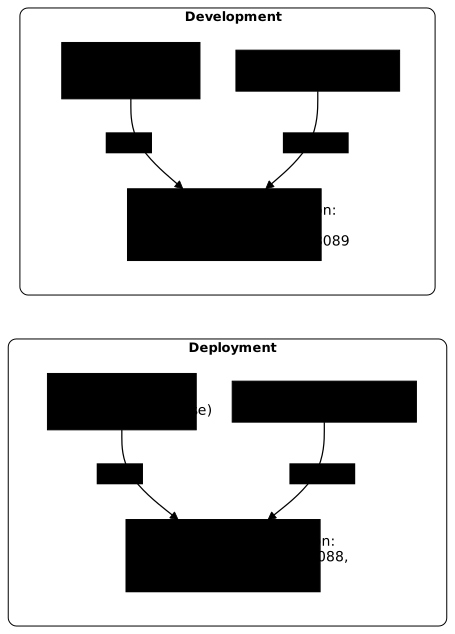
The diagram shows the assembly: the same base goes into both commands, only the variant changes, and it is the effective configuration, at the bottom of each group, that differs. The deployment one is highlighted, because it is the one you are going to check. This diagram sticks to the minimal assembly: the deployment that builds the image adds a third file to it further down, compose.build.yaml.
How do you check a variant on the effective configuration?
By reading the output of docker compose config, which is the configuration after merging and after path resolution, and not the file you wrote. An input file says nothing about what another file, a variable or the order of the options adds to it. Rereading compose.deploy.yaml and concluding that it has no mount only proves that it does not declare one itself.
For the deployment variant, look for what must not be there: any mount, the debug port, and any develop section, which belongs to watch only.
docker compose -p vitrine -f compose.yaml -f compose.deploy.yaml config | grep -cE 'volumes|8089|develop'0Look at the number returned: 0 means that no line contains volumes, 8089 or develop. This check looks for what you fear: if a mount is added to the deployment one day, it will return a non-zero number. Check that it can detect the problem by applying it to the development variant, which returns 2 (the volumes line and the 8089 port).
For a more precise check in a script, config --format json returns a document that a program reads without guessing the indentation.
docker compose -p vitrine -f compose.yaml -f compose.deploy.yaml config --format json \ | python3 -c 'import json,sys; s=json.load(sys.stdin)["services"]["web"]; print({k: s.get(k) for k in ("volumes","restart")}, [p["published"] for p in s["ports"]])'Read the result without looking for a precise layout: the volumes key is None (it is absent), restart is unless-stopped and the only published port is 8088.
How does Compose merge several files?
Key by key, and the last file cited wins when two files give incompatible values. Not all keys merge the same way, and that is what surprises people: one list can be added up where another is replaced. Here is what Compose 5.6.1 does with a base and override files, that is, files cited after it to complete or correct it.
| Key | What happens |
|---|---|
ports | The lists are added: the ports of every file are present. An identical port declared twice appears only once. |
environment (written as a map, that is KEY: value) | The keys add up, and for a key present in two files, the last value wins. |
command | The command of the last file replaces those before it entirely, with no concatenation. |
Two YAML tags change this default behavior. !reset empties the key: it disappears from the configuration, including the value that came from the base. !override replaces the value instead of adding to it, and requires Compose 2.24.4 or later.
services: web: ports: !reset []With ports: !reset [] in an override file, the ports key disappears from the effective configuration, even if the base publishes a port. An empty list does not do the same thing: with Compose 5.6.1, ports: [] or ports: null in an override file leave the port of the base in place, and only !reset [] empties the key. With !override followed by a list, only that list remains.
services: web: ports: !override - "127.0.0.1:9000:80"The effective configuration then contains only the 9000 port. These two tags are for when a variant must remove or rewrite what the base gives, rather than add to it. They are the exception: the safest approach remains a base that does not contain what the variant does not want.
Keep one consequence in mind for deployment: because ports add up, a development variant that opens an extra port never removes it on its own. Only the choice of files, or a !reset, takes it away.
For any other merge case, do not guess: run docker compose config on the combination and read the result.
What are profiles for?
To reserve an optional service: a service that carries profiles does not start with the stack, unless you activate its profile. The outils service of the base (a troubleshooting container) must not run permanently, but it must remain described in the same file as the others.
List the services without, then with the profile.
docker compose -p vitrine config --servicesdocker compose -p vitrine --profile outils config --serviceswebThe output above is that of the first call, which lists only web. The second lists outils then web: the service under a profile appears as soon as the profile is requested. The COMPOSE_PROFILES=outils variable gives the same result as the option. An up -d without a profile therefore starts only web.
The trap is elsewhere: naming a service under a profile starts it anyway, without --profile. Its dependencies (those that depends_on designates) start with it when they have no profile or the same profile as it. A dependency placed under another, inactive profile makes the command fail with no such service, and nothing starts. The next two commands start outils although its profile is not requested.
docker compose -p vitrine run --rm outils echo okdocker compose -p vitrine up -d outilsThe first launches a temporary container, named vitrine-outils-run- followed by an identifier, which prints ok and returns code 0. The second prints Container vitrine-outils-1 Started. A profile therefore protects you from starting by mistake with a bare up -d, and it does not protect you from a call that cites the service by name. To forbid a service in deployment, do not put it in the files of that variant.
Stop what you started before continuing.
docker compose -p vitrine downEven without --profile outils, down removes the vitrine-outils-1 container that you started by name, then the network of the project: it finds the containers by their project labels, not by profiles.
How do you find the files of a project already running?
With docker compose ls or with a label that Compose itself sets on the containers. Before getting there, a variable keeps you from forgetting a file: retyping a long series of -f on every command is a source of errors, whereas COMPOSE_FILE lists the files once, separated by colons on Linux.
export COMPOSE_FILE=compose.yaml:compose.deploy.yamldocker compose -p vitrine config | grep -E 'restart|fr.exemple'The command takes the variable into account: you find restart: unless-stopped and the label, without any volume. Then start the stack and ask Compose for the list of projects.
docker compose -p vitrine up -ddocker compose lsThe CONFIG FILES column of docker compose ls then contains /home/ansible/vitrine/compose.yaml,/home/ansible/vitrine/compose.deploy.yaml: the paths are absolute (the beginning is that of your home folder, as above) and separated by a comma. Look at it when you take over a machine that someone else deployed. It tells you which variants were used.
The same information is carried by a label set on every container, com.docker.compose.project.config_files, which you read with docker inspect on the vitrine-web-1 container. A running project can finally be found without any file at all: from another folder, docker compose -p vitrine ps works, because Compose finds the containers by their labels.
Remove the variable from your shell for the rest of the lesson.
unset COMPOSE_FILEdocker compose -p vitrine downWhat does docker compose watch do in development?
It watches files of the host and acts on the container at every change, which spares you the bind mount. Each service to be watched declares a develop.watch section, with one or several rules that associate a path with an action. Two actions are presented here: sync copies the changed file into the container, rebuild rebuilds the image and recreates the container.
For the demonstration, the web service must be built from a Dockerfile, which you create in ~/vitrine.
FROM nginx:1.30.6-alpine@sha256:0e52bd054126cdc040b1276c0af347aeb02a41b9cfe305d6094767ac30e97949COPY site/ /usr/share/nginx/html/Two variant files share the work. compose.build.yaml says how to build the image, and compose.watch.yaml contains only what must be watched. Separating them lets you build the image at deployment without carrying the develop section along.
services: web: image: vitrine-web:1.0 build: .The image key gives its name to the built image. It is needed: the base pins the nginx image by its digest, and Compose refuses to use it as the name of an image to build (failed to solve: build tag cannot contain a digest). Here is now compose.watch.yaml.
services: web: develop: watch: - action: sync path: ./site target: /usr/share/nginx/html - action: rebuild path: ./DockerfileDevelopment with watching therefore assembles compose.yaml, compose.build.yaml and compose.watch.yaml. Deployment assembles compose.yaml, compose.build.yaml and compose.deploy.yaml, without compose.watch.yaml.
To copy files, watch relies on the stat, mkdir and rmdir binaries of the image, which the nginx image of this lesson contains.
Start the watching in a terminal, and leave it running: it occupies that terminal.
docker compose -p vitrine -f compose.yaml -f compose.build.yaml -f compose.watch.yaml watchWith no option, watch first does an implicit up, then prints Watch enabled. With watch --no-up, it assumes the stack is already running and prints only Watch enabled.
What happens on a change in sync mode?
The file is copied into the container, which is not recreated. In a second terminal, change the page, then read it.
echo '<h1>Vitrine, version modifiée</h1>' > site/index.htmlcurl -s http://127.0.0.1:8088/The watch log prints Syncing service "web" after 1 changes were detected. The new content is served after about half a second (three attempts, between 0.5 and 0.6 seconds). The identifier of the container has not changed (compare it before and after with docker ps): Compose copied the file, it recreated nothing. This order of magnitude depends on your machine, what matters is the absence of recreation.
What happens on a change in rebuild mode?
The image is rebuilt and the container is replaced. In the second terminal, add to the end of the Dockerfile a RUN line that writes a file into the image, then look at the log.
echo "RUN echo 'ajout au build' > /usr/share/nginx/html/build.txt" >> DockerfileThe log prints Rebuilding service(s) ["web"] after changes were detected..., the output of the build, service(s) ["web"] successfully built, then Container vitrine-web-1 with the steps Recreate, Recreated, Starting and Started. The new file is served after two to four seconds (measurements of 2.4 s and 3.3 s): curl -s http://127.0.0.1:8088/build.txt prints ajout au build. The identifier of the container has changed and the published port is kept. Choose rebuild for what is not content to copy: a Dockerfile, a dependency file.
What does watch leave behind when you stop it?
Nothing is undone. A Ctrl+C in the terminal of watch sends SIGINT, the interrupt signal: no further message appears, and the containers stay up. The service still answers (HTTP code 200). watch does not do a down, so it does not return the machine to its earlier state.
What limits of watch should you know?
A service without build:, with only an image, accepts a sync rule with no error or warning with Compose 5.6.1, and the synchronization works. The Compose documentation nevertheless presents watch as designed for services built with build:: do not count on this behavior, and keep build: for a service that you watch.
Conversely, if no selected service carries a develop section, the command stops with code 1 and the message none of the selected services is configured for watch, consider setting a 'develop' section.
watch knows other actions than sync and rebuild, such as sync+restart, and Compose offers other ways to assemble files, such as include and extends. Before using them, read their behavior and the Compose version that introduces them in the official documentation.
Does watch replace the deployment variant?
No. watch is a development tool: it leaves the stack in a state specific to your workstation, to be cleaned up by hand, and it is not launched on a deployment server. Its compose.watch.yaml file is one more variant, like compose.dev.yaml, and it never goes to deployment: the develop section does not belong there. The build: lives in compose.build.yaml, which deployment assembles to build the image without running watch.
What does the container contain at deployment?
The content of the image, and nothing from the host. Stop watch (Ctrl+C), then assemble the base, compose.build.yaml (which carries the build) and the deployment variant. The --build option rebuilds the image with the Dockerfile, whose COPY line embeds the content of site/ at that moment.
docker compose -p vitrine -f compose.yaml -f compose.build.yaml -f compose.deploy.yaml up -d --builddocker inspect --format '{{json .Mounts}}' vitrine-web-1[]Look at the empty list: Mounts is [], so no folder of the host is mounted. The page served is the one copied into the image. Changing site/index.html on the host afterwards no longer changes what the container answers. This is the guarantee of the deployment variant: the container that runs is the one you built.
Also check the effective configuration of this deployment: it must contain no mount, no debug port and no develop section.
docker compose -p vitrine -f compose.yaml -f compose.build.yaml -f compose.deploy.yaml config | grep -cE 'volumes|8089|develop'0The same check on the watching assembly (-f compose.yaml -f compose.build.yaml -f compose.watch.yaml) returns 1, the develop line: it can therefore detect what it is meant to forbid.
Compare with an image alone, without the Dockerfile: with -f compose.yaml -f compose.deploy.yaml, Mounts is empty too, but the page served is "Welcome to nginx!", the default content of the image, since ./site is mounted nowhere. If you see this welcome page instead of yours, the content was not copied into the image.
Finally, if you start the stack again with the development variant (-f compose.yaml -f compose.dev.yaml), Mounts contains a bind mount from /home/ansible/vitrine/site to /usr/share/nginx/html, in read-write mode. The ports 8088 and 8089 serve the same page, and a change on the host is visible immediately.
What should you do when a variant does not behave as expected?
Start from what you observe, then read the effective configuration before changing a file.
| What you observe | Probable cause | What you do |
|---|---|---|
| A mount appears although you cited no dev file | A compose.override.yaml in the folder is read automatically | Cite the files with -f, or rename the override file |
The container answers 403 Forbidden | The mounted folder is missing or empty, so it has no index.html | Read docker inspect --format '{{json .Mounts}}', and remove the mount from deployment |
| The container serves an old version of the page | A bind mount is active | Read docker inspect --format '{{json .Mounts}}' then docker compose config |
| The deployment variant publishes one more port | The ports lists add up, a dev file was left in the list | Remove that file from the command, or use ports: !override |
A service under a profile starts although you did not pass --profile | You named it in up or run | Do not name the service, or remove it from the files of the variant |
docker compose watch answers none of the selected services is configured for watch | No selected service carries develop | Add a develop.watch section to the service |
Compose answers failed to solve: build tag cannot contain a digest | build: is set on a service whose base image is pinned by its digest | Name the built image with image:, in the file that carries build: |
Compose answers no such service when starting a service under a profile | A dependency of this service is under another, inactive profile | Put the dependency under the same profile, or under none |
| The content served is "Welcome to nginx!" | The image does not contain your content and nothing is mounted | Add the copy to the Dockerfile and start again with --build |
| You no longer know which files started the project | The files were not noted down | Read the CONFIG FILES column of docker compose ls |
The containers still run after watch stopped | watch does not do a down | Run docker compose down |
How do you clean everything up after the demonstration?
The demonstration leaves a container, a network, the built image vitrine-web:1.0, the nginx image pulled by up, some build cache and the ~/vitrine folder. The alpine image was pulled when the outils service started. The docker compose down command removes the containers and the network of the project, but not the images.
cd ~/vitrinedocker compose -p vitrine --profile outils down -v --remove-orphansdocker rmi vitrine-web:1.0docker rmi nginx:1.30.6-alpine@sha256:0e52bd054126cdc040b1276c0af347aeb02a41b9cfe305d6094767ac30e97949docker image ls -adocker buildx ducd ~ && rm -r vitrineThe down -v --remove-orphans command, given with the outils profile, removes the containers, the network and the volumes of the project. Remove the vitrine-web:1.0 image before the nginx image it derives from. If you do not use alpine elsewhere, remove it too with docker rmi alpine:3.24@sha256:be2656061b536c1883c4034790e21d0a09c5aaaf51968b89368a3c0371ea2c9a. docker image ls -a shows you what remains, and docker ps -a no longer shows any vitrine-... container.
The build cache survives docker rmi: docker buildx du measures it. docker buildx prune removes it, but it also empties the cache of your other builds: run it only if this machine serves only this lesson.
Practice
The lab gives you a base file, which you do not modify, and a service that returns a version: the image carries its own, the disk of the host carries another, and the answer of the service therefore tells which one it reads. You write two variants derived from this base file. The first, for development, mounts the sources. The second, for deployment, mounts none, and you leave it running in the project of the lab.
The validation covers four points. The running deployment container has no mount and serves the version of the image. The development variant declares the mount of the sources and, started on its own, serves the version of the disk. The base file contains no mount. Finally, the optional service of the base file stays absent from the effective configuration as long as its profile is not requested, and appears in it as soon as it is. The way you derive the variants is not graded.
Key points
-
A development mount that reaches deployment hides the content of the image, and Compose reports nothing: the service serves the old version of the folder (
200), or answers403 Forbiddenif the folder is missing or empty. -
Compose reads
compose.override.yamlwithout being asked. Only an explicit list of files sets it aside, through-forCOMPOSE_FILE: for a variant that you choose, use file names that are not read on their own. -
The base does not contain what deployment does not want. Each variant adds, it does not remove.
-
A variant is checked on the output of
docker compose config, after merging, never on the input file. -
portsadd up,environmentas a map merges (the last one wins),commandis replaced entirely.!resetmakes a key disappear,!overridereplaces it, and an empty list (ports: []) does not remove the port of the base. -
A service under
profilesdoes not start withup -d, but it starts as soon as you name it inuporrun, with its dependencies that have no profile or the same profile. -
COMPOSE_FILEspares you from repeating-f. TheCONFIG FILEScolumn ofdocker compose lsand thecom.docker.compose.project.config_fileslabel tell which files started a project. -
watchcopies (sync) or rebuilds (rebuild) during development, and stopping it leaves the containers running. It does not replace a deployment variant, whoseMountsmust be empty and whose effective configuration does not containdevelop.
Knowledge check
Check that the essentials of this lesson have stuck. The questions cover only what has just been explained here.
Knowledge check
Check what you have learned with this interactive quiz
How it works
- The timer starts when you click Start
- Multiple choice, true/false and short answer questions
- You can move between questions
- Detailed results are shown at the end
Starts the quiz and the timer
Review
(0/0)Score by domain
A domain groups several guides and gets several questions, so its score is more reliable than a per-topic score, which often rests on a single question.
Summary
Strengths
No topic passed at 80% on at least two questions yet.
Weak areas
No topic below the pass mark.
Recommended next
Hints before you try again?
Continue the course: Exam: make a Compose stack reliable
A new full quiz with random questions
Work again only on the questions you missed