When a log grows without end or a write fails, the temptation is to delete
things at random, and you risk erasing data that is still useful. This lesson
shows you how to cap a container's logs, check that the limit really
applies, read disk usage by category and free a disposable file without
recreating the container. The measurements come from a Debian 13 VM with Docker
Engine 29.9.2 and Compose 5.6.1. The gestures that modify the system daemon,
such as changing daemon.json, were measured on a throwaway VM: do not replay
them on a shared host.
What you will learn
Each gesture is checked against the real state of the engine, not only against a configuration file.
- You read the active driver, the container's options and the path of its log.
- You check that the files rotate after a write that exceeds their maximum size.
- You tell an option set on the container apart from a daemon default value.
- You measure images, containers, volumes and cache, then compare what
docker system dfannounces with the space actually returned, before choosing what can be deleted. - You spot a shortage of bytes or inodes (the entries that allow creating files) and free the space without replacing the container.
Prerequisites
You must know how to start a container and read its configuration. The lesson
Configurer le daemon Docker (daemon.json)
(in French) explains the role of daemon.json, the daemon options and how to
restart it.
The outputs below were collected on November 4, 2026 on the reference VM. The demonstration image is pinned to its digest:
IMAGE="alpine:3.23@sha256:ff7f0c727dd796aa36787bfcd9a64bf35a6ce72a73451b3359fde849b6703d63"mkdir -p ~/journaux-disque/composecd ~/journaux-disquepwd/home/ansible/journaux-disqueRun the blocks of this lesson in order and in a single terminal. They reuse the
variables IMAGE, R and SPACE_ID, the current directory and, during the
cache measurement, DOCKER_HOST. In another terminal these variables do not
exist: define them again before continuing.
The ~/journaux-disque folder contains only the files created for this
demonstration. The examples expose no port and use names different from those of
the two labs.
Which driver writes the logs, and where?
The logging driver decides how Docker keeps a container's standard output
and standard error. On this VM, the default driver was json-file, which writes
one JSON file per container (see the
configuration and the
json-file driver).
This driver does not cap the logs by default: the following test produced a
172,298-byte file with no rotation option.
docker info --format '{{.LoggingDriver}}'
docker run -d --name c35b-log-open --network none "$IMAGE" \ sh -c 'i=0; while [ "$i" -lt 160 ]; do printf "%05d:" "$i"; printf "%01000d\n" 0; i=$((i+1)); done'printf 'open_exit='docker wait c35b-log-opendocker inspect c35b-log-open \ --format 'type={{.HostConfig.LogConfig.Type}} options={{json .HostConfig.LogConfig.Config}} path={{.LogPath}}'OPEN_LOG=$(docker inspect c35b-log-open --format '{{.LogPath}}')printf 'open_log_size='sudo stat -c '%s' "$OPEN_LOG"printf 'open_log_files='sudo find "$(dirname "$OPEN_LOG")" -maxdepth 1 -type f -name "$(basename "$OPEN_LOG")*" | wc -ljson-fileopen_exit=0type=json-file options={} path=/var/lib/docker/containers/f4a0128ad251dc71241206adfe3126b3206c5ab9f7dd55ac3710a6d6d9f1716f/f4a0128ad251dc71241206adfe3126b3206c5ab9f7dd55ac3710a6d6d9f1716f-json.logopen_log_size=172298open_log_files=1In the output, look at two things. options={} says that no limit is
configured, and path= gives the location of the log, in a folder named after
the container's identifier. docker inspect reads them from
HostConfig.LogConfig and LogPath. The file belongs to root: the
measurement read its size with sudo, without changing its permissions.
The local driver is an alternative to json-file. The documentation of the
local driver
describes its internal storage and its rotation. The test further down only
checks that docker logs reads its logs, without measuring its default limits.
How do you check that a rotation is in effect?
Three options control rotation: max-size sets the maximum size of a file,
max-file the number of files kept and compress compresses the files that
have already rotated. You set them on the container, without touching the
daemon's default driver. They are fixed at creation: docker run or
docker create receives them, and an existing container does not change them.
To modify a limit, you recreate the container.
docker run -d --name c35b-log-capped --network none \ --log-driver=json-file --log-opt max-size=36k --log-opt max-file=4 \ --log-opt compress=true \ "$IMAGE" sh -c 'i=0; while [ "$i" -lt 160 ]; do printf "%05d:" "$i"; printf "%01000d\n" 0; i=$((i+1)); done'printf 'capped_exit='docker wait c35b-log-cappeddocker inspect c35b-log-capped \ --format 'type={{.HostConfig.LogConfig.Type}} options={{json .HostConfig.LogConfig.Config}}'CAPPED_LOG=$(docker inspect c35b-log-capped --format '{{.LogPath}}')printf 'capped_log_files=%s\n' "$(sudo find "$(dirname "$CAPPED_LOG")" -maxdepth 1 -type f -name "$(basename "$CAPPED_LOG")*" | wc -l)"capped_exit=0type=json-file options={"compress":"true","max-file":"4","max-size":"36k"}capped_log_files=4The test counted four files on the host: the current log and three compressed
rotated files. The options displayed by inspect do not prove that the
rotation took place, they only say what was requested. You have to exceed the
ceiling, then count the files in the folder given by LogPath.
Without privileges, docker logs also gives the proof.
docker logs c35b-log-capped | wc -l returned 126 lines out of the 160 written,
and the first line read back started with 00034. The first 34 lines
disappeared with the oldest file: the limit applies, and whatever exceeds the
number of files is lost.
Compose accepts the same options under logging.options, and their values are
strings in the YAML file. Save the following service in
~/journaux-disque/compose/compose.yaml. It sets a ceiling different from that
of the previous command. docker compose config -q validates it, then up -d
runs it.
services: journal-writer: image: ${IMAGE} command: - sh - -c - 'i=0; while [ "$$i" -lt 96 ]; do printf "%05d:" "$$i"; printf "%01000d\n" 0; i=$$((i+1)); done' logging: driver: json-file options: max-size: "24k" max-file: "4" compress: "true"IMAGE="$IMAGE" docker compose -p c35b-log-compose -f compose/compose.yaml config -qIMAGE="$IMAGE" docker compose -p c35b-log-compose -f compose/compose.yaml up -dIMAGE="$IMAGE" docker compose -p c35b-log-compose -f compose/compose.yaml wait journal-writerCOMPOSE_CID=$(IMAGE="$IMAGE" docker compose -p c35b-log-compose -f compose/compose.yaml ps -aq journal-writer)COMPOSE_LOG=$(docker inspect "$COMPOSE_CID" --format '{{.LogPath}}')printf 'compose_log_files=%s\n' "$(sudo find "$(dirname "$COMPOSE_LOG")" -maxdepth 1 -type f -name "$(basename "$COMPOSE_LOG")*" | wc -l)"compose_log_files=4Four files are therefore present with Compose too. The daemon's default driver
stayed json-file after these two configurations, since they only touch their
own container. The
documentation lists the
other available options.
With the local driver, the test checks that docker logs returns the output
and that inspect returns an empty LogPath: there is no JSON file to count.
docker run -d --name c35b-log-local --network none --log-driver=local \ "$IMAGE" sh -c 'printf "local-driver-check\n"'printf 'local_exit='docker wait c35b-log-localdocker inspect c35b-log-local \ --format 'type={{.HostConfig.LogConfig.Type}} options={{json .HostConfig.LogConfig.Config}} path={{.LogPath}}'docker logs --tail 1 c35b-log-localprintf 'daemon_default_after_per_container_tests='docker info --format '{{.LoggingDriver}}'local_exit=0type=local options={} path=local-driver-checkdaemon_default_after_per_container_tests=json-fileWhen do the values in daemon.json apply?
The log-opts values in daemon.json become the default values of new
containers, after the daemon restarts. Docker expects strings, including for
sizes, file counts and booleans. Here is the configuration that was tested:
{ "log-driver": "json-file", "log-opts": { "max-size": "48k", "max-file": "3", "compress": "true" }}In the diagram, look at the left branch: restarting the daemon does not modify a container that has already been created. Only a container created after it, or recreated, receives the new values.
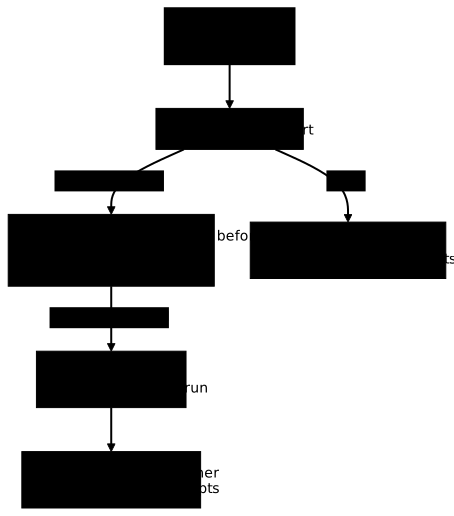
The test gave three results:
- The container created before the change kept
options={}after the restart. Started again without being recreated, it wrote about 344,600 bytes into a single file, that is two runs of 172,300 bytes. - A new container received the three options and produced three files, including a current log of 26,923 bytes.
- The old container, deleted then recreated, received a new identifier and the new default values.
For an existing container to inherit the new values, you therefore have to
recreate it: restarting it is not enough. The test modified daemon.json,
restarted the daemon, then restored the original configuration. On a real host,
first read the existing configuration and the restart procedure described in
Configurer le daemon Docker (daemon.json)
(in French).
What should you measure before reclaiming space?
docker system df breaks down the disk usage by Docker into four
categories: images, containers, volumes and build cache. docker system df -v
then details the items in each category. The table summarizes what each line
groups.
| Line | Resource measured |
|---|---|
Images | Local images, shared and unique sizes in the detailed view. |
Containers | Space associated with containers, including stopped ones. |
Local Volumes | Local volumes and the space they occupy. |
Build Cache | Image build cache. |
The RECLAIMABLE column describes a recovery potential, not a permission to
delete without having examined the scope. The documentation of
docker system df
describes the summary and detailed views.
To measure without touching the system daemon, start an isolated secondary
daemon. It has its own socket, its own --data-root and its own containerd
namespace (--containerd-namespace and --containerd-plugins-namespace).
Without these last two options, it would share the containerd image store with
the system daemon and would show its images in docker image ls. You then build
an image that leaves some cache, without a network since this daemon has no
bridge.
Two precautions frame the launch. sudo -v asks for your password before
dockerd goes to the background: without it, sudo could wait for an input you
cannot see. Then, the loop waits for the socket for 30 seconds at most, and the
script prints a message pointing to the dockerd.log log if the daemon did not
start.
R=/tmp/c35b-secmkdir -p "$R/ctx"printf 'FROM %s\nRUN dd if=/dev/urandom of=/blob1 bs=1M count=8\nRUN dd if=/dev/urandom of=/blob2 bs=1M count=8\n' "$IMAGE" > "$R/ctx/Dockerfile"sudo -vsudo dockerd --host "unix://$R/d.sock" --data-root "$R/data" --exec-root "$R/exec" \ --pidfile "$R/d.pid" --bridge none --iptables=false --ip-masq=false \ --containerd-namespace c35b-ns --containerd-plugins-namespace c35b-plug \ > "$R/dockerd.log" 2>&1 &export DOCKER_HOST="unix://$R/d.sock"for i in $(seq 1 30); do [ -S "$R/d.sock" ] && break; sleep 1; done[ -S "$R/d.sock" ] || echo "dockerd did not start, read $R/dockerd.log"sleep 3sudo -E docker pull -q "$IMAGE"sudo -E docker build --network none -q -t c35b-cache-img "$R/ctx"sleep 3sudo -E docker system dfsudo -E docker system df -vsudo -E docker builder prune --all --filter until=1s --forcesudo -E docker system dfThe useful lines of the measurement, before then after the deletion:
Build Cache 5 0 46.52MB 12.29kBTotal: 46.52MBBuild Cache 0 0 0B 0BLook at the RECLAIMABLE column. Before the deletion, it showed 12.29 kB, while
docker builder prune --all printed Total: 46.52MB. Neither of these two
figures measures the space returned to the disk: the Total adds up the cache
entries removed, and RECLAIMABLE leaves out everything that is shared.
docker system df -v shows this sharing with its SHARED column:
CACHE ID CACHE TYPE SIZE CREATED LAST USED USAGE SHAREDnyf6pjznkc80 source.local 8.19kB 4 seconds ago 3 seconds ago 1 falsew4p1wknca9ib source.local 4.1kB 4 seconds ago 3 seconds ago 1 falsek8ydgs149k1x regular 12.9MB 4 seconds ago 3 seconds ago 1 true1ml2p8gkqeaj regular 16.8MB 3 seconds ago 3 seconds ago 1 trueccvs2ctqyta1 regular 16.8MB 3 seconds ago 3 seconds ago 1 trueWith the containerd store, the three regular layers are shared with the
alpine image and with the built image. As long as this image exists,
RECLAIMABLE does not count what is shared: it is 12.29 kB, the sum of the two
source.local entries. Shared does not mean kept, though. Measured on the
throwaway VM with df -B1 --output=used /var/lib/containerd, the prune returned
about 26 MB: RECLAIMABLE underestimated the space returned, and the Total
overestimated it.
A second order of measurement gives the same direction of gap. When the image is
deleted before the prune, the two 16.8 MB layers move to SHARED false and
RECLAIMABLE shows 33.59MB. The prune nevertheless returned about 43 MB: here
again, RECLAIMABLE announced less than the space actually returned.
Only df settles it, because it measures the disk and not an estimate from the
engine. These measurements hold for this daemon and this image. Keep the method
rather than the figures: read df before and after, and take neither
RECLAIMABLE nor the Total of prune as the space you are going to recover.
The sleep 3 before the measurement matters. Launched right after the build,
the until=1s filter removed nothing (Total: 0B), because the cache had been
used less than a second earlier. This value only served to make the cache
eligible during the test: do not copy it onto a shared host. Choose a threshold
according to your needs, after reading docker system df -v. The
documentation
describes the available filters.
Does a build redone under the same tag leave a dangling image, that is, an image
that has lost its name? Not in the case measured. The test below builds
c35b-cache-img twice with different content in the secondary daemon, then
lists the images, hidden entries included. The last command goes through ctr,
the command-line client of containerd, which reads the c35b-ns namespace of
the secondary daemon directly.
printf 'FROM %s\nRUN echo un > /f\n' "$IMAGE" > "$R/ctx/Dockerfile"sudo -E docker build --network none -q -t c35b-cache-img "$R/ctx"printf 'FROM %s\nRUN echo deux > /f\n' "$IMAGE" > "$R/ctx/Dockerfile"sudo -E docker build --network none -q -t c35b-cache-img "$R/ctx"sudo -E docker image ls --filter dangling=truesudo -E docker image ls -asudo ctr -n c35b-ns images ls -qIMAGE ID DISK USAGE CONTENT SIZE EXTRAIMAGE ID DISK USAGE CONTENT SIZE EXTRAalpine@sha256:ff7f0c727dd796aa36787bfcd9a64bf35a6ce72a73451b3359fde849b6703d63 ff7f0c727dd7 13MB 3.94MBc35b-cache-img:latest bb1e39de3365 12.9MB 3.86MBdocker.io/library/alpine@sha256:ff7f0c727dd796aa36787bfcd9a64bf35a6ce72a73451b3359fde849b6703d63docker.io/library/c35b-cache-img:latestOn Docker 29.9.2 with the containerd store, the second build moved the tag
without leaving a dangling image: the dangling=true list contains only its
header, docker image ls -a shows a single c35b-cache-img, and ctr sees no
moby-dangling@ entry. This finding holds for this case, a tag moved by a
build. On the system daemon, docker image ls --filter dangling=true remains
the command to run before deciding that an image is scrap, and the list was
empty there.
The measurement is over. Remove the images from the secondary daemon, then go
back to the system daemon with unset DOCKER_HOST: without it, the following
commands would keep targeting the secondary daemon. Then stop that daemon and
delete its folder.
Its containerd namespaces remain, c35b-ns and c35b-ns_history. They live in
the system's containerd, not in the deleted folder, and ctr can remove them.
The c35b-plug namespace, reserved for plugins, never appeared in
ctr namespaces ls during the measurement: there is nothing to remove. A
namespace can only be deleted when empty: the loop below first removes the
leases (leases) that hold the layers, then the layers (snapshots) and the
blobs (content). Once the loop is finished, ctr namespaces ls must no longer
list c35b-ns or c35b-ns_history.
sudo -E docker image rm c35b-cache-img "$IMAGE"unset DOCKER_HOSTsudo kill "$(cat "${R:?}/d.pid")"while [ -S "$R/d.sock" ]; do sleep 1; donesudo rm -rf "${R:?}"for ns in c35b-ns c35b-ns_history; do sudo ctr -n "$ns" leases ls -q | xargs -r -n1 sudo ctr -n "$ns" leases delete >/dev/null for i in $(seq 1 15); do [ "$(sudo ctr -n "$ns" snapshots ls | wc -l)" -le 1 ] && break sudo ctr -n "$ns" snapshots ls | awk 'NR>1{print $1}' | xargs -r -n1 sudo ctr -n "$ns" snapshots rm >/dev/null 2>&1 sleep 1 done sudo ctr -n "$ns" content ls -q | xargs -r sudo ctr -n "$ns" content rm >/dev/null sudo ctr namespaces rm "$ns"donesudo ctr namespaces lsHow do you delete only the targeted resources?
A stopped container and a detached volume are not necessarily scrap. The
demonstration created a stopped container carrying a label, another stopped
container without that label and a container that uses a named volume. The
filter of docker container prune removed only the container carrying the
requested label.
docker volume create c35b-data-refdocker run -d --name c35b-data-holder --network none \  --mount type=volume,src=c35b-data-ref,dst=/payload \  "$IMAGE" sh -c 'printf "stock=kept\n" > /payload/stock; sleep 7200'docker run --name c35b-stop-target --label c35b.cleanup=lesson --network none "$IMAGE" truedocker run --name c35b-stop-unrelated --network none "$IMAGE" true
docker container prune --filter label=c35b.cleanup=lesson --forcedocker inspect c35b-stop-unrelated \  --format 'unrelated_still_present={{.State.Status}}'docker inspect c35b-data-holder \  --format 'data_holder_still_present={{.State.Status}} volume={{range .Mounts}}{{.Name}}{{end}}'printf 'reference_data='docker exec c35b-data-holder cat /payload/stockdocker volume inspect c35b-data-ref --format 'named_volume={{.Name}}'
Deleted Containers:3343f432a41bcf8f66fe4a4b3b39c4aa816e7bf98f89ca01439bf5699642bb93
Total reclaimed space: 4.096kBunrelated_still_present=exiteddata_holder_still_present=running volume=c35b-data-refreference_data=stock=keptnamed_volume=c35b-data-refThe output lists only one deleted identifier. The stopped container without a
label and the named volume, with its data, stayed in place. docker rm followed
by a container name is even more precise: it targets only that one. Before
widening a filter, read the
documentation.
An anonymous volume, created without a name when a container declares a path
with no source (or when the image declares a VOLUME instruction), can remain
after its container is deleted. The demonstration found it again with
dangling=true (volumes that no container uses), then deleted it by its exact
name. A named volume is deleted the same way, after checking that no useful
container uses it.
docker run --name c35b-anon-owner --network none --volume /cache "$IMAGE" \ sh -c 'printf "discard\n" > /cache/item'ANON_VOLUME=$(docker inspect c35b-anon-owner \ --format '{{range .Mounts}}{{if eq .Destination "/cache"}}{{.Name}}{{end}}{{end}}')docker rm c35b-anon-ownerdocker volume ls --filter dangling=truedocker volume rm "$ANON_VOLUME"docker system prune removes, at the scale of the daemon, the stopped
containers, the unused networks, the dangling images and the build cache. With
-a, it also deletes the images that no container uses, and --volumes adds
the unused anonymous volumes. The --volumes option puts data at risk,
because an anonymous volume can carry some: an image whose Dockerfile declares a
VOLUME creates one for every container, and that volume may hold a database
that nobody named. The
volumes guide shows how to spot
them. This wide scope does not replace an inventory of the data to keep: do not
make it a routine gesture. The command was not run during the measurement; the
documentation
lists the resources concerned.
Where does ENOSPC come from, and how do you free space without recreating?
ENOSPC is the error "No space left on device": a write has no room left. The
refusal may come from the container's writable layer, from a tmpfs (an
in-memory filesystem with a capped size), from a volume or from the host's
filesystem. To find which one, docker inspect shows the mounts and the tmpfs
limits, df -h measures the bytes and df -i measures the inodes, that
is, the entries needed to create files.
The demonstration attached a 2 MiB tmpfs to /scratch and the named volume to
/persistent. It wrote a marker datum into the volume, then inspected the
mounts and compared the filesystems.
docker run -d --name c35b-tmpfs-space --network none \ --mount type=volume,src=c35b-data-ref,dst=/persistent \ --tmpfs /scratch:rw,size=2m,nr_inodes=64 \ "$IMAGE" sleep 7200docker exec c35b-tmpfs-space sh -c 'printf "inventory-line\n" > /persistent/inventory'SPACE_ID=$(docker inspect c35b-tmpfs-space --format '{{.Id}}')docker inspect c35b-tmpfs-space \ --format 'container_id={{.Id}} tmpfs={{json .HostConfig.Tmpfs}} mounts={{json .Mounts}}'docker exec c35b-tmpfs-space df -h / /scratch /persistentdocker exec c35b-tmpfs-space df -i /scratchDOCKER_ROOT=$(docker info --format '{{.DockerRootDir}}')df -h "$DOCKER_ROOT"df -i "$DOCKER_ROOT"Filesystem Size Used Available Use% Mounted onoverlay 19.5G 2.1G 16.5G 11% /tmpfs 2.0M 0 2.0M 0% /scratch/dev/vda1 19.5G 2.1G 16.5G 11% /persistentFilesystem Inodes Used Available Use% Mounted ontmpfs 64 1 63 2% /scratchFilesystem Size Used Avail Use% Mounted on/dev/vda1 20G 2.2G 17G 12% /Filesystem Inodes IUsed IFree IUse% Mounted on/dev/vda1 1302528 51235 1251293 4% /Read the mounts one by one. /scratch is a 2.0 M tmpfs, with 64 inodes.
/persistent shows the same /dev/vda1 disk as the host: a named volume
consumes the host's disk here, whereas the tmpfs has its own limit. The host
disk was not filled. First identify the full mount, then remove only the file
you have confirmed is disposable.
The test wrote into /scratch until it hit the limit exactly. dd returned
code 1, while df -i still showed 62 inodes available: the bytes were
exhausted, not the inodes.
if docker exec c35b-tmpfs-space sh -c \ 'dd if=/dev/zero of=/scratch/discard.bin bs=64k count=40'; then echo 'fill_exit=0'else printf 'fill_exit=%s\n' "$?"fidocker exec c35b-tmpfs-space df -h /scratchdocker exec c35b-tmpfs-space df -i /scratchdocker exec c35b-tmpfs-space rm /scratch/discard.bindocker exec c35b-tmpfs-space df -h /scratchdocker exec c35b-tmpfs-space sh -c \ 'dd if=/dev/zero of=/scratch/new-write.bin bs=64k count=1'docker exec c35b-tmpfs-space stat -c 'new_write_bytes=%s' /scratch/new-write.binprintf 'useful_volume_data='docker exec c35b-tmpfs-space cat /persistent/inventoryprintf 'same_container_id='test "$(docker inspect c35b-tmpfs-space --format '{{.Id}}')" = "$SPACE_ID" && echo yesdocker inspect c35b-tmpfs-space --format 'tmpfs_after={{json .HostConfig.Tmpfs}}'dd: error writing '/scratch/discard.bin': No space left on device33+0 records in32+0 records out2097152 bytes (2.0MB) copied, 0.000495 seconds, 3.9GB/sfill_exit=1Filesystem Size Used Available Use% Mounted ontmpfs 2.0M 2.0M 0 100% /scratchFilesystem Inodes Used Available Use% Mounted ontmpfs 64 2 62 3% /scratchFilesystem Size Used Available Use% Mounted ontmpfs 2.0M 0 2.0M 0% /scratch1+0 records in1+0 records out65536 bytes (64.0KB) copied, 0.000071 seconds, 880.3MB/snew_write_bytes=65536useful_volume_data=inventory-linesame_container_id=yestmpfs_after={"/scratch":"rw,size=2m,nr_inodes=64"}After rm, /scratch went back to 0 bytes used and a new 65,536-byte write
succeeded. The container's identifier stayed unchanged, its 2 MiB ceiling did
not move and the named volume remained readable. Removing the disposable file
was enough, without recreating the container.
The opposite case exists: a filesystem can run out of inodes while bytes
remain free. In a second 8 MiB tmpfs limited to eight inodes, seven files
were created, since the root directory of the tmpfs itself consumes an inode;
the eighth failed, while df -h still showed 8 MiB available.
docker run -d --name c35b-tmpfs-inodes --network none \ --tmpfs /small:rw,size=8m,nr_inodes=8 \ "$IMAGE" sleep 7200docker exec c35b-tmpfs-inodes sh -c \ 'i=0; while [ "$i" -lt 32 ]; do if ! touch "/small/f$i"; then printf "create_failed_at=%s\n" "$i"; break; fi; i=$((i+1)); done; printf "files_created=%s\n" "$i"; df -h /small; df -i /small'touch: /small/f7: No space left on devicecreate_failed_at=7files_created=7Filesystem Size Used Available Use% Mounted ontmpfs 8.0M 0 8.0M 0% /smallFilesystem Inodes Used Available Use% Mounted ontmpfs 8 8 0 100% /smallIn the output, df -h announces 8.0 M available, and df -i shows 8 inodes
used out of 8. When df -h shows free space but creating a file fails, look at
df -i too. Never fill a host partition to reproduce a full disk: use a bounded
filesystem.
When the host itself is full, the approach does not change, but the tools are
those of Linux. The guide
Check disk space and inodes on Linux
details df, du and how to read inodes. There is also a trap that this lesson
did not measure: a deleted file stays on the disk as long as a process keeps it
open, so that du counts fewer bytes than df. The guide
Control disk capacity and quotas shows how
to find that process.
How do you clean up the demonstration?
First remove the Docker resources created for the lesson. Check that the
~/journaux-disque folder contains only the files of this demonstration before
deleting its content. The secondary daemon has already been stopped since the
section on measuring space.
IMAGE="alpine:3.23@sha256:ff7f0c727dd796aa36787bfcd9a64bf35a6ce72a73451b3359fde849b6703d63"IMAGE="$IMAGE" docker compose -p c35b-log-compose \  -f "$HOME/journaux-disque/compose/compose.yaml" down
for name in c35b-log-open c35b-log-capped c35b-log-local c35b-data-holder \  c35b-stop-unrelated c35b-tmpfs-space c35b-tmpfs-inodes; do  docker rm -f "$name"donedocker volume rm c35b-data-refdocker image rm "$IMAGE"
cd ~find "$HOME/journaux-disque" -depth -delete
This sequence deleted only the containers, the volume, the image and the folder created for the lesson. The resources that existed before the lesson stay in place: each command targets a name, never an entire category.
Put it into practice
The first lab asks you to cap the log of an identified service. Its tests check the driver and the declared options, then the effective rotation: the oldest lines must have been discarded and the volume kept must fit within the budget these bounds define. The service must also stay up. It uses values and a container different from those of the demonstration.
The second lab has you diagnose a bounded space and remove a disposable file.
Its tests check that the original container and the useful data stay in place,
that the bounded space remains a 16 MiB tmpfs without having been enlarged,
that the disposable file is gone, then that a new write succeeds.
Key points
A reliable recovery starts by identifying the full resource and its owner.
- You check the rotation on the host's files, not only in
HostConfig.LogConfig, and you know that the lines beyondmax-fileare lost. - Log options are set at container creation, and the
log-optsofdaemon.jsononly apply to new containers: you recreate a container so that it inherits them. - You inspect the categories with
docker system dfbefore any deletion. NeitherRECLAIMABLEnor theTotalofprunegives the space returned: the first ignores the shared layers, the second adds up entries. Onlydf, read before and after, measures it. - You filter the stopped containers and you delete a volume by its name only
after checking its data.
docker system pruneacts on the whole daemon, and--volumescan erase an anonymous volume that carries data. - You read
df -handdf -itogether before concluding that a filesystem is full: bytes and inodes run out separately. - You free a disposable file without recreating the container when its ceiling stays unchanged.
Knowledge check
Check that the essentials of this lesson have sunk in. The questions cover configuration choices, diagnosing a full disk and the scope of cleanups.
Knowledge check
Check what you have learned with this interactive quiz
How it works
- The timer starts when you click Start
- Multiple choice, true/false and short answer questions
- You can move between questions
- Detailed results are shown at the end
Starts the quiz and the timer
Review
(0/0)Score by domain
A domain groups several guides and gets several questions, so its score is more reliable than a per-topic score, which often rests on a single question.
Summary
Strengths
No topic passed at 80% on at least two questions yet.
Weak areas
No topic below the pass mark.
Recommended next
Hints before you try again?
Continue the course: Upgrade Docker Engine and back up its configuration
A new full quiz with random questions
Work again only on the questions you missed