A Dockerfile is a text file that describes, line by line, how to build an image. In this lesson you write one for a small application, build the image with docker build, then look at what it really contains. You will also see how a sensitive file sitting next to your code can end up in the image without you ever deciding it, and how to keep it out. Finally, you will measure what your Dockerfile adds to the base image, and see why deleting a file afterwards does not make the image lighter.
The outputs on this page come from Docker Engine 29.9.2 and Buildx 0.38.1, which formats the error messages of docker build, on Debian 13.
What you will learn
- Write a Dockerfile with
FROM,WORKDIR,RUN,COPYandCMD - Build an image with
docker buildand read its content - Explain what the build context sends to the builder
- Observe that a sensitive file has entered an image, then keep it out with a dedicated build directory or a
.dockerignorefile - Point at the Dockerfile with
-fwhen the context is widened - Measure what the Dockerfile adds to its base image with
docker image lsanddocker history - Read the error of a failing
docker build
Prerequisites
You need a working Docker (Docker installation) and the habit of starting a container with docker run (running a container). Knowing what an image is, a template made of layers of files, is enough for the rest.
What is a Dockerfile?
A Dockerfile is the recipe of an image: a series of instructions that Docker reads from top to bottom to build the image. Each instruction that modifies files adds a layer to the image, that is, a set of changes stacked on top of the previous ones.
The docker build command reads this recipe and produces the image. Only after that does docker run start a container from it. Keep this separation in mind: what Docker executes at build time is not what it executes at startup.
You will therefore chain three steps, always in the same order: write the Dockerfile, build the image with docker build, then start a container with docker run to check the result. When the result is not right, you edit the Dockerfile and rebuild: an existing image is never modified, a build produces a new one.
Which application goes in the image?
So that nothing hides the mechanism, the application is tiny: a Python script that prints a message and the directory it runs in. Create a throwaway working directory, then the script and a file that plays the role of a decoy sensitive file. It contains a fake value, but you will treat it as a real password.
mkdir ~/atelier-dockerfile && cd ~/atelier-dockerfile
cat > bulletin.py <<'EOF'import os
print("Bulletin prêt")print("répertoire courant :", os.getcwd())EOF
printf 'MOT_DE_PASSE=valeur-factice-a-ne-jamais-publier\n' > identifiants.env
The directory now holds two files, bulletin.py and identifiants.env. The Dockerfile will join them in the next section. The identifiants.env file has no business being in the image: the goal of the lesson is to keep it out.
The names in this workshop are French, because the commands and outputs shown are the ones that were run. bulletin is a report (the script prints "Bulletin prêt", report ready, and "répertoire courant", current directory), identifiants.env holds credentials, Dockerfile.racine is a Dockerfile written for the root of the context, Dockerfile.faute one with a typo, and plus de bulletin means "no more bulletin". They are identifiers and program output, so they stay as they are.
How do you write the Dockerfile, instruction by instruction?
A Dockerfile of this kind fits in five instructions, written in the order Docker reads them. Each one answers a simple question: what do we start from, where do we work, what must be installed, which files do we bring in, what do we run at startup.
FROM: choose the starting point
FROM names the base image, the one yours is stacked on. It opens the Dockerfile. Here, the starting point is alpine:3.24, a minimal system, followed by its digest, the fingerprint that designates its exact content. The 3.24 tag can be republished on another image over time, the digest cannot.
FROM alpine:3.24@sha256:be2656061b536c1883c4034790e21d0a09c5aaaf51968b89368a3c0371ea2c9aWhy Alpine rather than another base? The lesson on choosing and maintaining a base image answers that question. Here, remember only that FROM fixes what the image contains before you add anything to it.
WORKDIR: set the working directory
WORKDIR /app creates the directory /app if it does not exist, then moves into it. The following instructions (RUN, COPY, CMD) start from that directory, and the container starts there too. Without WORKDIR, everything would happen at the root / of the image, mixed in with the system directories.
WORKDIR /appRUN: install what the application needs
RUN executes a command during the build and keeps the result in a new layer. The script needs the Python interpreter, which is not in the base image: that is the dependency to install. apk is Alpine's package manager, and the --no-cache option avoids keeping its package index in the image.
RUN apk add --no-cache python3This command runs once, at docker build, not at every container startup. The libraries an application depends on are installed the same way, with other RUN instructions. The order in which to write the instructions so as to avoid reinstalling everything at each code change is the subject of the lesson "Organize layers and use the cache".
COPY: put the code in the image
COPY takes files from the build context and places them in the image. The context is the directory you will pass to docker build: the next section details it. COPY . . copies the whole context into the working directory. It is the shortest form, because it avoids listing the files, and it has a flaw that you are about to see.
The first . designates the source, the context, and the second the destination, the working directory /app. You can also name the files one by one: COPY bulletin.py . copies only that file. It is more precise, and it is enough to leave the others out.
COPY . .CMD: set the command run at startup
CMD records in the image the command that docker run will launch if you give no other. The lesson on running a container showed that arguments given after the image name replace this command. The list in square brackets is the exec form: each word is an element, and Docker launches the program without going through a shell.
CMD ["python3", "bulletin.py"]CMD launches nothing during the build. It only writes a default value in the image metadata. Put together, the five instructions give the file to save under the name Dockerfile, without extension, next to the script.
FROM alpine:3.24@sha256:be2656061b536c1883c4034790e21d0a09c5aaaf51968b89368a3c0371ea2c9aWORKDIR /appRUN apk add --no-cache python3COPY . .CMD ["python3", "bulletin.py"]What does the build context contain?
The build context is the set of files that Docker's builder, BuildKit, can access during docker build. It is the content of the directory you pass as the last argument of the command. In docker build -t bulletin:1.0 ., the dot designates the current directory: everything it contains is available to the builder.
The diagram follows the files of the workshop. The directory passed to docker build holds three. A .dockerignore file, which you will write further down, can remove some before sending: the builder receives only the rest, the "Context sent" box, and COPY draws only from there. A file located elsewhere on the disk never reaches it.
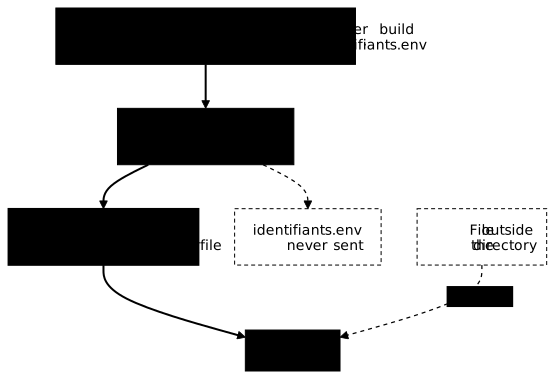
Two consequences follow from this rule. First, COPY can only take files from the context: for it, the rest of your disk does not exist. Second, everything in the context is available to a COPY . ., whether you meant it or not.
Build the image, then look inside
Start the build from ~/atelier-dockerfile. The -q option prints only the image identifier, a line that starts with sha256:. Then start a container: it executes the image's CMD.
docker build -q -t bulletin:1.0 .docker run --rm bulletin:1.0sha256:4ab966a4da63c8fff47d4ddaa98a7a5d6f156f260f29ac042335cbbd59ef9745Bulletin prêtrépertoire courant : /appThe application works, and the last line confirms the WORKDIR: the script runs in /app. The identifier on the first line will be different on your machine.
The -t option gives the image its name and version, here bulletin and 1.0. An image you build carries an explicit version, never latest. Rebuilding under the same name and version moves the tag to the new image, and Docker removes the old one: you can no longer run it. That is one more reason to change the version at every build you want to keep.
What remains is to look at what is in /app. The arguments given after the image name replace the CMD, as in the lesson on starting a container: ls -A /app therefore lists the content instead of launching the script.
docker run --rm bulletin:1.0 ls -A /appDockerfilebulletin.pyidentifiants.envLook at the last line: the sensitive file is in the image. You never wrote its name in the Dockerfile. It got in because it was in the context and COPY . . copies everything. Anyone who gets this image, for instance by downloading it from a registry, can read this password. A secret already published in an image must be renewed: removing it from the image is not enough, since others may already have downloaded it.
Adding a RUN rm identifiants.env to the Dockerfile afterwards repairs nothing. The layer created by COPY still contains the file, and it can be extracted from it. The only safe way is for the file to never enter the context that is sent.
How do you keep a sensitive file out of the image?
Two means exist, and they do not work at the same level. The first organizes your files so that the context contains only what is needed. The second filters the context when you cannot move the files. Between the two, a section shows how to widen the context, with the -f option, when a necessary file sits outside the build directory.
A dedicated build directory
The simplest way is to put in the build directory only what must enter the image. Create a bulletin subdirectory, move the script and the Dockerfile into it, and leave the sensitive file beside it. Then give this subdirectory as the context to docker build.
mkdir bulletinmv bulletin.py Dockerfile bulletin/docker build -q -t bulletin:1.1 bulletin/Then check the content of the image. The command lists /app, then counts the files whose name starts with identifiants across the whole file system of the image (-xdev avoids descending into the container's virtual file systems).
docker run --rm bulletin:1.1 sh -c "ls -A /app; find / -xdev -name 'identifiants*' | wc -l"Dockerfilebulletin.py0The script and the Dockerfile are there, and the count is 0: the sensitive file is nowhere in the image. The same COPY . . produced a different result, because the context was different. This protection comes from the layout of your files, not from a list to maintain.
The context is also a boundary. If you added COPY ../identifiants.env . to this Dockerfile, the build would fail with a message saying the file cannot be found, although it does exist on your disk. The builder sees only bulletin/.
ERROR: failed to build: failed to solve: failed to compute cache key: failed to calculate checksum of ref ...: "/identifiants.env": not foundWhen a file exists and COPY cannot find it, first ask yourself whether it is in the context.
How do you widen the context and point at the Dockerfile?
If a necessary file sits outside the build directory, the context must be widened to a parent directory. The Dockerfile is then no longer at the root of that context, and the -f option designates it: docker build -f <path of the Dockerfile> -t <name:version> <context>.
This widening changes one point you need to know: the source paths of a COPY start from the root of the context, not from the directory of the Dockerfile.
To see it, keep the Dockerfile stored in bulletin/, but take . as the context. The file bulletin/Dockerfile.racine repeats the Dockerfile, except that its COPY names the script bulletin.py without its directory, as if it had stayed at the root.
cat > bulletin/Dockerfile.racine <<'EOF'FROM alpine:3.24@sha256:be2656061b536c1883c4034790e21d0a09c5aaaf51968b89368a3c0371ea2c9aWORKDIR /appRUN apk add --no-cache python3COPY bulletin.py .CMD ["python3", "bulletin.py"]EOFdocker build -t bulletin:1.2 -f bulletin/Dockerfile.racine .ERROR: failed to build: failed to solve: failed to compute cache key: failed to calculate checksum of ref ...: "/bulletin.py": not foundThe script does exist, in bulletin/. The builder looks for it at the root of the context, next to identifiants.env, and does not find it there. Correct the source path in the file, then rebuild.
cat > bulletin/Dockerfile.racine <<'EOF'FROM alpine:3.24@sha256:be2656061b536c1883c4034790e21d0a09c5aaaf51968b89368a3c0371ea2c9aWORKDIR /appRUN apk add --no-cache python3COPY bulletin/bulletin.py .CMD ["python3", "bulletin.py"]EOFdocker build -q -t bulletin:1.2 -f bulletin/Dockerfile.racine .The build succeeds. The .dockerignore follows the same rule. This file lists, one line per path, what docker build must not send to the builder. A file named .dockerignore is read at the root of the context, here ~/atelier-dockerfile, and not next to the Dockerfile stored in bulletin/. To see it, take bulletin/Dockerfile again, which contains COPY . ., and put the .dockerignore in each of the two places.
printf 'identifiants.env\n' > bulletin/.dockerignoredocker build -q -t bulletin:1.2 -f bulletin/Dockerfile .docker run --rm bulletin:1.2 ls -A /appmv bulletin/.dockerignore .dockerignoredocker build -q -t bulletin:1.2 -f bulletin/Dockerfile .docker run --rm bulletin:1.2 ls -A /apprm .dockerignore bulletin/Dockerfile.racinebulletinidentifiants.env.dockerignorebulletinThe two docker build -q commands print only a sha256: identifier, which the output above does not reproduce. It shows only the two ls -A, two lines each. Look for identifiants.env in each of them. Placed in bulletin/, the .dockerignore excludes nothing: the sensitive file enters the image, next to the bulletin subdirectory. Placed at the root of the context, it does its job: only bulletin and the .dockerignore itself are copied.
A .dockerignore file
The most common case keeps everything in a single directory, with the .dockerignore at the root of the context. Go back to the starting layout, where the sensitive file sits in the same directory as the Dockerfile, and add a single line to it.
mv bulletin/bulletin.py bulletin/Dockerfile . && rmdir bulletinprintf 'identifiants.env\n' > .dockerignoredocker build -q -t bulletin:1.3 .docker run --rm bulletin:1.3 sh -c "find / -xdev -name 'identifiants*' | wc -l"sha256:6a7f33a5715f79e9cd00d45ebb5cb9510da55203c03e0f833a5aa406f1098d3a0The COPY . . has not changed, and the result is the same as with the dedicated directory: the count is 0. The excluded file is not even sent to the builder, so COPY cannot see it.
A .dockerignore accepts several lines and patterns: *.env, for example, excludes all .env files at the root of the context. The Docker documentation on the build context gives the full pattern syntax.
Which way to choose? The dedicated directory protects by construction: a new sensitive file added next to it is not at risk. The .dockerignore is a filter you must keep up to date: a sensitive file added without anyone thinking to list it enters the image. When you can, tidy first; filter second.
Both ways combine with a third habit: naming the files in the COPY instructions rather than copying the whole context. A file you have not cited cannot get in by mistake. This habit does not replace the other two, because a COPY . . written by a colleague, or by you in six months, bypasses the Dockerfile you had taken care over.
How much does your Dockerfile add to its base image?
To know what your Dockerfile weighs, subtract the size of the base image from the size of your image. This difference is what your instructions added: it isolates the part that comes from your work, whereas the raw size of the image mixes yours with the base's. The measurements in this section come from Docker Engine 29.9.2, with the containerd image store.
To see it, build three variants of the workshop. The first is the clean image: the .dockerignore keeps the sensitive file out, and no large file is present. The second is the same build after a 20 MB gros.bin arrives, without a .dockerignore. The third adds a RUN rm that deletes this large file after the fact. The bytes of the file are random, so they are incompressible, like those of an archive or a backup.
docker build -q -t bulletin:1.4 .head -c 20000000 /dev/urandom > gros.binmv .dockerignore dockerignore.offdocker build -q -t bulletin:1.5 .cat > Dockerfile.rm <<'EOF'FROM alpine:3.24@sha256:be2656061b536c1883c4034790e21d0a09c5aaaf51968b89368a3c0371ea2c9aWORKDIR /appRUN apk add --no-cache python3COPY . .RUN rm gros.bin identifiants.envCMD ["python3", "bulletin.py"]EOFdocker build -q -t bulletin:1.6 -f Dockerfile.rm .docker image lsEach docker build -q prints a sha256: identifier that the text does not reproduce. The output of docker image ls below keeps only the base image and the three images of this section, without your other bulletin images.
IMAGE ID DISK USAGE CONTENT SIZE EXTRAalpine@sha256:be2656061b536c1883c4034790e21d0a09c5aaaf51968b89368a3c0371ea2c9a be2656061b53 13MB 3.94MBbulletin:1.4 ce451983612d 73.7MB 19.7MBbulletin:1.5 0d3dd3505db1 114MB 39.7MBbulletin:1.6 bb221d85755b 114MB 39.7MBWith Docker 29, docker image ls no longer has a SIZE column: it shows two. DISK USAGE is the space the image takes up on the engine's disk; it is the column to use to compare two images on the same machine, and it matches, in bytes, docker image inspect --format '{{.Size}}'. CONTENT SIZE is the size of the compressed content.
Read DISK USAGE line by line. The clean image bulletin:1.4 weighs 73.7MB and the base 13MB: the Dockerfile added about 61 MB, of which the apk add python3 layer is the heaviest. In bytes, docker image inspect --format '{{.Size}}' bulletin:1.4 returns 73713129 and the base 12939670, which gives a difference of 60773459.
With the large file, bulletin:1.5 weighs 114MB, that is 40 MB more than the clean image. And bulletin:1.6, despite its RUN rm, also weighs 114MB: deleting does not give the space back.
CONTENT SIZE has to be read with care, because compression can hide a file. With a 20 MB gros.bin of null bytes and the same Dockerfile, the image shows 93.7MB in DISK USAGE but 19.7MB in CONTENT SIZE, exactly the value of the clean image: the file has vanished from the compressed column. With random bytes, the column goes from 19.7MB to 39.7MB and does see the file.
Why compare by difference rather than by percentage?
The percentage increase depends on the base, not on your Dockerfile. The table compares the same Python script, with python3 installed by apk on Alpine or by apt-get on Debian 13 slim. These two builds are not part of the workshop, they only serve for comparison.
| Base | Size of the base | Size of the image | Added | Percentage |
|---|---|---|---|---|
alpine:3.24 | 12.9 MB | 73.7 MB | +60.8 MB | +470% |
debian:13-slim | 117.6 MB | 167.8 MB | +50.2 MB | +43% |
The Dockerfile adds roughly the same weight in both cases, 60.8 MB and 50.2 MB. The percentage, however, goes from +43% to +470% because the Alpine base is nine times smaller. So keep the difference in MB, which speaks about your Dockerfile, and leave the percentage aside.
Which layer grew: docker history
When the addition is bigger than expected, docker history <image> points to the cause. The SIZE column gives the weight of each instruction, from the most recent at the top to the oldest at the bottom. Look at the COPY . . line of bulletin:1.5.
docker history bulletin:1.5IMAGE CREATED CREATED BY SIZE COMMENT0d3dd3505db1 3 seconds ago CMD ["python3" "bulletin.py"] 0B buildkit.dockerfile.v0<missing> 3 seconds ago COPY . . # buildkit 20MB buildkit.dockerfile.v0<missing> 6 seconds ago RUN /bin/sh -c apk add --no-cache python3 # … 44.9MB buildkit.dockerfile.v0<missing> 8 seconds ago WORKDIR /app 8.19kB buildkit.dockerfile.v0<missing> 11 days ago CMD ["/bin/sh"] 0B buildkit.dockerfile.v0<missing> 11 days ago ADD alpine-minirootfs-3.24.3-x86_64.tar.gz /… 9.08MB buildkit.dockerfile.v0The COPY . . layer weighs 20MB: that is the large file, carried in because the context contained it and nothing excluded it. Use docker history to point at the layer and DISK USAGE to compare images, but do not add their figures together, because they are not measured the same way. The base layer weighs 9.08MB in the history and the base 13MB in DISK USAGE, because DISK USAGE adds to the decompressed layers the compressed blobs that the store also keeps.
That leaves the RUN rm of bulletin:1.6. Look at what the deletion cost.
docker history bulletin:1.6IMAGE CREATED CREATED BY SIZE COMMENTbb221d85755b 1 second ago CMD ["python3" "bulletin.py"] 0B buildkit.dockerfile.v0<missing> 1 second ago RUN /bin/sh -c rm gros.bin identifiants.env … 8.19kB buildkit.dockerfile.v0<missing> 2 seconds ago COPY . . # buildkit 20MB buildkit.dockerfile.v0<missing> 6 seconds ago RUN /bin/sh -c apk add --no-cache python3 # … 44.9MB buildkit.dockerfile.v0<missing> 8 seconds ago WORKDIR /app 8.19kB buildkit.dockerfile.v0<missing> 11 days ago CMD ["/bin/sh"] 0B buildkit.dockerfile.v0<missing> 11 days ago ADD alpine-minirootfs-3.24.3-x86_64.tar.gz /… 9.08MB buildkit.dockerfile.v0The COPY . . layer still weighs 20MB, and the RUN rm layer adds 8.19kB. A layer removes nothing from the previous layers: it stacks changes on top, and the deletion only hides the file in the container. The image has not slimmed down, it even took 12914 bytes more than bulletin:1.5 (113737368 against 113724454 in DISK USAGE). The only way not to pay for these 20 MB, like the only way not to publish the sensitive file, is to keep them out of the context with the dedicated directory or the .dockerignore seen above.
To get the workshop back to its earlier state, run mv dockerignore.off .dockerignore then rm gros.bin Dockerfile.rm.
What to do when docker build fails?
An instruction that fails stops the build, and no image is produced. To see it, deliberately make a typo in the name of the package to install. The Dockerfile.faute file below repeats the Dockerfile, stopping at the installation, with pythn3 instead of python3. As above, the -f option designates this file in place of the usual Dockerfile.
printf 'FROM alpine:3.24@sha256:be2656061b536c1883c4034790e21d0a09c5aaaf51968b89368a3c0371ea2c9a\nRUN apk add --no-cache pythn3\n' > Dockerfile.fautedocker build -f Dockerfile.faute -t bulletin:faute . > [2/2] RUN apk add --no-cache pythn3:0.737 ERROR: unable to select packages:0.737 pythn3 (no such package):0.737 required by: world[pythn3]------Dockerfile.faute:2-------------------- 1 | FROM alpine:3.24@sha256:be2656061b536c1883c4034790e21d0a09c5aaaf51968b89368a3c0371ea2c9a 2 | >>> RUN apk add --no-cache pythn3 3 |--------------------ERROR: failed to build: failed to solve: process "/bin/sh -c apk add --no-cache pythn3" did not complete successfully: exit code: 1Read this output from bottom to top. The last line says which instruction failed (apk add --no-cache pythn3) and with which code. exit code: 1 means the command failed, it is not a Docker problem. Above it, the Dockerfile excerpt marks the offending line with >>>.
At the very top, the messages of the command itself come from apk, which names the package it cannot find. The number in front of them is the elapsed time in seconds, and it varies. The cause of a failure can almost always be read in these lines. The real output starts with a long list of steps that Docker prints as the build proceeds, and the page keeps only the end.
A failing build leaves no image behind: no bulletin:faute image exists. Fixing the typo and running the same command again would be enough to produce the image; there is no need to do it here.
How do you clean up after the experiments?
The experiments left seven bulletin images and a working directory, which also holds Dockerfile.faute. Remove the images by name and version, then the directory. The base image stays on the machine, because other lessons use it. Since FROM designates it by its digest, docker images does not list it as alpine:3.24 but as alpine@sha256:be26..., without a tag.
docker rmi bulletin:1.0 bulletin:1.1 bulletin:1.2 bulletin:1.3 bulletin:1.4 bulletin:1.5 bulletin:1.6cd ~ && rm -r ~/atelier-dockerfileTo check, look for a bulletin image in the list: none should remain.
docker images --format '{{.Repository}}:{{.Tag}}' | grep '^bulletin' || echo "plus de bulletin"plus de bulletinPractice
The lab puts you in front of an application that refuses to build, with a message blaming a file that cannot be found. The validation reads the state of the system: the application must be running, the image must contain only what belongs in it, and the build must be replayable by a script. It does not read the commands you typed.
Key points
A Dockerfile is the recipe of an image. FROM chooses the base image, WORKDIR sets the working directory, RUN installs what the application needs during the build, COPY brings in the files and CMD sets the command run at startup. RUN executes at docker build, CMD at docker run.
The build context is the directory passed as the last argument of docker build. The builder sees only that: a file outside the context cannot be found by COPY, even if it exists on your disk, and a file inside the context can be copied by COPY . ., even if you had not planned for it.
Deleting a sensitive file in a later instruction does not erase it from the image, because it stays in the COPY layer. It must be absent from the context, either because the build directory contains only what is needed, or because a .dockerignore excludes it. The first way protects by construction, the second must be kept up to date. A secret already published in an image must be renewed.
To check an image, ls -A /app lists what COPY copied into it, and find proves that the file is nowhere in the whole image.
When a necessary file is outside the build directory, you widen the context and designate the Dockerfile with docker build -f <Dockerfile> -t <name:version> <context>. The source paths of a COPY and the file named .dockerignore are then read at the root of the context, not next to the Dockerfile. A COPY that names its files adds a protection, without replacing the other two.
To know what the Dockerfile weighs, subtract the DISK USAGE of the base image from that of the image: the difference in MB can be compared from one base to another, the percentage cannot. docker history points at the layer that grew, and a RUN rm never lightens a previous layer.
When docker build fails, read its output from bottom to top: the last line names the failing instruction, and the messages of the command, just above the Dockerfile excerpt, give the cause.
Knowledge check
Check that you have the essentials of this lesson. The questions cover only what has just been explained here.
Knowledge check
Check what you have learned with this interactive quiz
How it works
- The timer starts when you click Start
- Multiple choice, true/false and short answer questions
- You can move between questions
- Detailed results are shown at the end
Starts the quiz and the timer
Review
(0/0)Score by domain
A domain groups several guides and gets several questions, so its score is more reliable than a per-topic score, which often rests on a single question.
Summary
Strengths
No topic passed at 80% on at least two questions yet.
Weak areas
No topic below the pass mark.
Recommended next
Hints before you try again?
Continue the course: Choose and maintain a Docker base image
A new full quiz with random questions
Work again only on the questions you missed