The image running in production must be exactly the one you tested in staging. If each environment rebuilds it, you test one image and deploy another, even with an identical Dockerfile. This lesson shows you how to build once, transfer the archive to the second host, deploy two environments that differ only by their configuration, then prove that the running image is the one you prepared. The outputs come from Docker Engine 29.9.2 and Compose v5.6.1 on Debian 13, with the containerd image store, on two hosts. The files and projects of the lesson call staging recette, the French word, and the outputs keep that name.
Three words come up everywhere. An artifact is the result of a build that you move without redoing it: here, a Docker image. Its Id is the sha256 digest that identifies it, and two images with the same Id are identical byte for byte. The provenance is a small file that records where the artifact comes from (the commit, the Id, the checksum of the archive). To promote an artifact is to move it from one environment to the next without rebuilding it.
What you will learn
- Observe that rebuilding the same Dockerfile gives another image Id, and draw the rule: build once, then promote
- Transfer a
docker savearchive to a second host, verify it withsha256sum -c, load it withdocker loadand find the same Id - Write a common Compose base and one override per environment, then read the effective configuration with
docker compose config - Spot the hidden rebuild of
docker compose upwhen the image is missing and the service keeps abuildsection, and turn it into an error with--no-build --pull never - Separate two environments with a project (
-p), and recreate one without touching the other - Read the Id of the running image, compare it to the provenance file, then run a business check before promoting
Prerequisites
- Development and deployment: explicit variants: merging a base and an override with two
-foptions, and readingdocker compose config. The lesson uses them without explaining them again. - Automate the build, tests and publication of an image: the provenance file that links the commit, the
Idof the image and the checksum of the archive, withdocker saveanddocker load. Here you compare both with what runs. - Two Linux hosts with Docker Engine 29.9.2 and Compose v5.6.1, SSH access to each and
curl. The build host can also run staging. If your two hosts cannot reach each other, go through your workstation as a relay, as we did. The two virtual machines of the lab offered at the end of the lesson can serve as hosts, provided they carry these versions.
One part of the lesson (the hidden rebuild) downloads the python base image from Docker Hub: the target host therefore needs network access to reproduce it.
Why build only once?
A rebuild does not necessarily give back the same image, even with the same sources. The Dockerfile of the sample application, a small "catalogue" server, writes the build time into the image: a realistic case of content that changes at every build. On the build host, we built the same thing four times, with the same pinned base, and read the Id of each result.
| Build | Id obtained (first 12 characters) |
|---|---|
First build, cat-catalogue:1.0 | 5aa54177fc5c |
| Rebuild with cache | 75018aed6f00 |
Rebuild with --no-cache | c791e168e025 |
Second rebuild with --no-cache | ca993d2e2fc5 |
Look at the second row: the build with cache already gave another Id, although every layer came from the cache. We observed this with the containerd store of Docker 29.9.2. The detail matters: when building twice in a row with --provenance=false, which removes the provenance attestation added to the image by default, both images got the same Id (78affc679754), cache included. With the default attestation, the rebuild with cache gave another one. So it is this attestation that makes the Id vary when the cache is used. It describes how the image was built and has its uses: the rule of the lesson is not to disable it, but to build only once. Remember that a build does not guarantee the same result.
An environment that rebuilds therefore deploys an artifact nobody has tested. The rule is to build once, then move that artifact as it is: that is what promoting means.
The following diagram shows the path the lesson follows, from the single build to the deployment.
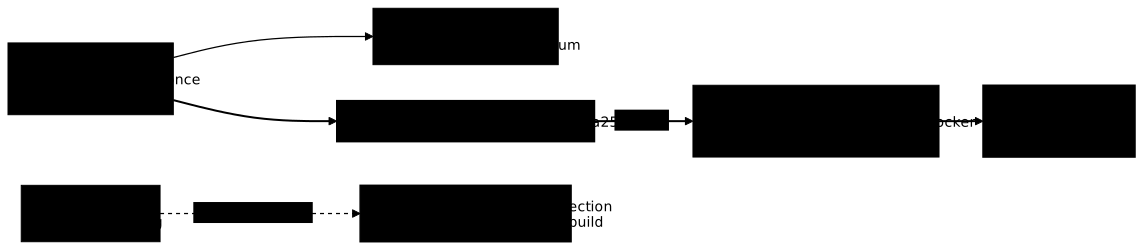
Follow the thick line: it leads from the single build to the deployment that keeps the Id, through the archive, the transfer and the load. The dotted line starts from the target host when the image is missing there: this is the danger covered in the section "Why does Compose rebuild silently?".
How do I prepare the sample application and the working folder?
Everything happens in a ~/c44 folder, created on both hosts, which the final cleanup removes in one go. On the build host, create it with its app subfolder; on the target host, create only ~/c44, since the app folder arrives by scp a little further down. The "catalogue" application serves two routes: /catalogue returns its environment and three titles, /sante answers ok. At each start, it appends a line to /donnees/demarrages.log: this is the trace that will prove that the data of a volume survives a recreation.
mkdir -p ~/c44/app && cd ~/c44Write app/app.py with this content.
import json, osfrom http.server import BaseHTTPRequestHandler, HTTPServer
ENV = os.environ.get("CAT_ENV", "inconnu")LIVRES = ["Le Petit Prince", "Germinal", "Les Misérables"]
# Each start leaves a line in the volume: the proof that the data survives.with open("/donnees/demarrages.log", "a") as f:    f.write(ENV + "\n")
class H(BaseHTTPRequestHandler):    def do_GET(self):        if self.path == "/sante":            body, code = b"ok\n", 200        elif self.path == "/catalogue":            body, code = json.dumps({"env": ENV, "livres": LIVRES}).encode() + b"\n", 200        else:            body, code = b"introuvable\n", 404        self.send_response(code)        self.send_header("Content-Length", str(len(body)))        self.end_headers()        self.wfile.write(body)
HTTPServer(("0.0.0.0", 8000), H).serve_forever()
Then app/Dockerfile. The base carries its digest, and the RUN date step produces the content that changes at every build, mentioned above.
FROM python:3.14-alpine@sha256:eb2c62658b8d51bff0acc408504b76521d02030de56a8a3c1e830083e89b89d2RUN date -u +%s%N > /etc/build-stamp && mkdir /donneesCOPY app.py /app/app.pyCMD ["python", "/app/app.py"]Next, copy the app folder itself to the target host, with scp -r app, and not its content with scp -r app/*: this second gesture flattens the build context, and the build fails for lack of a Dockerfile. The target host does not need this folder to deploy, but the demonstration of the hidden rebuild uses it further down.
How do I transfer the artifact without rebuilding it?
On the build host, build the image only once, read its Id and export it to an archive together with its checksum.
docker build -t cat-catalogue:1.0 appdocker image inspect cat-catalogue:1.0 --format "Id={{.Id}}"docker save -o cat-catalogue-1.0.tar cat-catalogue:1.0sha256sum cat-catalogue-1.0.tar | tee cat-catalogue-1.0.tar.sha256Id=sha256:5aa54177fc5c4f47aa3cca02ca7d27d650a9461c694567a55986cfa876c36542bf419e265457a50a497d5e7b208f609aad74a35e23220d2ae352ad423ec6faa0 cat-catalogue-1.0.tarKeep the Id: it is the identity of the artifact. With the containerd store, docker image ls --digests shows the same sha256 in the DIGEST and IMAGE ID columns (5aa54177fc5c). In other words, the Id is the digest of the OCI index, the list that describes the image for each of its platforms. The archive weighs 17,870,848 bytes.
Then write the provenance file, as in the CI lesson: it links the commit, the Id and the checksum of the archive. The commit a1b2c3d in our example is fictitious.
ID=$(docker image inspect cat-catalogue:1.0 --format '{{.Id}}')SHA=$(cut -d' ' -f1 cat-catalogue-1.0.tar.sha256)printf 'commit=a1b2c3d\nimage=cat-catalogue:1.0\nid=%s\narchive=cat-catalogue-1.0.tar\narchive_sha256=%s\n' "$ID" "$SHA" > provenance.txtcat provenance.txtcommit=a1b2c3dimage=cat-catalogue:1.0id=sha256:5aa54177fc5c4f47aa3cca02ca7d27d650a9461c694567a55986cfa876c36542archive=cat-catalogue-1.0.tararchive_sha256=bf419e265457a50a497d5e7b208f609aad74a35e23220d2ae352ad423ec6faa0Transfer the three files (the archive, its checksum and provenance.txt) to ~/c44 on the target host with scp. In our case, the two hosts could not reach each other: the files went through the workstation, from the build host to the workstation then from the workstation to the target host, and both scp returned 0. On the target host, verify the archive before loading it.
sha256sum -c cat-catalogue-1.0.tar.sha256cat-catalogue-1.0.tar: OKThe check must be able to fail, otherwise it proves nothing. We altered one byte of a copy of the archive (by writing X at position 100) and ran sha256sum -c again: it answered alteree.tar: FAILED then sha256sum: WARNING: 1 computed checksum did NOT match, with exit code 1. Never load an archive for which this check does not return 0: transfer it again from the build host, without rebuilding the image on the target, which would produce another artifact. When the check answers OK, load the archive.
docker load -i cat-catalogue-1.0.tardocker image inspect cat-catalogue:1.0 --format '{{.Id}}'Loaded image: cat-catalogue:1.0sha256:5aa54177fc5c4f47aa3cca02ca7d27d650a9461c694567a55986cfa876c36542Look at the Id: it is the one from the build host and the one in the provenance file, character for character. Compare them with a test rather than by eye, but also test that the two values are not empty.
ATTENDU=$(grep '^id=' provenance.txt | cut -d= -f2)REEL=$(docker image inspect cat-catalogue:1.0 --format '{{.Id}}')[ -n "$ATTENDU" ] && [ "$REEL" = "$ATTENDU" ] && echo "identique à la provenance"The -n test is not a luxury. During our measurements, a diff between two empty Id values, coming from a build that had failed, printed "identical". Two empty values are equal: a comparison that does not check it received something can succeed on nothing.
A trusted registry can replace this archive when one exists: the digest of the manifest then plays the role of the Id. This variant, with its pitfalls, is covered in BuildKit cache in CI and image promotion between registries, and the lesson does not replay it.
How do I change only the configuration between two environments?
The image does not change from one environment to the next, its settings do. The compose.yaml base describes what is common, with an image: and no build section. It carries only a placeholder value for CAT_ENV. Put the files of this section in ~/c44; the target host needs only compose.yaml and compose.prod.yaml.
services: catalogue: image: cat-catalogue:1.0 environment: CAT_ENV: inconnu volumes: - donnees:/donneesvolumes: donnees: {}Each environment adds an override: a second Compose file, passed after the base, that carries only what differs. Here, that is the variable, the memory limit and the publication on the loopback interface (127.0.0.1, reachable from the host only). Here is compose.recette.yaml, then compose.prod.yaml. Neither redefines image:.
services: catalogue: environment: CAT_ENV: recette mem_limit: 96m ports: - "127.0.0.1:8601:8000"services: catalogue: environment: CAT_ENV: production mem_limit: 192m ports: - "127.0.0.1:8602:8000"Before launching anything, read the merged configuration. The -f options apply in order: the base first, the override next. The -p option names the Compose project, that is, the set of containers, network and volume that one command creates. This name also prefixes those of the network and the volume.
docker compose -p cat-recette -f compose.yaml -f compose.recette.yaml configname: cat-recetteservices: catalogue: environment: CAT_ENV: recette image: cat-catalogue:1.0 mem_limit: "100663296" networks: default: null volumes: - type: volume source: donnees target: /donnees volume: {} ports: - mode: ingress host_ip: 127.0.0.1 target: 8000 published: "8601" protocol: tcpnetworks: default: name: cat-recette_defaultvolumes: donnees: name: cat-recette_donneesIn this output, look at three things. image: cat-catalogue:1.0 comes from the base, with no build section. mem_limit is converted to bytes (96 MiB gives "100663296"). The project gives its names to the network (cat-recette_default) and to the volume (cat-recette_donnees).
The production configuration, read the same way, gives CAT_ENV: production, "201326592" bytes, port "8602" and names in cat-prod_.
The check that matters for a promotion is the absence of a build section in the merged configuration, for each environment.
for e in recette prod; do echo -n "$e : lignes build = " docker compose -p cat-$e -f compose.yaml -f compose.$e.yaml config | grep -c builddonerecette : lignes build = 0prod : lignes build = 0Mind the exit code: grep -c returns 1 when it counts 0. Here, 0 is the right result, but a script that chains this grep with &&, or that runs under set -e, stops on a success. Read the count, not the exit code.
The effective configuration says what Compose is going to ask for. What runs is read in the container, once the deployment is done: the section "How do I separate two environments on one host?" repeats this check on the running containers.
One last check: the base must not have moved. Record its checksum before any operation with sha256sum compose.yaml | tee base.sha256, then verify it again at the end with sha256sum -c base.sha256. In our session, it stayed identical.
Why does Compose rebuild silently?
When a service keeps a build section and its image is missing from the host, docker compose up -d builds it without being asked. To see it, we put a third override on the target host, compose.avec-build.yaml, which gives the service its build: ./app back, then removed the image from that host.
services: catalogue: build: ./appdocker rmi cat-catalogue:1.0docker compose -p cat-prod -f compose.yaml -f compose.prod.yaml -f compose.avec-build.yaml up -dThe command took 5.8 seconds and returned 0. It printed Image cat-catalogue:1.0 Built, then created the network, the volume and the container. The host did not have the python base image either: to build, it had to fetch it, which requires network access on the host. Now read the Id of the image, then query the application.
docker image inspect cat-catalogue:1.0 --format '{{.Id}}'curl -fsS http://127.0.0.1:8602/cataloguesha256:f6cbb17368c4164f41964af1c629650a426e3381eccbae114902a80ab4544f14{"env": "production", "livres": ["Le Petit Prince", "Germinal", "Les Mis\u00e9rables"]}The tag is still cat-catalogue:1.0 and the application answers correctly, but the Id is no longer 5aa54177, the one in the provenance. Nothing raised an alert: that is the danger. A check that merely runs a curl validates this production, although it is not running the promoted artifact.
The deployment must therefore fail instead of rebuilding or downloading. Two options do it: --no-build forbids building, --pull never forbids downloading. On the same host, after stopping the project (down -v) and removing the image again (docker rmi), relaunch the deployment with the build section kept:
docker compose -p cat-prod -f compose.yaml -f compose.prod.yaml -f compose.avec-build.yaml \ up -d --no-build --pull neverecho "rc=$?" Network cat-prod_default Creating Network cat-prod_default Creating Volume cat-prod_donnees Creating Volume cat-prod_donnees Creating Volume cat-prod_donnees Created Volume cat-prod_donnees Created Network cat-prod_default Created Network cat-prod_default Created Container cat-prod-catalogue-1 Creating service:catalogue:1 Error response from daemon: No such image: cat-catalogue:1.0Error response from daemon: No such image: cat-catalogue:1.0rc=1Outside a terminal, Compose repeats some progress lines: this is the output as it writes it. Read the message carefully: it mentions neither build nor download. It is the daemon that answers No such image when Compose asks it to create the container. No container exists after the failure: docker compose ... ps -a is empty, and docker ps -a --filter label=com.docker.compose.project=cat-prod prints only its header. But the cat-prod_default network and the cat-prod_donnees volume were created before, and they are still there: a failure leaves leftovers to clean up.
On the promotion configuration, without a build section, we got the same message and the same code 1 with up -d --no-build --pull never and with up -d --pull never alone. Without a build section, --pull never is therefore enough to prevent the download; --no-build protects the case where a build section has slipped into the configuration. Keep both options in your deployment commands.
When the image is loaded and the configuration no longer carries a build section, the same deployment succeeds.
docker load -i cat-catalogue-1.0.tardocker compose -p cat-prod -f compose.yaml -f compose.prod.yaml up -d --no-build --pull neverecho "rc=$?"docker inspect cat-prod-catalogue-1 --format '{{.Image}}'Loaded image: cat-catalogue:1.0 Container cat-prod-catalogue-1 Creating Container cat-prod-catalogue-1 Created Container cat-prod-catalogue-1 Starting Container cat-prod-catalogue-1 Startedrc=0sha256:5aa54177fc5c4f47aa3cca02ca7d27d650a9461c694567a55986cfa876c36542For a container, {{.Image}} gives the Id of the image it comes from. The one of the production container is indeed the one in the provenance: it runs on the promoted artifact.
One last point is measured on the build host, once production has been launched on it as in the next section, with the image present and the build section kept. It also needs compose.avec-build.yaml, which we had put only on the target host: copy it. A plain up -d does not rebuild (Container ... Running, Id of the container and of the image unchanged). An up -d --build rebuilds, retags cat-catalogue:1.0 to another Id and recreates the container.
docker compose -p cat-prod -f compose.yaml -f compose.prod.yaml -f compose.avec-build.yaml up -d --build 2>&1 | grep -E 'Built|Recreate|Started'docker inspect cat-prod-catalogue-1 --format 'img={{.Image}}' Image cat-catalogue:1.0 Built Container cat-prod-catalogue-1 Recreate Container cat-prod-catalogue-1 Recreated Container cat-prod-catalogue-1 Startedimg=sha256:55e681386acd8022d34a91e4acedec8d888c5e46f7fca8db31f5eee472ebc9d2The production container no longer runs on the artifact of the provenance, and nothing failed. A forgotten --build option in a deployment script is enough to change what runs. If you replay this test, restore the artifact afterwards: docker load puts the cat-catalogue:1.0 tag back on the Id of the archive, and the promotion deployment recreates the container on it.
docker load -i cat-catalogue-1.0.tardocker compose -p cat-prod -f compose.yaml -f compose.prod.yaml up -d --no-build --pull neverdocker inspect cat-prod-catalogue-1 --format 'prod img={{.Image}}'Loaded image: cat-catalogue:1.0 Container cat-prod-catalogue-1 Recreate Container cat-prod-catalogue-1 Recreated Container cat-prod-catalogue-1 Starting Container cat-prod-catalogue-1 Startedprod img=sha256:5aa54177fc5c4f47aa3cca02ca7d27d650a9461c694567a55986cfa876c36542How do I separate two environments on one host?
One project per environment separates containers, network and volume. On the build host, we launched staging and production side by side with the same image.
docker compose -p cat-recette -f compose.yaml -f compose.recette.yaml up -d --no-build --pull neverdocker compose -p cat-prod -f compose.yaml -f compose.prod.yaml up -d --no-build --pull neverdocker volume ls --filter name=cat-docker network ls --filter name=cat-DRIVER VOLUME NAMElocal cat-prod_donneeslocal cat-recette_donneesNETWORK ID NAME DRIVER SCOPE9f132ee95d3e cat-prod_default bridge local4c48f51fc32d cat-recette_default bridge localEach environment has its own volume, its own network and its own port: the two projects share neither name nor data, although they come from the same compose.yaml.
Before comparing them, check what really runs. The effective configuration says what Compose asked for; docker inspect says what the daemon applied. Read the memory limit (HostConfig.Memory, in bytes), the port publication (HostConfig.PortBindings) and the CAT_ENV variable among the variables of the container (Config.Env, a list to which the image itself adds several entries, hence the grep).
for e in recette prod; do echo "== $e" docker inspect cat-$e-catalogue-1 --format "Memory={{.HostConfig.Memory}} PortBindings={{json .HostConfig.PortBindings}}" docker inspect cat-$e-catalogue-1 --format "{{range .Config.Env}}{{println .}}{{end}}" | grep "^CAT_ENV="done== recetteMemory=100663296 PortBindings={"8000/tcp":[{"HostIp":"127.0.0.1","HostPort":"8601"}]}CAT_ENV=recette== prodMemory=201326592 PortBindings={"8000/tcp":[{"HostIp":"127.0.0.1","HostPort":"8602"}]}CAT_ENV=productionThe values are those of the overrides: 96 MiB gives 100663296 bytes, 192 MiB gives 201326592, and each port is published only on 127.0.0.1.
To verify that the data is separate, write a note.txt file in the volume of each project and read the identifier and start time of each container. The -T option of exec disables the pseudo-terminal, which is needed here because the command receives its input through a pipe.
echo donnee-recette | docker compose -p cat-recette -f compose.yaml -f compose.recette.yaml exec -T catalogue tee /donnees/note.txtecho donnee-prod | docker compose -p cat-prod -f compose.yaml -f compose.prod.yaml exec -T catalogue tee /donnees/note.txtdocker inspect cat-recette-catalogue-1 --format 'recette avant: {{.Id}} {{.State.StartedAt}}'docker inspect cat-prod-catalogue-1 --format 'prod avant: {{.Id}} {{.State.StartedAt}}'donnee-recettedonnee-prodrecette avant: 1e1dde4b4075ed0a3864cc58b476f76fed14eead0b0d4ce4e981d6712d3b09db 2026-11-04T13:04:21.459337784Zprod avant: b2c32451dfdde4a1d5595ebcd961e8497f96a44fe8b5447ada9a4f5eb03baf86 2026-11-04T13:04:21.725411729ZThen recreate staging alone, and read both containers again.
docker compose -p cat-recette -f compose.yaml -f compose.recette.yaml up -d --force-recreate --no-build --pull neverdocker inspect cat-recette-catalogue-1 --format 'recette apres: {{.Id}} {{.State.StartedAt}}'docker inspect cat-prod-catalogue-1 --format 'prod apres: {{.Id}} {{.State.StartedAt}}' Container cat-recette-catalogue-1 Recreate Container cat-recette-catalogue-1 Recreated Container cat-recette-catalogue-1 Starting Container cat-recette-catalogue-1 Startedrecette apres: 0194798526aa112fd5f78ac925b83cc05a72c81d92f6139296cf04e46fe04f3a 2026-11-04T13:04:42.251887786Zprod apres: b2c32451dfdde4a1d5595ebcd961e8497f96a44fe8b5447ada9a4f5eb03baf86 2026-11-04T13:04:21.725411729ZThe staging container has a new identifier (01947985… instead of 1e1dde4b…), while the production one (b2c32451…) and its StartedAt are unchanged. What remains is to read the data.
docker compose -p cat-recette -f compose.yaml -f compose.recette.yaml exec -T catalogue cat /donnees/note.txt /donnees/demarrages.logdocker compose -p cat-prod -f compose.yaml -f compose.prod.yaml exec -T catalogue cat /donnees/note.txt /donnees/demarrages.logdonnee-recetterecetterecettedonnee-prodproductionThe staging note.txt is intact, its demarrages.log holds two recette lines (two starts), and production keeps a single one, production.
Remember what this shows: recreating a project keeps its volume and touches neither the container nor the data of the other. That is not the case of down -v, which deletes the volume of the project along with its data; the lesson uses it only for the cleanup.
How do I trace a promotion and validate it?
To prove what runs, read the Id of the image of each container with docker inspect and compare it to the one in the provenance, with the same non-empty test as above.
ID=$(grep '^id=' provenance.txt | cut -d= -f2)for c in cat-recette-catalogue-1 cat-prod-catalogue-1; do [ -n "$ID" ] && [ "$(docker inspect $c --format '{{.Image}}')" = "$ID" ] \ && echo "$c identique à la provenance" || echo "$c DIFFÉRENT"donecat-recette-catalogue-1 identique à la provenancecat-prod-catalogue-1 identique à la provenanceIf the ID variable is empty (provenance file missing or badly read), the -n test fails and the loop prints DIFFÉRENT for each container, instead of wrongly concluding that they are identical.
An identical Id proves that this is the right artifact, not that it works in this environment. The next promotion therefore depends on a business check, that is, a test of what the application must do (here, serve its catalogue) rather than of its mere startup. Here is verifier.sh, which queries /catalogue, checks the announced environment, counts the titles of the catalogue (the strings that start with a capital letter) and fails if the catalogue is empty. It takes the port and the expected environment. The --noproxy '*' option of curl stops it from going through a proxy defined in the environment of the shell: with http_proxy=http://127.0.0.1:9 (an address where nothing listens), a curl without this option failed with code 7, and with it, it answered.
#!/bin/shset -eurep=$(curl -fsS --noproxy '*' --max-time 3 "http://127.0.0.1:$1/catalogue")echo "$rep" | grep -q "\"env\": \"$2\"" || { echo "ECHEC: environnement attendu $2, reçu $rep"; exit 1; }n=$(echo "$rep" | grep -o '"[A-Z][^"]*"' | grep -vc '"env"' || true)[ "$n" -gt 0 ] || { echo "ECHEC: catalogue vide"; exit 1; }echo "OK: $2 répond, catalogue non vide ($n entrées lues)"chmod +x verifier.sh./verifier.sh 8601 recette; echo "rc=$?"./verifier.sh 8601 production; echo "rc=$?"OK: recette répond, catalogue non vide (3 entrées lues)rc=0ECHEC: environnement attendu production, reçu {"env": "recette", "livres": ["Le Petit Prince", "Germinal", "Les Mis\u00e9rables"]}rc=1The script must be able to fail, and the second command proves it: asking for production on the staging port returns code 1. It must also refuse an empty catalogue, because an application that answers without serving anything is not ready to be promoted. To see it, serve an empty catalogue on another port with the Python HTTP server, which stops by itself after 6 seconds thanks to timeout.
mkdir -p videecho '{"env": "recette", "livres": []}' > vide/cataloguetimeout 6 python3 -m http.server 8603 --bind 127.0.0.1 --directory vide >/dev/null 2>&1 &sleep 1./verifier.sh 8603 recette; echo "rc=$?"waitECHEC: catalogue viderc=1It is this code 1 that would block the next promotion. When the check succeeds, record the promotion in a log: date, environment, Id and result. The && operator writes the line only if verifier.sh succeeded.
res=$(./verifier.sh 8601 recette) && echo "$(date -u +%FT%TZ) recette id=$(docker inspect cat-recette-catalogue-1 --format '{{.Image}}') verification=$res" | tee -a promotions.log2026-11-04T13:04:45Z recette id=sha256:5aa54177fc5c4f47aa3cca02ca7d27d650a9461c694567a55986cfa876c36542 verification=OK: recette répond, catalogue non vide (3 entrées lues)We checked it the other way round: with ./verifier.sh 8601 production instead, the assignment returned code 1 and promotions.log did not receive a second line.
This log answers, long afterwards, the question "what ran, when, and had we checked it?".
Who decides to promote?
The decision to promote stays human. This lesson shows the mechanism that guarantees the promoted artifact is the right one; it does not say who is allowed to promote it. Protected environments and mandatory reviewers belong to the CI provider, and are learned in the courses devoted to it. For GitHub Actions, the page Promoting an artifact: build once, deploy twice shows this approval around a promotion by digest.
How do I clean up what the lesson left behind?
Each host keeps projects, images, build cache and the ~/c44 folder. Stop the projects with -v to also delete their volumes (the lesson keeps none of them), remove the images, then delete the working folder.
cd ~/c44docker compose -p cat-recette -f compose.yaml -f compose.recette.yaml down -vdocker compose -p cat-prod -f compose.yaml -f compose.prod.yaml down -vdocker rmi cat-catalogue:1.0docker builder prune -fcd ~ && find ~/c44 -deleteDepending on the host, some projects do not exist: staging runs only on the build host in our session. If you built other tags, remove them the same way with docker rmi. The python base image does not appear in docker image ls -a after the builds, and a docker rmi on it answers No such image: only the build cache keeps a trace of it. Careful: docker builder prune -f empties the build cache of the whole machine, not only that of the lesson; skip it if you build other images on that host. In our case, docker image ls -a, docker volume ls, docker ps -a and docker system df showed nothing left on either host at the end.
Practice
The lab repeats the gesture of the lesson on two virtual machines: one application, a single artifact, two Compose deployments that differ only by their configuration. The setup builds the image on the first machine, then loads the archive of that image on the second one, without rebuilding it on production. You write one override per machine, in the working folder of the lab, and merge them with the base through two -f options.
The validation compares the identity of the prepared image to the two running images, refuses a build key in the merged configuration, verifies that the base stayed unchanged, reads the variable, the memory limit and the publication in each container, then queries both services. It then recreates each project, with up -d --force-recreate --no-build --pull never, to observe that its data survives and that the other one is not touched. The promotion log and the business check seen in the section "How do I trace a promotion and validate it?" remain gestures to practice by hand: the validation does not check them. It does not check either that you use --no-build --pull never: it uses them itself when it recreates an environment.
Key points
- A rebuild of the same Dockerfile can give another
Id, even with the cache (observed with the containerd store, the default provenance attestation being the cause): build once, then promote that artifact. - The transfer by archive follows four gestures:
docker save, transfer,sha256sum -c(which must return 0),docker load. TheIdafter loading is the one from the build host and from the provenance. Compare them with a test that also checks they are not empty: two empty values are equal. - The configuration lives outside the image: a common base without
build, one override per environment, merged in that order.docker compose configmust show zerobuildlines. - When a service keeps a
buildsection and the image is missing,docker compose up -drebuilds without saying so, under the same tag but with anotherId, and the application still answers: nobody sees the substitution.--no-build --pull neverturns this rebuild into an error (No such image, code 1, a message that mentions neither build nor download). Andup -d --buildretags the image and replaces the artifact. - One project per environment (
-p) gives each its own volume and network. Recreating one keeps its data and leaves the other intact. - Trace the promotion: the
Idread bydocker inspectis compared to the provenance, and a successful business check in the target environment precedes the next promotion. - The decision to promote stays human: the approval belongs to the GitHub Actions and GitLab CI courses.
- Clean up the projects (
down -v), the images, the cache and the~/c44folder on both hosts.
Knowledge check
Check that the essentials of this lesson have stuck. The questions cover only what has just been explained here.
Knowledge check
Check what you have learned with this interactive quiz
How it works
- The timer starts when you click Start
- Multiple choice, true/false and short answer questions
- You can move between questions
- Detailed results are shown at the end
Starts the quiz and the timer
Review
(0/0)Score by domain
A domain groups several guides and gets several questions, so its score is more reliable than a per-topic score, which often rests on a single question.
Summary
Strengths
No topic passed at 80% on at least two questions yet.
Weak areas
No topic below the pass mark.
Recommended next
Hints before you try again?
Continue the course: Prepare operations, and recognize the limits of a single host
A new full quiz with random questions
Work again only on the questions you missed