An account in the docker group and a container that mounts docker.sock have
the same power: they talk to the Docker daemon, and the daemon runs as root.
This lesson teaches you to list these direct accesses, to understand why
each one is worth root access on the host, then to remove them and check that
the Docker path is really closed. That check has a limit: it does not tell you
what an account was able to do while it was root through Docker, and the lesson
says where it stops. The measurements come from a throwaway Debian 13 VM with
Docker Engine 29.9.2: do not replay the removals on a shared host.
What you will learn
Each removal is checked against the real state, not against the announced configuration.
- You take stock of the paths to the daemon: group, socket mode, ACL, TCP
listener and
sudo. - You show that belonging to the
dockergroup is equivalent to being root. - You remove an account from the group, you close its processes that are still open and you remove an ACL that reopens access without the group.
- You audit all containers, stopped ones included, that mount the socket,
directly or through a parent directory (
/runor/), and you prove it with the inode. - You see that a read-only mount does not prevent stopping a container.
- You remove a mount by recreating the container without losing its configuration.
- You know what the removal does not prove.
Prerequisites
The lesson
Rotate Docker logs and reclaim disk space
(C35b) comes before this one. You must know how to start a container with a -v
mount, read an ls -l and use sudo. Unix file permissions are detailed in the
page Fine-tune permissions with ACLs, which also
explains getfacl and setfacl.
The demonstration uses the account stagiaire-ops and the containers
c36-tableau, c36-racine, c36-renomme, c36-arrete and c36-sain. The two
labs at the end of the lesson work on other names. All the containers start from
the same image, pinned to its digest:
IMG='alpine:3.24.3@sha256:be2656061b536c1883c4034790e21d0a09c5aaaf51968b89368a3c0371ea2c9a'docker version --format 'client={{.Client.Version}} serveur={{.Server.Version}}'client=29.9.2 serveur=29.9.2Who can talk to the daemon, and how do you find out?
By default, the Docker daemon listens on a Unix socket, a special file
/run/docker.sock: anyone who can open it can send orders to the daemon. The
inventory therefore consists of listing who can open this file, or reach the
daemon some other way.
ls -l /run/docker.sockreadlink -f /var/run/docker.sockgetent group dockersrw-rw---- 1 root docker 0 Nov 4 18:46 /run/docker.sock/run/docker.sockdocker:x:989:ansibleThe mode srw-rw---- gives read and write to root and to the docker group,
and nothing to anyone else. getent group docker lists the members of that
group, here ansible, the VM's operations account.
readlink -f then shows that /var/run/docker.sock, the path the tools use,
points to the same file as /run/docker.sock, because /var/run is a link to
/run. This resolution will matter for the mounts.
A + at the end of the mode, as in srw-rw----+, signals an ACL, a list of
extra permissions attached to the file, which ls -l does not detail. To read
it you need getfacl, which is missing from the VM's minimal Debian 13: the
acl package provides it.
sudo apt-get install -y aclgetfacl -p /run/docker.sockWithout an ACL, getfacl -p only returns the three entries of the classic mode
(owner, group, others). The apt-get output is not reproduced:
# owner: root# group: dockeruser::rw-group::rw-other::---The daemon can also listen on TCP, which would hand its API to the whole network that can reach it. You read this in the service's start line and in the listening ports:
systemctl cat docker | grep -E '^ExecStart='sudo ss -lntp | grep -E 'dockerd' || echo "no TCP listener for dockerd"ExecStart=/usr/bin/dockerd -H fd:// --containerd=/run/containerd/containerd.sockno TCP listener for dockerd-H fd:// means the daemon receives its socket from systemd, with no tcp://
option. Look for dockerd in ss -lntp, not for the word "docker": the
docker-proxy process legitimately listens on TCP for published ports, and it
is not the API. With this ExecStart, a hosts key in /etc/docker/daemon.json
does not open a port: on the VM, the daemon refuses to start, with the message
the following directives are specified both as a flag and in the configuration file: hosts. A TCP listener therefore comes from a -H tcp:// in the service or
in a systemd override, which systemctl cat docker displays in full. Do both
checks together, because ss sees the real listener, whatever its origin.
The last path to check is sudo. The command sudo -l -U <account> tells you
whether an account can become root another way: with a broad sudo, the
docker group is superfluous, since the account is already root. A sudo rule
limited to /usr/bin/docker also gives root: the account can run sudo docker run -v /:/hote … and get the same mounted root as the group.
Why is belonging to the docker group the same as being root?
The daemon executes the orders of any client that opens its socket, with its own rights, those of root. A member of the group can therefore ask it to start a container that mounts the host's files, then read or write there as root.
To show it, create a working account without sudo and add it to the group:
sudo useradd -m -s /bin/bash stagiaire-opssudo usermod -aG docker stagiaire-opsid stagiaire-opsuid=1002(stagiaire-ops) gid=1002(stagiaire-ops) groups=1002(stagiaire-ops),989(docker)With this account, without any sudo, start two containers. The first mounts the
host's /etc read-only and reads the first line of shadow, the file of
password hashes. The second mounts the host's whole root and runs id in that
root:
sudo -n -u stagiaire-ops docker run --rm -v /etc:/hote-etc:ro "$IMG" head -1 /hote-etc/shadowsudo -n -u stagiaire-ops docker run --rm -v /:/hote "$IMG" chroot /hote idroot:*:20760:0:99999:7:::uid=0(root) gid=0(root) groups=0(root),1(daemon),2(bin),3(sys),4(adm),6(disk),10(uucp),11,20(dialout),26(tape),27(sudo)The first output is the first line of the host's /etc/shadow. The second shows
that chroot /hote, which takes the host's root as its root, opens a uid=0
session in the real system. The same account, without Docker, gets nothing:
sudo -n -u stagiaire-ops head -1 /etc/shadowhead: cannot open '/etc/shadow' for reading: Permission deniedThe docker group is therefore not a right "to manage containers": it is
root access on the host, and it must be granted as such.
How do you remove an account from the docker group, and what about open sessions?
Before removing the account, you need a session of that account that is already
open, to see what becomes of it. Open a second terminal and run the command
below in it. It prints the account's groups, waits 30 seconds, prints them
again, then runs docker ps. As soon as it is running, go back to the first
terminal without waiting: you have 30 seconds to run the removal there. If
that is too short, replace sleep 30 with sleep 60.
# second terminal, run this firstsudo -n -u stagiaire-ops bash -c 'id -nG; sleep 30; echo "--- after the removal, in the same session:"; id -nG; docker ps >/dev/null; echo "docker ps rc=$?"'In the first terminal, remove the account with gpasswd -d. Then check the
group's list, the account's groups and a new docker ps command, whose return
code you note:
# first terminal, right after starting the command in the second onesudo gpasswd -d stagiaire-ops dockergetent group dockerid stagiaire-opssudo -n -u stagiaire-ops docker ps; echo "rc=$?"Removing user stagiaire-ops from group dockerdocker:x:989:ansibleuid=1002(stagiaire-ops) gid=1002(stagiaire-ops) groups=1002(stagiaire-ops)permission denied while trying to connect to the docker API at unix:///var/run/docker.sockrc=1The group no longer lists the account, and neither does id. The new command is
refused, with the message permission denied while trying to connect to the docker API, and its return code is 1. The removal seems done.
Yet look at the second terminal: a session opened before the removal keeps its access. After its 30 seconds, it prints:
stagiaire-ops docker--- after the removal, in the same session:stagiaire-ops dockerdocker ps rc=0The first two lines give the groups before and after the removal: the session
still sees docker, and its docker ps succeeds (rc=0). A process's groups
are fixed when the session opens, and the removal does not change them: this
session stays usable until it is closed.
A removal is therefore only worth something once the open sessions are closed,
otherwise the access removed from /etc/group stays open in practice. Check with
a real call, docker ps run from a new login of the account, rather than with
the line in /etc/group.
How do you close the account's remaining processes?
To close these sessions, first list the account's processes with pgrep -u. A
process started by sudo -u, which here plays the role of a forgotten session,
shows up in the list:
sudo -u stagiaire-ops bash -c 'sleep 600' &pgrep -u stagiaire-ops -a38840 sleep 600loginctl terminate-user closes an account's login sessions (SSH, console), but
it does not see this process:
sudo loginctl terminate-user stagiaire-ops; echo "rc=$?"Could not terminate user: User ID 1002 is not logged in or lingeringrc=1The message says loginctl knows no session for this account: the process
exists, but it is not attached to any login. pkill -KILL -u ends all the
account's processes, whatever their origin, and pgrep confirms that none is
left:
sudo pkill -KILL -u stagiaire-ops; echo "pkill rc=$?"pgrep -u stagiaire-ops -a || echo "no process left after pkill"pkill rc=0no process left after pkillA terminal multiplexer, a cron job or a systemd --user service left behind by
the account are also processes of that account, so they are covered by pgrep -u
and pkill -u. These cases were not measured here: run pgrep again afterwards
to check that they have not come back to life.
Which other paths reopen access without the group?
The group is only one way to open the socket. An ACL can give the same right to a
specific account, without going through the group. The account is refused today;
after setfacl, it gets through:
sudo setfacl -m u:stagiaire-ops:rw /run/docker.sockgetfacl -p /run/docker.sockls -l /run/docker.socksudo -n -u stagiaire-ops docker ps --format '{{.Names}}' >/dev/null; echo "rc=$?"# owner: root# group: dockeruser::rw-user:stagiaire-ops:rw-group::rw-mask::rw-other::---
srw-rw----+ 1 root docker 0 Nov 4 18:46 /run/docker.sockrc=0The line user:stagiaire-ops:rw- is the ACL, and the + in ls -l signals it: the
account calls the daemon although it is not in the group. An inventory that only
reads getent group docker misses it. Read ls -l and getfacl too.
To remove this ACL without restarting the daemon, delete the account's entry,
then read it back with getfacl and call the daemon from the account:
sudo setfacl -x u:stagiaire-ops /run/docker.sockgetfacl -p /run/docker.sockls -l /run/docker.socksudo -n -u stagiaire-ops docker ps; echo "rc=$?"# owner: root# group: dockeruser::rw-group::rw-mask::rw-other::---
srw-rw----+ 1 root docker 0 Nov 4 18:46 /run/docker.sockpermission denied while trying to connect to the docker API at unix:///var/run/docker.sockrc=1The line user:stagiaire-ops:rw- has disappeared from getfacl and the call is
refused (rc=1). Note that ls -l still shows the +: it stays after a
setfacl -x, because the mask remains. The + alone therefore does not let
you conclude, getfacl is what settles it.
Restarting the socket (systemctl restart docker.socket docker) also erases the
ACL, but it restarts the daemon: without live-restore, the containers are
restarted. The lesson
Upgrade Docker Engine and back up its configuration
details this behavior; on a host in service, prefer setfacl -x.
This finding only holds for an ACL set by hand. An ACL set by a systemd unit or by a udev rule would be applied again each time the socket is created; this case was not measured, so look for it in the host's units and rules.
That leaves sudo. On the VM, sudo -l -U stagiaire-ops returns
User stagiaire-ops is not allowed to run sudo on c45-debian. (c45-debian is
the VM's name), so there is no path that way. An account allowed to do anything
with sudo would be root without going through Docker.
Which containers mount the daemon's socket?
A container that mounts docker.sock gives its process the power of any account
in the docker group. The diagram sums up the paths seen so far: the thick
arrows are direct accesses to the socket, and the dotted arrows go through a
directory that contains it, /run or the root /. All of them end at the same
socket, so at the same root daemon.
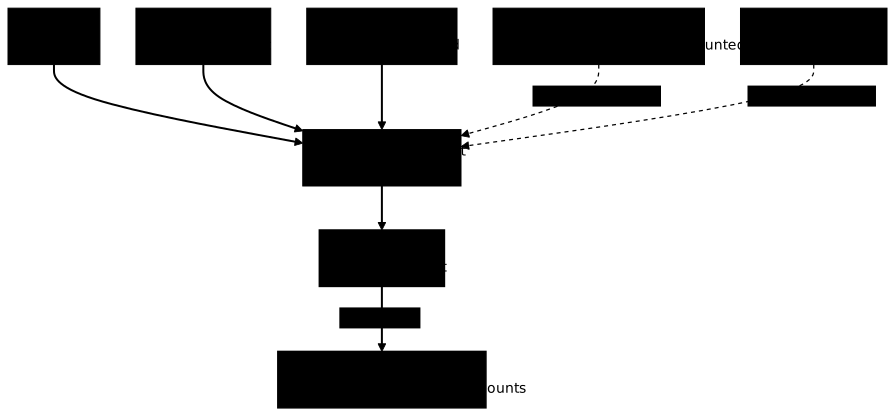
Five demonstration containers cover these forms, and one absence. The first
mounts the socket by its path and a named volume, with the labels, the
environment variable and the restart policy of a small dashboard. The next three
mount /, /run under another name, and /run in a stopped container created
with --restart always. The last one mounts nothing:
docker run -d --name c36-tableau --label equipe=supervision --restart unless-stopped -e MODE=lecture \ -v /var/run/docker.sock:/var/run/docker.sock:ro -v c36-cache:/cache "$IMG" sleep 3600 >/dev/nulldocker run -d --name c36-racine -v /:/hote:ro "$IMG" sleep 3600 >/dev/nulldocker run -d --name c36-renomme -v /run:/data:ro "$IMG" sleep 3600 >/dev/nulldocker create --name c36-arrete --restart always -v /run:/r "$IMG" sleep 3600 >/dev/nulldocker run -d --name c36-sain "$IMG" sleep 3600 >/dev/nullTo audit them, a script reads each container's mounts with docker inspect,
resolves each source with readlink -f, then compares it to the resolved
socket. A source that is the socket, or a directory that contains it, exposes it.
Comparing character strings would let /var/run/docker.sock through, which is
/run/docker.sock under another name, and /run.
SOCK=$(readlink -f /var/run/docker.sock)for c in $(docker ps -a --format '{{.Names}}'); do docker inspect -f '{{range .Mounts}}{{.Source}} {{.Destination}}{{"\n"}}{{end}}' "$c" | while read -r src dst; do [ -z "$src" ] && continue r=$(sudo readlink -f "$src") if [ "$SOCK" = "$r" ] || [ "${SOCK#"${r%/}/"}" != "$SOCK" ]; then echo "$c : $src -> $dst EXPOSE" else echo "$c : $src -> $dst" fi donedonec36-arrete : /run -> /r EXPOSEc36-renomme : /run -> /data EXPOSEc36-racine : / -> /hote EXPOSEc36-tableau : /var/lib/docker/volumes/c36-cache/_data -> /cachec36-tableau : /var/run/docker.sock -> /var/run/docker.sock EXPOSEEach line gives the mount's source and its destination; EXPOSE marks a source
that is the socket or that contains it. Four containers are flagged, including
c36-racine (the root contains /run/docker.sock) and c36-arrete, which is
stopped but which --restart always will start again. The named volume
c36-cache is not flagged, and c36-sain does not appear for lack of a mount.
Mounting /run or / is therefore no safer than mounting the socket.
Two details of the script avoid easy traps. The first concerns the root. For
r=/, a simple pattern like case "$SOCK" in "$r"/*) becomes //*, which
matches no absolute path: a container that mounts / would go unnoticed. The
script's test strips the source's trailing slash, ${r%/}, then looks for that
prefix followed by / at the start of the socket; for the root, it strips the
initial / from /run/docker.sock and flags it.
The second trap concerns readlink -f. Without sudo, the command fails on the
paths under /var/lib/docker, which only root can traverse: the variable r
stays empty, and a badly written test would then declare a simple named volume
exposed. With sudo readlink -f, the volume c36-cache is resolved and
correctly not flagged. Finally, the loop runs over docker ps -a, not docker ps, so as not to forget a stopped container.
This script trusts the containers' configuration. For proof seen from the inside, compare the inode, the number that identifies a file for the kernel, together with the device number. A path is what you wrote, the inode is what the kernel designates: two names that lead to the same pair are the same file. The next loop looks for all the sockets visible inside each running container, with no path written in advance, and keeps only those whose pair is that of the host's socket:
H=$(stat -c '%d:%i' "$SOCK"); echo "host: $H"for c in $(docker ps --format '{{.Names}}'); do docker exec "$c" find / -path /proc -prune -o -type s -print 2>/dev/null | while read -r s; do [ "$(docker exec "$c" stat -c '%d:%i' "$s")" = "$H" ] && echo "$c : $s" donedonehost: 25:18226c36-renomme : /data/docker.sockc36-racine : /hote/run/docker.sockc36-tableau : /run/docker.sockThe three exposed containers show the same pair 25:18226 as the host, under
three different names: the name proves nothing, the pair does. c36-sain prints
nothing. The filter nevertheless hides a serious fact: a container that mounts
/ or /run also sees dozens of the host's other sockets, those of
containerd, dbus and systemd, and a user's SSH agent
(/run/user/1001/openssh_agent). Removing access to docker.sock is therefore
not enough to make these mounts harmless: it is the mount itself that must be
removed.
Why does a read-only mount not protect anything?
The first two containers carry :ro, and that :ro protects nothing: it applies
to the socket's file, not to the requests that travel through it. From
c36-tableau, a stop POST aimed at c36-sain succeeds. The command first
installs curl in the container from Alpine's repositories: the VM must
therefore reach the Internet, otherwise it does not return 204.
docker exec c36-tableau sh -c 'apk add -q --no-cache curl >/dev/null 2>&1; curl -s -o /dev/null -w "%{http_code}\n" --unix-socket /var/run/docker.sock -X POST http://x/containers/c36-sain/stop'docker ps -a --filter name=c36-sain --format '{{.Names}} {{.Status}}'204c36-sain Exited (137) Less than a second agoThe code 204 says the daemon carried out the stop, and c36-sain exited with code
137. If a tool really needs the API, for example a dashboard that lists the
containers, the solution is neither the :ro nor the raw socket: it is a proxy
that filters the requests. The lesson
Put a proxy in front of the Docker API
(C36b) teaches this filtering and its limits.
How do you remove a socket mount?
A mount is decided when the container is created: you cannot remove it from a running container. You must recreate the container without the socket mount. Recreating means deleting the old container and starting a new one: everything that is not repeated in the new command, labels, environment variables, restart policy, other mounts, is lost. So note the configuration before deleting:
docker inspect -f 'labels={{json .Config.Labels}} env={{json .Config.Env}} restart={{.HostConfig.RestartPolicy.Name}} mounts={{range .Mounts}}{{.Source}}:{{.Destination}} {{end}}' c36-tableaulabels={"equipe":"supervision"} env=["MODE=lecture","PATH=/usr/local/sbin:/usr/local/bin:/usr/sbin:/usr/bin:/sbin:/bin"] restart=unless-stopped mounts=/var/lib/docker/volumes/c36-cache/_data:/cache /var/run/docker.sock:/var/run/docker.sockThe container has one label, a MODE variable, the unless-stopped policy and
two mounts: the volume c36-cache and the socket (the PATH variable comes from
the image). Recreate it with the same options, except the socket, then read the
configuration back and look for the socket:
docker rm -f c36-tableau >/dev/nulldocker run -d --name c36-tableau --label equipe=supervision --restart unless-stopped -e MODE=lecture \ -v c36-cache:/cache "$IMG" sleep 3600 >/dev/nulldocker inspect -f 'labels={{json .Config.Labels}} env={{json .Config.Env}} restart={{.HostConfig.RestartPolicy.Name}} mounts={{range .Mounts}}{{.Source}}:{{.Destination}} {{end}}' c36-tableaudocker exec c36-tableau ls -l /var/run/docker.sock; echo "rc=$?"labels={"equipe":"supervision"} env=["MODE=lecture","PATH=/usr/local/sbin:/usr/local/bin:/usr/sbin:/usr/bin:/sbin:/bin"] restart=unless-stopped mounts=/var/lib/docker/volumes/c36-cache/_data:/cachels: /var/run/docker.sock: No such file or directoryrc=1The labels, the variable and the restart policy are identical, the named volume survived (it lives outside the container) and only the socket mount has gone. The error message says the recreated container no longer sees the socket: that is more reliable proof than rereading the launch command. The recreation does interrupt the service for a few seconds, since it is a new container: warn the users beforehand.
When the container is described in a Compose file, prefer that: delete the line
of volumes that mounts the socket, then run docker compose up -d. Compose
detects the change, keeps the rest of the configuration from the file and prints
Recreated for the container; ls -l /var/run/docker.sock then returns No such file or directory there, as above.
Now clean up the demonstration and the working account:
docker rm -f c36-tableau c36-racine c36-renomme c36-arrete c36-sain >/dev/nulldocker volume rm c36-cache >/dev/nullsudo userdel -r stagiaire-opsdocker ps -a --filter name=c36- --format '{{.Names}}'; id stagiaire-opsuserdel reports that the account had no mail spool, which is harmless. id
confirms the account no longer exists, and the container list stays empty:
userdel: stagiaire-ops mail spool (/var/mail/stagiaire-ops) not foundid: ‘stagiaire-ops’: no such userWhat does a refused docker ps prove, and what is left to check?
A refused docker ps proves one thing only: the account's Docker path is closed.
It does not prove the account has lost all access to the host. An account that
was root through Docker may have left a container started with --restart that
mounts /, an SSH key in /root/.ssh/authorized_keys or a setuid binary: none
of these accesses goes through the socket any more, and removing the group
changes nothing about them.
What belongs to this lesson is the audit of the containers: docker ps -a, those
created during the period when the account had access (docker inspect -f '{{.Created}}' <name> returns a date such as 2026-11-04T18:47:34.250972599Z,
in UTC) and the mounts of /, of /run or of the socket, using the audit script
of the section "Which containers mount the daemon's socket?". Looking for an
added SSH key or a setuid binary belongs to an incident review, outside this
lesson.
Put it into practice
The first lab asks you to remove the Docker access of a temporary audit account,
without deleting it and without touching the operator's access. Two checks
measure the real state of the host: the account no longer belongs to the docker
group, and a real call to the daemon from this account fails. Keeping the account
and the operator's access are prohibitions of the scenario, checked before the
measurements: they earn no points.
The second lab starts from an application container that mounts
/var/run/docker.sock read-only. You first see that a stop POST goes through,
which is not graded. You then remove the ability to reach the socket by any
path, leaving the container running and its label in place. Two checks measure
it. The first resolves each mount source with readlink -f and rejects the one
that is the socket or that contains it. The second reads, from inside the
container, the device-inode pair of each visible socket and rejects the daemon's.
Key points
Direct access to the daemon is root access on the host, and the inventory must look for all its forms.
- You take stock of the
dockergroup, the socket mode, the+of an ACL inls -lwithgetfacl, a TCP listener ofdockerdand thesudorights. - You know that a member of the
dockergroup is root on the host: they read/etc/shadowand getuid=0throughchrootinto a mounted root. - You remove an account with
gpasswd -d, then you close its open sessions: they keep their access. - You check the removal with a real call, not with
/etc/group, because an ACL set by hand reopens access without the group;setfacl -xremoves it andgetfaclsettles it, not the+ofls -l. - You close the account's processes with
pgrep -uandpkill -KILL -u. - You resolve each mount source with
sudo readlink -fand compare it with the socket or its parent directories,/runand/included, on all containers, stopped ones included. - You prove the exposure with the inode, seen from the container, and the removal by the absence of the socket in the container recreated with the same configuration.
- You know that a refused
docker psonly closes the Docker path: the container audit is part of it, the rest belongs to an incident review. - You know that
:rodoes not prevent aPOST(204): a tool that needs the API goes through a proxy.
Knowledge check
Check that the essentials are in place: what the docker group gives, what a
removal leaves open and how to prove a socket mount.
Knowledge check
Check what you have learned with this interactive quiz
How it works
- The timer starts when you click Start
- Multiple choice, true/false and short answer questions
- You can move between questions
- Detailed results are shown at the end
Starts the quiz and the timer
Review
(0/0)Score by domain
A domain groups several guides and gets several questions, so its score is more reliable than a per-topic score, which often rests on a single question.
Summary
Strengths
No topic passed at 80% on at least two questions yet.
Weak areas
No topic below the pass mark.
Recommended next
Hints before you try again?
Continue the course: Put a proxy in front of the Docker API
A new full quiz with random questions
Work again only on the questions you missed