To join a worker to a kubeadm cluster, you prepare the machine, ask the control
plane for a join command, then run it as root on the worker. The preparation
matters as much as the command: swap that is still active makes the join fail,
or makes it succeed only until the next reboot. A badly chosen cgroup driver (the
way containerd organizes the processes of the containers) makes the node
unstable. This lesson is for readers who already have a control plane
initialized with its Pod network, like the one in the lesson
Install a Kubernetes cluster with kubeadm.
What you will learn
- Prepare a worker for Kubernetes 1.37: swap off with no way back, containerd on
the
systemdcgroup driver, held packages. - Produce a join command with
kubeadm token create --print-join-commandand know how long its token stays valid. - Run
kubeadm joinand check that the node isReadywith the right kubelet version. - Prove that the node hosts workloads by forcing a Pod onto it with
nodeName. - Diagnose a join that fails using the output of
kubeadm joinand the kubelet journal.
Prerequisites
You have an initialized control plane whose node is Ready: the lesson
Install a Kubernetes cluster with kubeadm
gets you there. The worker is a Linux machine reachable over SSH, with sudo,
and with kubeadm, kubelet and kubectl 1.37 installed on it the same way as
on the control plane. For this, the worker follows steps 1 to 6 of the section
Installing the prerequisites on all nodes:
the overlay and br_netfilter kernel modules, IP routing (ip_forward), swap
off, installing and configuring containerd (the file
/etc/containerd/config.toml must exist), then installing kubeadm, kubelet
and kubectl. The commands below target Ubuntu 24.04.
What happens when a worker joins the cluster?
The worker presents a temporary token to the control plane, checks that it is talking to the right cluster thanks to the hash of its CA (the authority that signs the cluster certificates), then receives its own certificate and registers. The diagram follows the exchanges in order: notice that the join command contains the two pieces of information the worker needs, the token and the hash.
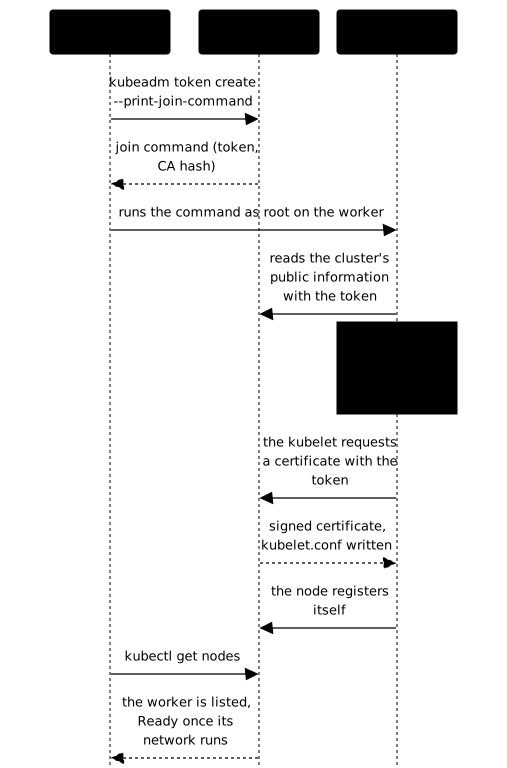
The token proves that the worker is allowed to ask to join the cluster. The hash proves, conversely, that the control plane is the right one: without it, a fake server could pass itself off as your API server. Both are therefore mandatory in the command.
What do you need to prepare on the worker before joining it?
Three settings must be in place and durable: swap off, containerd on the
systemd cgroup driver, and the Kubernetes packages held. A setting made on a
running system disappears at reboot if nothing writes it to disk, and a worker
joined in a hurry then falls over at the first reboot. The commands in this
section run on the worker.
How do you turn swap off for good?
By default, the kubelet refuses to start as long as swap is active:
kubeadm join therefore fails on a machine that has some. Two steps are needed,
and the first is not enough on its own. swapoff -a turns swap off right away,
but the swap line of /etc/fstab turns it back on at the next boot. The
kubelet then refuses to restart and the node goes NotReady: you must also
remove that line.
# Turn swap off immediatelysudo swapoff -a
# Remove the swap line from fstab, so that swap does not come back at bootsudo sed -i '/swap/d' /etc/fstab
This command deletes every line that contains the word swap. If your
/etc/fstab contains others besides the swap line, read them first with
grep swap /etc/fstab. Then check both states: the active swap and the
declared swap.
# Active swap: no output expectedswapon --show
# Swap declared in fstab: no active line expectedgrep -v '^#' /etc/fstab | grep swap
Neither command should display anything. The first lists what is active now, the second what would come back at the next boot.
How do you align containerd and the kubelet on the cgroup driver?
The kubelet and containerd must use the same cgroup driver. On a
distribution with systemd, the Kubernetes documentation recommends the systemd
driver. Two cases arise.
With containerd 2.x, the kubelet 1.37 asks containerd for the driver itself.
But a containerd left on cgroupfs adds a second cgroup manager next to
systemd's, and the node becomes unstable when resources run short. With
containerd 1.x, the kubelet keeps the driver from its own configuration,
systemd with kubeadm, and a mismatch between the two causes errors.
The setting is called SystemdCgroup and lives in
/etc/containerd/config.toml. containerd rereads this file only when it
restarts.
# Switch the driver to systemd in the configurationsudo sed -i 's/SystemdCgroup = false/SystemdCgroup = true/' /etc/containerd/config.toml
# containerd reads its configuration only at startupsudo systemctl restart containerd
To check, do not just read the file: ask containerd for the value it has loaded.
# The value containerd actually usessudo crictl info | grep SystemdCgroupThe line must display true. If the file says true and crictl info says
false, containerd has not been restarted since the change.
How do you prevent an automatic update from moving the worker's version?
The three packages are held with apt-mark hold, as on the control plane.
Without it, an automatic Ubuntu update can move the worker's kubelet away from
the cluster version.
sudo apt-mark hold kubeadm kubelet kubectlapt-mark showholdapt-mark showhold must list kubeadm, kubelet and kubectl. The hold has a
consequence you will meet again at upgrade time: you need apt-mark unhold
before installing another version, see the lesson
Upgrade a Kubernetes cluster without downtime.
How do you get the join command?
The join command is produced on the control plane with
kubeadm token create --print-join-command. It creates a token and displays the
complete kubeadm join command, CA hash included. A token is valid for 24
hours by default, according to the
kubeadm token documentation;
the --ttl option changes that duration.
# On the control planekubeadm token create --print-join-commandThe output is a line of the form kubeadm join <address>:6443 --token <token> --discovery-token-ca-cert-hash sha256:<hash>. Copy it as is. Treat
this line as a secret: as long as the token is valid, anyone who has it can
present a machine to the cluster.
You can also reuse the command displayed at the end of kubeadm init, as long
as its token has not expired. After 24 hours, kubeadm token list no longer
shows that token and you must create a new one with the command above.
How do you run kubeadm join on the worker?
The join runs on the worker, as root, with the line you copied. The example
below reuses the addresses of the installation lesson: replace the address, the
token and the hash with your own.
sudo kubeadm join 192.168.122.10:6443 \ --token abcdef.0123456789abcdef \ --discovery-token-ca-cert-hash sha256:...The worker first checks its own preparation, then follows the exchanges of the
diagram. When the command succeeds, its output ends with
This node has joined the cluster:, followed by two lines that summarize the
certificate request and the information given to the kubelet. The check is
then done from the control plane. If the command fails, do not rerun it
blindly: read the message, then go to the section on diagnosis.
How do you check that the worker is Ready with the right kubelet?
Check from the control plane that the node is listed, that it is Ready and
that its kubelet reports the cluster version.
kubectl get nodes -o wideNAME STATUS ROLES AGE VERSION INTERNAL-IP EXTERNAL-IP OS-IMAGE KERNEL-VERSION CONTAINER-RUNTIMEk8s-cp.lab Ready control-plane 91s v1.37.2 10.10.50.11 <none> Ubuntu 24.04.5 LTS 6.8.0-149-generic (amd64) containerd://2.2.1k8s-w1.lab Ready <none> 4s v1.37.2 10.10.50.12 <none> Ubuntu 24.04.5 LTS 6.8.0-149-generic (amd64) containerd://2.2.1This output comes from the cluster of the lab catalog, which has one control
plane and a single worker. Look at the STATUS column (the worker is Ready)
and the VERSION column (the same on both nodes). The worker may stay
NotReady for a short while, the time the Pod network starts on it.
The VERSION column shows the version that the node's kubelet reports, the
status.nodeInfo.kubeletVersion field. You can read it on its own, and compare
it with the Server Version line of kubectl version.
kubectl get node k8s-w1.lab -o jsonpath='{.status.nodeInfo.kubeletVersion}'kubectl versionBoth versions must match. A kubelet that differs from the API server usually comes from a package installed at the wrong version: the allowed skew rule is detailed in the upgrade lesson.
How do you prove the worker accepts Pods?
A Ready node does not prove that it runs Pods: the only way to see it is to
run one on it. The nodeName field of a Pod spec places it on a specific node
and bypasses the scheduler, which avoids depending on its choice. Create a
namespace, then a Pod forced onto the worker.
kubectl create namespace jonctionapiVersion: v1kind: Podmetadata: name: pod-sur-w1 namespace: jonctionspec: nodeName: k8s-w1.lab containers: - name: attente image: busybox:1.38.0@sha256:a46257e06c82ad85242d0d38077d0a52d9896389ca60a1a59d3463db586e5fa4 command: ["sleep", "3600"]kubectl apply -f pod-sur-w1.yamlkubectl -n jonction get pod pod-sur-w1 -o wideIn the output of get pod -o wide, read two columns: STATUS must be
Running and NODE must be k8s-w1.lab. If the Pod stays Pending or
ContainerCreating, the worker has not finished starting its network or cannot
pull the image: kubectl -n jonction describe pod pod-sur-w1 gives the events.
Once the proof is made, delete the namespace with
kubectl delete namespace jonction.
Why does a join fail?
A join almost always fails for one of four reasons: the token, swap, the
cgroup driver or the network. Start by reading the last lines of the output of
kubeadm join, then, if they are not enough, the kubelet journal on the worker.
# On the worker: the kubelet journal, opened on its last linessudo journalctl -u kubelet -xeThe table links each symptom to its cause and to the fix. The swap row and the cgroup driver row describe the two failures that the lab of this lesson sets up.
| Symptom | Cause | How to see it | Fix |
|---|---|---|---|
kubeadm join rejects the token or gets no answer from the cluster | Token expired or lost (24 hours by default) | On the control plane, kubeadm token list no longer shows the token | kubeadm token create --print-join-command, then rerun the join |
kubeadm join fails, the node never appears | Swap active: the kubelet refuses to start | swapon --show lists swap, and journalctl -u kubelet says so | Turn swap off and remove its line from /etc/fstab |
| The node's Pods fail or the node becomes unstable under load | containerd on cgroupfs while systemd manages the rest of the node, or, with containerd 1.x, a different driver from the kubelet's | sudo crictl info | grep SystemdCgroup displays false | SystemdCgroup = true, then sudo systemctl restart containerd and sudo systemctl restart kubelet (the kubelet reads the runtime's driver at startup) |
kubeadm join cannot reach the control plane | Network or closed port | ping then nc -zv <address> 6443 from the worker | Open port 6443 or fix the route |
After a failure caused by swap or the cgroup driver, the join has already written files on the worker. Undo it before starting again, then rerun the join command with a token that is still valid.
# On the worker: undo a partial joinsudo kubeadm reset -fThe kubeadm reset command does not remove the node's iptables, nftables or IPVS
rules, nor the Pod network configuration in /etc/cni/net.d. A join that failed
before the network started leaves none, but a node that has already run in a
cluster needs these two points cleaned up before being reused elsewhere.
Two cases remain outside this lesson. Joining a control plane node rather than a worker requires a different procedure, described in High availability of the control plane. What the kubelet does once the node has joined is explained in How Kubernetes worker nodes work.
Put it into practice
The lab starts from a worker k8s-w1.lab removed from the cluster and reset: its
swap is active and declared in /etc/fstab, containerd is back on cgroupfs
and the packages are no longer held. You prepare it, you join it with the command
produced by the control plane, then you place a Pod on it.
The validation reads six states. The node k8s-w1.lab is joined and Ready.
Its kubelet reports the same version as the API server. Swap is off, and no
active line of /etc/fstab will turn it back on. containerd runs with the
systemd driver, according to the value it has loaded: a configuration changed
without a restart fails. kubeadm, kubelet and kubectl are held. Finally a
Pod in the jonction namespace runs on k8s-w1.lab, ready.
Key takeaways
- A worker joins with the command produced by
kubeadm token create --print-join-commandon the control plane, run asrooton the worker. - The command carries a token, valid for 24 hours by default, and the CA hash: the token opens access, the hash proves that the cluster is the right one.
- Swap is turned off with
swapoff -aand removed from/etc/fstab, otherwise it comes back at reboot and the kubelet refuses to start. - containerd must run with
SystemdCgroup = true, and it must be restarted to reread its configuration;crictl infogives the loaded value. apt-mark holdholdskubeadm,kubeletandkubectlat the cluster version.Readyand theVERSIONcolumn are read withkubectl get nodes -o wide; a Pod withnodeNameproves that the node runs workloads.- On failure, read the output of
kubeadm join, thenjournalctl -u kubelet, and undo a partial join withkubeadm reset -f.
Knowledge check
Five questions on the lifetime of the token, the durable preparation of the worker, reading the state of a node and diagnosing a join that fails.
Knowledge check
Check what you have learned with this interactive quiz
How it works
- The timer starts when you click Start
- Multiple choice, true/false and short answer questions
- You can move between questions
- Detailed results are shown at the end
Starts the quiz and the timer
Review
(0/0)Score by domain
A domain groups several guides and gets several questions, so its score is more reliable than a per-topic score, which often rests on a single question.
Summary
Strengths
No topic passed at 80% on at least two questions yet.
Weak areas
No topic below the pass mark.
Recommended next
Hints before you try again?
Continue the course: Kubernetes High Availability: the Control Plane
A new full quiz with random questions
Work again only on the questions you missed