kubectl create creates a resource and fails if it already exists;
kubectl apply creates or updates it from a file. You know how to produce
and validate a manifest from the lesson
Write Kubernetes manifests:
this lesson sends it to the cluster and keeps it alive. You see what apply
remembers from each submission, what it does with a field edited by hand or
removed from the file, why it overwrites the replicas of an autoscaler, how
server-side apply reports a conflict, and how to deploy a whole folder without
deleting what you meant to keep.
What you will learn
- Choose between the imperative approach (
create) and the declarative one (apply) - Read the
created,configuredorunchangedoutput of anapply - Predict the effect of an
applyon a field edited by hand or removed from the file - Keep an
applyfrom overwriting the replicas driven by an HPA - Use server-side apply and interpret a field owner conflict
- Apply a folder recursively and prune with
--prune
Prerequisites
You have the demo cluster from
First cluster
and a kubectl that reaches it. You know how to write and validate a manifest,
as in the lesson
Write Kubernetes manifests,
and how to follow a rollout with kubectl rollout status, covered in
Deployments.
Imperative or declarative: what is the difference?
The imperative approach gives the cluster an order: "create this Deployment".
The declarative approach describes a desired state in a file, and kubectl
works out what to create or modify to reach it. Both produce the same object;
only the second leaves a versionable trace, replayable on another cluster and
readable by a colleague.
kubectl create deployment web --image=nginx:1.30.5@sha256:9bf97bd7714f5e24c1ccd545ecb9eb5435cb6d109c97cebb15e7e455e0239edb --replicas=2kubectl apply -f web.yamlThe first command is an order that leaves no trace of the intent, the second
reads a file that describes the desired state. The criterion fits in one
question: must what you create outlive the current session? If so, it
belongs in a file versioned in Git and is deployed with apply. If not, the
imperative form is shorter and nobody loses anything.
| Situation | Approach | Why |
|---|---|---|
| Quick test, exploration | kubectl create | No need for a trace |
| One-off namespace or Secret | kubectl create | Single, simple action |
| Production deployment, CI/CD pipeline | kubectl apply -f | Versioned, replayable |
| Modify an existing resource | kubectl apply -f | Updates what the file describes, and removes a field you deleted from it |
| Write a starting manifest | kubectl create ... --dry-run=client -o yaml | Skeleton without indentation mistakes |
Set up the workshop
The demonstration works in a namespace called appliquer and in the folder
~/atelier-k8s/appliquer/. The files contain no namespace: field: every
command carries -n appliquer. Create the namespace, then the web Deployment
that serves as the common thread:
kubectl create namespace appliquernamespace/appliquer createdmkdir -p ~/atelier-k8s/appliquer && cd ~/atelier-k8s/appliquercat > web.yaml <<'EOF'apiVersion: apps/v1kind: Deploymentmetadata: name: web labels: app: webspec: replicas: 2 selector: matchLabels: app: web template: metadata: labels: app: web spec: containers: - name: nginx image: nginx:1.30.5@sha256:9bf97bd7714f5e24c1ccd545ecb9eb5435cb6d109c97cebb15e7e455e0239edbEOFkubectl create: create a resource in one command
kubectl create creates a new resource and refuses to overwrite an existing
one. It offers one subcommand per common type (kubectl create deployment,
kubectl create configmap, kubectl create secret) and kubectl create -f
for any manifest, including the types that API extensions (CRDs, short for
CustomResourceDefinition) add to the cluster.
The subcommands create minimal objects, with no resource limits and no probe:
they are a starting point, not a production-ready object.
kubectl create -f web.yaml -n appliquerdeployment.apps/web createdThe web Deployment is created. That is the only thing create knows how to do.
What happens if the resource already exists?
Replay the same command, displaying the return code (the echo message is in
French on purpose, so that the outputs stay those of the tested cluster; "code
de sortie" means "exit code"):
kubectl create -f web.yaml -n appliquer; echo "code de sortie : $?"Error from server (AlreadyExists): error when creating "web.yaml": deployments.apps "web" already existscode de sortie : 1create fails, and that is intended: it only knows how to create. The
Error from server prefix says the API refused, and exit code 1 stops a script
that chains create commands from the second run on. An apply, on the other
hand, replays without error.
kubectl apply: describe the desired state
kubectl apply -f compares the file with the object in the cluster: it creates
the object if it does not exist, updates it if it differs, and does nothing
otherwise. It also remembers what you sent, so that it can compute the next
update.
created, configured or unchanged: what does the output say?
Apply the file that was used for the create:
kubectl apply -f web.yaml -n appliquerWarning: resource deployments/web is missing the kubectl.kubernetes.io/last-applied-configuration annotation which is required by kubectl apply. kubectl apply should only be used on resources created declaratively by either kubectl create --save-config or kubectl apply. The missing annotation will be patched automatically.deployment.apps/web configuredThe warning says the object comes from a create that left no trace of what
was sent: apply sets the annotation along the way, hence configured. Replay
the command:
kubectl apply -f web.yaml -n appliquerdeployment.apps/web unchangedThe last word of each line is the one to read: created (the object did not
exist), configured (the object was modified) or unchanged (the file and the
cluster agree). An unchanged line on a second pass proves that apply
replays without side effects.
What does the last-applied-configuration annotation store?
The kubectl.kubernetes.io/last-applied-configuration annotation holds the
last file sent by apply. The kubectl apply view-last-applied command
reads it back:
kubectl apply view-last-applied deployment/web -n appliquerapiVersion: apps/v1kind: Deploymentmetadata: annotations: {} labels: app: web name: web namespace: appliquerspec: replicas: 2 selector: matchLabels: app: web template: metadata: labels: app: web spec: containers: - image: nginx:1.30.5@sha256:9bf97bd7714f5e24c1ccd545ecb9eb5435cb6d109c97cebb15e7e455e0239edb name: nginxYou find the content of web.yaml again, with the namespace of the command.
This copy is the reference point for the next apply.
How does apply merge: the 3-way merge?
To decide what to modify, apply compares three states: the last file sent (the
annotation), your current file and the live object. This computation is called a
three-way merge. The diagram shows what each case becomes: look at where each
field comes from.
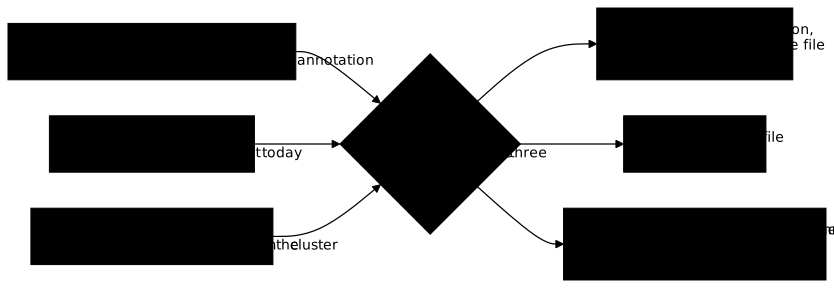
The practical consequence: apply does not touch what your file never
described. Modify the object by hand, with a label and a number of replicas:
kubectl label deployment web equipe=boutique -n appliquerkubectl scale deployment web --replicas=5 -n appliquerdeployment.apps/web labeleddeployment.apps/web scaledThe equipe label is in no file, whereas replicas appears in web.yaml.
Apply again, then read the Deployment back:
kubectl apply -f web.yaml -n appliquerdeployment.apps/web configuredkubectl get deployment web -n appliquer --show-labelsNAME READY UP-TO-DATE AVAILABLE AGE LABELSweb 0/2 2 0 1s app=web,equipe=boutiqueLook at two columns. In READY, the 2 of 0/2 is the desired number of
replicas: the file describes replicas: 2 and wins over the manual change,
while the 0 counts the ready Pods, which are not ready yet. Run the command
again about five seconds later: the line settles at 2/2 in READY, 2 in
UP-TO-DATE and 2 in AVAILABLE. The LABELS column shows equipe=boutique:
the label never came from the file, so apply left it alone.
Why does apply overwrite the replicas set by an HPA?
An HPA (HorizontalPodAutoscaler) adjusts the number of replicas of a Deployment
by itself according to load. If the file sets replicas, every apply brings
the Deployment back to that value and undoes the autoscaler's work. The
solution is to remove the replicas field from the file. To simulate an HPA
without installing metrics-server, kubectl scale plays its role. First remove
the line from the file:
sed -i '/replicas: 2/d' web.yamlRemoving the field from the file is not enough. The annotation still contains
replicas: 2: apply would see a field deleted from the file, remove it from
the object, and replicas would fall back to its default value, 1. You must
therefore update the annotation without applying anything else:
kubectl apply set-last-applied -f web.yaml -n appliquerdeployment.apps/web configuredThe annotation now describes a file without replicas. Simulate the
autoscaler, then apply again:
kubectl scale deployment web --replicas=4 -n appliquerdeployment.apps/web scaledkubectl apply -f web.yaml -n appliquer && kubectl get deployment web -n appliquer -o jsonpath='{.spec.replicas}{"\n"}'deployment.apps/web configured4The value 4 of the "autoscaler" is kept: the file no longer describes
replicas, so apply does not touch it. The first apply after
set-last-applied answers configured, and the next one answers unchanged.
Server-side apply: who owns which field?
With server-side apply (--server-side), the API server does the merge, and it
remembers for each field the manager (the field manager) that wrote it last.
Two managers writing different values into the same field cause a conflict,
which you must settle. Switching from one mode to the other on the same object
is possible, but a field modified by kubectl scale then creates conflicts: the
example therefore uses a separate object, api.
cat > api-ssa.yaml <<'EOF'apiVersion: apps/v1kind: Deploymentmetadata: name: api labels: app: apispec: replicas: 2 selector: matchLabels: app: api template: metadata: labels: app: api spec: containers: - name: nginx image: nginx:1.30.5@sha256:9bf97bd7714f5e24c1ccd545ecb9eb5435cb6d109c97cebb15e7e455e0239edbEOFkubectl apply --server-side -f api-ssa.yaml -n appliquerdeployment.apps/api serverside-appliedThe output says serverside-applied instead of created. Someone else, or an
autoscaler, now modifies replicas:
kubectl scale deployment api --replicas=3 -n appliquerdeployment.apps/api scaledThe replicas field now belongs to another manager. Apply the file again, which
sets 2:
kubectl apply --server-side -f api-ssa.yaml -n appliquererror: Apply failed with 1 conflict: conflict with "kubectl" with subresource "scale" using apps/v1: .spec.replicasPlease review the fields above--they currently have other managers. Hereare the ways you can resolve this warning:* If you intend to manage all of these fields, please re-run the apply command with the `--force-conflicts` flag.* If you do not intend to manage all of the fields, please edit your manifest to remove references to the fields that should keep their current managers.* You may co-own fields by updating your manifest to match the existing value; in this case, you'll become the manager if the other manager(s) stop managing the field (remove it from their configuration).See https://kubernetes.io/docs/reference/using-api/server-side-apply/#conflictsRead the first line: it names the conflicting field (.spec.replicas) and its
owner, the kubectl manager acting through the scale subresource (an API
entry point dedicated to a single operation, here changing the number of
replicas).
The message offers three ways out. You can take the field with
--force-conflicts, remove it from your file, or align your value with the
current value to share it. To see who owns what, list the managers:
kubectl get deployment api -n appliquer --show-managed-fields -o jsonpath='{range .metadata.managedFields[*]}{.manager}{" "}{.operation}{" "}{.subresource}{"\n"}{end}'kubectl Applykubectl Update scalekube-controller-manager Update statusEach line is a manager: your apply (operation Apply), the scaling done by
kubectl scale (subresource scale) and the cluster controller, which writes
the status. If the file must take the field back, force it:
kubectl apply --server-side --force-conflicts -f api-ssa.yaml -n appliquer && kubectl get deployment api -n appliquer -o jsonpath='{.spec.replicas}{"\n"}'deployment.apps/api serverside-applied2The file has taken the field back: replicas returns to 2. Forcing remains a
choice you must own, because it overwrites the other manager's value.
By default, kubectl signs its submissions with the name kubectl. The
--field-manager=<name> option gives it a manager name of your choice, for
example that of a pipeline: kubectl apply --server-side --field-manager=pipeline-web -f api-ssa.yaml.
In managedFields, you then recognize who wrote what, and a conflict names that
manager instead of an anonymous kubectl.
Apply several files or a folder
kubectl apply -f accepts a folder and applies the files it contains.
Create a folder with one file at the root and two
subfolders:
Répertoiremanifests/
- service.yaml
Répertoireapp/
- deployment.yaml
Répertoireconfig/
- configmap.yaml
mkdir -p manifests/app manifests/configcat > manifests/service.yaml <<'EOF'apiVersion: v1kind: Servicemetadata: name: portail labels: app: portailspec: selector: app: portail ports: - port: 80 targetPort: 80EOFcat > manifests/app/deployment.yaml <<'EOF'apiVersion: apps/v1kind: Deploymentmetadata: name: portail labels: app: portailspec: replicas: 1 selector: matchLabels: app: portail template: metadata: labels: app: portail spec: containers: - name: nginx image: nginx:1.30.5@sha256:9bf97bd7714f5e24c1ccd545ecb9eb5435cb6d109c97cebb15e7e455e0239edbEOFcat > manifests/config/configmap.yaml <<'EOF'apiVersion: v1kind: ConfigMapmetadata: name: portail-config labels: app: portaildata: MODE: demoEOFkubectl apply -f manifests/ -n appliquerservice/portail createdOnly one object is created: without the -R option, apply ignores
subfolders, with no error at all. A half-deployed folder is therefore a
silent trap. Add -R to descend into the tree:
kubectl apply -f manifests/ -R -n appliquerdeployment.apps/portail createdconfigmap/portail-config createdservice/portail unchangedThe Deployment and the ConfigMap are created, and the Service that was already
there stays unchanged.
--prune: delete what is no longer in the files
Now remove a file from the folder:
rm manifests/config/configmap.yamlThe ConfigMap is still in the cluster: apply never deletes an object whose
file you removed. The --prune option asks apply to delete the objects of a
set of files that are no longer listed in it. It is dangerous: without
boundaries, it can target too broadly, and the Kubernetes 1.37 documentation
still classifies it as alpha. It is run from the root folder of the manifests,
never from a subfolder. Test it first with --dry-run=server, which announces
without deleting anything:
kubectl apply -f manifests/ -R -n appliquer --prune --dry-run=servererror: all resources selected for prune without explicitly passing --all. To prune all resources, pass the --all flag. If you did not mean to prune all resources, specify a label selectorkubectl refuses to choose for you: it asks for either --all or a label
selector that limits what can be deleted. Specify the app=portail label, which
the objects of the folder carry:
kubectl apply -f manifests/ -R -n appliquer --prune -l app=portail --dry-run=serverdeployment.apps/portail unchanged (server dry run)service/portail unchanged (server dry run)W1111 14:50:45.375766 58988 prune.go:71] Deprecated: kubectl apply will no longer prune non-namespaced resources by default when used with the --namespace flag in a future release. To preserve the current behaviour, list the resources you want to target explicitly in the --prune-allowlist flag.configmap/portail-config pruned (server dry run)Warning: v1 Endpoints is deprecated in v1.33+; use discovery.k8s.io/v1 EndpointSliceLook for the configmap/portail-config pruned (server dry run) line: it is the
exact announcement of what would go. The Deployment and the Service stay
unchanged. The two warning lines are not about what you delete. The first
announces that, in a future version, --prune will have to receive the list of
cluster-wide types through --prune-allowlist. The second reports that the
Endpoints type is being replaced by EndpointSlice. Check that the dry run
deleted nothing:
kubectl get configmap portail-config -n appliquerNAME DATA AGEportail-config 1 2sThe ConfigMap is still there. Without --dry-run=server, the same command would
have deleted it.
Delete what a file created
kubectl delete -f deletes the objects described by a file or a folder, with no
confirmation and no recycle bin. It accepts the same -f and -R as apply,
which makes it the safest way to clean up exactly what a manifest created,
without guessing the names: kubectl delete -f manifests/ -R.
A safe update workflow
A successful apply only means that the API accepted the manifest, not that
the Pods are running. The safe gesture takes five steps: modify the file
versioned in Git rather than the live object, validate with
kubectl apply -f web.yaml --dry-run=server, look at the difference with
kubectl diff -f web.yaml, apply, then wait for completion with
kubectl rollout status deployment/web. The optional lesson
kubectl diff and wait
goes deeper into comparing and waiting for a script or a pipeline.
Keep six working rules in mind:
- the file is the reference: fix it rather than the live object, otherwise the next
applycontradicts the change; - an object managed by
applyis born throughapply(orcreate --save-config), never throughcreatealone; - no
replicasin the manifest of a Deployment driven by an HPA; - one mode per object, client-side or server-side, not both in alternation;
--prunealways with a precise selector and after a--dry-run=server;- images are pinned in the form
image:tag@sha256:….
Clean up the cluster
Delete the namespace, which takes every object of the lesson with it, then the working folder:
kubectl delete namespace appliquer && rm -rf ~/atelier-k8s/appliquernamespace "appliquer" deletedTroubleshooting
The kubectl messages say where the refusal comes from. A message that starts
with Error from server comes from the Kubernetes API: the file is readable but
the cluster refuses it. A message starting with error: most often comes from
the client: the problem is in the file or the command line. The refusal of a
server-side apply conflict is an exception: the server pronounces it, and it is
also displayed as error:.
| Symptom | Likely cause | Solution |
|---|---|---|
Error from server (AlreadyExists) | create on an existing object | Switch to kubectl apply -f |
Warning: resource ... is missing the kubectl.kubernetes.io/last-applied-configuration annotation | Object born from a create without --save-config | Harmless, the annotation is set along the way |
Replicas fall back on every apply | replicas in the file while an HPA manages it | Remove it from the file, then run apply set-last-applied before the next apply |
| A value modified by hand reverts | The field is described by the file, which wins | Carry the change into the file |
Apply failed with 1 conflict | Server-side apply on a field owned by another field manager | Remove the field from the manifest, or --force-conflicts if you take it over |
| Only part of a folder is deployed | Subfolders ignored without -R | Add -R |
error: all resources selected for prune without explicitly passing --all | --prune without a selector | Add -l <label> |
the namespace from the provided object ... does not match | -n contradicts the namespace: of the file | Remove -n or fix the file |
no matches for kind "X" in version "Y" | Type unknown to the cluster: typo, missing CRD | Check with kubectl api-resources |
Put it into practice
The lab replays the four situations of the demonstration on other objects. You apply a whole folder, subfolders included, you apply a file again without overwriting the replicas chosen by the autoscaler, you take ownership of a field with a named field manager in server-side apply, and you prune an object removed from the folder without touching the one that must stay. The validation covers the state of the cluster and the field managers recorded by the API.
Key takeaways
kubectl createonly knows how to create and fails with code 1 if the object exists;kubectl applycreates or updates and can be replayed.- Read the last word of each
applyline:created,configuredorunchanged. applycompares the last file sent (thelast-applied-configurationannotation), your file and the live object: a field removed from the file is deleted, a field never described is kept.- A file that sets
replicasoverwrites an autoscaler: remove the field from the file, then runapply set-last-appliedbefore the nextapply. - Server-side apply names the conflicting field and its owner;
--force-conflictstakes the field back. - Without
-R,apply -f folder/ignores subfolders without an error. --prunerequires-lor--all; test it first with--dry-run=server.
Test your knowledge
Prediction and diagnosis questions to check that you can predict the effect of
an apply, read a field owner conflict and prune without damage.
Knowledge check
Check what you have learned with this interactive quiz
How it works
- The timer starts when you click Start
- Multiple choice, true/false and short answer questions
- You can move between questions
- Detailed results are shown at the end
Starts the quiz and the timer
Review
(0/0)Score by domain
A domain groups several guides and gets several questions, so its score is more reliable than a per-topic score, which often rests on a single question.
Summary
Strengths
No topic passed at 80% on at least two questions yet.
Weak areas
No topic below the pass mark.
Recommended next
Hints before you try again?
Continue the course: kubectl diff and wait: check before, wait after an apply
A new full quiz with random questions
Work again only on the questions you missed