An application that starts before its database crashes, and an application that writes its logs to a file shows nothing of them to kubectl logs. Init containers solve the first problem: they run before the application, one at a time, and each one must succeed for the next step to start. Sidecars solve the second: they run next to the application and do a side job, such as relaying a log file. In this lesson, you make a Pod wait with an init container until its dependency exists, then you add a native sidecar that relays its lines.
You need the lesson Pods, the demo cluster from First cluster and the Service covered in Services. The db Service of the demonstration is provided without explanation: just remember that it gives a stable name to Pods.
What you will learn
- Declare an init container and read the
Init:1/2progress of a Pod - Make an application wait with a bounded wait loop
- Share a file between an init container and the application with an
emptyDirvolume - Add a native sidecar (an init container with
restartPolicy: Always) and read its logs with-c - Tell the sidecar pattern from the native sidecar, and choose between an init container and a sidecar
- Read
Defaulted containerwhenkubectl logspicks the container by itself
What the containers of a Pod share
The containers of a Pod share several resources, which is why one can prepare what the other uses.
| Resource | What is shared |
|---|---|
| Network | Same IP address, localhost works between containers |
| Volumes | Those declared in the Pod, provided each container mounts them |
| Node | All the containers run on the same node |
| Lifetime | They are born and disappear with the Pod; their startups and shutdowns, however, are ordered |
The filesystem, on the other hand, is not shared: each container sees the one from its image. To exchange files, the Pod declares a volume that both containers mount.
Understanding init containers
An init container is a container that runs before the main containers of the Pod and that must finish successfully. It is declared in spec.initContainers, a list separate from spec.containers. This separation gives Kubernetes the order: everything in initContainers runs and finishes before the first application container starts.
How init containers behave
Four rules sum up how they work.
- They run one at a time, in declaration order.
- Each one must finish with exit code 0 before the next one starts.
- On failure, the kubelet restarts it according to the Pod's
restartPolicy. - The application containers start only once all the init containers have succeeded.
An ordinary init container accepts neither probes (livenessProbe, readinessProbe, startupProbe) nor lifecycle: it must run to the end, not run forever. This restriction only targets init containers that have an end; the one that carries restartPolicy: Always is a native sidecar and accepts them. The server refuses a probe on an ordinary init container with this message:
The Pod "init-sonde" is invalid: spec.initContainers[0].readinessProbe: Forbidden: may not be set for init containers without restartPolicy=AlwaysThe same refusal applies to livenessProbe, startupProbe and lifecycle.
Init container use cases
What these uses have in common is a preliminary task, with an end, that the application needs in order to start.
| Use case | Concrete example |
|---|---|
| Fetch files | Download a configuration from a repository |
| Wait for a service | Check that a database answers before launching the application |
| Initialize data | Apply migrations |
| Prepare the filesystem | Create directories, unpack an archive |
Adjusting permissions on a volume often comes up in this list. Before writing an init container for chmod or chown, check whether securityContext (runAsUser, runAsGroup, fsGroup) already meets the need, as shown in Application volumes.
Creating an init container
The demonstration follows a single thread. A Pod app needs a dependency, the Service db, which does not exist yet. A first init container prepares a configuration file, a second waits for db, then the application starts. You then create db and watch the Pod move to Running on its own. Finally, you add a sidecar that relays the application's log file.
The demo cluster is assumed to exist. You work in a dedicated namespace, deleted at the end:
kubectl config use-context kind-demo && kubectl create namespace sidecarsCaptured output:
Switched to context "kind-demo".namespace/sidecars createdThe kind-demo context is active and the namespace exists. The following commands carry -n sidecars.
Sharing a folder between containers: the emptyDir volume
The simplest volume for exchanging files inside a Pod is emptyDir: an empty folder, created when the Pod starts on a node. It survives a container restart and disappears with the Pod. The init container preparer writes a file into it, and the application and the sidecar will read it. The other volume types, and what emptyDir accepts as options, are covered in Application volumes.
The Pod manifest
The file declares three things. preparer writes mode=demo into /partage/config.txt then finishes. attendre-db queries http://db every two seconds, at most 60 times, and exits with an error if db never answers. The application reads the configuration file then appends a line every three seconds to /partage/app.log, without writing anything to its standard output.
The names and the echo messages of this lesson are in French on purpose, so that the outputs stay those of the tested cluster: preparer means "prepare", attendre-db "wait for db", partage "share", "essai" an "attempt", "db ne répond pas encore" "db is not answering yet", "db répond après N essai(s)" "db answers after N attempt(s)", "db n'a pas répondu à temps" "db did not answer in time", "config lue" "config read" and "requête traitée" "request handled".
mkdir -p ~/atelier-k8s/sidecars && cd ~/atelier-k8s/sidecarscat > app.yaml <<'EOF'apiVersion: v1kind: Podmetadata: name: app labels: app: appspec: initContainers: - name: preparer image: busybox:1.38.0@sha256:a46257e06c82ad85242d0d38077d0a52d9896389ca60a1a59d3463db586e5fa4 command: ["sh", "-c", "echo mode=demo > /partage/config.txt"] volumeMounts: - name: partage mountPath: /partage - name: attendre-db image: busybox:1.38.0@sha256:a46257e06c82ad85242d0d38077d0a52d9896389ca60a1a59d3463db586e5fa4 command: - sh - -c - | for i in $(seq 1 60); do if wget -q -T 2 -O /dev/null http://db; then echo "db répond après $i essai(s)" exit 0 fi echo "essai $i : db ne répond pas encore" sleep 2 done echo "db n'a pas répondu à temps" exit 1 containers: - name: app image: busybox:1.38.0@sha256:a46257e06c82ad85242d0d38077d0a52d9896389ca60a1a59d3463db586e5fa4 command: - sh - -c - | echo "config lue : $(cat /partage/config.txt)" while true; do echo "$(date +%T) requête traitée" >> /partage/app.log sleep 3 done volumeMounts: - name: partage mountPath: /partage volumes: - name: partage emptyDir: {}EOFThe loop is bounded to 60 attempts: an unbounded wait would hide the failure of a dependency that will never arrive, whereas here the Pod ends up failing and says so in the logs of attendre-db.
Watching the startup
Apply the Pod, wait eight seconds and read its state:
kubectl apply -f app.yaml -n sidecars && sleep 8 && kubectl get pod app -n sidecarspod/app createdNAME READY STATUS RESTARTS AGEapp 0/1 Init:1/2 0 8sInit:1/2 means that one init container out of two has finished: preparer is done, attendre-db is still running. READY 0/1 is normal, the application has not started. To find out what attendre-db is doing, kubectl logs accepts -c followed by the name of a container, init containers included:
kubectl logs app -n sidecars -c attendre-dbwget: bad address 'db'essai 1 : db ne répond pas encoreOn a node that has never pulled the busybox image, the first pull takes time and the command may print nothing eight seconds after the apply. Wait a few seconds and run it again: the log appears as soon as attendre-db has written its first line.
The wget: bad address 'db' line is the error from wget: the name db does not resolve, since the Service does not exist. The essai 1 line comes from the script. The same option on preparer shows nothing:
kubectl logs app -n sidecars -c preparer(no output)preparer prints nothing because it wrote to the volume, not to its output. An empty log therefore does not tell you whether the container did its work: it is the state of the Pod (Init:1/2) that shows it finished.
Init container: waiting for a service
Now create the dependency. The db.yaml file declares an nginx Deployment and a Service named db, provided without explanation here (see Services).
cat > db.yaml <<'EOF'apiVersion: apps/v1kind: Deploymentmetadata: name: dbspec: replicas: 1 selector: matchLabels: app: db template: metadata: labels: app: db spec: containers: - name: nginx image: nginx:1.30.5@sha256:9bf97bd7714f5e24c1ccd545ecb9eb5435cb6d109c97cebb15e7e455e0239edb ports: - containerPort: 80---apiVersion: v1kind: Servicemetadata: name: dbspec: selector: app: db ports: - port: 80 targetPort: 80EOFkubectl apply -f db.yaml -n sidecars && kubectl wait --for=condition=Ready pod/app -n sidecars --timeout=180sdeployment.apps/db createdservice/db createdpod/app condition metYou did nothing else: attendre-db kept querying db and finished as soon as the Service answered, which unblocked the application. Check the state and the end of the wait log:
kubectl get pod app -n sidecars && kubectl logs app -n sidecars -c attendre-db | tail -n 3NAME READY STATUS RESTARTS AGEapp 1/1 Running 0 17swget: can't connect to remote host (10.96.99.192): Connection refusedessai 2 : db ne répond pas encoredb répond après 3 essai(s)The Pod is Running with 0 restarts: the wait did not cause a failure. The Connection refused message comes from wget, which found the Service before the nginx Pod was ready; the third attempt succeeded. The number of attempts, the Service address and the age of the Pod vary from one run to the next.
A Service that exists does not prove that the dependency is ready: test what the application really needs. Now check that the application read the prepared file:
kubectl exec app -n sidecars -c app -- cat /partage/config.txtmode=demoThe file written by preparer is readable by app: the emptyDir volume does link the two containers.
Two ways of talking about sidecars
The word designates two things. The sidecar pattern is simply a second container in spec.containers, which starts at the same time as the application, with no guaranteed order. The native sidecar is an init container with restartPolicy: Always: Kubernetes starts it before the application, lets it run and stops it after the application. This is the form this lesson uses: the guaranteed order at startup and shutdown sets it apart from the pattern.
Native sidecar (Kubernetes feature)
The native sidecar goes in initContainers, after the init containers that must precede it. Because it carries restartPolicy: Always, it does not block what follows: Kubernetes considers its startup successful and moves on to the next item. It also accepts probes and hooks, unlike an ordinary init container. On Kubernetes 1.37, there is nothing to enable.
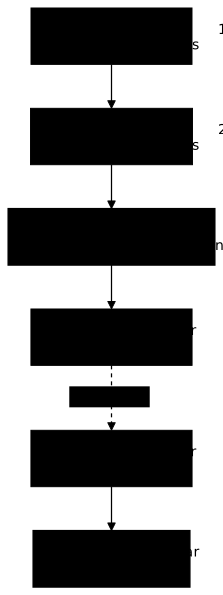
On the diagram below, look at the order of the bars. The ordinary init containers finish, the sidecar starts then stays active, and the application starts afterwards. At shutdown, the order reverses: the sidecar is stopped last.
Differences between the two approaches
The table compares the two forms on what sets them apart: where they are declared and the startup and shutdown order.
| Criterion | Sidecar pattern | Native sidecar |
|---|---|---|
| Declared in | containers | initContainers, with restartPolicy: Always |
| Startup | At the same time as the application, no order | Before the application |
| Shutdown | No guaranteed order | After the application |
For the rest, the two behave the same: they accept probes and hooks, count in READY and are read with kubectl logs -c <name>.
Creating a native sidecar
You cannot add an init container to a Pod that already exists. The app-sidecar.yaml file takes app.yaml and adds journal as a third init container, with restartPolicy: Always and the volume mounted read-only. It runs tail -F /partage/app.log, which follows the file even if it does not exist yet. The name journal means "log".
cat > app-sidecar.yaml <<'EOF'apiVersion: v1kind: Podmetadata: name: app labels: app: appspec: initContainers: - name: preparer image: busybox:1.38.0@sha256:a46257e06c82ad85242d0d38077d0a52d9896389ca60a1a59d3463db586e5fa4 command: ["sh", "-c", "echo mode=demo > /partage/config.txt"] volumeMounts: - name: partage mountPath: /partage - name: attendre-db image: busybox:1.38.0@sha256:a46257e06c82ad85242d0d38077d0a52d9896389ca60a1a59d3463db586e5fa4 command: - sh - -c - | for i in $(seq 1 60); do if wget -q -T 2 -O /dev/null http://db; then echo "db répond après $i essai(s)" exit 0 fi echo "essai $i : db ne répond pas encore" sleep 2 done echo "db n'a pas répondu à temps" exit 1 - name: journal image: busybox:1.38.0@sha256:a46257e06c82ad85242d0d38077d0a52d9896389ca60a1a59d3463db586e5fa4 restartPolicy: Always command: ["sh", "-c", "tail -F /partage/app.log"] volumeMounts: - name: partage mountPath: /partage readOnly: true containers: - name: app image: busybox:1.38.0@sha256:a46257e06c82ad85242d0d38077d0a52d9896389ca60a1a59d3463db586e5fa4 command: - sh - -c - | echo "config lue : $(cat /partage/config.txt)" while true; do echo "$(date +%T) requête traitée" >> /partage/app.log sleep 3 done volumeMounts: - name: partage mountPath: /partage volumes: - name: partage emptyDir: {}EOFkubectl apply -f app-sidecar.yaml -n sidecarsThe Pod "app" is invalid: spec.initContainers: Forbidden: pod updates may not add or remove containersThe server refuses: an existing Pod neither gains nor loses a container, init or not. "Adding a sidecar" therefore means writing the new version of the manifest and recreating the Pod. The deletion waits for the 30-second grace period: the sh of app does not react to the stop signal, and Kubernetes ends up killing it:
kubectl delete pod app -n sidecars --wait=true && kubectl apply -f app-sidecar.yaml -n sidecars && kubectl wait --for=condition=Ready pod/app -n sidecars --timeout=120spod "app" deleted from sidecars namespacepod/app createdpod/app condition metThe block took 34 seconds, almost all of it in the deletion. The Pod starts quickly, and attendre-db succeeds right away since db already answers:
kubectl get pod app -n sidecarsNAME READY STATUS RESTARTS AGEapp 2/2 Running 0 2sREADY 2/2: the native sidecar counts among the ready containers, along with app. The field that makes journal a native sidecar is read with jsonpath, an expression that extracts a specific field from the Pod:
kubectl get pod app -n sidecars -o jsonpath='{range .spec.initContainers[*]}{.name}{" => "}{.restartPolicy}{"\n"}{end}'preparer =>attendre-db =>journal => AlwaysOnly journal carries restartPolicy: Always. Now read what it relays. The sidecar starts before app, and the app.log file only exists once app has started: queried right away, journal answers that the file is missing. Wait ten seconds before reading:
sleep 10 && kubectl logs app -n sidecars -c journal --tail=315:57:28 requête traitée15:57:31 requête traitée15:57:34 requête traitéeAfter the ten-second wait, the command returns three lines in the HH:MM:SS requête traitée format, one every three seconds (the times are those of your run). Without the wait, it returns:
tail: can't open '/partage/app.log': No such file or directoryThis message is not a failure: tail -F keeps retrying as long as the file does not exist. Compare with app, which does not write its requests to its output:
kubectl logs app -n sidecars -c appconfig lue : mode=demologs -c app only shows the startup line, whereas logs -c journal shows the requests: that is the whole point of the sidecar, which brings to kubectl logs what the application writes to a file. One last read: without -c, kubectl logs does not refuse, it chooses.
kubectl logs app -n sidecarsDefaulted container "app" out of: app, preparer (init), attendre-db (init), journal (init)config lue : mode=demoThe first line says which container was chosen (app, the first application container) and lists all the others, each init container suffixed (init), native sidecar included. The message is not an error: the logs that follow are those of app. To read another container, add -c.
When to choose an init container or a sidecar?
A single question settles it: does the task end? A task that ends before the application (waiting for a dependency, preparing a file, migrating data) is an init container. A task that runs as long as the application (relaying a log, refreshing a configuration, passing traffic through) is a sidecar, a native one preferably because Kubernetes guarantees its startup and shutdown order.
Sidecar use cases
Sidecars mostly serve to add a function to an application you do not want to modify: relay the logs of a file to the output or to a collector, synchronize a configuration from a repository, run a network proxy. The application does not know it exists, and a shared volume or localhost is enough to exchange data.
When to avoid a sidecar
Every added container consumes resources in every Pod, and a sidecar that crashes in a loop keeps the Pod from becoming ready. Avoid one when the application can write directly to its standard output, or when the task is the same for all the Pods of a node: a collection agent per node is deployed as a DaemonSet, not as a sidecar in every Pod.
Clean up the cluster
Deleting the namespace removes the Pod, the Deployment and the Service:
kubectl delete namespace sidecarsnamespace "sidecars" deletedThe command took 42 seconds, for the same reason as the Pod deletion: the 30-second grace period.
Troubleshooting
The four symptoms of the lesson are read with the same commands: the state of the Pod, logs -c and describe.
| Symptom | Likely cause | What to do |
|---|---|---|
Init:1/2 that lasts | An init container is waiting or looping | kubectl logs <pod> -c <init> then kubectl describe pod |
logs without -c does not show what you expect | The default container is app, not the sidecar | Read the Defaulted container line and add -c |
logs -c journal answers No such file or directory right after startup | The sidecar starts before the application has created the file | Wait a few seconds |
The Pod "app" is invalid ... may not add or remove containers | An existing Pod does not gain a container | Delete and recreate the Pod |
Put it into practice
Two labs take up the two forms in the order of the lesson.
In the first, you create the application before its dependency: an init container must hold it back as long as the Service does not answer. You then create the dependency. The validation checks that the init container finished successfully and that the application moved to Running on its own, without you recreating it.
In the second, you declare a native sidecar (an init container with restartPolicy: Always) that follows, through a shared volume, the logs the application writes to a file. The validation checks the type of sidecar, the common volume and the application's writes, then that the sidecar does relay the lines written.
Key takeaways
- An init container runs and finishes before the application; init containers go one at a time, and each one must succeed.
Init:1/2means one init container out of two has finished;kubectl logs <pod> -c <name>reads the one that is running.- A native sidecar is an init container with
restartPolicy: Always: it starts before the application and stops after it. - An ordinary init container accepts neither probes nor
lifecycle; a native sidecar accepts them. - Bound every wait with a number of attempts, and test what the application really needs, not just an open port.
- A shared
emptyDirlinks the containers; it lives and disappears with the Pod. - Without
-c,kubectl logschooses the default container and announces it withDefaulted container. - You cannot add an init container to an existing Pod: you have to recreate the Pod with the new manifest.
Test your knowledge
This quiz covers the startup order, the difference between the sidecar pattern and the native sidecar, and reading the state of a Pod stuck in Init. Allow five minutes and aim for 80%; below that, reread "Differences between the two approaches".
Knowledge check
Check what you have learned with this interactive quiz
How it works
- The timer starts when you click Start
- Multiple choice, true/false and short answer questions
- You can move between questions
- Detailed results are shown at the end
Starts the quiz and the timer
Review
(0/0)Score by domain
A domain groups several guides and gets several questions, so its score is more reliable than a per-topic score, which often rests on a single question.
Summary
Strengths
No topic passed at 80% on at least two questions yet.
Weak areas
No topic below the pass mark.
Recommended next
Hints before you try again?
Continue the course: Kubernetes Jobs and CronJobs: run one-off and scheduled tasks
A new full quiz with random questions
Work again only on the questions you missed