
Upgrading a service behind Nginx comes down to one rule: you start the new generation next to the old one, check that it answers, cut over with a reload, and keep a way back. A reload that succeeds proves neither that the binary has changed, nor that the right certificate is published, nor that the service will come back after a machine reboot. This lesson is for someone who knows how to reload Nginx and now has to deliver, measure and roll back. It teaches what each action really replaces, what to back up beforehand, and how to prove the result from the client.
One piece of vocabulary is used throughout the lesson: a generation is a version of the service, deployed with its own port and its own certificate. The cutover is the moment when Nginx stops sending new requests to the old generation and sends them to the new one, and the rollback is the reverse cutover.
What you will learn
The lesson goes from the lightest action, the reload, to the heaviest, the loss of the machine.
- Tell apart a configuration reload, a binary replacement and a host reboot.
- Deliver a new generation of the service without interrupting short-lived traffic.
- Measure what happens to a long-lived connection during the cutover.
- Back up what lets you go back, then restore with the certificate of the right generation.
- Prove that the service restarts on its own with the machine.
Prerequisites
You already receive HTTPS traffic behind Nginx and you know how to validate and reload it.
nginx -t,nginx -Tandreload: Install Nginx.- A certificate served by Nginx and its renewal by reload: Nginx TLS.
- Diagnosing a failure after a change: Diagnose Nginx.
- Reading a systemd unit: systemctl: list, start and diagnose Linux services.
- A Debian 13 machine with
sudo, where Nginx 1.31.8 is installed from the vendor repository (nginx.org) at the version pinned by the lab.
Reload, binary upgrade, loss of the host: what does each action change?
A reload rereads the configuration, a binary replacement changes the program that runs, and a machine reboot (the most common form of losing the host) restarts everything from disk: these are three different events, and none of them excuses you from the other two. Confusing them is the source of most upgrades that "go through" without changing anything.
| Action | What changes | What does not change |
|---|---|---|
systemctl reload nginx | Configuration, certificates read at load time | The binary in memory, the master process |
| Binary replacement | The program and its modules | The configuration (it is kept) |
| Machine reboot | Everything is restarted from disk | Nothing in memory |
Read the table from left to right: the middle column says what you get, the last one what stays unchanged and must therefore be handled separately. After a package upgrade, the process may still be running the old binary: the /proc/<PID>/exe link of the master then shows (deleted) when the file has been replaced (this is a behavior of the Linux kernel, described in the proc_pid_exe(5) manual page, not a feature of Nginx), and nginx -v gives the installed version, not the one that runs. The on-the-fly binary upgrade exists (it goes through the USR2 signal sent to the master, described in the nginx.org documentation), but depending on the package scripts, a version bump may also restart the service: plan for it as a possible cut and measure it. The vendor repository publishes on the mainline branch roughly once a month: bumping the version is a routine action, prepared with the acceptance test below rather than improvised.
Finally, two workers (the processes that handle requests, under the control of the master) are not two failure domains, that is, two elements where one can fail without taking the other down. They share the same master, the same machine and the same configuration: if the disk, the machine or the configuration fails, they fail together. Increasing the number of workers improves parallelism, not availability.
What should you check before changing version?
You check the target version, the modules, the certificates and the directives in use before touching the service, because a directive missing from the target version makes validation fail or, worse, behave differently. The lab installs Nginx 1.31.8 from the vendor repository, at the pinned version: read the notes of the target version before bumping, because a deprecated directive stays accepted without being the form to write, for example the http2 parameter of listen, replaced by the http2 on; directive detailed in the lesson Nginx: publish WebSocket, SSE and gRPC without interruption. A directive unknown to the target version is refused by nginx -t, which is a good thing: the refusal comes before the outage.
Four checks make up the acceptance test before and after each change.
nginx -vandnginx -Vgive the version and the build options, including the modules present.sudo nginx -tvalidates the syntax, andsudo nginx -Tprints the configuration the process will really read.- The certificates whose paths
nginx -Tgives (ssl_certificate,ssl_certificate_key): their dates and fingerprint are read withopenssl x509 -noout -dates -fingerprint -sha256 -in <file>. - The business acceptance test: one request per route, from a client, with the expected content and not just a
200code.
Replay this acceptance test before to get a baseline, then after: without a starting measurement, you cannot know what changed.
What should you back up to be able to go back?
You back up the complete configuration, the certificates and their keys with their permissions, the systemd unit overrides and the package version: without them, a rollback becomes a rebuild. With the nginx.org package, the configuration lives under /etc/nginx/: the main file nginx.conf and the conf.d/ directory, whose *.conf files nginx.conf includes. Certificates and keys, on the other hand, can be anywhere: only nginx -T gives their real paths. A backup that forgets the private key restores nothing.
# The list of certificate files actually in usesudo nginx -T 2>/dev/null | grep -E 'ssl_certificate(_key)?[[:space:]]'
# Archive of the configuration, permissions kept (-p), into a directory of your choicesudo tar -cpzf <backup-directory>/nginx-etc.tar.gz /etc/nginx
# Installed package version, to note down so you can return to itapt-cache policy nginx
The first command gives the certificate files to add to the archive; adapt <backup-directory>, which must sit outside /etc/nginx. The -p option keeps the modes, which matters for a key in 0600. apt-cache policy shows the installed version and the available versions: note the first one, because going back to a package version is possible only if the repository still offers it. If an override exists under /etc/systemd/system/nginx.service.d/, add it: it changes how the service starts.
One last precaution concerns configuration files modified by hand: during a package upgrade, dpkg (the tool that installs packages on Debian) may ask whether to keep your version or take the package's (depending on APT options, the question may not be asked). If it is, keep yours, then compare with diff; the new reference version stays available alongside.
How do you deliver a new generation without cutting traffic?
You start the new generation on its own port, wait for it to answer, point the proxy at it, validate, then reload: the old one is removed only at the next delivery. Each generation has its port and its certificate, so both can run at the same time, and this is what makes an error-free cutover attainable. Stopping the old one before starting the new one opens a window that nothing closes.
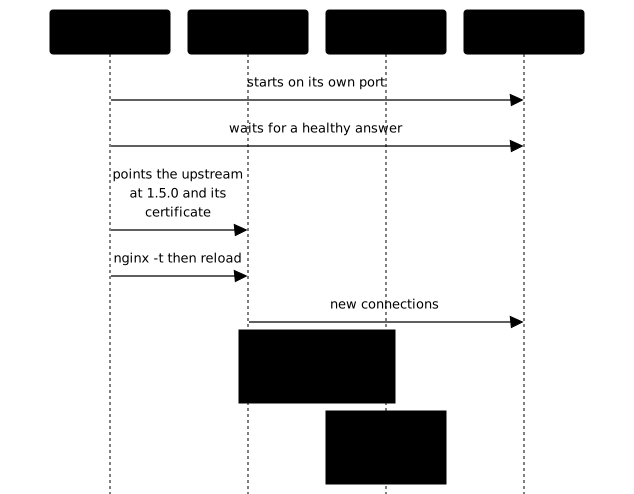
Follow the order of the arrows: the new generation is ready before the proxy designates it, and the reload is the last step, not the first. The reload mechanism (master kept, new workers, old workers that finish) is described in Install Nginx. The whole action is written as a replayable executable (livrer <version>, "deliver", in the lab), which hands control back when the new generation is really being served, and which is idempotent: running it again with the same version gives the same final state and breaks nothing.
Two values read by the client, never those of the disk, say whether the delivery succeeded. The served version: curl -sk --resolve <name>:443:<IP> https://<name>/version. The fingerprint of the published certificate, read in the handshake:
echo | openssl s_client -connect <IP>:443 -servername <name> 2>/dev/null \ | openssl x509 -noout -fingerprint -sha256The command prints a sha256 Fingerprint= line followed by the fingerprint: compare it with that of the expected generation. As soon as two generations carry the same service name, only the fingerprint says which one is published.
What the client reads depends on how Nginx reads the certificate. With a fixed path in ssl_certificate, it reads it at load time of the configuration: a file change is therefore visible only after the reload. Only a path built with variables (possible since 1.15.9) is reread at each handshake, and that is not the case in the lab.
What happens to a long-lived connection during a reload?
A connection that is already established stays served by the old workers until it ends; only new connections go to the new workers. A reload therefore does not cut a long-lived stream (a download, an event stream, a WebSocket), whereas a restart cuts every connection. The difference only shows on a long-lived stream: on short-lived traffic, both look like a success.
Two limits are to be measured rather than assumed. First, an old worker that keeps a stream open stays alive: ps shows it with the mention worker process is shutting down, and the worker_shutdown_timeout directive (introduced in 1.11.11) lets you bound this time: at expiry, Nginx tries to close the connections still open, which cuts the streams that exceed it. The documentation gives no default value for it: do not assume a limit, and a worker can stay as long as a stream stays open. Second, reloading the proxy does not protect against stopping the backend: if the delivery stops the old generation, the streams it was serving are cut anyway. This is why the old generation stays active until the next delivery. For the streams themselves, see Nginx: publish WebSocket, SSE and gRPC without interruption.
Measure with three readings during the delivery: the number of failed short requests on a continuous series, the state of the long-lived stream opened before the cutover (does it keep receiving?), and the time during which old workers remain. Write these results and your conclusion in a short delivery journal. A series with no failure does not prove that the absence of a cut is guaranteed everywhere: it describes this delivery, on this machine, with this traffic.
How do you roll back with the right certificate?
A rollback is a delivery in reverse: it puts back the code, the configuration and the certificate of the previous generation, and it needs to know where it comes from. The trap is to bring back only the code. If both generations carry the same service name, a rollback that forgets the certificate looks like nothing: the service answers, the name is right, and only the fingerprint says that the certificate is the one of the generation you have just removed.
The record of the previous generation must be written somewhere that survives a reboot. The /run and /tmp directories are emptied at boot; /var/lib is not: you therefore create a subdirectory there for this record. A revenir ("go back", the lab's rollback executable) that read its state from /tmp would work until the first reboot, then would no longer know where to go back to.
To restore the configuration from the archive made above, extract it, then validate before reloading, never the other way round: sudo tar -xpzf <archive> -C /, then sudo nginx -t && sudo systemctl reload nginx. To restore the package, install the noted version (sudo apt install nginx=<version>, if the repository still offers it; read the list of packages that apt proposes to change before confirming), then replay the complete acceptance test: version, modules, certificate, routes. After a rollback, check the served version and the fingerprint, not just the absence of errors.
How do you prove everything survives a machine reboot?
A delivered service is not a started service: it must come back on its own after a reboot, without one more command. systemctl enable schedules startup at boot, systemctl start launches it now: the two are distinct, and a service that is only started disappears at the first reboot. Check both states for Nginx and for every service in the stack:
systemctl is-enabled nginxsystemctl is-active nginxThe first command must answer enabled, the second active. For a stack with one unit per generation, a template unit (unit@instance.service) avoids duplicating files: the instance identifier is available there as %i. The final test is to reboot the machine, then replay the acceptance test without touching anything. It cannot be replaced by a systemctl restart: only a real reboot checks the startup order, the permissions and the directories emptied at boot.
What mistakes are the most common?
Five mistakes come back again and again, and each has a check that makes it visible.
- Taking a successful reload for a binary upgrade. Compare the installed version and the running version.
- Believing that two workers give availability. They share the machine, the master and the configuration.
- Stopping the old generation before starting the new one. Nothing closes the unavailability window.
- Rolling back without the certificate. Compare the fingerprint, not the name.
- Storing the rollback state in
/tmp. It disappears at reboot.
Put it into practice
In the lab, a service is published over TLS behind Nginx in its generation 1.4.2, and a second generation, 1.5.0, is already on disk, each with its own port and certificate. You write two executables, livrer <version> (deliver) and revenir (go back), in the language of your choice, and you keep a journal of your measurements. The validation plays your executables in the order of the plan and measures between each call: it reads the served version and the certificate fingerprint from the client, checks that at most one request fails on a continuous probe during the cutover, that the long-lived stream opened before the cutover keeps receiving afterwards, that the journal exists and talks about the long-lived stream, that revenir brings back 1.4.2 with its certificate, and that the acceptance test passes after a machine reboot with no intervention.
Key points
An upgrade is proven from the client, never from the disk.
- A reload rereads the configuration; it does not replace the binary and does not protect against a machine reboot.
- The vendor repository publishes a mainline version roughly every month: a version bump is prepared with an acceptance test, and
nginx -trefuses what the target version no longer knows. - Before changing anything:
nginx -v,nginx -t,nginx -T, the certificates and an acceptance test per route. - Back up
/etc/nginxwith its permissions, the certificates and keys whose pathsnginx -Tgives, the unit overrides and the package version. - Deliver by starting the new generation alongside, waiting for its answer, then reloading; the old one stays until the next delivery.
- A long-lived stream survives a reload but not the stop of its backend; measure it, do not assume it.
- A rollback brings back the code and the certificate, and keeps its record under
/var/lib, not under/tmp. enableis notstart: only a real machine reboot proves that the service comes back on its own.
Knowledge check
Check that you have mastered the essentials of this guide. The questions cover only what has just been explained here.
Knowledge check
Check what you have learned with this interactive quiz
How it works
- The timer starts when you click Start
- Multiple choice, true/false and short answer questions
- You can move between questions
- Detailed results are shown at the end
Starts the quiz and the timer
Review
(0/0)Score by domain
A domain groups several guides and gets several questions, so its score is more reliable than a per-topic score, which often rests on a single question.
Summary
Strengths
No topic passed at 80% on at least two questions yet.
Weak areas
No topic below the pass mark.
Recommended next
Hints before you try again?
Continue the course: Nginx: summary, recipes and cheat sheet
A new full quiz with random questions
Work again only on the questions you missed