
Installing Nginx means getting a web server and reverse proxy whose version you can name, whose modules you know, whose files you can list, and to which you can apply a change without cutting off visitors. This lesson opens the Nginx module of the training. It is for someone who has already followed a request all the way to a backend and who has never configured Nginx. It covers installing Nginx 1.31.8 on Debian 13 from the publisher's repository (the path replayed on a machine), verifying that repository, the model of the master process and the workers, the contexts that hold directives, then the three gestures nginx -t, reload and restart.
What you will learn
The lesson follows the order of a real first contact: install, read, understand, then operate.
- Install Nginx from the publisher's repository and verify that repository before trusting it.
- Read the version, the compiled modules and the configuration files in service.
- Explain the role of the master process and of the workers.
- Place a directive in the right context.
- Tell apart validating, reloading and restarting, and pick the right gesture.
- Prove that the service comes back on its own after a machine reboot.
Prerequisites
The lesson assumes you know the path of a request and can drive a service with systemctl.
- The path from the DNS name to the backend: Publish a web service.
- HTTP vocabulary (method,
Hostheader, status code): Read HTTP before configuring a proxy. - Starting, stopping and enabling a service: systemctl: list, start and diagnose Linux services.
- Declaring a signed
aptrepository: Manage packages with APT. - An account with
sudoon a Linux machine. The lab of this lesson runs on Debian 13 (trixie): that is the replayed path. The RHEL, Rocky, AlmaLinux, Fedora path is described below, without having been replayed.
How do you install Nginx: package, official repository or image?
This training installs Nginx from the official nginx.org repository: the publisher ships its packages there for Debian 13, and you choose and pin the version instead of depending on the one the distribution froze. The repository offers two branches: stable and mainline (mainline being the development branch, more recent). The lab installs 1.31.8, from the mainline branch.
The distribution package (apt-get install nginx with no extra repository) remains possible, but it lays out files the Debian way (sites-available/, sites-enabled/) and runs the workers under another account, www-data. The lessons of this module describe the layout of the publisher's package: mixing the two sends you looking for files that do not exist.
The third path is the container image nginx, which fits when the server lives in Docker or Kubernetes. You then choose its version with a tag, which must be pinned by digest like any image.
How do you install Nginx 1.31.8 on Debian 13 from nginx.org?
The installation takes four gestures: fetch the signing key, verify the whole file, declare the repository, then install the pinned version. The key is what lets apt refuse a package that does not come from the publisher; verifying it before declaring it is therefore the gesture that matters.
Start by downloading the key file and printing the fingerprint of every key it contains:
sudo apt-get updatesudo apt-get install -y curl gnupg ca-certificatescurl -fsSL https://nginx.org/keys/nginx_signing.key -o /tmp/nginx_signing.keygpg --show-keys --fingerprint /tmp/nginx_signing.keyThe last command prints three keys, not one. The one that actually signs the packages has the fingerprint 8540A6F18833A80E9C1653A42FD21310B49F6B46 (RSA 4096, created in 2024, identity signing-key-2@nginx.com); gpg prints it in groups of four characters, without changing the digits. The other two are the old key, RSA 2048 from 2011, which expires on 2027-05-24, and a third 2024 key. Measured on 2026-10-26 on the published file.
The nginx.org installation page only cites the old 2011 key, with the fingerprint 573BFD6B3D8FBC641079A6ABABF5BD827BD9BF62. A reader who compares only that fingerprint believes they verified the repository when they never looked at the key that signs. So look for the active fingerprint among all those in your output, without assuming the first one is right. If it is missing, stop and do not declare the repository.
Once you have found the fingerprint, convert the file into a keyring, declare the mainline repository and install the lab's version:
sudo gpg --dearmor -o /usr/share/keyrings/nginx-archive-keyring.gpg /tmp/nginx_signing.keyecho "deb [signed-by=/usr/share/keyrings/nginx-archive-keyring.gpg] http://nginx.org/packages/mainline/debian trixie nginx" \ | sudo tee /etc/apt/sources.list.d/nginx.listsudo apt-get updatesudo apt-get install -y nginx=1.31.8-*The signed-by option limits the trust of this keyring to this repository alone. Pinning nginx=1.31.8-* stops the repository, which publishes a mainline version about once a month, from installing a different version from the one the lesson describes. The gesture of moving to another version has its own lesson: Upgrade, roll back and reboot Nginx.
Comparing a fingerprint is not verifying a repository. The fingerprint only says you hold the expected key file. What proves something is that the repository's signature verifies against that key:
curl -fsSL http://nginx.org/packages/mainline/debian/dists/trixie/InRelease -o /tmp/InReleasegpg --no-default-keyring --keyring /usr/share/keyrings/nginx-archive-keyring.gpg --verify /tmp/InReleaseThe output must report Good signature; without the keyring, gpg would answer No public key. apt performs the same check on every apt-get update: an update that succeeds with no signature warning on this repository is your proof. The HAProxy repository offers the contrast: its key is unique and matches the publisher's page, as shown in Install HAProxy and read its configuration sections.
What remains is to remove the demonstration site, enable the service and read the version:
sudo rm /etc/nginx/conf.d/default.confsudo systemctl enable --now nginxnginx -vsystemctl is-active nginxsystemctl is-enabled nginxThe publisher's package ships a default.conf that answers on port 80: left in place, it makes a first response check pass with no work, and hides the mistake of someone who configured nothing. nginx -v must print nginx/1.31.8. enable --now has no effect on a service that is already active and enabled; run it in every case, then check with the last two commands, which ask two different questions: is-active asks whether the process is running now, is-enabled whether it will be restarted at the next boot of the machine. A service can be one without the other, and this difference decides the last section of this lesson.
And on RHEL, Rocky, AlmaLinux or Fedora?
Path described from the distributions' documentation, not replayed in the lab. The distribution package is also called nginx and is not the lab's: it does not ship 1.31.8. It does not enable the service, and without enable --now the server does not listen.
sudo dnf install -y nginxsudo systemctl enable --now nginxOn RHEL 8 and 9, dnf install nginx does not force you to choose a module stream: Red Hat's documentation describes dnf module enable nginx:<version> only to get a version other than the default one (dnf module list nginx lists the streams). RHEL 10 no longer ships modules.
Two obstacles are specific to this family. First the firewalld firewall, which can block port 80 from outside (sudo firewall-cmd --permanent --add-service=http then sudo firewall-cmd --reload; Red Hat's documentation rather opens the ports with --add-port={80/tcp,443/tcp}, which amounts to the same result). Then SELinux, the access control of this family that limits what each process is allowed to do: it can forbid Nginx from reaching a backend, and Red Hat's documentation handles this case for an Nginx reverse proxy with the boolean httpd_can_network_connect (sudo setsebool -P httpd_can_network_connect on, useful from the lesson on upstreams, that is, the servers behind the proxy). The package also splits some modules (stream, mail) into separate packages, to install as needed.
Which version and which modules are really running?
The version and the modules are read on the binary in service, never in a documentation page or a notes file. A README tells what was planned, nginx -V tells what was compiled. Two commands are enough.
nginx -vnginx -V 2>&1 | tr ' ' '\n' | grep -E '^--with-http_(ssl|v2|realip|stub_status)'The first command prints the version. The second, with a capital V, also prints the build options (configure arguments). Nginx writes this information to the error output, hence the 2>&1 that brings it into the pipe. The tr puts one option per line, and the grep keeps only a few common modules. You look there for example for --with-http_ssl_module, without which no listen 443 ssl works.
Keep one practical consequence in mind: a directive recognized by one edition can be absent from another. A directive is a configuration instruction, for example listen 80;. Those of a module that was not compiled produce the unknown directive error. Some features, such as the active health probes of upstream servers, exist only in the commercial edition NGINX Plus: a configuration copied from an article that assumes them will be rejected by the open source version. The version and the modules of the binary are therefore the first fact to read before copying a configuration.
Where are the configuration files after installation?
The entry point is /etc/nginx/nginx.conf, and it includes the files of /etc/nginx/conf.d/: a site is written in a .conf file of that directory, and there is nothing else to enable. This organization avoids editing one giant file. The table describes the layout of the publisher's package.
| Path | Role |
|---|---|
/etc/nginx/nginx.conf | Entry point: global settings, then the include of conf.d/ |
/etc/nginx/conf.d/*.conf | One file per site, loaded in the http context |
/usr/lib/nginx/modules/ | Dynamic modules, extensions loaded at startup instead of being compiled into the binary |
/usr/share/nginx/html/ | Root of the demonstration site |
/var/log/nginx/ | access.log and error.log logs |
The *.conf pattern does all the enabling. Enabling a site means writing its file in conf.d/ then reloading; disabling it means deleting it or renaming it without the .conf extension (for example boutique.conf.off), which takes it out of the pattern without losing its content.
sudo ls /etc/nginx/conf.d/If an article talks about sites-available/ and sites-enabled/, with an ln -s to enable a site, it describes the package that Debian builds itself: that is a convention of that package, not of the software, and the publisher's package does not provide it. Creating those directories by hand is pointless, since nginx.conf does not include them. The RHEL family goes through conf.d/ as well: on both families, a site is a .conf file of that directory, and the workers run under the nginx account. What differs is the installation and, on the RHEL side, the security layer (firewall, SELinux).
To know which files are actually read, do not trust the directory tree: ask Nginx to read itself back with nginx -T. This command validates the configuration, then prints the whole resulting configuration, included files too, each preceded by a comment giving its path. A file absent from this output is not loaded, whatever it contains.
sudo nginx -T | grep -E '^# configuration file'What are the master process and the workers?
Nginx runs as two kinds of processes: a master process that serves no request, and workers that serve all the traffic. The master reads the configuration, opens the listening ports and supervises the workers; it runs as root, because opening a port below 1024, such as 80 or 443, requires that privilege. The workers are unprivileged processes, under a dedicated account: nginx, created by the package, which the user nginx; directive at the top of nginx.conf names.
Each worker is event-driven: instead of creating a thread per connection, it watches thousands of connections at once and only works on those that have something to read or write. That is why a few workers are enough. Their number is set by worker_processes (the value auto starts one per processor core) and the number of simultaneous connections of each by worker_connections.
ps -o pid,user,cmd -C nginxsystemctl show -p MainPID --value nginxThe first command lists the processes named nginx: one master process line under root, and several worker process lines under nginx. The second gives the PID of the master, the one systemd follows. Write it down: it is what lets you prove, in the section on reloading, that a change was applied without replacing the process.
Splitting the work into two roles has a security consequence that matters for the lesson on static files: a compromised worker only has the rights of the workers' account, nginx, and can only read what that account can read. File permissions therefore become a security setting, not a detail.
How do you read an nginx.conf: what are contexts?
An Nginx file is a tree of nested blocks, called contexts, and each directive is valid only in some of them. The contexts to know are five: the main context (the top of the file, outside any block), events, http, server and location.
Read the diagram from the outside in: the deeper the block, the narrower its scope. A directive placed in http applies to all sites, a directive placed in a server to that site only, and a directive placed in a location to a single URL path.
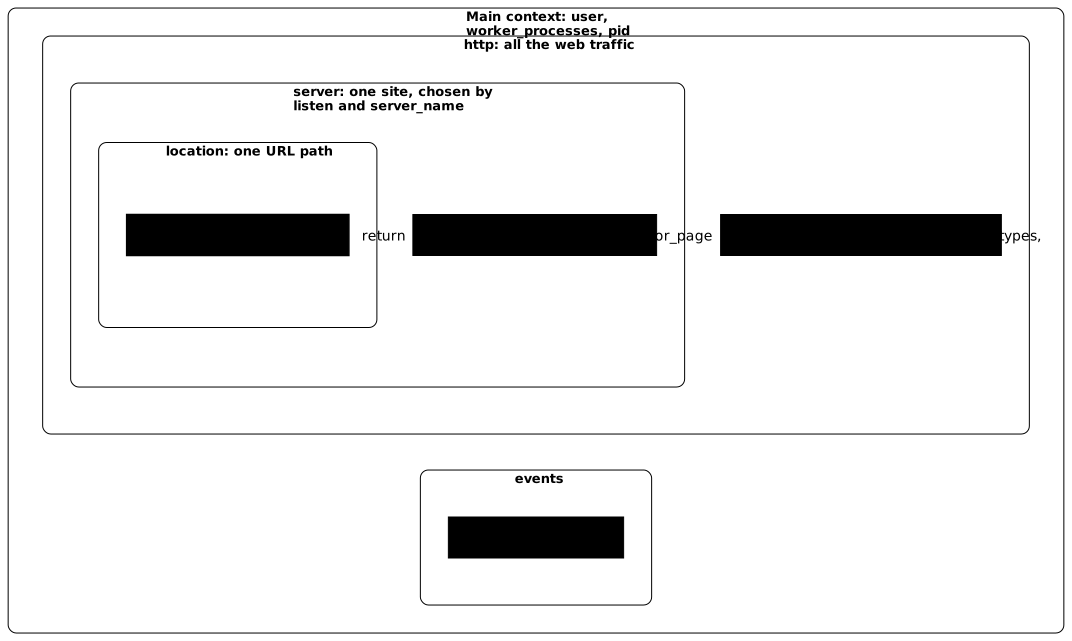
Here is a minimal commented file. It is illustrative: it is not the lab's file, and you can recognize each of its blocks.
# Main context: outside any blockuser nginx;                   # workers accountworker_processes auto;        # one worker per corepid /run/nginx.pid;
events {                      # events context: the connection engine    worker_connections 768;   # illustrative value, not a default value}
http {                        # http context: all the web traffic    include /etc/nginx/mime.types;    include /etc/nginx/conf.d/*.conf;       # fragments loaded HERE, in http
    server {                  # server context: one site        listen 80;                # listening port        server_name boutique.lab.test;   # site name this block answers to
        location / {          # location context: one path            return 200 "boutique\n";        }    }}
Two points can be read in this file. First, every directive ends with a semicolon, and a missing one causes a syntax error on the next line. Second, the include directive inserts the content of other files at the place where it stands: a file from conf.d/ is therefore read as if it were written in http. That is the source of the error in the next section.
What happens when a directive is in the wrong context?
Nginx rejects the whole configuration: a single misplaced directive is enough to invalidate the entire file, and the message names the faulty directive with its file and line. Take worker_connections, which sets the number of connections of a worker: its place is in events. Placed in a file from conf.d/, so in http, it is rejected.
# /etc/nginx/conf.d/faute.conf: do not reproduceworker_connections 42;The command sudo nginx -t (test) rereads the complete configuration, checks the syntax and the placement of each directive, then returns a non-zero exit code. The message says the directive "is not allowed here" and gives the file and line: read it from left to right, it carries the whole diagnosis. The exact text varies with the version, so compare it with what your machine prints.
The essential point is what does not happen: as long as you do not reload, the running service keeps answering with the old configuration, because Nginx rereads the files only on request. The faulty file lingers on disk, and only becomes dangerous at the next gesture: a reload, a service restart or a reboot of the machine. The opposite trap exists too: nginx -t can say "test is successful" and the site still serve the wrong thing. Valid does not mean correct: the syntax is right, but the right server is not necessarily the one that answers, which the next lesson on server and location selection covers in detail.
Validate, reload or restart: which gesture should you choose?
To apply a change, you validate with nginx -t, then reload with systemctl reload nginx; restarting is reserved for the cases where a reload is not enough. The three gestures differ in their effect on the running service, and confusing them is a classic cause of avoidable outages.
| Gesture | Command | Effect |
|---|---|---|
| Validate | sudo nginx -t | Reads and checks the files, does not touch the service |
| Reload | sudo systemctl reload nginx | The master rereads the configuration, keeps its PID, replaces the workers gracefully |
| Restart | sudo systemctl restart nginx | Stops then starts: new master, connections in progress cut |
The next diagram shows what happens during a reload. Follow the arrows from top to bottom: the master validates the new configuration, starts new workers, then asks the old ones to finish their requests in progress before stopping. The visitor downloading a file at that moment notices nothing.
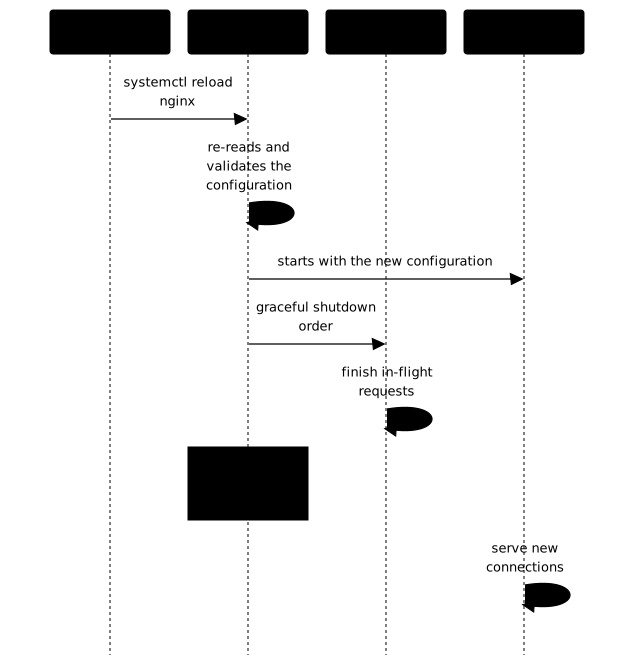
If the new configuration is invalid, the master refuses the reload and keeps the old workers, which leaves the service in place and an error in the log (behavior described by Nginx's documentation on signals: the master checks the syntax, tries to apply the configuration, and rolls back on failure).
Depending on the systemd unit, the systemctl reload command may return before the master has judged the configuration: it is therefore not a verdict, which is one more reason to go through nginx -t first. A restart, for its part, stops the old service first: if the configuration is faulty, the new one does not start, and the site is down. The lab test tells the two gestures apart by the master's PID, compared before and after: if it changed, a restart took place.
sudo nginx -t && sudo systemctl reload nginxsystemctl show -p MainPID --value nginxThe && operator chains the reload only if the validation succeeded: this is the form to adopt as a reflex. Run the systemctl show command before, then after the reload: an identical PID proves a reload.
To understand a failed reload, read the unit's journal with journalctl -u nginx, then Nginx's own logs: /var/log/nginx/error.log for errors and /var/log/nginx/access.log for the requests served.
How do you prove the service comes back after a machine reboot?
A service that answers today and does not come back tomorrow is not installed, it is only running. Two conditions must be met: the service is enabled at boot, and its configuration is written on disk, not applied by hand in a session.
The first condition is handled by sudo systemctl enable --now nginx, which the installation section already ran and which the RHEL family requires anyway. The enable command creates the activation at boot, --now also starts the service right away. The second is checked by reading the files: everything the site must serve is in conf.d/, never only in the memory of a process. Check the first with systemctl is-enabled nginx, which must answer enabled. The complete proof consists of rebooting the machine and querying the service: a check that does not reboot only measures the state of the moment.
This requirement explains the order of the lab: the reboot validation comes last, because it cuts the machine and everything that followed it would measure another state.
Practice
The lab runs on Debian 13 only: that is the only path validated on a machine, and the RHEL family described above is not tested by it. It installs Nginx 1.31.8 from the publisher's repository, pinning the version, and removes the demonstration site conf.d/default.conf. You publish a name to a local backend by following a manifest, then you show that you can tell validating, reloading and restarting apart. The validation covers four checks: the version and modules read on the binary in service compared with the manifest, the rejection of a misplaced directive without cutting the service, the application of a valid change by a reload that keeps the master's PID, and the service coming back after a real reboot of the machine.
Key points
nginx -vandnginx -Vgive the version and the modules of the binary actually in service: they are authoritative, not the documentation.- The publisher's
nginx.orgpackage installs the chosen version, here 1.31.8; its signing key file holds three keys, and the one that signs is8540A6F18833A80E9C1653A42FD21310B49F6B46. - Comparing a fingerprint is not verifying a repository: it is the signature of
InRelease, checked bygpg --verifyor byapt-get update, that proves the origin of the packages. - A site is a
.conffile in/etc/nginx/conf.d/, with no symbolic link to create;nginx -Tshows what is really loaded, andconf.d/default.conf, the demonstration site, gets removed. - On the RHEL family, the distribution package does not enable the service (
enable --now): this path is described, not replayed. - The master process reads the configuration and supervises; the workers, under the
nginxaccount, serve all the traffic. - A directive is valid only in certain contexts (main,
events,http,server,location), andincludeinserts a file at the place where it stands. nginx -trejects a misplaced directive without touching the running service.reloadkeeps the master's PID and lets requests in progress finish;restartcuts connections and goes down on a faulty configuration.- The reflex is
sudo nginx -t && sudo systemctl reload nginx. - A service is installed only if it is enabled at boot and configured on disk: only a real reboot proves it.
Knowledge check
Check that you have grasped the essentials of this guide. The questions cover only what has just been explained here.
Knowledge check
Check what you have learned with this interactive quiz
How it works
- The timer starts when you click Start
- Multiple choice, true/false and short answer questions
- You can move between questions
- Detailed results are shown at the end
Starts the quiz and the timer
Review
(0/0)Score by domain
A domain groups several guides and gets several questions, so its score is more reliable than a per-topic score, which often rests on a single question.
Summary
Strengths
No topic passed at 80% on at least two questions yet.
Weak areas
No topic below the pass mark.
Recommended next
Hints before you try again?
Continue the course: Nginx: choose the right server and the right location
A new full quiz with random questions
Work again only on the questions you missed