
Serving files with Nginx means mapping a URL to a file on disk, giving it the right MIME type, and refusing everything else. This lesson is for someone who can choose the server and the location of a request and who wants to publish a static site or a single-page application (SPA, an application whose JavaScript runs in the browser and all of whose routes are served by a single index.html). It covers root and alias (the two directives that attach a URL to a directory), try_files (the list of candidates Nginx tries in order to answer), MIME types (the label that tells the browser the nature of a file), the fallback of an SPA without swallowing errors, the browser cache, sensitive files and read permissions.
What you will learn
The lesson follows the path of a URL to the file, then what must be forbidden.
- Choose between
rootandaliasand predict the file read. - Write a
try_filesthat serves a file, a directory or an error. - Serve each resource with the right MIME type and the right cache duration.
- Distinguish the legitimate fallback of an SPA from a genuinely missing resource.
- Refuse hidden and private files without blocking the ACME challenge.
- Give the workers (the Nginx processes that read the files and answer clients) read access without opening the files to everyone.
Prerequisites
The lesson assumes you can predict which location Nginx chooses, and that you understand basic Unix permissions.
- Exact, prefix and regex
locationblocks, and their order of selection: Nginx: choose the right server and the right location. - Owner, group and the read, write and execute bits: Linux permissions.
- The HTTP-01 challenge of automatic certificates: Automatic certificates.
How does Nginx find the file for a URL: root or alias?
root appends the whole URL to a directory, whereas alias replaces the prefix of the location with a directory. Mixing them up is a common cause of 404 errors on a static site: in both cases Nginx reads a file, but it does not look for it in the same place.
server {    listen 80;    server_name vitrine.lab.test;
    # root: /assets/app.js  ->  /srv/vitrine/assets/app.js    location /assets/ {        root /srv/vitrine;    }
    # alias: /telechargements/guide.pdf  ->  /srv/documents/guide.pdf    location /telechargements/ {        alias /srv/documents/;    }}
With root, the file path is the concatenation of the directory and the complete URL: the /assets/ prefix is found again in the path. With alias, the prefix disappears: /telechargements/ is replaced by /srv/documents/. When the public URL does not have the same shape as the folder, you use alias; otherwise root is enough, and it is preferably set once at the server level so that it applies everywhere.
For alias, a consistency rule avoids a serious flaw: the location and the alias must both end with a slash, or neither. This is a well-known good practice, not a rule stated by the nginx.org documentation, which merely says that alias replaces the prefix. A location /img (no trailing slash) paired with alias /srv/images/; (with a slash) matches the URL /img../secret: Nginx replaces /img with /srv/images/ and reads /srv/images/../secret, hence a file outside the folder. This is the classic path traversal flaw called off-by-slash. Put the slash on both sides, for example location /img/ with alias /srv/images/;.
What do index and try_files do?
index names the file served when the URL is a directory, and try_files tries several candidates in order until the first one that exists. Both are file directives, not routing ones: they run once the location has been selected.
server {    listen 80;    server_name vitrine.lab.test;    root /srv/vitrine;    index index.html;
    location / {        try_files $uri $uri/ =404;    }}
Read try_files from left to right. $uri tests the file with the same path as the URL. $uri/ tests a directory, and Nginx then serves the index file in it. The last argument is not tested, it is the fallback response: either a code such as =404, or a URL to which Nginx makes an internal redirect, such as /index.html. A directory requested without a trailing slash first receives a 301 redirect to the same address with the slash.
This try_files $uri $uri/ =404 is the healthy form of a static site: a missing file produces a real 404. Keep this form in mind, because the section on single-page applications explains why you do not replace it lightly.
Why does the MIME type matter?
Nginx deduces the content type (Content-Type) from the file extension, thanks to a table: without it, everything comes out as application/octet-stream and the browser downloads instead of running. An app.js file served without a JavaScript type is refused by browsers in several cases (module-type script, X-Content-Type-Options: nosniff header) and downloaded instead of displayed when you open its address: the application stays blank, with no error on the server side.
http { include /etc/nginx/mime.types; default_type application/octet-stream;}The include mime.types directive loads the table that associates .html, .css, .js, .svg and dozens of other extensions with their type. The publisher's Nginx package (Debian 13, Nginx 1.31.8) loads it in nginx.conf; a minimal configuration written by hand often forgets it. default_type applies to anything the table does not recognize, and is application/octet-stream by default. For JavaScript, the type in the mime.types file varies with the version and the distribution: application/javascript appears in the conf/mime.types of Nginx's upstream repository, whereas RFC 9239 registers text/javascript as the type to use and declares the other obsolete. A browser accepts both; read the type actually sent rather than assuming it.
Check the type actually sent, and not just the status code, with curl:
curl -s -o /dev/null -w '%{http_code} %{content_type}\n' -H 'Host: vitrine.lab.test' http://127.0.0.1/assets/app.jsThe command prints the code then the type. A 200 accompanied by application/octet-stream is a flaw: the resource is found but unusable.
How do you serve a single-page application without hiding errors?
An SPA needs every route unknown to the server (/accueil, /compte/12) to fall back to index.html, because it is the browser's JavaScript that interprets it; but this fallback must only apply to the application's routes, never to resources or to the API. A fallback placed on the whole root turns every error into a success: a missing resource answers 200 with HTML, and an unknown API call does too.
# ❌ fallback too broad: /assets/absent.js and /api/inconnu answer 200 with HTMLlocation / { try_files $uri $uri/ /index.html;}The flaw is invisible to the eye: the page displays, everything seems to work. It is discovered weeks after going live, when a fetch receives HTML instead of its JSON, or when a missing file is reported by no error in the logs nor in monitoring. The 404s disappear from the measurements, whereas they were the useful signal.
The remedy is to limit the fallback to its scope by relying on the choice of location: a more specific location takes over for resources and the API, and leaves the fallback to the rest.
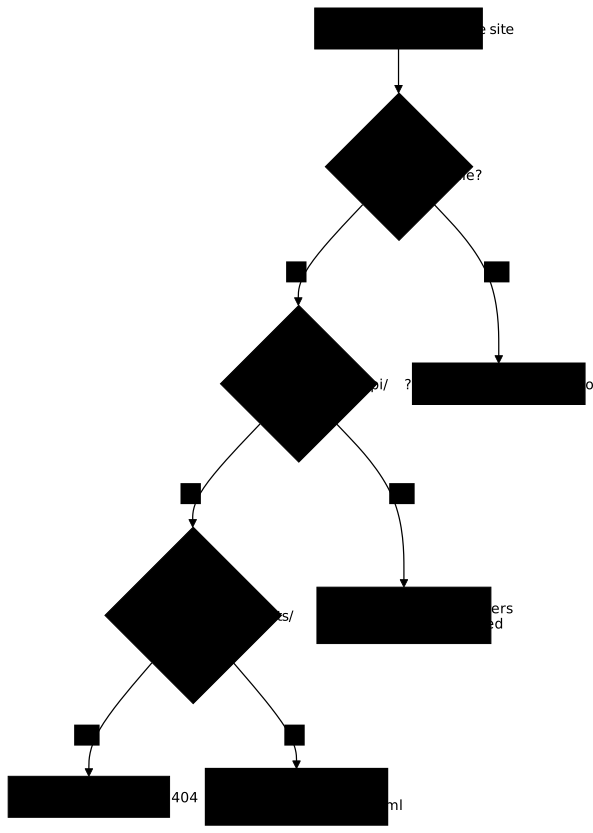
Follow the diagram from top to bottom: each question rules out a case before the fallback steps in. The matching configuration is the following, with example folder names:
server {    listen 80;    server_name vitrine.lab.test;    root /srv/vitrine;    index index.html;
    location /assets/ {        try_files $uri =404;    }
    location /api/ {        proxy_pass http://127.0.0.1:9000;    }
    location / {        try_files $uri $uri/ /index.html;    }}
Three location blocks share the work: /assets/ serves a file or a clean 404, /api/ sends the request to the application through proxy_pass and the backend answers itself, and only the root keeps the fallback. The details of proxy_pass (path, headers, multiple servers) are the subject of Publish an application with Nginx. For an unknown API call to receive a JSON 404 rather than HTML, it is enough that the backend returns it: Nginx passes its response through as is.
How do you refuse hidden files and private files?
A web directory must contain only what can be published, and what is there anyway is explicitly refused. The first reflex is not to put secrets there. The second is to refuse them, hidden files included (dotfiles, whose name starts with a dot), because a .env, a .git directory or a .bak backup eventually lands under the web root.
# Hidden files (dotfiles): refused, except the ACME challengelocation ^~ /.well-known/acme-challenge/ {    root /var/www/acme;}
location ~ /\. {    return 404;}
# One specific private filelocation = /deploiement.interne {    return 404;}
The location ~ /\. rule is a regex that captures any path containing /.: /.env, /.git/config, /.htpasswd. Too broad, it also blocks /.well-known/acme-challenge/, the path where the certificate authority comes to read the HTTP-01 challenge token: certificate renewal would fail silently. That is why the challenge location is a preferential ^~ prefix, which beats the regex, as seen in the lesson on selection. Refusing with return 404 gives the same answer as a missing file; deny all; would answer 403 Forbidden, which reveals that a rule protects this path.
Path traversals (/../../etc/passwd, /..%2f..%2fetc%2fpasswd) are already neutralized for a well-set root, because Nginx decodes and normalizes the URL before comparing it: a .. does not climb above the root. The danger comes from cases where normalization sees nothing to fix, such as the alias whose trailing slash is not symmetrical with that of its location, seen above: img.. is for it an ordinary segment name, and the .. only appears after the prefix is replaced. The other case is symbolic links (disk entries that point to another path) pointing outside the root. The disable_symlinks directive is off by default: Nginx then follows links without checking them. With disable_symlinks on;, access is refused as soon as a component of the path is a link, root included; disable_symlinks on from=$document_root; only checks the components located under the root. It adds a processing cost, and the autoindex module ignores it.
To test a refusal, look for the secret in the body, not only the status code: a 200 that returns index.html on /.env is not a leak, a 200 that returns the key is.
curl -s -H 'Host: vitrine.lab.test' http://127.0.0.1/.env | grep -c 'API_KEY' || trueThe command must print 0: no line of the body contains the key. Repeat the check on each private file and on the traversal URLs, adding --path-as-is to curl: without it, curl itself simplifies the .. before sending the request, and the server never sees the attack.
How do you set the browser cache?
Resources whose name changes with each version (app.4f2a1c.js) are cached for a long time; the entry page index.html, whose name does not change, is not cached without revalidation. Nginx already sends Last-Modified and ETag for a file, which lets the browser ask again only if the file has changed (304 response). The cache directives add the duration.
location /assets/ {    try_files $uri =404;    expires 1y;    add_header Cache-Control "public, immutable";}
location = /index.html {    add_header Cache-Control "no-cache";}
The expires 1y directive sets Cache-Control: max-age to one year; immutable tells the browser the file will never change under this name. This duration is only safe if the file name contains a fingerprint of its content: otherwise, a deployed fix would not reach visitors. no-cache does not forbid caching: it forces revalidation before reuse. Finally, beware of one trap: an add_header written in a location replaces those of the upper level instead of adding to them.
What permissions should served files have?
Nginx workers run under an unprivileged account (nginx with the publisher's package, created at install time, as user nginx; at the top of nginx.conf shows): they need read access to each file served and the right to traverse each directory of the path (the x right of a directory, which lets you cross it to reach its content), but nobody else needs to be able to read the site. The good practice is therefore to give read access through the group, and to remove the "other" rights.
A file is readable by a worker if one of these conditions is true: it belongs to nginx and the owner has read access, or its group is nginx and the group has read access, or "other" has read access. The third is the one to avoid: it opens the file to any account on the machine, including a compromised service that has nothing to do with the site. Opening everything with 0777 always solves the read problem, and creates a far more serious security problem.
sudo chown -R deploy:nginx /srv/vitrinesudo find /srv/vitrine -type d -exec chmod 750 {} +sudo find /srv/vitrine -type f -exec chmod 640 {} +Here deploy is the account that publishes, and nginx is the workers' group. Directories get 750 (the x right to traverse, needed by the group) and files 640 (read for the group, nothing for others). To check, list what remains readable by everyone, and prove that the workers can indeed read:
sudo find /srv/vitrine -type f -perm -o=r -printf '%M %p\n'sudo -u nginx test -r /srv/vitrine/assets/app.js && echo "readable by nginx"namei -l /srv/vitrine/assets/app.jsThe first find must print nothing. The second must print readable by nginx: a hardening that also removes read access from the workers is an outage, not a protection. namei -l details the permissions of each directory in the path, which reveals the parent folder that blocks. A 403 accompanied in the error log by open() ... failed (13: Permission denied) points to this case; a 404 with (2: No such file or directory) rather signals a miscalculated root or alias.
Practice
The lab publishes a single-page application, its resources, a private file and an API with a configuration that serves everything without distinction: no correct MIME type, a fallback that swallows errors, private files accessible and permissions open to everyone. You publish what is intended with its type, you keep the real errors, you refuse the private content and you tighten the permissions without ceasing to serve. The validation measures the body and the MIME type of each resource, the fallback on the application's routes and only there, the refusal of private files and traversals by looking for the secret in the body, and the absence of any world-readable file, resources still served.
Key points
rootappends the whole URL to the directory,aliasreplaces the prefix of thelocation; analiaskeeps the same trailing slash as itslocation(good practice), otherwiselocation /imgwithalias /srv/images/;opens the traversal/img../.try_filestries its candidates in order, and its last argument is the fallback response:=404or an internal URL.include mime.typesgives each resource its type: without it, everything comes out asapplication/octet-streamand a script may stop running; check the type sent withcurl,text/javascriptbeing the type recommended by RFC 9239.- A fallback to
index.htmlplaced on the whole root turns errors into successes: limit it to the application's routes, withlocationblocks of their own for resources and the API. - A dotfile is refused by regex, but the rule must not block
/.well-known/acme-challenge/: a^~prefix protects it. - A refusal is tested by looking for the secret in the body, not only the status code.
- Workers read through the group (
640and750), never through a world-open right:find -perm -o=rmust be empty and the resources still served. - Cache:
immutablefor fingerprinted files,no-cacheforindex.html.
Knowledge check
Check that you have grasped the essentials of this guide. The questions cover only what has just been explained here.
Knowledge check
Check what you have learned with this interactive quiz
How it works
- The timer starts when you click Start
- Multiple choice, true/false and short answer questions
- You can move between questions
- Detailed results are shown at the end
Starts the quiz and the timer
Review
(0/0)Score by domain
A domain groups several guides and gets several questions, so its score is more reliable than a per-topic score, which often rests on a single question.
Summary
Strengths
No topic passed at 80% on at least two questions yet.
Weak areas
No topic below the pass mark.
Recommended next
Hints before you try again?
Continue the course: Publish an application with Nginx: proxy_pass, headers and certificates
A new full quiz with random questions
Work again only on the questions you missed