In the Sigstore ecosystem, Fulcio is the certificate authority (CA) that makes keyless signing possible: you prove your identity to an OIDC provider (OpenID Connect, the protocol by which GitHub, Google or GitLab attest who you are), and Fulcio issues you a ten-minute short-lived certificate to sign your artifacts. This lesson is for a DevOps engineer who has read the Sigstore overview and wants to understand what this certificate contains, how to verify an identity precisely, and when to deploy their own instance.
What you will learn
- Understand why a 10-minute certificate replaces a signing key you would have to keep for years
- Read the actual content of a Fulcio certificate and its Sigstore-specific OID extensions
- Sign and verify with the public instance
fulcio.sigstore.dev, from GitHub Actions or from your workstation - Deploy a private instance with the official Helm chart for a disconnected environment, then connect Cosign to it with a signing config and a trusted root
- Measure the limits of Fulcio: trust rests on your OIDC provider, and the certificate cannot be revoked
- Link Fulcio to the SOCLE requirement SOCLE-REL-KEY-3 (in French), signing without a long-lived key, and to the Release & provenance family (in French)
What exactly is Fulcio?
Fulcio is a certificate authority (CA) specialized in code signing. Its role: convert an OIDC proof of identity into a short-lived X.509 certificate (X.509 is the standard certificate format, the one used by HTTPS). It never signs your artifacts itself: it only attests that a given public key belongs, for a few minutes, to a given identity.
Why short-lived certificates?
The great innovation of Fulcio is the very short lifetime of its certificates (10 minutes). Compared with traditional certificates:
| Aspect | Traditional certificate | Fulcio certificate |
|---|---|---|
| Validity period | 1 to 3 years | 10 minutes |
| Private key management | You must protect it for years | Destroyed right after signing |
| If the key is stolen | All signatures are compromised | Attack window of 10 minutes at most |
| Revocation | Complex process (CRL, OCSP) | Unnecessary for the certificate, which expires |
| Long-term verification | The certificate must stay valid | The Rekor proof is enough |
The short lifetime is not a problem because every signature is recorded in Rekor, the public transparency log (an append-only register in which entries cannot be altered without being detected), with a cryptographic timestamp. You can verify indefinitely that the signature was made during the validity of the certificate.
How Fulcio works
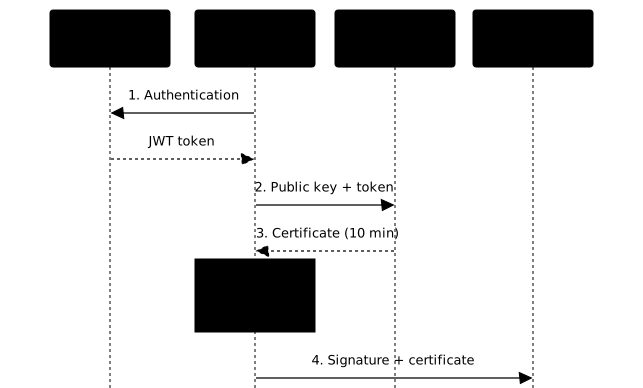
Here is the sequence when you sign with Cosign in keyless mode, from the certificate request to the entry in the Rekor log:
-
OIDC authentication
Cosign redirects you to an OIDC provider (GitHub, Google, etc.). You authenticate and receive a JWT token (JSON Web Token: a token signed by the provider, whose fields, the claims, describe your identity).
Claims of a GitHub Actions token (excerpt):- iss: "https://token.actions.githubusercontent.com" (who issued the token)- sub: "repo:my-org/my-app:ref:refs/heads/main" (subject)- job_workflow_ref: "my-org/my-app/.github/workflows/sign.yml@refs/heads/main"(workflow, copied into the certificate)For an interactive login with Google, the identity is the
emailclaim. -
Generating an ephemeral key pair
On the client side, Cosign generates a key pair (public + private) that will be used only once.
-
Certificate request to Fulcio
Cosign sends Fulcio:
- The OIDC token (proof of identity)
- The public key (to be included in the certificate)
- A proof of possession of the private key (the client signs an identity field of the token with that key)
-
Verification and issuance by Fulcio
Fulcio checks that:
- The OIDC token is valid (signature, expiry)
- The OIDC issuer is in its allowed list
- The proof of possession is correct
It then generates an X.509 certificate containing the identity extracted from the OIDC token.
-
Signing the artifact
Cosign uses the private key to sign the artifact, then destroys the key immediately. The certificate is attached to the signature.
-
Recording in Rekor
The signature and the certificate are recorded in Rekor, creating an immutable, timestamped proof.
Flow diagram
The diagram below condenses the six previous steps. One point deserves your attention: the private key never leaves the workstation or the runner, and is sent neither to Fulcio nor to Rekor. Fulcio only receives the public key and the OIDC token. This is the property that makes the model acceptable: a compromise of the certificate authority does not hand over any existing signing key.
Two ways to use Fulcio
Before going further, clarify your context of use:
| Mode | When to use it | What you need |
|---|---|---|
| Public instance | Open source projects, companies connected to the Internet | Nothing to deploy, just use Cosign |
| Private instance | Air-gapped environments, confidentiality required, full control | Deploy Fulcio + Rekor + (optionally) Dex, a ready-to-use OIDC provider |
Sigstore operates a free public instance open to everyone at
fulcio.sigstore.dev. It is the default mode when you use Cosign.
Advantages:
- Nothing to install or maintain
- Operated by the Sigstore community
- Compatible with GitHub Actions, GitLab CI, Google Cloud Build...
Drawbacks:
- Requires an Internet connection
- Your signatures are publicly visible in Rekor
- You depend on the Sigstore infrastructure
Who it is for: most users, especially for open source projects.
You deploy your own Sigstore stack (Fulcio + Rekor + optionally Dex as the OIDC provider).
Advantages:
- Works in an air-gapped (disconnected) environment
- Signatures and certificates stay private
- Full control over policies and OIDC providers
- Compliance for regulated environments
Drawbacks:
- Infrastructure to deploy and maintain
- Management of your own trust root (PKI)
- More complex to set up
Who it is for: companies with strong security constraints, defense, finance, or disconnected environments.
What does a Fulcio certificate contain?
A Fulcio certificate is a standard X.509 certificate enriched with specific extensions that hold the metadata of the OIDC identity.
Example certificate
Two details are surprising on first reading. First, the Subject field is
empty: unlike a TLS certificate, the identity is not there, it is carried by
the Subject Alternative Name and by the OID extensions. Second, for a GitHub
Actions signer, this SAN is of type URI and not email, and it designates
the workflow file and the exact Git reference. The excerpt below comes from a
real certificate, the one of the image
ghcr.io/sigstore/policy-controller/policy-controller:v0.13.0, decoded with
openssl x509 -text -noout.
Certificate: Issuer: O = sigstore.dev, CN = sigstore-intermediate Validity Not Before: Jul 2 08:25:55 2025 GMT Not After : Jul 2 08:35:55 2025 GMT <- exactly 10 minutes Subject: X509v3 extensions: X509v3 Extended Key Usage: Code Signing X509v3 Subject Alternative Name: critical URI:https://github.com/sigstore/policy-controller/.github/workflows/release.yaml@refs/tags/v0.13.0 1.3.6.1.4.1.57264.1.1: <- OIDC Issuer https://token.actions.githubusercontent.com 1.3.6.1.4.1.57264.1.5: <- GitHub Repository sigstore/policy-controller 1.3.6.1.4.1.57264.1.6: <- GitHub Workflow Ref refs/tags/v0.13.0 1.3.6.1.4.1.57264.1.11: <- Runner Environment github-hostedThe Code Signing extended usage is what prevents this certificate from being recycled to serve TLS, and the criticality of the SAN forces any compliant verifier to take it into account.
Sigstore OID extensions
Fulcio uses custom OIDs (Object Identifiers) to store the metadata of the identity. The table below covers the historical block 1.1 to 1.6, the one you will meet in most examples online:
| OID | Name | Content |
|---|---|---|
1.3.6.1.4.1.57264.1.1 | OIDC Issuer | URL of the provider (GitHub, Google...) |
1.3.6.1.4.1.57264.1.2 | Workflow Trigger | Triggering event (push, PR...) |
1.3.6.1.4.1.57264.1.3 | Workflow SHA | Commit SHA of the executed workflow |
1.3.6.1.4.1.57264.1.4 | Workflow Name | Name of the GitHub Actions workflow |
1.3.6.1.4.1.57264.1.5 | Repository | Source repository (org/repo) |
1.3.6.1.4.1.57264.1.6 | Workflow Ref | Branch or tag (refs/heads/main) |
These extensions allow a very precise verification: you can require that an image be signed by a specific workflow, from a specific branch, of a specific repository.
A point of attention for your audit scripts: the upstream documentation marks
these six OIDs as deprecated. They are still issued by Fulcio, as the
certificate above shows, but the extensions to prefer are now the generic
OIDs 1.3.6.1.4.1.57264.1.8 to 1.24, which are no longer GitHub-specific.
The most useful day to day are 1.8 (Issuer V2), 1.11 (Runner Environment,
with the value github-hosted or self-hosted), 1.12 (Source Repository URI)
and 1.14 (Source Repository Ref). The complete, authoritative list is
published in
oid-info.md.
Fulcio also records every certificate it issues in a certificate transparency log, and embeds in the certificate a signed certificate timestamp (SCT): a receipt from that log proving the certificate was logged.
Using the public instance
The public instance is the default mode. No configuration is needed.
Supported OIDC providers
The issuer URL in this table is the value you will find in the
1.3.6.1.4.1.57264.1.1 extension of the certificate and that you will pass to
--certificate-oidc-issuer when verifying. Remember the practical distinction:
the GitHub Actions, GitLab CI and Kubernetes providers supply a token
automatically in a pipeline, without interaction; Google and Microsoft
mostly serve interactive signing from a workstation, with a browser opening.
| Provider | Issuer URL | Usage |
|---|---|---|
| GitHub Actions | https://token.actions.githubusercontent.com | GitHub CI/CD |
| GitLab CI | https://gitlab.com | GitLab CI/CD |
https://accounts.google.com | Developers, GCP | |
| Microsoft | https://login.microsoftonline.com/{tenant} | Azure DevOps |
| Kubernetes | Service Account tokens | K8s pods |
Example: signing in GitHub Actions
The workflow below signs an image that a previous step has already pushed. It is
the minimal version, focused on what Fulcio needs: the id-token: write
permission, which lets the job request its OIDC token.
name: Build and Sign
on:  push:    branches: [main]
permissions: {}
jobs:  sign:    runs-on: ubuntu-24.04    permissions:      contents: read      packages: write    # To push the signature to GHCR      id-token: write    # ← Required to obtain the OIDC token
    steps:      - uses: actions/checkout@3d3c42e5aac5ba805825da76410c181273ba90b1 # v7.0.1        with:          persist-credentials: false
      - name: Install Cosign        uses: sigstore/cosign-installer@6f9f17788090df1f26f669e9d70d6ae9567deba6 # v4.1.2
      - name: Log in to GHCR        uses: docker/login-action@dbcb813823bdd20940b903addbd779551569679f # v4.6.0        with:          registry: ghcr.io          username: ${{ github.actor }}          password: ${{ secrets.GITHUB_TOKEN }}
      - name: Sign image        run: |          cosign sign --yes "ghcr.io/my-org/my-app@sha256:<image-digest>"
The Log in to GHCR step authenticates the job to the registry with the
GITHUB_TOKEN: without it, Cosign cannot push the signature next to the
image (packages: write permission). The OIDC token is automatically
available thanks to the id-token: write permission. Cosign contacts
fulcio.sigstore.dev, obtains a certificate, signs the image, and records
the result in Rekor, all in one command. Replace <image-digest> with the
digest of the image you have just pushed: you sign a digest, never a mutable
tag. The complete workflow, with build, signing and immediate verification, is
in the Sigstore lesson.
Example: signing locally (interactive)
From a workstation, there is no CI to provide a token: Cosign opens the browser so that you authenticate with your own provider.
# Cosign opens the browser for authenticationcosign sign --yes my-registry/my-image@sha256:<image-digest>You authenticate through Google or GitHub, and receive a certificate carrying your email.
Verifying a signature
Verification is the step that gives the whole chain its value: a signature
nobody checks protects against nothing. The two mandatory flags are
--certificate-identity and --certificate-oidc-issuer. Without them, you only
confirm that a Fulcio signature exists, not that it comes from the expected
author; an attacker able to sign with their own GitHub account would pass the
test. The classic trap is to loosen the identity with an expression that is too
broad.
# Strict verification: specify the expected identitycosign verify ghcr.io/my-org/my-app@sha256:<image-digest> \ --certificate-identity="https://github.com/my-org/my-app/.github/workflows/sign.yml@refs/heads/main" \ --certificate-oidc-issuer="https://token.actions.githubusercontent.com"This command checks that:
- The signature is cryptographically valid
- The certificate was issued by Fulcio (chain of trust)
- The identity in the certificate matches exactly
- The OIDC issuer is the expected one
- The signature is recorded in Rekor
Examining the certificate of a signature
This manipulation is for investigation, not for control: you want to
know who signed, when and from which workflow, before writing the strict
verification rule. The .* expressions below therefore only make sense in
this exploratory context. Never copy them into an admission policy, they accept
any signer.
The JSON output of cosign verify carries the certificate encoded in the
publicKey.content field of the Rekor body. By decoding it, you get the
PEM that you can feed to openssl to read the extensions shown above.
# Extract the certificate from the signature, then decode itcosign verify ghcr.io/sigstore/policy-controller/policy-controller:v0.13.0@sha256:62d474d1be06a9dbf5051f14c82d995711fc02cd0bc1ca94ef6baacec3d2f3b1 \  --certificate-identity-regexp=".*" \  --certificate-oidc-issuer-regexp=".*" 2>/dev/null \  | jq -r '.[0].optional.Bundle.Payload.body' \  | base64 -d \  | jq -r '.spec.signature.publicKey.content' \  | base64 -d > cert.pem
openssl x509 -in cert.pem -text -noout
The Sigstore extensions appear in clear in the openssl output, under their
OID number. If openssl rejects the file with unable to load certificate,
it is almost always because the double base64 decoding was interrupted by a
silent error from cosign verify: rerun the command without the 2>/dev/null
redirection to read the message.
Deploying a private instance
For disconnected environments or those needing confidentiality, deploy your own Fulcio.
Architecture of a private instance
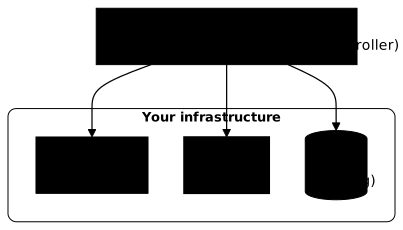
Three components form the minimal base, and the dependency order matters. The OIDC provider (Dex or an existing Keycloak) must answer before Fulcio, since Fulcio validates each token against it. Rekor then records the signatures. The diagram below shows these flows; remember that Fulcio only makes sense together with Rekor, a Fulcio instance alone provides no verifiable trace over time.
Installing with Helm
Sigstore publishes an official Helm chart per component. The repository and
the install command are stable; pin the chart version with --version so
that your deployment is reproducible, otherwise Helm pulls the latest
published revision and your configuration may break at the next version bump.
# Add the Sigstore chart repositoryhelm repo add sigstore https://sigstore.github.io/helm-chartshelm repo update
# Install Fulcio in its namespace, chart version pinnedhelm install fulcio sigstore/fulcio \  --version 2.11.0 \  --namespace fulcio-system --create-namespace \  --values fulcio-values.yaml
Chart fulcio version 2.11.0 deploys Fulcio 1.8.8. The command creates the
namespace and applies your values file. Then check startup with
kubectl get pods -n fulcio-system; the fulcio-server pod must reach the
Running state.
Basic configuration (fulcio-values.yaml)
The point most often miscopied from old tutorials is the location of the OIDC
providers. In this chart, they are not declared under server, but in the
config.contents object, which is serialized as is into Fulcio's
config.json file. The OIDCIssuers key maps each issuer URL to its
IssuerURL, its ClientID and its Type. The values below are deliberately
minimal and to be adapted to your domain.
config:  contents:    OIDCIssuers:      # Internal Dex provider      "https://dex.your-domain.internal":        IssuerURL: "https://dex.your-domain.internal"        ClientID: "sigstore"        Type: "email"
server:  # Certificate authority: fileca reads its key and certificate  # from a Secret. See the createcerts block below.  args:    certificateAuthority: fileca
  # HTTP exposure through an Ingress  ingress:    http:      enabled: true      className: nginx      hosts:        - host: fulcio.your-domain.internal          path: /      tls:        - secretName: fulcio-tls          hosts:            - fulcio.your-domain.internal
# Certificate transparency log (Certificate Transparency)ctlog:  enabled: true
# Dev / test only: this Job generates a self-signed fileca CA.# In production, disable it and provide your own# fulcio-server-secret Secret (CA private key + certificate).createcerts: enabled: trueConfiguring the clients for the private instance
The clients must point at your instance instead of the public one. With Cosign
v3, this goes through two documented files: a signing config (where to
sign: URL of Fulcio, of Rekor, of the OIDC provider) and a trusted root (what
to trust: your CA's certificate chain, your Rekor's public key). They are created
with cosign signing-config create and cosign trusted-root create,
then passed to commands with --signing-config and --trusted-root.
# 1. Where to sign: your private services (dates and operator are mandatory)cosign signing-config create \    --no-default-fulcio --no-default-rekor --no-default-oidc --no-default-tsa \    --fulcio="url=https://fulcio.your-domain.internal,api-version=1,start-time=2026-01-01T00:00:00Z,operator=your-domain.internal" \    --rekor="url=https://rekor.your-domain.internal,api-version=1,start-time=2026-01-01T00:00:00Z,operator=your-domain.internal" \    --rekor-config="ANY" \    --oidc-provider="url=https://dex.your-domain.internal,api-version=1,start-time=2026-01-01T00:00:00Z,operator=your-domain.internal" \    --out signing-config.json
# 2. What to trust: your CA chain (PEM) and the Rekor public keycosign trusted-root create \    --no-default-fulcio --no-default-rekor --no-default-ctfe --no-default-tsa \    --fulcio="url=https://fulcio.your-domain.internal,certificate-chain=/path/to/ca-chain.pem" \    --rekor="url=https://rekor.your-domain.internal,public-key=/path/to/rekor.pub,start-time=2026-01-01T00:00:00Z" \    --out trusted-root.json
# 3. Sign with your instance (the signature is re-verified right away)cosign sign --yes \    --signing-config signing-config.json \    --trusted-root trusted-root.json \    my-registry/my-image@sha256:<image-digest>
On cosign sign, --trusted-root is used to verify the signature right after
producing it, whereas --signing-config decides where to sign. For
cosign signing-config create, the keys url, api-version (integer),
start-time and operator are mandatory, and --rekor-config is
mandatory as soon as --rekor is provided.
These three commands follow the Cosign v3 help but were not replayed
here: the setup depends on your private instance. The same root of trust
is used for verification: cosign verify --trusted-root trusted-root.json ..., with the identity options seen in the
Cosign lesson. The trusted-root.json
file is distributed to every workstation and runner that verifies your
signatures, which the next section details.
Chain of trust and trust root
A Fulcio certificate is only worth what the chain above it is worth. This section shows that chain, then how a verifier learns which root to trust.
Sigstore PKI architecture
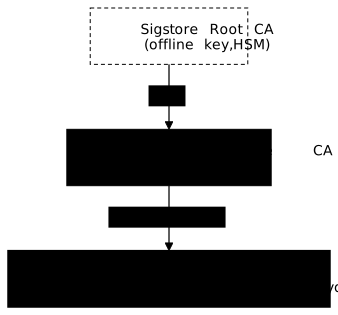
Fulcio fits into a PKI hierarchy (public key infrastructure: the chain of certificates that leads from a root to the certificate you check). The diagram shows it: the offline root signs an intermediate CA, which signs the short-lived certificates.
Distribution through TUF
A verifier needs a root of trust: the set of public keys and root certificates it has decided to trust, against which every chain is checked. Sigstore distributes this trust metadata through TUF (The Update Framework), a secure update protocol that protects against rollback attacks (serving an old, vulnerable version) and partial compromise (stealing only some of the signing keys).
# Initialize the Sigstore trust rootcosign initialize
# The metadata is downloaded under ~/.sigstore/root/ls ~/.sigstore/root/tuf-repo-cdn.sigstore.dev/# root.json  snapshot.json  targets  targets.json  timestamp.json
For a private instance, you no longer depend on this public TUF repository: the
root of trust is the one of your CA, already gathered in the
trusted-root.json file created above. It is up to you to distribute it to
every workstation and every runner that verifies your signatures, and to
renew it when your CA changes.
Fulcio security
Fulcio's security has two sides: the checks it runs before issuing a certificate, and the limits inherited from the identity providers it relies on.
What Fulcio verifies
Before issuing a certificate, Fulcio performs the checks in the table. Reading the right column tells you which attack each check closes.
| Check | Description | Attack blocked |
|---|---|---|
| JWT token signature | The token is signed by the OIDC provider | Forged token |
| Token expiry | The exp claim has not passed | Replay with an old token |
| Allowed issuer | The issuer is in the allowlist | Malicious OIDC provider |
| Correct audience | The token is meant for Fulcio | Token stolen from another app |
| Proof of possession | The requester owns the private key | Interception of the request |
Limits and considerations
Fulcio moves the trust problem rather than removing it, and you must be aware of this before adopting it. The most important row of the table is the first: the security of your signing chain never exceeds that of your OIDC provider. If a maintainer's GitHub account is hacked, the attacker obtains perfectly valid Fulcio certificates. The absence of certificate revocation is not a flaw but a deliberate Fulcio design choice (upstream docs speak of avoiding revocation), compensated by the ten-minute lifetime and by the Rekor timestamp.
| Limit | Implication | Mitigation |
|---|---|---|
| Trust in the OIDC provider | If GitHub is compromised, so are the certificates | Diversify providers, audit |
| No certificate revocation | An issued certificate cannot be cancelled; the authority's own key falls under root-of-trust management | 10-minute lifetime limits the impact |
| Identity = OIDC identity | No anonymity possible | Use service identities |
| Network dependency (public) | Requires Internet | Private instance for air-gapped |
Best practices
These four habits cover the limits above. Apply them in the order given: the first two are about verification, the last two about the accounts and the log that Fulcio's security depends on.
-
Always check the OIDC issuer
Only trust the expected providers. Use the exact
--certificate-oidc-issuer, no overly broad regexp. -
Use strict identity constraints
Specify
--certificate-identitywith the exact path of the workflow, not just the repository. -
Enable 2FA on your OIDC accounts
The security of Fulcio rests on that of your OIDC provider.
-
Monitor signatures in Rekor
Set up alerts on unexpected signatures from your repositories.
Key points
The table sums up the lesson concept by concept; the last row states the evidence to produce for the SOCLE requirement.
| Concept | Summary |
|---|---|
| Role of Fulcio | Converts an OIDC identity into an X.509 certificate |
| Short-lived certificates | 10 minutes of validity, key destroyed after signing |
| Public instance | Free, ready to use, for most usages |
| Private instance | For air-gapped, confidentiality, full control |
| OID extensions | The certificate carries the workflow/repo metadata |
| Verification | Always specify --certificate-identity and --certificate-oidc-issuer |
| Limit | The signature's security never exceeds that of the OIDC provider; no certificate revocation |
| Expected evidence | For SOCLE-REL-KEY-3, the preuve field is the "keyless signing configuration (ephemeral identity)". Here: a workflow that signs through Fulcio with no stored key, and a cosign verify that fixes the exact workflow identity and the OIDC issuer |
Knowledge check
Check that the essentials of this lesson are in place. The questions only cover what has just been explained here.
Knowledge check
Check what you have learned with this interactive quiz
How it works
- The timer starts when you click Start
- Multiple choice, true/false and short answer questions
- You can move between questions
- Detailed results are shown at the end
Starts the quiz and the timer
Review
(0/0)Score by domain
A domain groups several guides and gets several questions, so its score is more reliable than a per-topic score, which often rests on a single question.
Summary
Strengths
No topic passed at 80% on at least two questions yet.
Weak areas
No topic below the pass mark.
Recommended next
Hints before you try again?
Continue the course: Rekor: the Sigstore transparency log
A new full quiz with random questions
Work again only on the questions you missed