The terminal is your way into Linux. It is where you install a package, read a log or start a service, often on a machine with no graphical interface. This guide assumes a Linux machine, desktop or server, and no experience with the terminal: you open it, read what it displays and type your first commands, in under ten minutes. The history, completion and shortcuts of Bash have their own guide: Getting started with Bash.
What you will learn
- Open a terminal on a graphical desktop or over SSH
- Read the prompt and identify the user, the machine and the current directory
- Tell apart terminal, shell and session
- Run discovery commands:
whoami,pwd,hostname,date - Recognise the first error messages
- Copy and paste safely and leave the terminal cleanly
Terminal, shell, session: three words to tell apart
Three words come up constantly as soon as you talk about the terminal. It is better to tell them apart before typing any command.
| Word | What it is |
|---|---|
| Terminal | The graphical application (or the SSH window) that displays text |
| Shell | The program that interprets your commands (Bash, Zsh, Fish…) |
| Session | The active connection of a user, from opening (login) to closing (logout) |
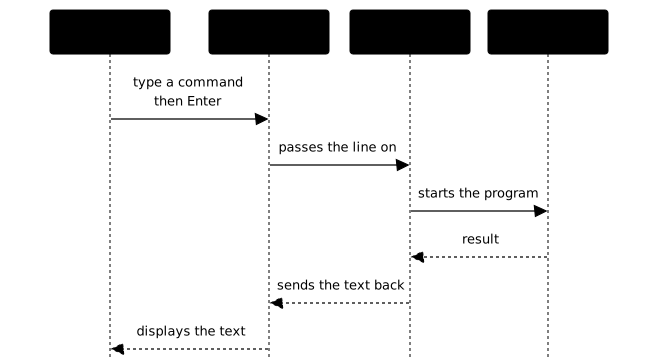
When you open a terminal, it starts a shell. The shell waits for your
commands, runs them and shows you the result. When you close the terminal (or
type exit), the session ends.
The diagram follows a command from your keyboard to the screen. Look mainly at each one's role: the terminal only passes on what you type and displays text, whereas the shell is the only one that reads the line and starts the requested program.
Open a terminal
On Ubuntu, the keyboard shortcut is Ctrl + Alt + T. It does not always exist on other GNOME distributions: search for "Terminal" in the applications instead.
On a KDE Plasma desktop, open Konsole from the applications menu. The Ctrl + Alt + T shortcut works on some setups.
From another computer, connect to the remote machine with SSH (Secure Shell, an encrypted connection to another computer):
ssh user@ip-addressReplace user with your account on the remote machine and ip-address with
its address (or its name), which your administrator or your host gave you. You
land directly in a shell (Bash by default on most distributions).
If you work on Windows, the guide Install WSL2 gives you a Linux terminal in which the commands of this page work.
Once the terminal is open, you see a line of text waiting for your input: that is the prompt.
Understand the prompt
The default Bash prompt on Debian and Ubuntu looks like this:
bob@server:~$Each part has a precise role:
| Element | Meaning |
|---|---|
bob | Name of the logged-in user |
@ | Separator |
server | Name of the machine (hostname) |
: | Separator |
~ | Current directory (~ = home directory, /home/bob) |
$ | Regular user (# if you are root) |
The current directory is the folder in which your commands run. It changes when you move around the folders.
That last sign deserves a glance before every command. If the prompt
ends with #, you are logged in as root, the administrator. Stay a
regular user unless you explicitly need otherwise: a mistake as root asks for
no confirmation and can break the system. To run a single command with root
rights, the guide
Use sudo: run a command as root
explains how to do it without switching accounts.
On RHEL, the default prompt looks like [bob@server ~]$: the same information,
inside square brackets and without the colon, and only the name of the current
directory is shown, not its full path. The prompt can be customised with the
PS1 variable, as shown in
Customise Bash: .bashrc, prompt, bash-it and fzf.
Check which shell is active
The $SHELL variable (an environment variable: a name to which the shell
attaches a value) holds the default shell of your account, the one it starts at
login (its login shell). It is not necessarily the one you are using right
now: if you type zsh from Bash, $SHELL still says Bash. Two commands show the
shell actually running. The first prints the name under which it was started:
echo "$0"In a login shell, the kind an SSH session or a login on the console opens,
the result starts with a dash: -bash. That dash is added by the program that
opens the session (sshd, login), and it is how Bash knows it is
a login shell. In a graphical terminal window you will usually read bash,
without the dash. You will also read bash after bash -l: that command does
ask for a login shell, but you are the one starting Bash, so there is no dash.
The second command gives the bare name, whatever the way it was started. It queries the process table (the list of running programs):
ps -p $$ -o comm=Here $$ is the process number (PID) of the current shell: ps therefore
prints the name of the program that carries this number. If the result is
bash, zsh or fish, that is the shell you are working in right now.
Type your first commands
A command is a word typed on the keyboard and confirmed with Enter. The shell runs it and displays the result. The options and arguments that can follow it are explained in Anatomy of a Linux command.
-
Who am I?
Terminal window whoamiDisplays the name of the logged-in user (e.g.
bob). -
Where am I?
Terminal window pwdDisplays the full path of the current directory (e.g.
/home/bob). This is the path that the prompt shortens to~when you are in your home directory. -
On which machine?
Terminal window hostnameDisplays the name of the machine.
-
What date and time is it?
Terminal window dateDisplays the system date and time.
-
Which distribution?
Terminal window cat /etc/os-releasecatdisplays the content of a file. Here,/etc/os-releasedescribes the installed distribution: its name and its version. -
Which kernel?
Terminal window uname -rDisplays the version of the kernel, the core program of Linux, the one that drives the hardware.
On macOS, the built-in Terminal runs zsh, whose prompt ends with % rather than
$. The other commands above run there too, except cat /etc/os-release: that
file does not exist on macOS.
A trap shows up from the very first command: Linux distinguishes upper case
from lower case, in command names as well as in file names. whoami works,
Whoami does not, and the message you get says nothing about case: it only
says the command cannot be found.
Understand the first errors
When you make a mistake, Bash displays a message. These are the most common errors at the very beginning:
| What you type | Message | What happened |
|---|---|---|
Whoami | command not found | No command with that name: wrong case or typo, or the program is missing |
ls /missing-directory | No such file or directory | The path does not exist |
cat /root/secret | Permission denied | You do not have the rights |
cd /etc/passwd | Not a directory | It is a file, not a directory |
Read the whole message before typing the command again. It almost always says what is wrong: an incorrect name, a path that does not exist, a missing right. Retyping at random wastes far more time than reading one line. Depending on the language configured on the machine, these messages may appear in another language, such as French, rather than in English: their meaning stays the same.
Copy and paste in the terminal
The terminal does not use the same shortcuts as the rest of the desktop.
| Action | Shortcut |
|---|---|
| Copy | Ctrl + Shift + C |
| Paste | Ctrl + Shift + V |
One precaution matters when pasting. From Bash 5.1 on, bracketed paste is enabled by default: the shell inserts the pasted text without running it, and nothing is sent before you press Enter. An older shell, or a terminal that does not support this mode, on the other hand runs each line ending with a line break as soon as it is pasted. So always reread what you paste, especially when it comes from a web page: an extra command can hide at the end of the block.
Leave the terminal
Two ways to close your session cleanly:
exitOr press Ctrl + D on an empty line: this shortcut tells the shell that
there is nothing more to read (an end of input, or "end of file"), and the
shell closes because it has no command left to wait for. It also works for a
command that reads your input, such as cat run without an argument.
Ctrl + D does not always close the shell. If the IGNOREEOF variable is set,
Bash requires several consecutive Ctrl + D, 10 if the variable has no numeric
value. That is why exit remains the reliable method, whatever the
configuration of the machine.
Do not confuse Ctrl + D with Ctrl + C, which interrupts the running program without closing the shell. They are two different gestures, and interrupting a program can leave things half done. The box below, optional on a first pass, explains why Ctrl + D does not act like Ctrl + C.
Put it into practice
Reading the prompt in a guide and reading it in your own session are not the same exercise. The lab opens a disposable shell for you: there you identify your user, your current directory and the machine with whoami, pwd and hostname, and each output is compared with the expected result. In the course on AI-generated applications, this lab is optional.
Key points
- The terminal is the interface, the shell is the program that interprets your commands.
- The prompt tells you who you are, on which machine and in which directory.
- The prompt ends with
$for a regular user and with#for root. whoami,pwd,hostname,date: four commands to find out where you stand.- Read the error messages: they almost always explain the problem.
- Ctrl+D signals the end of input and closes the shell on an empty line; Ctrl+C interrupts the running program.
exitcloses the session cleanly.
Knowledge check
Check that the essentials of this guide stuck. The questions cover only what has just been explained here.
Knowledge check
Check what you have learned with this interactive quiz
How it works
- The timer starts when you click Start
- Multiple choice, true/false and short answer questions
- You can move between questions
- Detailed results are shown at the end
Starts the quiz and the timer
Review
(0/0)Score by domain
A domain groups several guides and gets several questions, so its score is more reliable than a per-topic score, which often rests on a single question.
Summary
Strengths
No topic passed at 80% on at least two questions yet.
Weak areas
No topic below the pass mark.
Recommended next
Hints before you try again?
Continue the course: Anatomy of a Linux command
Continue the course: Navigate and manage files on Linux
A new full quiz with random questions
Work again only on the questions you missed