This guide explains how Git stores your files and tracks their changes. Understanding this internal model makes most of its messages readable and its errors predictable. You will see how Git records your data as snapshots, how it names each version with a SHA, and which three areas your files go through before entering the history.
There are no prerequisites to read this lesson. To replay git hash-object,
you only need Git installed and a terminal. The other outputs
(git status, git cat-file, git log) come from a repository you will
create in the next lesson: here, read them without replaying them.
What you will learn
- Explain why Git records the complete state of the project at each commit, and not a list of differences
- Read a SHA identifier, the unique name Git computes from the content of each version
- Describe the three states a file goes through before being recorded in the history
- Read the content of a commit with
git cat-file
Snapshots vs deltas: two ways to version
Git records the complete state of your project at each commit. A commit is a save point, with a message that describes what changed. Older centralized version control systems, such as CVS or Subversion (SVN), work differently: they think in deltas, that is, the list of differences from one version of a file to the next.
At each commit, Git therefore takes a complete photo of all the tracked files: a snapshot. A complete photo does not mean a complete copy. An unchanged file is not duplicated: Git reuses the version already recorded and refers to it.
The diagram stores the same three files A, B and C in two ways. Look at what becomes of an unchanged file: with snapshots, it is only a link to its previous version.

The model and the storage on disk are two different things. To save space, Git regularly packs its objects into files called packfiles, where it compresses similar versions against each other, using deltas. This optimization stays invisible in use: you still handle snapshots. You can simply remember that the storage detail changes nothing about what you do.
Why snapshots perform better
The snapshot model makes most operations local and direct. Each commit points to a complete tree: to display a version, Git reads it as it is, without replaying a chain of differences. The table compares the two families on what you do every day.
| What you do | Centralized deltas (SVN, CVS) | Distributed snapshots (Git) |
|---|---|---|
| Open a past version | Request to the server, which rebuilds the version | Local read of the snapshot |
| Browse the history | Request to the server | Local read of .git/ |
| Commit without a network | Impossible: the commit goes to the server | Possible, the commit is local |
| Check integrity | Per-file checksums | Every object is named by its hash |
To compare two versions, git diff does compute differences, but only on
demand and between two snapshots. It compares the two trees and skips at
once any subfolder whose content is identical on both sides (Git recognizes
it by its hash, explained just below): only the files that really changed
are read. That is what keeps git diff fast on a repository with thousands
of commits.
SHA identifiers: the fingerprint of each version
Every Git object carries a name computed from its content: its SHA. A commit, a file, a folder: every object is identified by a hash (in French), a fingerprint of its content. In the default format, SHA-1, it is 40 hexadecimal characters long (digits and the letters a to f). In the SHA-256 format, presented below, it is 64 characters long. Here is the full hash of a commit, in SHA-1:
1e28c5e26a9e43fcd96ed0d8827ef57060d045c2This name is not drawn at random: Git computes it from the content. The
git hash-object command shows it on a simple text. Add a single character,
a period, and the hash changes entirely.
echo "Hello" | git hash-object --stdinecho "Hello." | git hash-object --stdine965047ad7c57865823c7d992b1d046ea66edf7818832d35117ef2f013c4009f5b2128dfaeff354fThese two hashes look nothing alike, although the two texts differ only by a period. On your machine, they are identical to these (outside a SHA-256 repository): they depend only on the text.
What the SHA guarantees
The SHA is not just a label. It provides two guarantees that explain the robustness of Git.
- It reveals corruption. If an object is damaged (failing disk, interrupted
network transfer), its content no longer matches its hash, and
git fsckreports it. Since each commit contains the hash of its parent, the commit that precedes it, modifying an old commit changes the hash of all the commits that follow. - It tells contents apart in practice. Two different contents do not produce the same hash in a real repository. Since the SHAttered attack of 2017, Git uses a hardened version of SHA-1, which detects crafted collisions.
SHA-1 today, SHA-256 tomorrow
SHA-1 is the default format, not a property of the model. The Git project has already planned to change it, and everything you learn here stays true with another algorithm: only the length of the hashes changes. This section is a landmark and can be skimmed on a first read. In a repository, the following command tells you which format is used:
git rev-parse --show-object-formatsha1SHA-256 already exists: git init --object-format=sha256 creates such a
repository since Git 2.29. Its hashes are 64 characters long instead of
40. Forges (the platforms that host repositories) cannot all host this
format: reserve it for experimentation for now.
| Format | Hash length | Size of .git/refs/heads/<branch> |
|---|---|---|
| SHA-1 (default today) | 40 characters | 41 bytes |
| SHA-256 | 64 characters | 65 bytes |
A branch, that is, a named line of development, is a small file that contains the hash of a commit, plus a newline: hence the 41 bytes in SHA-1. This figure is an implementation detail, not a property of branches. What does not change is that a branch is a reference to a commit, and that is why it costs almost nothing.
In practice, you will mostly see abbreviated SHAs, as in the output of
git log --oneline:
b1d8e9c Add the home page1e28c5e Create the README fileEach line is a commit: its abbreviated hash, then its message. The commit
1e28c5e is the one whose full hash appears above. Git accepts an
abbreviated hash as long as it stays unambiguous in the repository. It
displays 7 characters by default and automatically adds more as the
repository grows. Your identifiers will be different: every repository has
its own.
The 3 states of Git
Before entering the history, a change goes through three areas: the working directory, the staging area and the repository. This is the most important concept of this lesson, because every basic command moves a change from one area to another.
The diagram follows the path of a modified file. Solid arrows go toward the
history (git add, then git commit), dotted arrows go back
(git restore).

Working Directory
The Working Directory is your project folder as you see it on your disk. When you open a file in your editor and modify it, you work in this area: Git sees the modification, but has not recorded it anywhere yet.
Staging Area
The Staging Area
(in French), also called the Index, is the area where you prepare your
next commit. git add copies the current state of a file into it: the
file stays in your working directory, and the index keeps the version you
added.
This explains a classic trap. If you modify a file again after git add,
the next commit will contain the added version, not the latest one.
git status --short shows it with two letters, MM: the first describes the
index, the second the working directory. Here, index.html has a staged
modification followed by an unstaged one, and style.css has a single
modification, unstaged (the first column is empty).
MM index.html M style.cssThe point of this area is to choose what goes into a commit. You modified ten files, but only three belong to the same feature: you stage only those three, and the commit that follows contains only them.
Repository
The Repository is Git's database. It is stored in the .git/ folder at
the root of the project, and contains all the commits, the branches, the
tags (names set on specific commits, like a version number) and the local
configuration of the repository.
git commit records a new snapshot in it, built from the index. That commit
is identified by its SHA and never changes again: "fixing" a commit
actually creates a new one, with a different hash.
The complete cycle in practice
The three areas are always crossed in the same order, and each step has its command:
-
You modify a file in your editor. It is modified in the Working Directory.
-
You run
git addto copy its state into the Staging Area. It is staged. -
You run
git committo record the snapshot in the Repository. It is committed.
To know where your files stand, git status describes each area. Here,
index.html was modified then added, and style.css was modified without
being added:
git statusOn branch mainChanges to be committed: (use "git restore --staged <file>..." to unstage) modified: index.html
Changes not staged for commit: (use "git add <file>..." to update what will be committed) (use "git restore <file>..." to discard changes in working directory) modified: style.cssThe Changes to be committed section lists the Staging Area: it is the
content of the next commit. The Changes not staged for commit section lists
what only exists in the working directory. Git even reminds you of the
command for each move.
In this example, index.html was not modified after git add, so it only
appears in the first section. Modified a second time, it would appear in
both, which is what the MM of git status --short means. Your files will
be different from those in this example, and the messages will appear in
another language if your system is not set to English.
The anatomy of a commit
A commit is a small text object that you can read. The git cat-file -p
command displays its raw content: a link to its tree, a link to its parent,
its author, its committer and its message. HEAD designates the commit you
are on, the latest one of your branch.
git cat-file -p HEADtree 359fa95ef2a6931d2543bf7840a980e7b3ca22f9parent 1e28c5e26a9e43fcd96ed0d8827ef57060d045c2author Alice Martin <alice@example.com> 1791966600 +0200committer Alice Martin <alice@example.com> 1791966600 +0200
Add the home pageEach line has a precise role. Your hashes, your name and your date will be
different. The number 1791966600 is the date in seconds elapsed since
January 1, 1970, and +0200 is the time zone offset. The hash of the
commit does not appear there: it is computed from this text, which makes it
impossible to change without changing the commit itself.
| Field | Content | In the example |
|---|---|---|
tree | Hash of the complete tree, the snapshot | 359fa95… |
parent | Hash of the previous commit(s) | 1e28c5e… |
author | Who wrote the changes, and when | Alice Martin, then the date in seconds |
committer | Who created the commit, and when | often the same person |
| message | The description of the change | Add the home page |
The diagram shows two commits that follow each other. Each one points to its
tree, the list of its files, where each file is a blob, the content of a
file. The recent commit also points to its parent. In this example,
README.md did not change: the two tree objects designate the same
object.
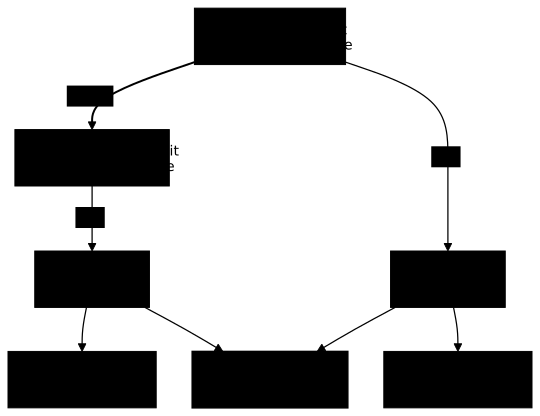
The tree field leads to the snapshot. git cat-file -p 'HEAD^{tree}' shows
its content: each file is a blob, designated by its hash. A file that is
unchanged from one commit to the next keeps the same hash, hence the same
object.
100644 blob 7b538c86f2b6dc9965561dc49624197e69b8e944 README.md100644 blob bf5de4d05d7ad70e40b09c8fd9314e68d49461da index.html100644 blob bc406f05614660340d90008ead85d26f50ea87db style.cssEach line gives the mode of the file (100644 designates an ordinary file),
the object type, the hash of the content, then the file name. Your hashes
will be different.
The parent field creates the chain of history: each commit points to
its predecessor, never the other way round. The arrows only go one way, which
is called a directed graph. The first commit of the project has no parent,
whereas a merge commit, which joins two lines of work, has two.
Almost everything is local
With Git, almost every operation happens on your machine. Your copy contains the complete history of the project, whereas Subversion queries the server to display the history or create a branch. In daily use, this means:
- Browsing the history (
git log) reads the local copy, with no network request. - Comparing two versions (
git diff) is computed on your disk. - Creating a branch (
git branch) writes a reference to a commit, nothing more. - Committing on a train with no Wi-Fi is no problem: you will synchronize when the network is back.
Only the operations that talk to a remote server need the network:
push, pull, fetch and clone.
Git (almost) never erases anything
Committed content is very hard to lose, content that was never committed is
not. Git keeps track of the successive positions of HEAD in the
reflog: even after a branch is deleted, its commits stay recoverable as
long as they appear there, which is 30 days by default for a commit no longer
attached to any branch.
The practical lesson for a beginner: commit often. A commit, even an imperfect one, can be found and fixed; work left in the working directory has no copy in Git.
Troubleshooting: frequent questions
The questions beginners ask often come down to the area where a change sits. The table answers them starting from the symptom.
| Question | Answer |
|---|---|
"What is the difference between git add and git commit?" | git add copies the state of a file into the Staging Area. git commit records the content of the Staging Area in the Repository. |
"Why does my change not show in git log?" | It was not committed. git status shows which area it is in. |
| "My commit does not contain my latest change" | You modified the file after git add. Run git add again, then commit (MM in git status --short). |
| "What is this number after each commit?" | The SHA, the unique hash of the commit, computed from its content. |
"Can I undo a git add?" | Yes: git restore --staged <file> removes the file from the Staging Area without touching your modifications. |
| "If I delete a file, does Git lose it?" | No, if it was committed at least once: it stays in the history and can be recovered. |
Key takeaways
- Git records snapshots: each commit points to the complete state of the project, and an unchanged file is not duplicated.
- The SHA is the hash of each object, computed from its content: changing a single character changes the hash.
- A change goes through three areas: the Working Directory (your files), the Staging Area (the next commit), then the Repository (the history).
git addcopies the current state of a file into the Staging Area, andgit commitrecords the Staging Area in the Repository.- A commit is read with
git cat-file -p: tree, parent, author, committer, message. - Almost everything is local: only
push,pull,fetchandcloneneed the network. - Commit often: what is committed can be recovered, what is not committed can be lost.
Knowledge check
Check that you have grasped the essentials of this lesson. The questions cover only what has just been explained here.
Knowledge check
Check what you have learned with this interactive quiz
How it works
- The timer starts when you click Start
- Multiple choice, true/false and short answer questions
- You can move between questions
- Detailed results are shown at the end
Starts the quiz and the timer
Review
(0/0)Score by domain
A domain groups several guides and gets several questions, so its score is more reliable than a per-topic score, which often rests on a single question.
Summary
Strengths
No topic passed at 80% on at least two questions yet.
Weak areas
No topic below the pass mark.
Recommended next
Hints before you try again?
Continue the course: Create a Git repository: git init and git clone
A new full quiz with random questions
Work again only on the questions you missed