
You master Vim but you are frustrated by its archaic configuration language, the lack of native LSP and the slowness of some plugins? Neovim keeps everything that makes Vim strong, modes, motions, text objects, and adds a modern Lua API, a built-in LSP client, Tree-sitter for accurate syntax highlighting, and an asynchronous terminal. This guide takes you from installation to a productive environment with autocompletion, diagnostics, fuzzy search and a file explorer. The whole configuration shown here loaded without error on Neovim 0.12.5, the current stable release, in a Debian 13 container.
What you will learn
- Install Neovim on your Linux distribution
- Understand the layout of the Lua configuration (
init.lua) - Set the essential options and shortcuts
- Install plugins with the lazy.nvim manager
- Turn on LSP for real-time autocompletion and diagnostics
- Use Tree-sitter for smart syntax highlighting
- Search files and text with Telescope
- Browse files with a built-in explorer
What Neovim brings compared with Vim
Neovim is a fork of Vim started in 2014 with a clear goal: modernise Vim's source code without breaking compatibility. In practice, if you know Vim, you already know Neovim: the modes, the shortcuts and the philosophy are the same. What changes is everything that happens under the hood and in the plugin ecosystem.
| Feature | Vim | Neovim |
|---|---|---|
| Configuration language | VimScript only | Native Lua (faster, more readable) |
| LSP client | Through a plugin (coc.nvim, vim-lsp) | Built in (vim.lsp), no plugin needed |
| Tree-sitter | No | Built in, AST-based syntax highlighting |
| Built-in terminal | Basic | Asynchronous with a full API |
| External API | Limited | RPC API, drive Neovim from an external program |
| Asynchronous execution | Limited (Vim 8+) | Native, plugins do not block the editor |
| Defaults | Minimalist | Modern (syntax on, filetype on, incsearch, mouse on) |
| Clipboard | Requires +clipboard at build time | Uses an external provider (xclip, wl-copy) |
| Vim compatibility | Not applicable | Most Vim plugins work in Neovim |
| System health | No equivalent | :checkhealth diagnoses the configuration |
In short: Vim is a powerful editor with 30 years of heritage. Neovim keeps that power and adds a modern architecture that makes plugins faster, the configuration more readable and IDE features available natively.
Install Neovim
This guide's configuration targets Neovim 0.12: the Tree-sitter plugin it
uses requires at least that version. Yet distribution packages lag behind,
measured on 1 October 2026: 0.9.5 on Ubuntu 24.04, 0.10.4 on Debian 13,
0.11.6 on Fedora 43. The neovim-ppa/stable PPA, long recommended, only
publishes 0.7.2, and only for Ubuntu 20.04 and 22.04. The official archive
is therefore the recommended method on every distribution.
The project publishes one archive per version, and GitHub shows its
SHA-256 checksum on the release page. Check it before any extraction:
the sha256sum --check command must answer OK.
NVIM_VERSION=v0.12.5curl -sSLO "https://github.com/neovim/neovim/releases/download/${NVIM_VERSION}/nvim-linux-x86_64.tar.gz"echo "bce0f56eda1f1b1db6eee8f4133d7a38813ea07933837dd1777411ca384c6875 nvim-linux-x86_64.tar.gz" \ | sha256sum --checksudo tar -xzf nvim-linux-x86_64.tar.gz -C /optsudo ln -sf /opt/nvim-linux-x86_64/bin/nvim /usr/local/bin/nvimThe checksum changes with every version: read the new one on the release
page before bumping NVIM_VERSION. The old name nvim.appimage has not
existed since 0.10.4, hence the 404 errors in the tutorials that still use it;
the AppImage is now called nvim-linux-x86_64.appimage and needs FUSE,
which is rarely present on a server.
As a rolling-release distribution, Arch follows the stable version:
sudo pacman -S neovimbrew install neovimCheck: confirm the installation by printing the version:
nvim --version | head -2With the archive above, the output is:
NVIM v0.12.5Build type: ReleaseInstall a Nerd Font
Several plugins (Neo-tree, lualine, which-key) use Unicode icons to show file types, modes and shortcuts. These icons need a Nerd Font, a monospace font enriched with extra glyphs.
# Download and install FiraCode Nerd Font (pinned version, checksum verified)mkdir -p ~/.local/share/fontscd ~/.local/share/fontscurl -fLO https://github.com/ryanoasis/nerd-fonts/releases/download/v3.5.1/FiraCode.zipecho "239395baf60c89b2eaf4862b6b09db0ef95605cd3e8eef51c00345822a81a665 FiraCode.zip" \ | sha256sum --checkunzip -o FiraCode.zip -d FiraCodeNerdFontrm FiraCode.zipfc-cache -fvThen set your terminal emulator to use the FiraCode Nerd Font Mono font (or another Nerd Font of your choice).
If you use Neovim in WSL through Windows Terminal, the font must be installed on the Windows side (not in WSL):
-
Download the font from nerdfonts.com/font-downloads, for example FiraCode Nerd Font
-
Extract the zip, select all the
.ttffiles, right-click → Install -
Open Windows Terminal Settings (
Ctrl+,), select your WSL/Ubuntu profile, Appearance tab, and choose FiraCode Nerd Font as the fontOr add to Windows Terminal's
settings.json(Ctrl+Shift+,):{"profiles": {"list": [{"name": "Ubuntu","font": {"face": "FiraCode Nerd Font","size": 12}}]}}
The font is installed at system level (Linux or Windows), but VS Code
has its own setting for the built-in terminal. Add to your Settings
(Ctrl+, → search for "terminal font"):
"terminal.integrated.fontFamily": "'FiraCode Nerd Font Mono'"brew install font-fira-code-nerd-fontThen set iTerm2 or Terminal.app to use FiraCode Nerd Font Mono.
Configuration layout
Neovim's configuration lives in ~/.config/nvim/. It is the first change
compared with Vim: instead of a single ~/.vimrc, Neovim uses a structured
folder that lets you organise the configuration into Lua modules, one file
per topic, easy to version.
~/.config/nvim/├── init.lua # Entry point (equivalent of .vimrc)├── lua/│ ├── options.lua # Editor options│ ├── keymaps.lua # Custom shortcuts│ └── plugins/ # Configuration of each plugin│ ├── colorscheme.lua│ ├── cmp.lua│ ├── gitsigns.lua│ ├── lsp.lua│ ├── lualine.lua│ ├── misc.lua│ ├── neo-tree.lua│ ├── telescope.lua│ └── treesitter.luaCreate this full tree with the following commands:
# Create the configuration folder and its subfoldersmkdir -p ~/.config/nvim/lua/plugins
# Create every configuration filetouch ~/.config/nvim/init.luatouch ~/.config/nvim/lua/options.luatouch ~/.config/nvim/lua/keymaps.luatouch ~/.config/nvim/lua/plugins/{colorscheme,cmp,gitsigns,lsp,lualine,misc,neo-tree,telescope,treesitter}.lua
Check: the find command must list every file created:
find ~/.config/nvim -type f -name "*.lua" | sort/home/user/.config/nvim/init.lua/home/user/.config/nvim/lua/keymaps.lua/home/user/.config/nvim/lua/options.lua/home/user/.config/nvim/lua/plugins/cmp.lua/home/user/.config/nvim/lua/plugins/colorscheme.lua/home/user/.config/nvim/lua/plugins/gitsigns.lua/home/user/.config/nvim/lua/plugins/lsp.lua/home/user/.config/nvim/lua/plugins/lualine.lua/home/user/.config/nvim/lua/plugins/misc.lua/home/user/.config/nvim/lua/plugins/neo-tree.lua/home/user/.config/nvim/lua/plugins/telescope.lua/home/user/.config/nvim/lua/plugins/treesitter.luaThe following sections of this guide detail the content of each file, in the logical order of configuration.
The init.lua file is the entry point: Neovim loads it automatically at
startup. From this file, you can import (require) other Lua files to
organise your configuration.
Set the basic options
Create the ~/.config/nvim/lua/options.lua file to group all the editor
options. The Lua syntax is more readable than the equivalent VimScript.
-- ~/.config/nvim/lua/options.lua
-- === PATH (mise + Mason) ===-- LSP servers installed through Mason and tools set up through mise-- must be reachable in Neovim's PATHvim.env.PATH = vim.fn.expand("~/.local/share/nvim/mason/bin") .. ":" .. vim.env.PATH-- Add node/python from mise when presentlocal mise_shims = vim.fn.expand("~/.local/share/mise/shims")if vim.fn.isdirectory(mise_shims) == 1 then  vim.env.PATH = mise_shims .. ":" .. vim.env.PATHend
-- === Appearance ===vim.opt.number = true         -- Line numbersvim.opt.relativenumber = true -- Relative numbers (handy for 5j, 12k)vim.opt.cursorline = true     -- Highlight the cursor linevim.opt.signcolumn = "yes"    -- Sign column always visible (Git, diagnostics)vim.opt.termguicolors = true  -- Turn on 24-bit colours (true colour)vim.opt.showmode = false      -- Hide the mode (the lualine plugin shows it)vim.opt.colorcolumn = "80"    -- Vertical line at 80 characters
-- === Indentation ===vim.opt.tabstop = 4           -- A tab is 4 spaces wide on screenvim.opt.shiftwidth = 4        -- Automatic indentation shifts by 4 spacesvim.opt.expandtab = true      -- Insert spaces instead of tabsvim.opt.smartindent = true    -- Smart indentation after {, if, etc.
-- === Search ===vim.opt.ignorecase = true     -- Case-insensitive searchvim.opt.smartcase = true      -- UNLESS you type an uppercase lettervim.opt.hlsearch = true       -- Highlight every matchvim.opt.incsearch = true      -- Real-time results
-- === Behaviour ===vim.opt.mouse = "a"           -- Mouse on everywherevim.opt.clipboard = "unnamedplus" -- Shared system clipboardvim.opt.scrolloff = 8         -- Keep 8 lines above/below the cursorvim.opt.undofile = true       -- Persistent undo (history saved to disk)vim.opt.swapfile = false      -- No swap file (fewer messages at startup)vim.opt.updatetime = 250      -- Shorter delay (snappier Git/diagnostics)vim.opt.splitright = true     -- Vertical splits open on the rightvim.opt.splitbelow = true     -- Horizontal splits open below
-- === Wrapping ===vim.opt.wrap = false          -- No automatic line wrappingvim.opt.linebreak = true      -- If wrap is on, break at words (not mid-word)
Each vim.opt.X = value option matches VimScript's set X=value. The
difference: in Lua, booleans are true/false (not set X / set noX),
and strings use quotes, as in any VimScript translation.
Check: open Neovim and check that the options are applied:
" Check a boolean option (must print "number"):set number?
" Check a numeric value (must print 4):lua print(vim.opt.tabstop:get())
" Show every option changed from its default:setNeovim also turns on by default some options that Vim leaves off:
syntax on, filetype plugin indent on, incsearch, hlsearch,
autoindent, and the mouse (mouse=nvi, that is normal, visual and insert
modes). If you are moving from Vim, you can remove these lines from your
configuration: they are already active.
Set up shortcuts
Create the ~/.config/nvim/lua/keymaps.lua file for your custom shortcuts. The
Leader key is the base of every custom shortcut: it acts as a prefix to
avoid clashing with native Vim commands.
-- ~/.config/nvim/lua/keymaps.lua
-- Set the Leader key (Space)vim.g.mapleader = " "vim.g.maplocalleader = " "
-- Helper shortcutlocal map = vim.keymap.set
-- === Files ===map("n", "<leader>w", "<cmd>w<cr>", { desc = "Save" })map("n", "<leader>q", "<cmd>q<cr>", { desc = "Quit" })map("n", "<leader>x", "<cmd>x<cr>", { desc = "Save and quit" })
-- === Moving between splits ===map("n", "<C-h>", "<C-w>h", { desc = "Go to left split" })map("n", "<C-j>", "<C-w>j", { desc = "Go to lower split" })map("n", "<C-k>", "<C-w>k", { desc = "Go to upper split" })map("n", "<C-l>", "<C-w>l", { desc = "Go to right split" })
-- === Resizing splits ===map("n", "<C-Up>", "<cmd>resize +2<cr>", { desc = "Grow horizontal split" })map("n", "<C-Down>", "<cmd>resize -2<cr>", { desc = "Shrink horizontal split" })map("n", "<C-Left>", "<cmd>vertical resize -2<cr>", { desc = "Shrink vertical split" })map("n", "<C-Right>", "<cmd>vertical resize +2<cr>", { desc = "Grow vertical split" })
-- === Buffers ===map("n", "<S-l>", "<cmd>bnext<cr>", { desc = "Next buffer" })map("n", "<S-h>", "<cmd>bprevious<cr>", { desc = "Previous buffer" })map("n", "<leader>bd", "<cmd>bdelete<cr>", { desc = "Close the buffer" })
-- === Comfort ===map("n", "<leader>h", "<cmd>nohlsearch<cr>", { desc = "Clear search highlighting" })map("n", "<Esc>", "<cmd>nohlsearch<cr>", { desc = "Clear highlighting" })map("v", "J", ":m '>+1<cr>gv=gv", { desc = "Move the selection down" })map("v", "K", ":m '<-2<cr>gv=gv", { desc = "Move the selection up" })map("n", "J", "mzJ`z", { desc = "Join lines without moving the cursor" })
-- === Terminal ===map("n", "<leader>t", "<cmd>terminal<cr>", { desc = "Open a terminal" })map("t", "<Esc><Esc>", "<C-\\><C-n>", { desc = "Leave terminal mode" })
The vim.keymap.set(mode, key, action, options) syntax is the Lua equivalent
of nnoremap / vnoremap in VimScript. The desc field matters: it lets
plugins such as which-key show a description for each shortcut.
Check: make sure your shortcuts are registered:
" List every normal-mode shortcut starting with Leader:nmap <leader>
" Look for a given shortcut:verbose nmap <leader>w
" List ALL shortcuts (long, but exhaustive):map
The :verbose nmap command also shows where the shortcut was defined (file
and line number), very useful to understand conflicts between plugins.
The init.lua file
The entry file imports the modules you have just created and prepares the ground for plugins:
-- ~/.config/nvim/init.lua
-- Load options and shortcutsrequire("options")require("keymaps")
-- The plugin manager will be loaded here (next section)
require("options") looks for the lua/options.lua file in the configuration
folder. It is Lua's standard import mechanism.
Check: at this stage (before plugins), start Neovim to check that the base works:
# Start NeovimnvimYou should see line numbers, the highlighted cursor line and the column at 80 characters. If an error appears, the message points to the faulty line: fix it before going on.
" Check Neovim's full health status:checkhealth:checkhealth analyses the whole installation and prints a detailed
report. Each section shows OK, WARNING or ERROR. Focus on the ERROR
lines; the WARNING lines are often optional features, such as a Python
provider you will not use.
Install plugins with lazy.nvim
lazy.nvim is the most widespread plugin manager for Neovim. It replaces
vim-plug and packer.nvim with a faster, more modern approach: lazy loading
(plugins only load when you need them), a graphical interface, version
locking and simpler updates. Neovim 0.12 also ships a native manager,
vim.pack, which its own help still calls experimental: this guide sticks
with lazy.nvim.
Install lazy.nvim
Add this block at the start of your init.lua, before the require lines:
-- ~/.config/nvim/init.lua
-- Bootstrap lazy.nvim (automatic installation on first launch)local lazypath = vim.fn.stdpath("data") .. "/lazy/lazy.nvim"if not (vim.uv or vim.loop).fs_stat(lazypath) then  vim.fn.system({    "git", "clone", "--filter=blob:none",    "https://github.com/folke/lazy.nvim.git",    "--branch=stable",    lazypath,  })endvim.opt.rtp:prepend(lazypath)
-- Load options and shortcutsrequire("options")require("keymaps")
-- Load pluginsrequire("lazy").setup("plugins")
The last line, require("lazy").setup("plugins"), tells lazy.nvim to load
every Lua file in the lua/plugins/ folder. Each file in that folder
defines one or more plugins. The (vim.uv or vim.loop) expression follows
lazy.nvim's official bootstrap: vim.uv is the current name of the libuv
library, vim.loop its old alias.
Check: on first launch, lazy.nvim clones itself from GitHub automatically. You should see cloning messages in the terminal:
# Start NeovimnvimIf the bootstrap works, the :Lazy command must open the manager's
interface. If you see a module 'lazy' not found error, check that git is
installed (git --version) and that the lazypath path is correct.
The lazy.nvim interface
Open the manager's interface with the command:
:Lazy 
From this interface, you can:
| Key | Action |
|---|---|
I | Install missing plugins |
U | Update every plugin |
S | Sync (install + update + clean) |
X | Remove undeclared plugins |
P | Show load performance |
q | Close the interface |
The essential plugins
Here are the plugins that turn Neovim into a complete working environment. Each
one is configured in a separate file in lua/plugins/.
Gruvbox: a readable colour scheme
Create lua/plugins/colorscheme.lua:
-- ~/.config/nvim/lua/plugins/colorscheme.luareturn { "ellisonleao/gruvbox.nvim", priority = 1000, -- Load first (before the other plugins) config = function() require("gruvbox").setup({ contrast = "hard", -- "hard", "soft" or "" (default) }) vim.cmd.colorscheme("gruvbox") end,} 
The Neovim version of the Gruvbox scheme uses 24-bit colours (true colour) for a more faithful rendering than the 256-colour Vim version.
Check: after a restart, the scheme must apply straight away. If the colours look wrong (no dark background, flat colours):
" Check that the scheme is active (must print "gruvbox"):colorscheme
" Check that true colour is on (must print "termguicolors"):set termguicolors?
" List every available scheme:Telescope colorscheme
Lualine: a modern status line
Create lua/plugins/lualine.lua:
-- ~/.config/nvim/lua/plugins/lualine.luareturn { "nvim-lualine/lualine.nvim", dependencies = { "nvim-tree/nvim-web-devicons" }, config = function() require("lualine").setup({ options = { theme = "gruvbox", section_separators = { left = "", right = "" }, component_separators = { left = "", right = "" }, }, sections = { lualine_a = { "mode" }, lualine_b = { "branch", "diff", "diagnostics" }, lualine_c = { "filename" }, lualine_x = { "encoding", "fileformat", "filetype" }, lualine_y = { "progress" }, lualine_z = { "location" }, }, }) end,}Lualine replaces lightline (Vim) with extra features: the Git branch, a counter of LSP diagnostics and a diff indicator, all without manual configuration.
Telescope: universal fuzzy search
Telescope is the feature that, on its own, justifies the move to Neovim for many users. It is a universal finder: files, text, buffers, Git history, LSP diagnostics, everything is reachable by typing a few letters.
Create lua/plugins/telescope.lua:
-- ~/.config/nvim/lua/plugins/telescope.luareturn {  "nvim-telescope/telescope.nvim",  version = "*",  dependencies = {    "nvim-lua/plenary.nvim",    { "nvim-telescope/telescope-fzf-native.nvim", build = "make" },  },  config = function()    local telescope = require("telescope")    telescope.setup({      defaults = {        path_display = { "truncate" },        sorting_strategy = "ascending",        layout_config = {          horizontal = { prompt_position = "top" },        },      },    })    telescope.load_extension("fzf")
-- Telescope shortcuts local map = vim.keymap.set map("n", "<leader>ff", "<cmd>Telescope find_files<cr>", { desc = "Find a file" }) map("n", "<leader>fg", "<cmd>Telescope live_grep<cr>", { desc = "Search text" }) map("n", "<leader>fb", "<cmd>Telescope buffers<cr>", { desc = "List buffers" }) map("n", "<leader>fh", "<cmd>Telescope help_tags<cr>", { desc = "Search the help" }) map("n", "<leader>fo", "<cmd>Telescope oldfiles<cr>", { desc = "Recent files" }) map("n", "<leader>fd", "<cmd>Telescope diagnostics<cr>", { desc = "LSP diagnostics" }) end,} 
The table lists the six shortcuts the configuration has just defined. They
all start with Space f, for find, which makes them easy to remember and
groups them in the which-key panel:
| Shortcut | What it does |
|---|---|
Space ff | Find a file by name (fuzzy) |
Space fg | Search text across the whole project (live grep) |
Space fb | Browse open buffers |
Space fh | Search Neovim's help |
Space fo | Recently opened files |
Space fd | List of LSP errors and warnings |
Check: try each Telescope command to confirm everything works:
" Must open the file finder (needs fd):Telescope find_files
" Must open text search (needs ripgrep):Telescope live_grep
" If an error appears, check the dependencies in a shell:" - fd --version (fdfind --version on Debian and Ubuntu)" - rg --version" If fzf-native fails, check that make is installed:" - make --version
Tree-sitter: smart syntax highlighting
Tree-sitter is an incremental parser built into Neovim. Instead of colouring code with regular expressions (as Vim does), it builds a syntax tree (AST) of the file. The result: more accurate highlighting, smart code folding and a better understanding of the file's structure.
The nvim-treesitter plugin downloads then compiles one parser per
language. Its main branch, now the default branch, requires three things that
its README lists first: Neovim 0.12 at least, a C compiler, and the
tree-sitter CLI version 0.26.1 or later. Debian 13 only ships 0.22.6:
install the binary published by the project, with its checksum verified.
TS_VERSION=v0.27.0curl -sSLO "https://github.com/tree-sitter/tree-sitter/releases/download/${TS_VERSION}/tree-sitter-linux-x64.gz"echo "20a1f39ec1c45f2211492dcb8881c802b643b554bb196869a29ac3778277fa77 tree-sitter-linux-x64.gz" \ | sha256sum --checkgunzip tree-sitter-linux-x64.gzsudo install -m 0755 tree-sitter-linux-x64 /usr/local/bin/tree-sittertree-sitter --versionThe last command must answer tree-sitter 0.27.0. Without this CLI, every
parser fails at compile time with the error
ENOENT: no such file or directory (cmd): 'tree-sitter', measured in a Debian
13 container without it.
Create lua/plugins/treesitter.lua:
-- ~/.config/nvim/lua/plugins/treesitter.lua-- Rewritten nvim-treesitter API (main branch, Neovim ≥ 0.12, tree-sitter CLI required)return {  "nvim-treesitter/nvim-treesitter",  lazy = false,  build = ":TSUpdate",  config = function()    require("nvim-treesitter").setup({})
    -- Install the parsers (asynchronous, no-op if already installed)    require("nvim-treesitter").install({      "bash", "c", "css", "dockerfile", "go", "hcl",      "html", "javascript", "json", "lua", "markdown",      "python", "rust", "terraform", "toml", "typescript",      "vim", "vimdoc", "yaml",    })
    -- Turn on Tree-sitter highlighting for these filetypes    vim.api.nvim_create_autocmd("FileType", {      pattern = {        "bash", "sh", "c", "css", "dockerfile", "go", "hcl",        "html", "javascript", "json", "lua", "markdown",        "python", "rust", "terraform", "toml", "typescript",        "vim", "yaml",      },      callback = function()        pcall(vim.treesitter.start)      end,    })
    -- Turn on Tree-sitter-based code folding    vim.api.nvim_create_autocmd("FileType", {      pattern = {        "bash", "sh", "c", "go", "javascript", "json", "lua",        "python", "rust", "typescript", "yaml",      },      callback = function()        vim.wo[0][0].foldmethod = "expr"        vim.wo[0][0].foldexpr = "v:lua.vim.treesitter.foldexpr()"        vim.wo[0][0].foldenable = false  -- Do not fold by default      end,    })  end,}
The new nvim-treesitter API (main branch) works differently from the old
one. Parsers are installed through require("nvim-treesitter").install({...});
the call is asynchronous and does nothing if the parser is already
compiled. Syntax highlighting is turned on with vim.treesitter.start() in a
FileType autocmd, which allows fine control per language.
Code folding uses vim.treesitter.foldexpr() instead of regular
expressions. The foldenable = false option prevents every block from being
folded on opening the file; you can fold by hand with za (toggle) or zM
(fold everything).
Check: open a file in one of the configured languages and check that Tree-sitter highlighting is active:
" Open a Python, Lua, YAML file, etc.:edit test.py
" Check that Tree-sitter is active for this buffer" (must print the parser name, "python" here):lua print(vim.inspect(vim.treesitter.get_parser():lang()))
" List every installed parser:lua print(vim.inspect(require('nvim-treesitter').get_installed()))
" If a parser is missing, install it:lua require('nvim-treesitter').install({ 'terraform' })LSP: real-time autocompletion and diagnostics
LSP (Language Server Protocol) is the feature that turns Neovim into a real IDE. A language server analyses your code in the background and provides autocompletion, error diagnostics, jumping to definitions, symbol renaming and much more.
The LSP configuration needs two pieces:
- mason.nvim, which installs and manages language servers
- nvim-cmp, which shows autocompletion in the editor
The nvim-lspconfig plugin is still useful alongside them: it provides each
server's default configuration (launch command, project root detection,
file types). These files are loaded automatically into the runtimepath, so
there is no need to call require('lspconfig').
Since Neovim 0.11, LSP servers are configured through the native API
vim.lsp.config and vim.lsp.enable instead of the old
require('lspconfig').server.setup(). The same version added default LSP
shortcuts, active without a single line of configuration:
| Default shortcut | Action |
|---|---|
K | Hover documentation |
grr | Symbol references |
gri | Go to implementation |
grn | Rename the symbol |
gra | Code actions |
[d / ]d | Previous / next diagnostic |
gcc / gc | Comment the line / the selection (since 0.10) |
The configuration below therefore only defines what is missing. Redefining
gr alone would make Neovim wait on every grr or grn, while it works
out whether a second letter follows.
Create lua/plugins/lsp.lua:
-- ~/.config/nvim/lua/plugins/lsp.lua-- vim.lsp.config / vim.lsp.enable API (Neovim ≥ 0.11)return {  {    "mason-org/mason.nvim",    config = function()      require("mason").setup()    end,  },  {    "neovim/nvim-lspconfig",    dependencies = { "mason-org/mason.nvim" },    config = function()      -- Capabilities enriched by nvim-cmp (if installed)      local capabilities = vim.lsp.protocol.make_client_capabilities()      local ok, cmp_lsp = pcall(require, "cmp_nvim_lsp")      if ok then        capabilities = cmp_lsp.default_capabilities(capabilities)      end
      -- LSP shortcuts on top of the defaults (K, grr, gri, grn, gra, [d, ]d)      vim.api.nvim_create_autocmd("LspAttach", {        callback = function(ev)          local map = function(keys, func, desc)            vim.keymap.set("n", keys, func, { buffer = ev.buf, desc = desc })          end
          map("gd", vim.lsp.buf.definition, "Go to definition")          map("gD", vim.lsp.buf.declaration, "Go to declaration")          map("<leader>rn", vim.lsp.buf.rename, "Rename the symbol")          map("<leader>ca", vim.lsp.buf.code_action, "Code actions")          map("<leader>e", vim.diagnostic.open_float, "Diagnostic details")        end,      })
      -- Default configuration (applied to every server)      vim.lsp.config("*", {        capabilities = capabilities,      })
      -- Specific configuration for lua_ls (avoid Neovim warnings)      vim.lsp.config("lua_ls", {        settings = {          Lua = {            diagnostics = { globals = { "vim" } },            workspace = { library = vim.api.nvim_get_runtime_file("", true) },          },        },      })
      -- Turn on every server installed through Mason      vim.lsp.enable({        "lua_ls", "pyright", "bashls", "yamlls",        "dockerls", "terraformls", "jsonls",      })    end,  },}
To install the language servers, open the Mason interface with :Mason and
install them by hand, or run the command below directly. The servers written
in JavaScript (pyright, bashls, yamlls, dockerls, jsonls) need Node.js and
npm on the machine; lua_ls and terraform-ls are standalone binaries.
:MasonInstall pyright lua-language-server bash-language-server yaml-language-server dockerfile-language-server terraform-ls json-lspThe key changes compared with the old API:
vim.lsp.config("*", {...})replaces passingcapabilitiesto each server: the"*"configuration applies to all of them.vim.lsp.config("lua_ls", {...})replaceslspconfig.lua_ls.setup({...})for specific configurations.vim.lsp.enable({...})replaces thefor server in serversloop.- The
LspAttachautocmd replaces theon_attachcallback: it is the recommended approach since Neovim 0.11. vim.diagnostic.goto_next()andgoto_prev()are deprecated::checkhealth vim.deprecatedannounces their removal in 0.13 and advisesvim.diagnostic.jump(). The[dand]ddefaults already use it.
nvim-cmp: the autocompletion engine
Create lua/plugins/cmp.lua:
-- ~/.config/nvim/lua/plugins/cmp.luareturn {  "hrsh7th/nvim-cmp",  dependencies = {    "hrsh7th/cmp-nvim-lsp",     -- LSP source    "hrsh7th/cmp-buffer",       -- Current buffer source    "hrsh7th/cmp-path",         -- File path source    "L3MON4D3/LuaSnip",         -- Snippet engine    "saadparwaiz1/cmp_luasnip", -- Snippet source for cmp    "rafamadriz/friendly-snippets", -- Snippet collection  },  config = function()    local cmp = require("cmp")    local luasnip = require("luasnip")
    -- Load the friendly-snippets snippets    require("luasnip.loaders.from_vscode").lazy_load()
cmp.setup({ snippet = { expand = function(args) luasnip.lsp_expand(args.body) end, }, mapping = cmp.mapping.preset.insert({ ["<C-b>"] = cmp.mapping.scroll_docs(-4), ["<C-f>"] = cmp.mapping.scroll_docs(4), ["<C-Space>"] = cmp.mapping.complete(), ["<C-e>"] = cmp.mapping.abort(), ["<CR>"] = cmp.mapping.confirm({ select = true }), ["<Tab>"] = cmp.mapping(function(fallback) if cmp.visible() then cmp.select_next_item() elseif luasnip.expand_or_jumpable() then luasnip.expand_or_jump() else fallback() end end, { "i", "s" }), ["<S-Tab>"] = cmp.mapping(function(fallback) if cmp.visible() then cmp.select_prev_item() elseif luasnip.jumpable(-1) then luasnip.jump(-1) else fallback() end end, { "i", "s" }), }), sources = cmp.config.sources({ { name = "nvim_lsp" }, -- LSP suggestions first { name = "luasnip" }, -- Snippets { name = "buffer" }, -- Words from the current buffer { name = "path" }, -- File paths }), }) end,} 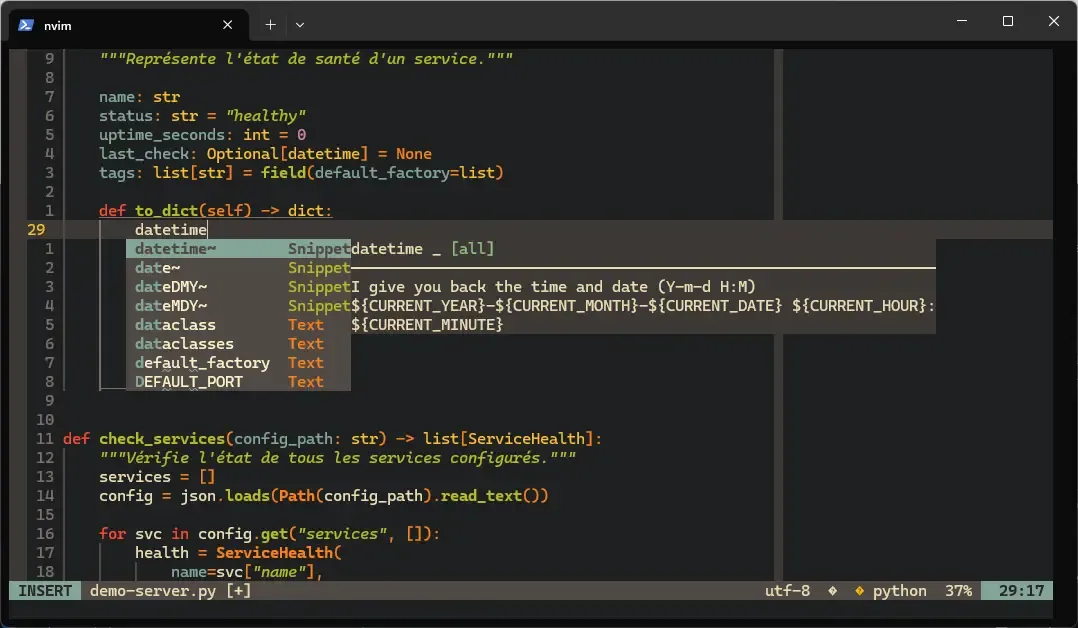
The most important LSP shortcuts to remember mix Neovim's defaults and those of the configuration above; the table groups them by use, from navigation to autocompletion:
| Shortcut | Action |
|---|---|
gd | Go to the definition of the function/variable under the cursor |
grr | Show references (every place that uses this symbol) |
K | Hover documentation (signature, description) |
Space rn (or grn) | Rename the symbol across the project |
Space ca (or gra) | Code actions (quick fix, missing import) |
Space e | Diagnostic details (full error message) |
[d / ]d | Move between diagnostics (errors, warnings) |
Tab / Shift+Tab | Move through the autocompletion menu |
Enter | Accept the suggestion |
Ctrl+Space | Trigger autocompletion by hand |
Full LSP check: open a file of the language concerned and check that the
server attaches. On Neovim 0.12, nvim-lspconfig's old :LspInfo and :LspLog
commands no longer exist: the plugin only creates them when the native
:lsp command is missing.
" Open a Lua file (or Python, YAML, etc.):edit test.lua
" Check the active LSP servers ("Active Clients" section):checkhealth vim.lsp
" Check that Mason installed the servers:Mason" Installed servers show a green tick
" List the clients attached to the current buffer:lua print(vim.inspect(vim.tbl_map(function(c) return c.name end, vim.lsp.get_clients({ bufnr = 0 }))))
" If the server does not start, open the LSP log:lua vim.cmd('tabnew ' .. vim.lsp.log.get_filename())
" Restart the buffer's servers after a fix:lsp restart
Measured with lua_ls installed by Mason: :checkhealth vim.lsp lists
lua_ls (id: 1) under Active Clients. If that section is empty, the
language server is probably not installed through Mason (check with
:Mason) or Neovim's PATH does not contain the binaries (check the PATH
section in options.lua).
Neo-tree: file explorer
Create lua/plugins/neo-tree.lua:
-- ~/.config/nvim/lua/plugins/neo-tree.luareturn {  "nvim-neo-tree/neo-tree.nvim",  branch = "v3.x",  dependencies = {    "nvim-lua/plenary.nvim",    "nvim-tree/nvim-web-devicons",    "MunifTanjim/nui.nvim",  },  config = function()    require("neo-tree").setup({      filesystem = {        follow_current_file = { enabled = true },        filtered_items = {          hide_dotfiles = false,          hide_gitignored = false,        },      },      window = {        width = 35,      },    })
vim.keymap.set("n", "<leader>n", "<cmd>Neotree toggle<cr>", { desc = "Open/close the explorer" }) end,} 
Neo-tree replaces NERDTree (Vim) with a richer display: icons per file
type, built-in Git indicators and smooth navigation. Press Space n to open
or close it.
Check: press Space n; the explorer must open on the left with the tree of
the current directory. If icons do not show, check that you are using a Nerd
Font (see the installation section above).
Gitsigns: Git markers in the gutter
Create lua/plugins/gitsigns.lua:
-- ~/.config/nvim/lua/plugins/gitsigns.luareturn {  "lewis6991/gitsigns.nvim",  config = function()    require("gitsigns").setup({      signs = {        add          = { text = "│" },        change       = { text = "│" },        delete       = { text = "_" },        topdelete    = { text = "‾" },        changedelete = { text = "~" },      },      on_attach = function(bufnr)        local gs = package.loaded.gitsigns        local map = function(mode, l, r, desc)          vim.keymap.set(mode, l, r, { buffer = bufnr, desc = desc })        end
map("n", "]c", function() gs.nav_hunk("next") end, "Next Git hunk") map("n", "[c", function() gs.nav_hunk("prev") end, "Previous Git hunk") map("n", "<leader>gp", gs.preview_hunk, "Preview the change") map("n", "<leader>gb", gs.blame_line, "Git blame of the line") map("n", "<leader>gr", gs.reset_hunk, "Undo the change") end, }) end,} 
Both navigation shortcuts go through nav_hunk, which the gitsigns
documentation names as the replacement for next_hunk and prev_hunk, both
marked DEPRECATED. The markers are read in the gutter, left of the line
numbers, as soon as the file is tracked by Git. The colour depends on the scheme; with Gruvbox,
the colour code is as follows:
| Marker | Meaning |
|---|---|
Green │ | Added line |
Blue │ | Changed line |
Red _ | Deleted line |
Other recommended plugins
Create lua/plugins/misc.lua for utility plugins. Code commenting is no longer
there: since 0.10, Neovim provides gcc (comment the line) and gc
(comment a selection or a motion) natively, which makes Comment.nvim and
vim-commentary unnecessary.
-- ~/.config/nvim/lua/plugins/misc.luareturn {  -- Automatic closing of brackets and quotes  {    "windwp/nvim-autopairs",    event = "InsertEnter",    config = function()      require("nvim-autopairs").setup()    end,  },
  -- Surround text (like vim-surround, in Lua)  {    "kylechui/nvim-surround",    event = "VeryLazy",    config = function()      require("nvim-surround").setup()    end,  },
  -- Visual indentation guides  {    "lukas-reineke/indent-blankline.nvim",    main = "ibl",    config = function()      require("ibl").setup()    end,  },
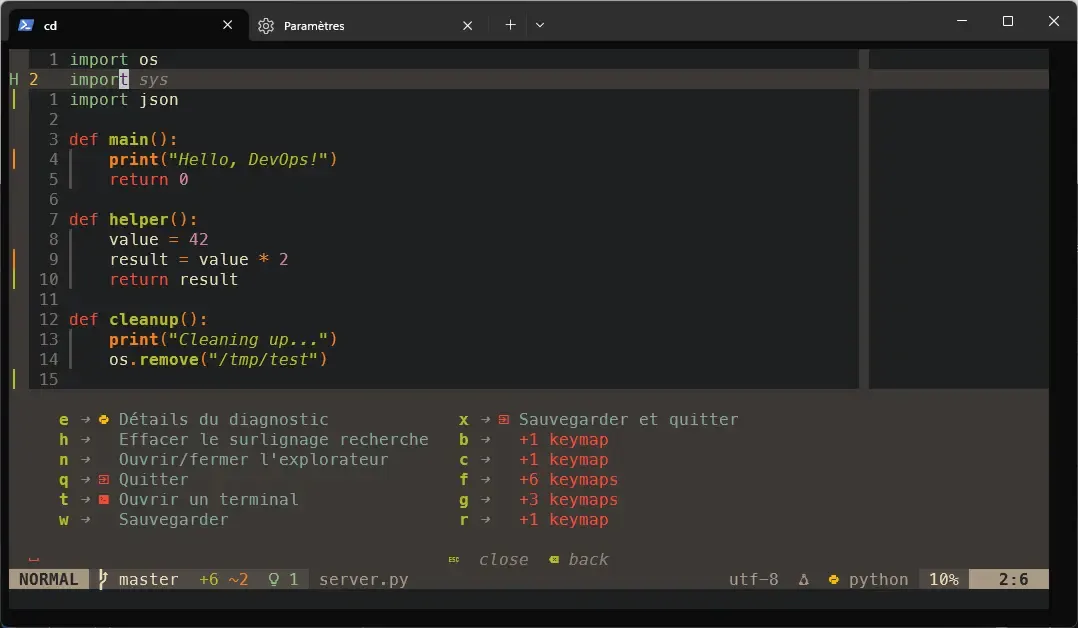
  -- Which-key: shows the available shortcuts  {    "folke/which-key.nvim",    event = "VeryLazy",    config = function()      require("which-key").setup()    end,  },}
The which-key plugin deserves special attention: when you press Space
(the Leader key) and wait a second, a panel appears with every available
shortcut and its description. It is a built-in cheat sheet that makes the
configuration explorable.
Final check: once every file is created, start Neovim and run these commands to validate the whole configuration:
" 1. Check that every plugin is installed (none in red):Lazy
" 2. Check the full health of the installation:checkhealth
" 3. Check that the LSP servers are installed:Mason
" 4. Check that Telescope works:Telescope find_files
" 5. Check that Tree-sitter compiled the parsers:lua print(#require('nvim-treesitter').get_installed() .. ' parsers installed')
" 6. Open a Lua file and check LSP:edit test.lua:checkhealth vim.lsp
If all these commands work without error, your configuration is operational.
Full configuration summary
Here are the final tree and the complete init.lua file, followed by a
quick installation that chains every step of the guide on a Debian or
Ubuntu machine:
~/.config/nvim/├── init.lua└── lua/ ├── options.lua ├── keymaps.lua └── plugins/ ├── colorscheme.lua ├── lualine.lua ├── telescope.lua ├── treesitter.lua ├── lsp.lua ├── cmp.lua ├── neo-tree.lua ├── gitsigns.lua └── misc.lua-- ~/.config/nvim/init.lua
-- Bootstrap lazy.nvimlocal lazypath = vim.fn.stdpath("data") .. "/lazy/lazy.nvim"if not (vim.uv or vim.loop).fs_stat(lazypath) then vim.fn.system({ "git", "clone", "--filter=blob:none", "https://github.com/folke/lazy.nvim.git", "--branch=stable", lazypath, })endvim.opt.rtp:prepend(lazypath)
-- Options and shortcutsrequire("options")require("keymaps")
-- Pluginsrequire("lazy").setup("plugins")Copy and paste these commands to install everything in one go:
# 1. Dependencies: git, build tools, search (Debian / Ubuntu)sudo apt install git curl make gcc unzip ripgrep fd-find
# 2. Neovim 0.12.5 from the official archive, checksum verifiedcurl -sSLO https://github.com/neovim/neovim/releases/download/v0.12.5/nvim-linux-x86_64.tar.gzecho "bce0f56eda1f1b1db6eee8f4133d7a38813ea07933837dd1777411ca384c6875  nvim-linux-x86_64.tar.gz" \  | sha256sum --checksudo tar -xzf nvim-linux-x86_64.tar.gz -C /optsudo ln -sf /opt/nvim-linux-x86_64/bin/nvim /usr/local/bin/nvim
# 3. tree-sitter CLI, required by nvim-treesittercurl -sSLO https://github.com/tree-sitter/tree-sitter/releases/download/v0.27.0/tree-sitter-linux-x64.gzecho "20a1f39ec1c45f2211492dcb8881c802b643b554bb196869a29ac3778277fa77  tree-sitter-linux-x64.gz" \  | sha256sum --checkgunzip tree-sitter-linux-x64.gzsudo install -m 0755 tree-sitter-linux-x64 /usr/local/bin/tree-sitter
# 4. Create the configuration layoutmkdir -p ~/.config/nvim/lua/plugins
# 5. Copy the configuration files#    (init.lua, options.lua, keymaps.lua, plugins/*.lua)
# 6. Start Neovim: lazy.nvim installs itself automatically,#    then the plugins download and the parsers compilenvim
# 7. In Neovim, check the health of the installation# :checkhealth
Neovim-specific commands
On top of the Vim commands you already know, Neovim and this guide's plugins add commands of their own, all checked on 0.12.5 with the configuration above:
| Command | What it does |
|---|---|
:checkhealth | Full diagnosis of the installation (providers, plugins, LSP) |
:Lazy | Open the plugin manager (install, update, remove) |
:Mason | Open the LSP server manager |
:TSUpdate | Update the installed Tree-sitter parsers |
:checkhealth vim.lsp | Show the active LSP servers and their configuration |
:lsp restart | Restart the LSP servers of the current buffer |
:Telescope | Open Telescope (fuzzy search) |
:Neotree toggle | Open/close the file explorer |
:lua vim.print(vim.lsp.get_clients()) | List the connected LSP clients |
Migrating from Vim
If you have an existing Vim configuration, moving to Neovim can be done gradually, without ever breaking your working environment: each step is usable on its own.
Step 1: use your existing .vimrc
Create a minimal init.vim that uses your Vim configuration:
" ~/.config/nvim/init.vimsource ~/.vimrcAt this stage, Neovim works exactly like your configured Vim. The vim-plug plugins keep working, and you already gain Neovim's modern defaults.
Step 2: move to Lua gradually
Keep your init.vim and add Lua files as you go. In init.vim, you can
load Lua with the lua command, which lets you convert one topic at a
time, options first:
" ~/.config/nvim/init.vimsource ~/.vimrclua require('options') " Loads lua/options.luaStep 3: switch to init.lua
When you are comfortable, replace init.vim with init.lua and move the
plugins to lazy.nvim. Keep the old file under another name while you check
that :checkhealth reports no regression.
Troubleshooting
Most failures of a Neovim configuration come from a missing external dependency (git, ripgrep, the tree-sitter CLI, Node.js for an LSP server) or from a tutorial written for an older version. The table follows that order: missing tool, then a command that has changed.
| Symptom | Likely cause | Solution |
|---|---|---|
| No true colour | Terminal does not support termguicolors | Check that $TERM contains 256color or truecolor |
| Error when lazy.nvim starts | Git not installed | sudo apt install git |
:Telescope live_grep fails | ripgrep missing | sudo apt install ripgrep |
| LSP does not start | Server not installed | Open :Mason and install the server |
checkhealth shows "provider not found" | Python/Node provider missing | sudo apt install python3-pynvim and/or npm install -g neovim |
| The clipboard does not work | Clipboard tool missing | Install xclip (X11) or wl-clipboard (Wayland) |
| Icons are squares | Nerd Font missing or not set in the terminal | Install a Nerd Font and set it in your terminal. On WSL, the font must be installed on the Windows side |
ENOENT … (cmd): 'tree-sitter' while installing parsers | tree-sitter CLI missing or too old | Install CLI 0.26.1 or later (Tree-sitter section) and build-essential |
E492: Not an editor command: LspInfo | Neovim 0.12: nvim-lspconfig no longer creates this command | :checkhealth vim.lsp |
E492: Not an editor command: TSInstallInfo | Command removed from nvim-treesitter's main branch | :lua print(vim.inspect(require('nvim-treesitter').get_installed())) |
| Plugin not loaded | Error in the lazy.nvim spec | Open :Lazy and look for errors in red |
| Slow startup | Too many plugins loaded at startup | Use lazy loading (event, cmd, ft in lazy.nvim) |
Key points
- Neovim keeps the essentials of Vim (modes, motions, text objects): your editing reflexes work as they are, only a few old plugins such as YouCompleteMe cause trouble.
- Distribution packages lag behind: install 0.12 from the official archive, with its SHA-256 checksum verified.
- Lua configuration is more readable, faster and better structured than
VimScript (modular files in
lua/). - Native LSP provides autocompletion, diagnostics, jumping to definitions
and renaming, IDE features without leaving the terminal;
K,grr,grnand[d/]dare active by default. - Tree-sitter offers syntax highlighting based on code analysis (not regexes), more accurate and more reliable; nvim-treesitter needs the tree-sitter CLI to compile its parsers.
- Telescope replaces fzf.vim with a richer interface and more sources (files, text, buffers, diagnostics, help).
- lazy.nvim manages plugins with lazy loading, version locking and a graphical interface.
- The
:checkhealthcommand is your first reflex when something goes wrong: it diagnoses the whole configuration;:checkhealth vim.lspreplaces the old:LspInfo. - Moving from Vim is gradual: start with
source ~/.vimrc, then move to Lua as you go.
Knowledge check
Check that the essentials of this guide are acquired. The questions only cover what has just been explained here.
Knowledge check
Check what you have learned with this interactive quiz
How it works
- The timer starts when you click Start
- Multiple choice, true/false and short answer questions
- You can move between questions
- Detailed results are shown at the end
Starts the quiz and the timer
Review
(0/0)Score by domain
A domain groups several guides and gets several questions, so its score is more reliable than a per-topic score, which often rests on a single question.
Summary
Strengths
No topic passed at 80% on at least two questions yet.
Weak areas
No topic below the pass mark.
Recommended next
Hints before you try again?
Continue the course: Advanced Vim: splits, macros, plugins
A new full quiz with random questions
Work again only on the questions you missed