Your Linux server is slow and you do not know where to start? This guide teaches you to diagnose performance problems quickly with the USE method (Utilization, Saturation, Errors). In 10 minutes, you will be able to tell whether the problem comes from the CPU, the memory, the disk or the network, and which commands confirm it.
What you will learn
- Understand the 4 kinds of contention that slow a server down (CPU, memory, disk, network)
- Apply the USE method (Utilization, Saturation, Errors) systematically
- Interpret the load average by dividing it by the number of cores
- Read the right metrics with
mpstat,vmstat,iostat,free,ss - Avoid the classic false diagnoses (iowait read as CPU,
usedread as memory pressure) - Fix the most common problems at each level
In which context?
This diagnosis helps when a server lags without anyone knowing why: a website that answers badly, a slow database, cron jobs that take longer than usual. The goal is not to measure everything, but to find the real cause in less than five minutes.
It is also the skill underlying any production incident: understand before changing. A high %iowait pointed at as a "CPU problem" sends you chasing the wrong resource while the real culprit (the disk) makes things worse.
Both certifications assess it. The LFCS asks, in its Essential Commands domain, to "Monitor and troubleshoot system performance and services", and in Storage to "Monitor storage performance". The RHCSA (EX200, RHEL 10) files "Identify CPU/memory intensive processes and kill processes" under Operate running systems.
Prerequisites
- SSH access to a Linux server (Ubuntu, Debian, Rocky, RHEL)
sudorights to install the tools and read some metrics- Basic terminal knowledge, if you are starting out, begin with Linux basics
- The Diagnose memory on Linux guide for the details of the memory side
What is a performance problem?
A server relies on four physical resources: the processor that runs the instructions, the memory that holds the active data, the disk that keeps the files, and the network that carries the exchanges. Each has a maximum throughput. As soon as a workload exceeds it, the excess requests wait.
This wait has a name: contention. A resource is solicited beyond its capacity, a queue forms, and the time spent in this queue adds to the real processing time. It is this queue, not the computation itself, that makes the server slow.
Why does a server become slow?
A server runs processes (programs being executed). Each process needs resources to work:
- CPU time to compute
- RAM to store its temporary data
- Disk access to read/write files
- Network bandwidth to communicate
When too many processes ask for the same resource at the same time, they must queue. This wait is what creates the slowness.
The 4 kinds of contention
Before diving into the commands, let us see what can go wrong on each resource. The diagram links each one to the tools that measure it, those the following sections detail.

CPU (processor)
The CPU (Central Processing Unit) runs the instructions of every program, one at a time on each core. When more processes are ready to run than there are cores, the kernel scheduler gives each its turn in slices of a few milliseconds. This forced time sharing is what lengthens response times.
Telltale signs: applications that "lag", high response time, fans spinning hard.
Memory (RAM)
RAM (Random Access Memory) is the short-term memory of the server. Programs store the data they actively use there. When it is full, Linux uses swap (disk space used as emergency memory), which is 100 to 1000 times slower.
Telltale signs: swap in use, processes killed automatically (OOM killer), sudden slowness.
Disk (storage)
The disk stores data permanently (files, databases, logs). Disk operations are naturally slower than RAM. When the disk is saturated, even simple operations take time.
Telltale signs: files slow to open, slow databases, high %iowait in the metrics.
Network (bandwidth)
The network lets the server communicate with the outside (users, other servers, APIs). When the bandwidth is saturated or misconfigured, connections fail or are very slow.
Telltale signs: timeouts, refused connections, slow downloads.
| Contention | Typical symptoms | Frequent causes |
|---|---|---|
| CPU | Slow processes, high latency | Too many processes, heavy computation |
| Memory | Active swap, OOM killer | Hungry applications, memory leaks |
| Disk | Slow read/write, high %iowait | Unoptimised database, excessive logs |
| Network | Refused connections, timeouts | Saturated bandwidth, DDoS attacks |
The USE method: a systematic approach
The USE method (Utilization, Saturation, Errors), formalised by Brendan Gregg, a systems performance specialist, analyses each resource against 3 criteria, always in the same order:
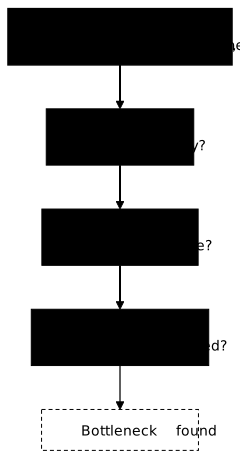
| Criterion | Question to ask | What it reveals |
|---|---|---|
| U - Utilization | What % of the resource is used? | If close to 100%, it is saturated |
| S - Saturation | Is there a queue? | Processes wait for the resource |
| E - Errors | Are there errors? | Hardware or configuration problems |
Understand the load average
Before analysing each resource, let us talk about the load average, the best-known metric but also the most misunderstood.
What is the load average?
The load average is a number that represents how much work the system has to do. More precisely, it is the average number of processes that:
- Are running on a CPU
- Wait for an available CPU
- Wait for a disk operation (I/O)
How to see the load average?
uptime prints it at the end of its single line, after the uptime and the number of users:
uptime11:05:07 up 15 days, 5:57, 1 user, load average: 2.70, 2.40, 2.07The load average averages these three categories of processes (running, waiting for the CPU, blocked in state D) over 3 periods:
- 1st value (2.70): last minute (current load)
- 2nd value (2.40): last 5 minutes (short-term trend)
- 3rd value (2.07): last 15 minutes (long-term trend)
How to read this trend?
- If the 1st value > 3rd value → The load is rising (peak in progress)
- If the 1st value < 3rd value → The load is falling (back to normal)
- If the 3 values are close → Stable load
How to interpret these figures?
The golden rule: divide by the number of CPU cores, the only way to turn the raw figure into a ratio.
Why? Because a server with 4 cores can run 4 processes in parallel. A load of 4 on a 4-core server means that each core works at 100%, the limit before processes start waiting.
nprocThis command prints the number of available CPU cores, here 4.
On a 4-core server:
| Load average | Computation | Interpretation |
|---|---|---|
| 2.0 | 2.0 / 4 = 0.5 | OK, 50 % utilisation, all is fine |
| 4.0 | 4.0 / 4 = 1.0 | Limit, 100 % used, to watch |
| 8.0 | 8.0 / 4 = 2.0 | Overload, processes are waiting |
A concrete example: if nproc returns 8 and your load average is 12, the ratio is 12 / 8 = 1.5, that is 50 % more processes than the CPU can handle. It is the threshold at which you investigate immediately.
Install the diagnostic tools
The following sections use commands that are not all installed by default (mpstat, iostat, iotop, nethogs, iftop, smartctl). Install them now so that the examples work throughout the guide.
sudo apt updatesudo apt install sysstat iotop nethogs iftop smartmontoolsOn RHEL and Rocky, nethogs and iftop are not in the base repositories: they live in EPEL (Extra Packages for Enterprise Linux), which must be enabled first. sysstat and smartmontools stay in the official repositories. On AlmaLinux 10, the iotop package no longer exists: iotop-c provides the /usr/sbin/iotop command (checked).
sudo dnf install epel-release # nethogs and iftop depend on itsudo dnf install sysstat iotop-c nethogs iftop smartmontoolssudo systemctl enable --now sysstat # enables the sar collectionWhat each package brings:
| Package | Commands | Use |
|---|---|---|
sysstat | mpstat, iostat, sar | CPU and disk metrics, history |
iotop | iotop | I/O per process (like top for the disk) |
nethogs | nethogs | Bandwidth per process |
iftop | iftop | Real-time network traffic |
smartmontools | smartctl | Disk health (S.M.A.R.T.) |
CPU diagnosis
The CPU is often the first suspect when a server is slow. Let us see how to check whether it is really at fault.
Step 1: Check the overall utilisation
The mpstat command (Multi-Processor Statistics) shows how the CPU splits its time between different activities:
mpstat -P ALL 1 3Let us break this command down:
mpstat: prints the CPU statistics-P ALL: for every core (not only the average)1: refresh every 1 second3: for 3 iterations
CPU %usr %sys %iowait %idleall 75.2 10.3 8.5 6.0 0 80.1 10.5 5.2 4.2 1 70.3 10.1 11.8 7.8What does each column mean?
The kernel accounts the time of each core in several mutually exclusive counters. The four columns below are the most telling; mpstat shows others (%nice, %irq, %soft, %steal) that generally stay close to zero on a healthy server, except %steal on a virtual machine throttled by its hypervisor.
| Metric | Technical meaning | Alert threshold |
|---|---|---|
%usr | Time spent on your applications (MySQL, Nginx, etc.) | > 80% constant |
%sys | Time spent in the Linux kernel (memory management, network) | > 20% |
%iowait | CPU idle because it waits for the disk | > 10% |
%idle | CPU doing nothing, available | < 10% = overload |
Step 2: Identify the hungry processes
top, sorted by CPU with -o, puts the culprit at the top of the list:
top -o %CPUPress 1 to see each core, q to quit.
Check: Does the process at the top use more than 90%?
Step 3: Check the saturation
vmstat shows the queue of processes waiting for a CPU, one line per second:
vmstat 1 5procs -----------memory---------- ---swap-- -----io---- -system-- -------cpu------- r b swpd free buff cache si so bi bo in cs us sy id wa st gu 7 0 0 102400 51200 512000 0 0 5 10 200 400 75 10 5 10 0 0The r column is key: it shows the processes waiting for the CPU. The last column, gu (time of virtualisation guests), appears in the output of procps-ng 4.0.4 (Debian 13, Ubuntu 24.04, AlmaLinux 10).
r≤ number of cores → OKr> number of cores → CPU saturation
Possible fixes
These actions go from the reversible move to the heavy intervention. Always confirm first which process uses the CPU before acting: lowering the priority or pinning cores on the wrong process moves the problem without solving it. The first two steps commit to nothing final; optimising the application takes development time.
-
Identify the faulty process with
topand check whether it is normal for it to consume that much. -
Lower the priority of a non-critical process:
Terminal window renice +10 -p <PID> -
Limit the resources with cgroups or taskset:
Terminal window taskset -c 0,1 my_process -
Optimise the application: profile with
perf topto find the hungry functions.
Memory diagnosis
RAM is crucial for performance. Unlike the CPU, which can "queue", when the RAM is full, Linux must take drastic measures.
How Linux manages memory
Before looking at the commands, let us see how Linux uses its RAM, in three layers from the most valuable to the slowest:
- Application memory: used by your programs (MySQL, Nginx, etc.)
- Buffer/Cache: Linux uses the "free" RAM to speed up disk access
- Swap: disk space used as "emergency RAM" (very slow)
Step 1: Check the utilisation
free -h gives the memory balance in readable units (Gi, Mi) instead of bytes:
free -h total used free shared buff/cache availableMem: 16Gi 12Gi 1.5Gi 145Mi 2.5Gi 3.2GiSwap: 2.0Gi 512Mi 1.5GiLine by line decoding:
| Column | Meaning | In our example |
|---|---|---|
total | Total installed RAM | 16 GB |
used | Occupied RAM: total - available with procps-ng 4.0.4 (measured), the reclaimable cache is not in it | 12 GB |
free | Completely free RAM | 1.5 GB |
buff/cache | RAM used for the disk cache | 2.5 GB |
available | RAM really available for new apps | 3.2 GB |
What really counts:
- available (not free!): memory really available for applications
- Swap activity (
si/soofvmstat): a swap that is used but idle is a leftover from the past, an active swap signals a lack of RAM
Step 2: Check the saturation (swap)
vmstat also shows the swap activity, the real sign of a lack of RAM:
vmstat 1 5Look at the si (swap-in) and so (swap-out) columns:
---swap-- si so 10 35- si/so > 0 → The system uses swap = insufficient memory
- High so → Writing to swap, very slow
Step 3: Check the errors (OOM killer)
The kernel log keeps a trace of every process killed for lack of memory:
sudo dmesg -T | grep -iE 'out of memory|oom'Out of memory: Killed process 1234 (java) total-vm:20480000kB, anon-rss:15728640kB, file-rss:0kB, shmem-rss:0kB, UID:1001 pgtables:31232kB oom_score_adj:0If you see this message, the kernel killed a process for lack of memory. It is critical.
Possible fixes
On memory, the only real question is whether the consumption is legitimate or reveals a leak (a process whose footprint grows without ever going down). A legitimate load is fixed by adding RAM or capping the application caches. A leak is fixed in the code, or by a periodic restart of the service in the meantime. An emergency swapfile avoids the OOM killer while you find the cause, but a server that swaps stays slow: it is not a fix, it is a reprieve.
-
Identify the consumers:
Terminal window ps aux --sort=-%mem | head -10 -
Add RAM if the load is legitimate.
-
Limit the application caches (MySQL innodb_buffer_pool_size, Java Xmx).
-
Add swap in an emergency (details in Diagnose memory):
Terminal window sudo fallocate -l 4G /swapfilesudo chmod 600 /swapfilesudo mkswap /swapfile && sudo swapon /swapfile
Disk diagnosis (I/O)
The disk is often the slowest component of a server. Even an SSD is 1000 times slower than RAM. When the disk is saturated, the whole system suffers.
Why is the disk so critical?
Each time a program reads or writes a file, it performs an I/O operation (Input/Output). These operations include:
- Reading configuration files
- Writing logs
- Database queries
- Swap (memory → disk)
Step 1: Check the utilisation
iostat -dx gives the extended statistics of each disk, the starting point of any I/O diagnosis:
iostat -dx 2 3Let us break this command down:
iostat: input/output statistics-d: show the disk stats (not CPU)-x: extended output with more metrics2: refresh every 2 seconds3: for 3 iterations
Extract of the main columns (sysstat 12.7 shows about twenty):
Device r/s w/s rkB/s wkB/s %utilsda 100 80 4000 2048 95.00What does each column mean?
| Column | Meaning | In our example |
|---|---|---|
r/s | Reads per second | 100 ops/s |
w/s | Writes per second | 80 ops/s |
rkB/s | Read throughput (kB/s) | 4 MB/s |
wkB/s | Write throughput (kB/s) | 2 MB/s |
%util | % of time the disk is busy | 95% |
The %util column is key:
- < 70% → OK
- 70-90% → To watch
- > 90% → Bottleneck, on a spinning disk
The iostat manual (sysstat 12.7) warns that for devices that serve requests in parallel, such as RAID arrays and modern SSDs, %util does not reflect their limits: an NVMe at 100 % can still absorb load. On these disks, watch the latency (r_await, w_await) and the queue (aqu-sz) instead.
Step 2: Identify the processes
Once the disk is confirmed as the bottleneck, you need to know who uses it. iotop plays for the disk the role top plays for the CPU: it sorts processes by I/O throughput in real time. Run without options, it requires root rights to read the kernel counters. The column to watch is the write throughput, often dominated by a database or an overly chatty logging service.
sudo iotop -oTotal DISK READ: 12.00 M/s | Total DISK WRITE: 3.00 M/s PID USER DISK READ DISK WRITE COMMAND 2345 mysql 8.00 M/s 1.00 M/s mysqldThe -o (--only) option hides the processes without disk activity and makes the list much more readable on a busy server.
Step 3: Check the disk errors
smartctl -A reads the S.M.A.R.T. attributes that the disk firmware keeps up to date:
sudo smartctl -A /dev/sda | grep -E 'Reallocated|Uncorrect' 5 Reallocated_Sector_Ct 0x0033 100 100 010 Pre-fail Always - 12187 Reported_Uncorrect 0x0032 100 100 000 Old_age Always - 3The last column (RAW_VALUE) carries the raw counter. If these values increase, the disk is dying.
Possible fixes
Disk saturation has two distinct origins that call for opposite answers. If the hardware is simply too slow for the load, the answer is hardware (SSD, NVMe) or architectural (memory cache in front of the disk). If the load itself is excessive, for example an SQL query without an index that rereads a whole table on each call, no faster disk will solve the problem for good: it is the load that must be reduced. So first check whether the observed throughput matches normal use before committing to a hardware expense.
-
Move to an SSD/NVMe for intensive workloads.
-
Optimise the database queries (missing indexes).
-
Enable application caching (Redis, Varnish).
-
Change the I/O scheduler for SSDs:
Terminal window echo none | sudo tee /sys/block/sda/queue/schedulerThe setting is lost at reboot; NVMe disks already use
noneby default.
Network diagnosis
The network connects your server to the outside world. A network problem can look like an application problem (timeouts, slowness), which sometimes makes it hard to identify.
Kinds of network problems
The network stands apart from the other three resources: a network problem rarely shows as a visible saturation of the server itself, but as client-side symptoms (timeouts, refused connections) that look just like an application bug. The four families below call for different diagnoses: bandwidth is measured on the interface, packet loss points to the physical link or the buffer, and refused connections most often come from a software limit reached rather than a network fault.
| Problem | Symptom | Typical cause |
|---|---|---|
| Saturated bandwidth | Slow transfers | Too much traffic, DDoS attack |
| Lost packets | Unstable connections | Faulty physical network |
| Refused connections | "Connection refused" | Port closed, limit reached |
| High latency | Slow answers | Congested network, routing |
Step 1: Check the utilisation
ip -s link adds the counters of each interface to the usual ip link output:
ip -s link show eth0This command prints the statistics of the network interface eth0 (adapt the name to your server: ens3, enp0s3, etc.).
RX: bytes packets errors dropped missed mcast 1234567890 12345678 0 10 0 0 TX: bytes packets errors dropped carrier collsns 9876543210 9876543 0 2 0 0Decoding:
| Line | Meaning | To watch |
|---|---|---|
RX | Reception (incoming traffic) | Volume of data received |
TX | Transmission (outgoing traffic) | Volume of data sent |
errors | Corrupted packets | > 0 = physical problem |
dropped | Dropped packets | > 0 = saturation or config |
Step 2: Check the connection saturation
ss -s (socket statistics) gives a summary of the network connections by state:
ss -sTCP: 145 (estab 120, closed 15, orphaned 0, timewait 5)What do these states mean?
| State | Meaning | Problem if... |
|---|---|---|
estab | Active connections | Very high number (> 10000) |
closed | Recently closed connections | Normal |
timewait | Waiting for a full close | > 1000 = connection leak |
Step 3: Identify the traffic
iftop shows the traffic per remote host, nethogs per process:
iftop -i eth0Or to see it per process:
nethogs eth0Possible fixes
Network fixes range from a kernel setting to an architecture change. Two warnings before touching the TCP parameters. First, sysctl -w applies the value until the next reboot only; to make it permanent, it must be written to a file under /etc/sysctl.d/. Second, tcp_tw_reuse=1 only acts on outgoing connections initiated by the server (typically towards a database or an API) and does not reduce the timewait on the web server side. The old tcp_tw_recycle, often quoted in old tutorials, was removed from the kernel and must no longer be used.
-
Optimise the TCP parameters (default value of
tcp_tw_reuse:2, loopback only):Terminal window # Persistent: write to /etc/sysctl.d/99-tcp-tuning.conf then sysctl --systemsysctl -w net.ipv4.tcp_tw_reuse=1sysctl -w net.ipv4.tcp_fin_timeout=15 -
Limit the connections with iptables/firewalld.
-
Use a CDN for static content.
-
Increase the bandwidth if legitimate.
Summary table: quick diagnosis
Keep this table at hand for the first five minutes of an incident. Each line links a resource to the quickest command and to the threshold that must alert you. The right way to read it: go through the eight lines from top to bottom, note those that exceed the threshold, then dig only into the resource at fault with the matching detailed section. A single red line is usually enough to point to the bottleneck.
| Resource | Quick command | What indicates a problem |
|---|---|---|
| CPU | uptime | Load > number of cores |
| CPU | mpstat 1 | %idle < 10% |
| Memory | free -h | available < 10% total |
| Memory | vmstat 1 | si/so > 0 |
| Disk | iostat -dx 1 | %util > 90% |
| Disk | vmstat 1 | wa > 20% |
| Network | ip -s link | errors/dropped > 0 |
| Network | ss -s | high timewait |
Troubleshooting
These four situations are the most frequent false diagnoses, those that send the administrator digging into the wrong resource. The first line is the trickiest: a high load average with an idle CPU does not signal a processor problem, but an input/output wait (slow disk, NFS mount that no longer answers). Read the cause column before the solution column, because it is the misinterpretation, not the lack of a solution, that wastes time in an incident.
| Symptom | Likely cause | Solution |
|---|---|---|
| High load average, high CPU idle | I/O wait (slow disk) | Check iostat, move to SSD |
Active swap (si/so), OOM in dmesg | Insufficient memory | Add RAM or limit applications |
| High %iowait | Unoptimised database | Add indexes, caching |
| Refused connections | File limit reached | ulimit -n and /etc/security/limits.conf |
Key points
- The USE method (Utilization, Saturation, Errors) gives a systematic diagnosis.
- The load average must be divided by the number of cores to be interpreted.
- High %iowait indicates a disk problem, not a CPU one.
- Active swap (non-zero
si/so) = insufficient memory, to fix quickly; a swap that is merely occupied is not necessarily one. %util> 90 % only points to a bottleneck on a spinning disk: on SSD and NVMe, read the latency.- Monitor proactively with Prometheus/Grafana to anticipate problems.
Knowledge check
Check that the essentials of this guide stuck. The questions cover only what has just been explained here.
Knowledge check
Check what you have learned with this interactive quiz
How it works
- The timer starts when you click Start
- Multiple choice, true/false and short answer questions
- You can move between questions
- Detailed results are shown at the end
Starts the quiz and the timer
Review
(0/0)Score by domain
A domain groups several guides and gets several questions, so its score is more reliable than a per-topic score, which often rests on a single question.
Summary
Strengths
No topic passed at 80% on at least two questions yet.
Weak areas
No topic below the pass mark.
Recommended next
Hints before you try again?
Continue the course: Tune system performance with tuned profiles
A new full quiz with random questions
Work again only on the questions you missed