
Fish (Friendly Interactive Shell) is an interactive shell that is comfortable right after installation, without configuration: autosuggestions drawn from the history, live syntax highlighting and smart completion are on by default. Where Bash and Zsh take hours of tuning to reach that comfort, Fish provides it straight away, at the cost of a deliberately non-POSIX syntax. This page shows how to install it, configure it through config.fish, write persistent functions and avoid the PATH trap that silently duplicates your paths. The commands are checked on Fish 4.0.2, the version shipped by Debian 13, and the three traps described here behave identically on Fish 3.7.0, the one of Ubuntu 24.04 LTS: functions --trace answers unknown option there, function --universal answers invalid function name, and a --on-event session-start handler is registered without ever firing.
What you will learn
- Install Fish on the main distributions and try it without changing the default shell
- Configure
config.fishand add a path to thePATHwithout corrupting it - Write persistent functions, debug them and delete them cleanly
- Use Fish's real keyboard shortcuts, checked with the
bindcommand - Know when not to use Fish: administration scripts stay in Bash
Install Fish
Fish is packaged for every common distribution. No remote installation script: the package manager is enough, which guarantees you tracked security updates. One exception measured: on RHEL and its derivatives, Fish is not in the base repositories, it comes from EPEL (Fish 4.2.0 on AlmaLinux 10, on 2026-09-29).
sudo apt updatesudo apt install fish# RHEL and derivatives: Fish comes from EPEL (not needed on Fedora)sudo dnf install epel-releasesudo dnf install fishsudo pacman -S fishbrew install fishIf the apt package manager is not familiar to you, the apt guide details how it works. On Windows, Fish installs in WSL 2 with the Debian/Ubuntu command above. On macOS, the installation goes through Homebrew (in French).
Check: the following command must print the installed version.
fish --versionfish, version 4.0.2Try Fish before making it your default shell
Changing the default shell before testing is a needless risk: if your config.fish contains an error, you end up with a broken login shell. The right method is to start Fish like an ordinary command, use it for a few days, and switch only afterwards. You leave Fish with exit and get your previous shell back.
fishOnce convinced, declare Fish as your login shell. For an ordinary user, chsh only accepts the interpreters listed in /etc/shells (the allow-list of permitted login shells), hence the prior check. Root, for its part, is not blocked: measured on Debian 13 and AlmaLinux 10, chsh only prints a warning and records the shell anyway.
-
Check that Fish is declared as a valid login shell:
Terminal window grep fish /etc/shellsIf the command returns nothing, add the path of the executable:
Terminal window command -v fish | sudo tee -a /etc/shells -
Change the shell of your user account. The
$(...)form is used here because it works both from Bash and from Fish, whereas the(...)form specific to Fish would cause a syntax error if you are still in Bash:Terminal window chsh -s $(command -v fish) -
Check that it took effect by reading the account database again, then log in again:
Terminal window getent passwd $USERThe line must end with
/usr/bin/fish.
Configure Fish with config.fish
All of Fish's configuration lives in ~/.config/fish/. The ~/.config/fish/config.fish file is read at every start of a Fish shell: it is where you put your environment settings. The ~/.config/fish/functions/ subdirectory holds your functions, loaded automatically and on demand (Fish reads them when you call the function, not at startup).
For the look, Fish provides fish_config, which opens a local web interface for customising the prompt theme.
fish_config 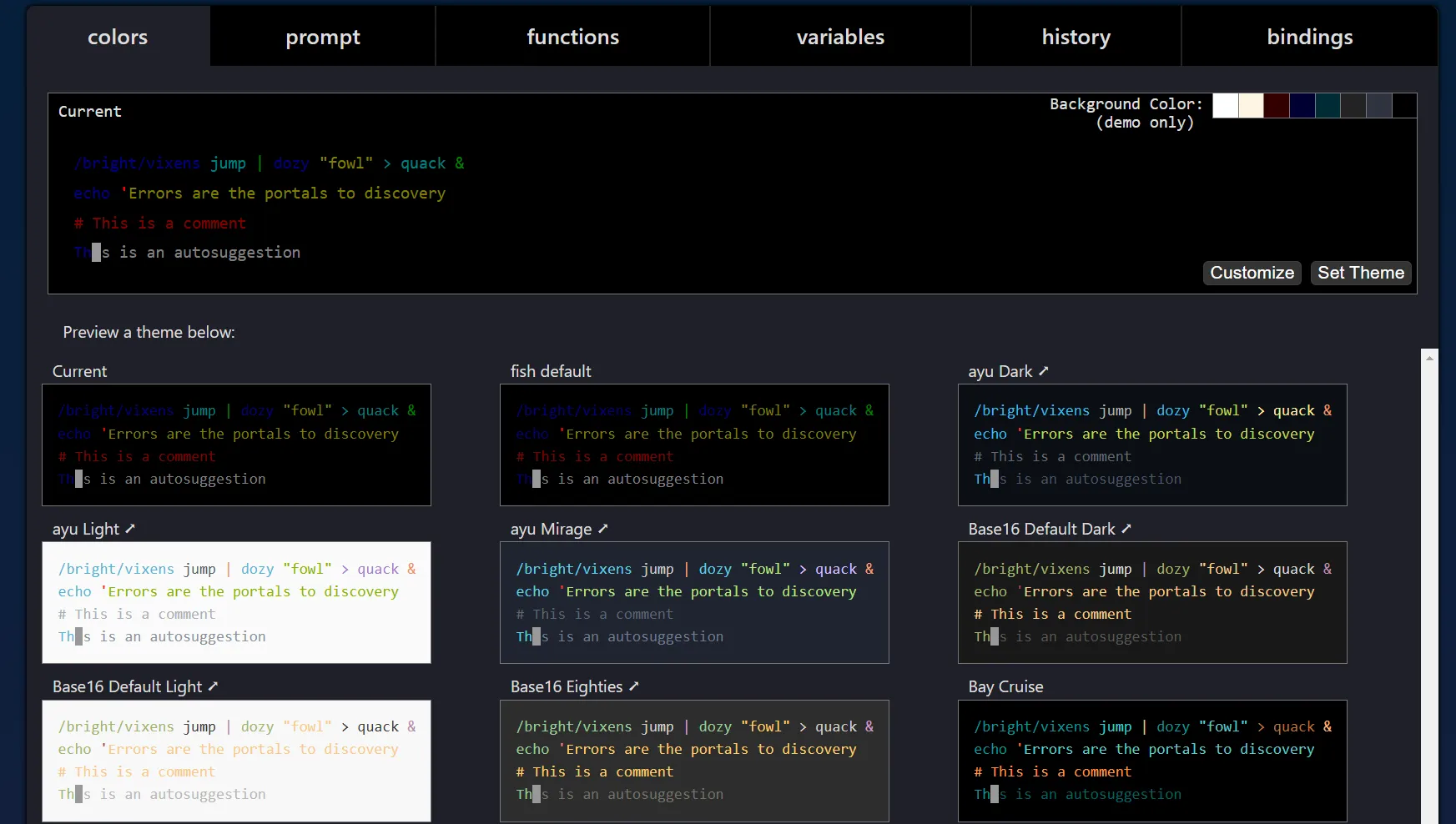
On a server over SSH, no browser is available: the same command then works on the command line, which is often faster. You list the available prompts, then pick one and save it.
fish_config prompt listacidhubarrowastronautdefaultdiscoinformativefish_config prompt choose informativefish_config prompt saveCheck: open a new terminal, the prompt must have changed. The choice is written to ~/.config/fish/functions/fish_prompt.fish.
Add a path to the PATH without duplicating it
It is the most frequent mistake when coming from Bash, and it deserves a closer look. In Bash, you write export PATH=$PATH:/new/path. Transposed as is to Fish, that line does not do what you think.
In Fish, a variable is a list, never a string. Gluing a string next to a list does not concatenate: it produces a Cartesian product, that is, the suffix is glued to each item of the list.
set list a b cecho $list:/suffixa:/suffix b:/suffix c:/suffixApplied to the PATH, the effect is sneaky. Since PATH is a path variable that Fish splits again on colons, your commands keep working, which lets you believe everything is fine. In reality, you add one copy of the new path per existing entry, and the PATH doubles in size at each reload of config.fish.
set -gx PATH /usr/bin /binset -gx PATH $PATH:/opt/bin # not to reproducecount $PATH4Replay that same line two more times, as a source ~/.config/fish/config.fish would, and the counter goes to 8 then 16 entries. The PATH swells until it slows down the resolution of every command.
The right answer is fish_add_path, the command meant for this. It is idempotent (calling it ten times adds only one entry), it persists on its own through the fish_user_paths universal variable, and it places the path at the front of the PATH.
fish_add_path /opt/tools/binCheck: contains returns the exit code 0 when the item is indeed present in the list.
contains /opt/tools/bin $PATH; echo $status0Because fish_add_path writes to a universal variable, you have nothing to add to config.fish: the path is already persistent for all your sessions. To remove a path, act on that same fish_user_paths variable.
set -U fish_user_paths (string match -v /opt/tools/bin $fish_user_paths)If you insist on going through config.fish, the correct syntax separates the items with spaces, never with colons.
set -gx PATH $PATH /opt/tools/binCreate functions and make them persistent
Functions group several commands under one name. In Fish, they advantageously replace aliases, because they accept arguments and logic. The arguments arrive in the $argv list, indexed from 1 and not from 0.
function hello    echo "Hello, $argv[1]! How are you?"end
hello Alice
Hello, Alice! How are you?A function defined at the keyboard disappears with the session. To keep it, funcsave writes it to disk in ~/.config/fish/functions/, where Fish will reload it automatically in all your future terminals. It is the only persistence mechanism for functions: there is no "universal function" in Fish, unlike variables, which set -U can make universal.
funcsave hellofuncsave: wrote /root/.config/fish/functions/hello.fishAliases follow exactly the same path: alias in fact builds a function, which funcsave can therefore save.
alias ll="ls -la"funcsave llTo read back a function, call functions with its name: the command prints its source code, description included. It is also the way to check what a function inherited from a plugin does.
function add --description "Adds two numbers"    math $argv[1] + $argv[2]end
functions add
# Defined interactivelyfunction add --description 'Adds two numbers' math $argv[1] + $argv[2];endDebug a function
When a function does not do what you expect, you want to see each command actually run. Fish provides the fish_trace variable for that: as soon as it is 1, the shell prints the commands as they go, prefixed with > for the call and --> for the inner commands.
set fish_trace 1add 2 3set -e fish_trace> add 2 3--> math 2 + 35Remember to turn the trace off with set -e fish_trace once the diagnosis is done, otherwise your terminal stays chatty. For problems that affect the shell itself rather than one of your functions, fish --debug=<category> turns on the internal logs, for example fish --debug=complete to instrument completion.
React to an event
Fish can trigger a function when an event occurs, thanks to the --on-event option. The events actually emitted by the shell are few and carry precise names: fish_prompt (before each display of the prompt), fish_preexec and fish_postexec (just before and just after running a command), fish_exit (at the shell's closing) or fish_command_not_found.
function goodbye --on-event fish_exit echo "Session over."endThe trap is that Fish accepts any event name without complaint, including a name that does not exist. The function is then registered, visible in functions --handlers, but it will never fire, and no error message will warn you. A --on-event session-start, for example, produces strictly nothing, because Fish emits no event of that name.
To run code at the start of a shell, do not invent an event: simply put your commands in config.fish, which is read at every session opening.
Variables and scopes
Fish has no export keyword: everything goes through the set command, whose option sets the scope. It is more explicit than Bash, provided you know the three scopes and choose the right one, otherwise your settings disappear at the next terminal.
| Scope | Option | Lifetime |
|---|---|---|
| Local (default in a block) | set -l | The current block or function |
| Global | set -g | The current session |
| Universal | set -U | Every session, persisted on disk |
| Exported to subprocesses | -x (combinable) | Depending on the chosen scope |
The universal scope is Fish's specialty: set -Ux EDITOR vim is immediately visible in all your open terminals, without touching a single configuration file. It is the right reflex for a stable personal preference.
set -Ux EDITOR vimCheck: set -S shows the real scope of a variable, which removes any doubt.
set -S EDITORTo delete a variable, whatever its scope, use set -e followed by its name.
set -e EDITORFish keyboard shortcuts
Fish is comfortable mostly because its shortcuts are already in place. The table below only lists bindings checked with the bind command on Fish 4.0.2: it is your source of truth, and you can run it again at any time to inspect your own configuration.
| Shortcut | Actual action |
|---|---|
→ or Ctrl + F | Accepts the autosuggestion shown in grey |
Tab | Opens completion |
Ctrl + R | Searches the history (interactive pager) |
Ctrl + A / Ctrl + E | Start / end of line |
Ctrl + U / Ctrl + K | Erases before / after the cursor |
Ctrl + W | Erases the previous path component |
Ctrl + D | Erases the character, or quits if the line is empty |
Alt + ← / Alt + → | Empty line: previous / next directory. Otherwise: word by word |
Alt + ↑ / Alt + ↓ | Searches the history for the token under the cursor |
Alt + . | Inserts the last argument of the previous command |
Alt + D | Empty line: shows the directory history. Otherwise: erases the next word |
Ctrl + S | Turns on search in the completion pager |
Two bindings deserve a careful reading, because they change behaviour depending on the context. Alt + ← and Alt + → move through the directory history only when the command line is empty; as soon as you have typed something, they move the cursor word by word. The equivalent commands are prevd and nextd, and dirh shows the full stack.
cd /tmp/projectcd /var/logprevdpwd/tmp/projectYou can of course define your own bindings with bind, using the key names of Fish 4 (ctrl-t, alt-p). The old escape notation (\ct) is still accepted, but readable names are easier to read back in a config.fish.
bind ctrl-t 'date'Check: bind | grep ctrl-t must show your binding. Add the line to config.fish to keep it.
Extend Fish with Fisher
Fisher is the most used plugin manager of the Fish ecosystem. Its official installation offers a curl | source, that is, directly running downloaded code: never do that. You would run in your shell a file you have not read, served by a remote server, without any check. Download, read, then load.
-
Download the Fisher function into a local file:
Terminal window curl -sL https://raw.githubusercontent.com/jorgebucaran/fisher/main/functions/fisher.fish -o fisher.fish -
Read the file before any run. You must see readable Fish code in it, starting with
function fisher:Terminal window less fisher.fish -
Load it into the session, then let Fisher install itself:
Terminal window source fisher.fish && fisher install jorgebucaran/fisher
Once Fisher is in place, installing a plugin takes one command. Plugins live in your user configuration, without root privilege.
fisher install jorgebucaran/nvm.fishfisher listTo remove a plugin, fisher remove followed by its name is enough. The community catalogue is published on awsm.fish.
Fish and scripts: do not mix them up
Fish is not POSIX-compatible, and that is intended. A Bash script pasted into a Fish terminal will fail at the first loop or the first [[ ... ]]. The rule is simple: Fish for interactive use, Bash for scripts. Your existing scripts run normally when you call them explicitly, since they declare their own interpreter.
bash ./deployment.shA misconception deserves correcting: you often read that Fish ignores the $(...) syntax. It used to be true, but Fish has supported it since version 3.4 (2022). Both forms of command substitution therefore work, the historical form in bare parentheses and the Bash-compatible form.
echo "Today is (date +%d/%m)"echo "Today is $(date +%d/%m)"What remains are the real differences: set replaces export, lists replace arrays, and blocks are closed with end rather than with fi or done.
Troubleshooting
Here are the most common blockers when moving to Fish, with the cause and the directly applicable fix.
| Symptom | Likely cause | Solution |
|---|---|---|
chsh: PAM: Authentication failure | Wrong password | Run chsh again with your account's password |
chsh refuses the path of Fish | Fish missing from /etc/shells | Check with grep fish /etc/shells and add the path: command -v fish | sudo tee -a /etc/shells |
dnf install fish does not find the package | Fish comes from EPEL on RHEL and its derivatives | sudo dnf install epel-release, then run it again |
The PATH holds duplicates that multiply | set -gx PATH $PATH:/path (Cartesian product) | Start again from fish_add_path /path, or separate with spaces |
An added path does not show in $PATH | The directory does not exist: fish_add_path ignores it silently | test -d /path; echo $status must return 0 |
| A deleted function comes back at the next terminal | functions -e only erases the session; the file stays | rm ~/.config/fish/functions/<name>.fish |
An --on-event function never fires | Non-existent event name, accepted without error | Use a real event (fish_prompt, fish_exit) or go through config.fish |
| Bash scripts fail in Fish | Fish is not POSIX-compatible | Run them explicitly: bash script.sh |
fish_config does not open a browser | SSH session without a graphical interface | Use fish_config prompt list then choose and save |
Key points
- Fish is comfortable without configuration: autosuggestions, highlighting and completion are on right after installation.
- Try Fish by starting it like a command before a
chshthat commits your login shell. - The
PATHis not extended with::set -gx PATH $PATH:/pathproduces a Cartesian product that doubles thePATHat each reload. Usefish_add_path. - Universal functions do not exist: only variables can be universal (
set -U). A function is persisted withfuncsave, in~/.config/fish/functions/. functions -eonly erases the session: also delete the file for a lasting deletion.- Debug with
set fish_trace 1, not with a--traceoption that does not exist. $(...)works since Fish 3.4: Bash-style command substitution is supported.- Fish for interactive use, Bash for scripts: the portability of your automations is not negotiable.
Knowledge check
Check that the essentials of this guide stuck. The questions cover only what has just been explained here.
Knowledge check
Check what you have learned with this interactive quiz
How it works
- The timer starts when you click Start
- Multiple choice, true/false and short answer questions
- You can move between questions
- Detailed results are shown at the end
Starts the quiz and the timer
Review
(0/0)Score by domain
A domain groups several guides and gets several questions, so its score is more reliable than a per-topic score, which often rests on a single question.
Summary
Strengths
No topic passed at 80% on at least two questions yet.
Weak areas
No topic below the pass mark.
Recommended next
Hints before you try again?
Continue the course: Schedule tasks with cron and crontab on Linux
A new full quiz with random questions
Work again only on the questions you missed
A bit of history
Fish was born in 2005, at a time when Bash and Zsh ruled unchallenged and required long configurations to become ergonomic. Its bet: break free from Unix conventions when they hurt the user, rather than perpetuate them out of tradition. That choice costs it POSIX compatibility, but also earns it its immediate comfort.
The milestones of its evolution shed light on what you use today:
- 2009: arrival of the web configuration interface (
fish_config). - 2013: Fish 2.0 improves scripts and keyboard shortcuts.
- 2016: the Fisher plugin manager takes hold in the ecosystem.
- 2022: Fish 3.4 adds
$(...)command substitution, which brings the syntax closer to Bash. - 2025: Fish 4.0 is entirely rewritten in Rust, after twenty years of C++. The behaviour does not change for the user, but the code base gains memory safety and maintainability. It is the branch shipped by Debian 13 in version 4.0.2.