
You need to change a file on a remote server and you are tired of juggling
vi's modes or memorising nano's shortcuts? Micro is a terminal editor
that works like a graphical editor: Ctrl+S to save, Ctrl+C to copy,
Ctrl+V to paste, Ctrl+Z to undo. This guide takes you from installation to
a productive setup with multiple cursors, plugins and full customisation. Every
default value quoted here was read in the sources of version 2.0.15, the
latest release.
What you will learn
- Install micro on any Linux distribution with one command
- Edit files with the shortcuts you already know
- Select and manipulate text with the mouse or the keyboard
- Search and replace text with regular expressions
- Work with several files in splits and tabs
- Use multiple cursors to edit several places at once
- Customise the editor with options and colour schemes
- Install plugins to extend its features
Why micro rather than another editor?
Every terminal editor has its own philosophy. The choice depends on your context and on what you expect from your tool day to day.
| Criterion | nano | vi/vim | micro |
|---|---|---|---|
| Learning curve | Very easy | Hard (modes) | Very easy |
| Shortcuts | Specific (Ctrl+O to save) | Specific (dd, yy, :wq) | Standard (Ctrl+S, Ctrl+C, Ctrl+V) |
| Multiple cursors | No | Possible with plugins | Native |
| Mouse | Limited | With configuration | Full (click, drag, selection) |
| Syntax highlighting | Basic | Good (vim) | 130+ languages |
| Plugins | No | Yes (vim) | Yes (Lua, built-in manager) |
| Built-in terminal | No | No | Yes |
| Installation | Preinstalled | Preinstalled (vi) | Static binary to download |
| Main use case | Quick, simple editing | Powerful editor for experts | Comfortable editor for daily use |
The positioning reads along two axes, power and entry cost. nano is present
everywhere and needs no learning, but soon hits its ceiling. vi/vim covers
every editing need and is available on any server, at the price of really
learning its modes and commands. micro aims at the middle ground: familiar
shortcuts such as Ctrl+S and Ctrl+C, the mouse, multiple selection, and no
mode to remember. It is however not installed by default, which rules it
out on a machine you only access once.
This last limit deserves to be taken seriously rather than worked around. On a
minimal container, a locked-down production server or a system booted in
rescue mode, installing a package is neither always possible nor always
desirable, and vi will be the only editor present. Micro is a comfort
tool for the machines you administer regularly; keep the
vi basics for the others.
Install micro
Micro ships as a single static binary: no dependencies, no compilation. Installation takes a few seconds whatever your distribution.
The recommended method when your distribution's package is too old: Debian
13, for example, ships 2.0.14. For each archive, the project publishes a .sha
file holding its SHA-256 checksum; the sha256sum --check command must
answer OK before any extraction:
MICRO_VERSION=2.0.15BASE="https://github.com/zyedidia/micro/releases/download/v${MICRO_VERSION}"curl -sSLO "${BASE}/micro-${MICRO_VERSION}-linux64-static.tar.gz"curl -sSLO "${BASE}/micro-${MICRO_VERSION}-linux64-static.tar.gz.sha"sha256sum --check "micro-${MICRO_VERSION}-linux64-static.tar.gz.sha"tar -xzf "micro-${MICRO_VERSION}-linux64-static.tar.gz"sudo install -m 0755 "micro-${MICRO_VERSION}/micro" /usr/local/bin/microThe linux64-static variant has no dependency on glibc, so it also works
on Alpine images and old systems.
Depending on your distribution:
# Ubuntu / Debiansudo apt install micro
# Fedorasudo dnf install micro
# Arch Linuxsudo pacman -S micro
# macOSbrew install micro
Available on every distribution that supports Snap:
snap install micro --classicCheck: confirm the installation by printing the version:
micro -versionWith the archive above, the output starts with these lines:
Version: 2.0.15Commit hash: 6a62575bOne last step decides whether Ctrl+C and Ctrl+V deliver the promised
comfort: the system clipboard. Without an external utility, micro falls back
on an internal clipboard, and copy and paste only work inside the editor, never
with your browser or another terminal. So install the tool matching your
graphical session, xclip or xsel under X11, wl-clipboard
under Wayland:
# X11sudo apt install xclip
# Waylandsudo apt install wl-clipboard
On a server without a graphical environment, this step is irrelevant: copy and paste then go through your local terminal emulator, not through micro, which only sees pasted text arriving as keystrokes.
First steps: open, edit, save
These three operations cover most of an editing session on a server.
Unlike vi, there is no mode to learn: the shortcuts are those of a
graphical editor and you type text as soon as the file opens.
Open a file
As with any editor, pass the file name as an argument:
micro file.txtIf the file does not exist, micro creates it on the first save. You can also start micro without an argument for an empty buffer, or even send data through a pipe:
ip a | microThe interface
As soon as micro opens, you see:
- The editing area with automatic syntax highlighting
- The tab bar at the top (when several files are open)
- The status bar at the bottom, showing the file name, the cursor position (line, column), the file type and the encoding
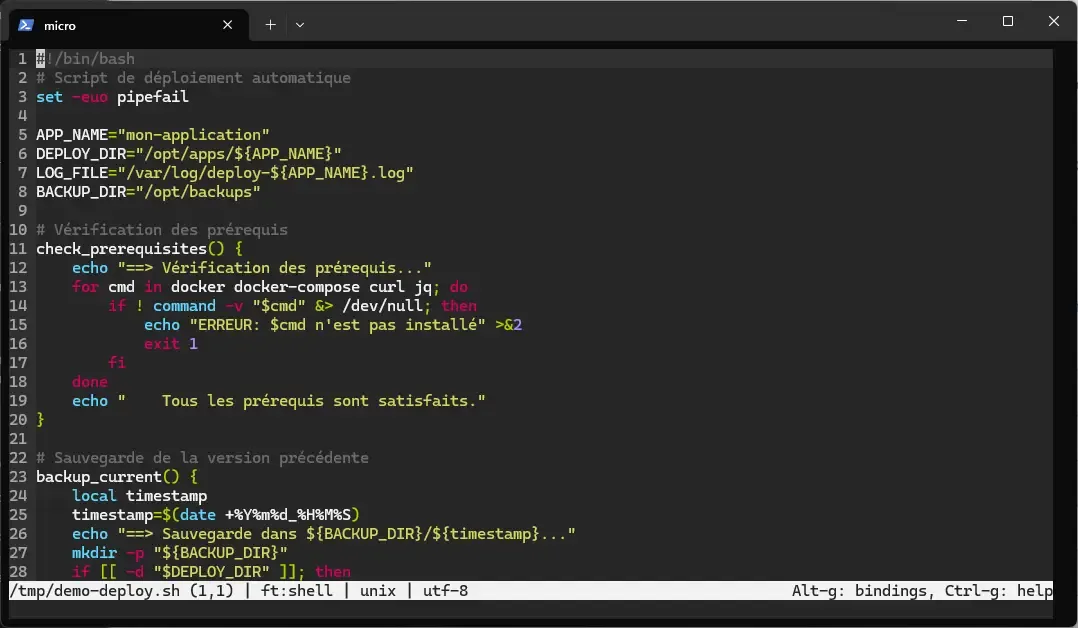
Unlike vi, there are no modes. You can type text straight away, as in a
graphical editor. That is micro's strong point: no surprise, no mode
trap like the :q! you hunt for the first time you open vi.
The essential shortcuts
Here are the shortcuts you will use 90% of the time. If you have already used a graphical editor (VS Code, Notepad, Sublime Text), you already know them:
| Shortcut | Action |
|---|---|
Ctrl+S | Save the file |
Ctrl+Q | Quit micro |
Ctrl+Z | Undo the last change |
Ctrl+Y | Redo (undo the undo) |
Ctrl+C | Copy the selection (or the line if nothing is selected) |
Ctrl+X | Cut the selection (or the line) |
Ctrl+V | Paste |
Ctrl+D | Duplicate the selection (or the line) |
Ctrl+K | Cut the whole line |
Ctrl+A | Select all |
Ctrl+F | Find text |
Ctrl+G | Show help |
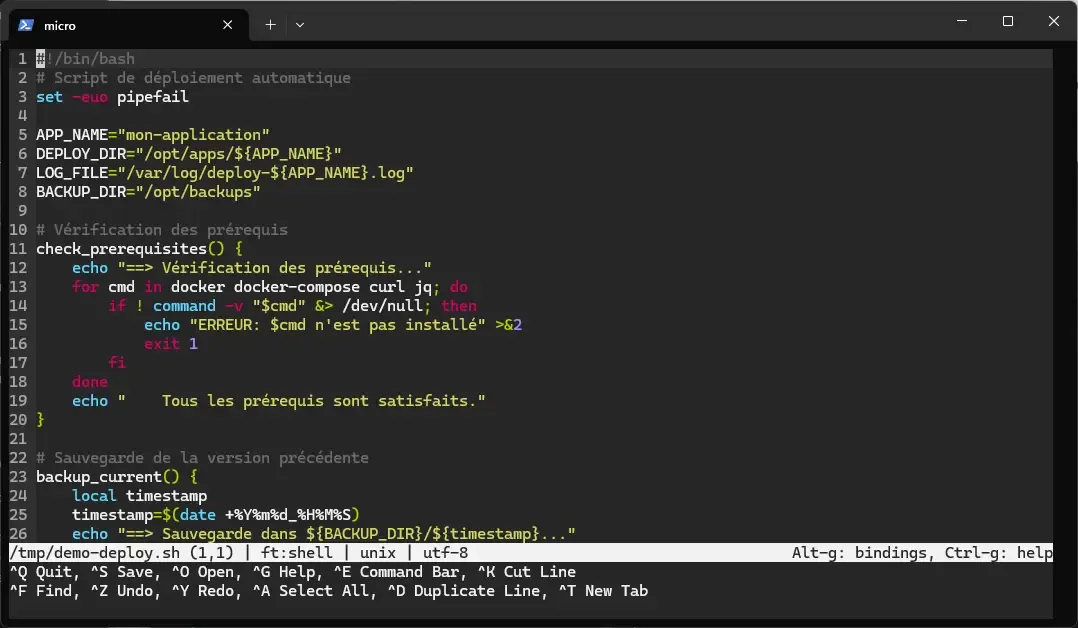
Until these shortcuts become second nature, Alt+G displays a shortcut
menu at the bottom of the screen, exactly as nano does. This menu is
hidden by default to leave two more lines for the text, and comes back for the
session with Alt+G, or for good with the command set keymenu true, since
the keymenu option defaults to false.
Step-by-step example: edit a configuration file
Say you need to edit the /etc/hosts file to add an entry:
-
Open the file with micro (as superuser if needed):
Terminal window sudo micro /etc/hosts -
Move to the last line with the arrows or
Ctrl+End. -
Type the new line directly, no need to switch to an "insert mode":
192.168.1.100 mon-serveur.local -
Save with
Ctrl+S. The status bar confirms the save. -
Quit with
Ctrl+Q.
It is as simple as that. No :wq, no Ctrl+O followed by Enter.
Moving around a file
Micro supports all the usual navigation keys. If you can move around a text document on your computer, you can move around in micro.
Moving the cursor
Two subtleties in this table deserve your attention. Home does not go to
column 1 but to the first non-blank character of the line, which is the
behaviour you want when editing indented YAML. And on macOS, the roles
of Ctrl and Alt are swapped compared with Linux for word-by-word and
start/end-of-line moves: there, Alt+Arrow moves by one word. The rest matches
what any word processor does.
| Shortcut | Movement |
|---|---|
Arrows | Character by character / line by line |
Ctrl+Left / Ctrl+Right | Word by word |
Home / End | Start / end of the line |
Ctrl+Home / Ctrl+End | Start / end of the file |
Page Up / Page Down | Page by page |
Ctrl+L | Go to a given line (type the number) |
Selecting text
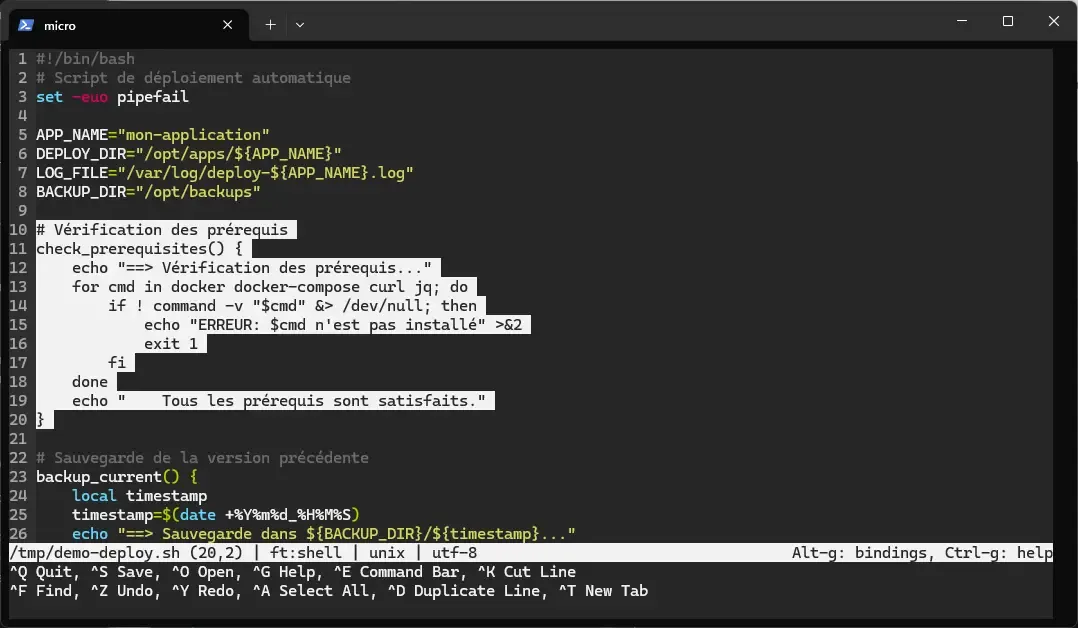
Selection works exactly as in a graphical editor:
- With the keyboard: hold
Shiftand use the arrows,Home,End,Page Up,Page Downto extend the selection - With the mouse: click and drag to select
- Double-click: selects the word under the cursor
- Triple-click: selects the whole line
Once the text is selected, use Ctrl+C to copy, Ctrl+X to cut, or simply
type to replace the selection.
Mouse support goes further than in most terminal editors: beyond click and
drag, the wheel scrolls the file and Ctrl+Click places multiple
cursors, a feature covered further down. This support requires your
terminal emulator to pass on mouse events, which every common terminal
does; if clicking does not move the cursor, check set mouse true.
The command bar
The command bar is micro's control centre. Open it with Ctrl+E and type a
command: it plays the role of vim's : line, with no mode switch, and with
completion on Tab. Here are the most useful commands:
File commands
These commands duplicate existing shortcuts, with one useful difference: they
accept an argument. save without an argument is the same as Ctrl+S, but
save other-name.txt performs a "save as" that no shortcut covers. Above
all, remember reopen, which reloads the file from disk: it is the command
that gets you out of trouble when another process changed the file while you
had it open.
| Command | What it does |
|---|---|
save | Saves the current file |
save file.txt | Saves under another name ("Save as") |
open file.txt | Opens a file in the current buffer |
tab file.txt | Opens a file in a new tab |
quit | Closes the current pane |
reopen | Reloads the file from disk |
Configuration commands
The difference between the first two lines is the one that matters. set
writes the value to ~/.config/micro/settings.json, and it will follow you in
all your files and sessions; setlocal only applies to the current buffer
and disappears when it closes. Use setlocal when you briefly need real
tabs for a Makefile, without polluting your permanent configuration.
show answers with the effective value, which lets you check whether a plugin
has overridden your setting.
| Command | What it does |
|---|---|
set option value | Changes an option (saved in settings.json) |
setlocal option value | Changes an option for this file only |
show option | Shows the current value of an option |
toggle option | Flips a boolean option (true/false) |
reset option | Puts an option back to its default value |
Navigation commands
goto is the command to remember when you are debugging: an interpreter
that reports an error at line 42, column 10 takes you straight there with
goto 42:10, without counting lines on screen. The two replace commands
differ only by confirmation: replace asks for your approval occurrence by
occurrence, while replaceall applies everything at once. On a production
configuration file, prefer the first: Ctrl+Z can still undo, but it does
not rescue a save that has already happened.
| Command | What it does |
|---|---|
goto 42 | Goes to line 42 |
goto 42:10 | Goes to line 42, column 10 |
replace "a" "b" | Interactive search and replace |
replaceall "a" "b" | Replaces every occurrence without confirmation |
cd /home/user | Changes the working directory |
pwd | Shows the current working directory |
Shell commands
These three commands open the editor to the shell, each at a different level.
run launches a command in the background and only shows its output, on
one line of the info bar, once it finishes. term opens a complete
interactive shell, and textfilter sends the current selection to a
command's standard input, then replaces that selection with the output.
| Command | What it does |
|---|---|
run command | Runs a command in the background, output on one line |
term | Opens an interactive terminal (details below) |
textfilter command | Filters the selection through a shell command |
The textfilter command is particularly powerful. For example, to sort a
list of names selected in your file:
-
Select the lines to sort (with
Shift+Arrowsor the mouse) -
Press
Ctrl+Eand type:textfilter sort -
The selected lines are sorted alphabetically
You can use any external command: sort -n for a numeric sort, uniq
to remove duplicates, jq . to format JSON. Micro runs the command
directly, without going through a shell: a | pipe in the argument therefore
does not work, chain two textfilter calls instead.
Search and replace
Searching is the first need on a configuration file several hundred lines long. Micro accepts plain text as well as regular expressions, and each replacement can be confirmed occurrence by occurrence.
Find text
Press Ctrl+F to open the search bar at the bottom of the screen. Type your
word and confirm with Enter: the cursor lands on the first occurrence and
the bar closes. You then move from one occurrence to the next from the file,
not from the search bar, as the official help (help defaultkeys) points out:
| Shortcut | Action |
|---|---|
Enter | Confirm the search and close the bar |
Ctrl+N | Go to the next occurrence (from the file) |
Ctrl+P | Go to the previous occurrence (from the file) |
Esc | Abandon the current search |
Search is incremental by default (results appear in real time as you type,
incsearch option) and case-insensitive (ignorecase option, true by
default).

Replace text
Search and replace goes through the command bar. Press Ctrl+E to open it,
then type:
replace "old" "new"Micro highlights the first occurrence and asks for confirmation: y (yes),
n (no) or Esc (cancel).
To replace every occurrence at once, add the -a flag:
replace "old" "new" -aOne point of syntax changes everything else: micro reads the search pattern as
a regular expression, not as literal text. The dot there means "any
character", so a pattern 192.168.1.1 would just as well match the string
192x168y1z1. Two ways to get a literal behaviour, your choice: escape each
special character with a backslash, or add the -l flag, which turns regex
interpretation off for the whole command. Flags are written separately:
micro only knows -a and -l, and rejects a combined -al with the error
Invalid flag: -al.
replace "192\.168\.1\.1" "10.0.0.1" -areplace "192.168.1.1" "10.0.0.1" -a -lWorking with several files
Fixing a configuration often means comparing two files, or fetching a value somewhere else. Micro offers two layouts for that, tabs and split screens, without leaving the session.
Tabs
Micro can open several files in tabs, just like a web browser. The tab bar appears at the top of the screen.
| Action | Shortcut or command |
|---|---|
| Open a file in a new tab | Ctrl+E → tab file.txt, or Ctrl+T (empty tab) then Ctrl+O |
| Next tab | Alt+. |
| Previous tab | Alt+, |
| Close the current tab | Ctrl+Q |
You can also open several files straight from the terminal:
micro file1.txt file2.yml file3.pyEach file opens in a separate tab.
Splits: show several files side by side
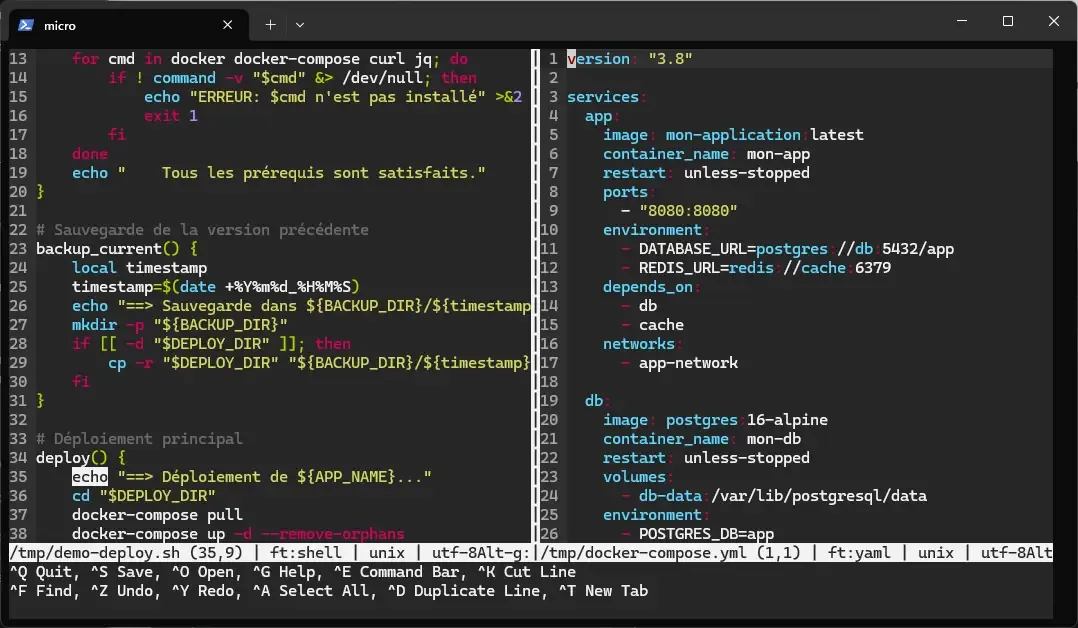
Splits divide the window to show two files (or more) at the same time. Use
the command bar (Ctrl+E):
| Command | Result |
|---|---|
vsplit file.txt | Vertical split (side by side) |
hsplit file.txt | Horizontal split (one above the other) |
To move between splits, press Ctrl+W. This shortcut cycles through the
open panes.
A concrete example: you are editing a YAML file and need to look at a reference file at the same time:
-
Open the main file:
micro config.yml -
Press
Ctrl+Eand type:vsplit reference.yml -
Move between the two panes with
Ctrl+W -
Edit the main file while referring to the file on the right
Built-in terminal
Micro can open a real terminal inside the editor. It is very handy to run
commands, launch tests or read logs without leaving the session. Press
Ctrl+E and type:
termThe terminal does not open in a split by itself: if a single file is open,
term creates a new tab; otherwise, it replaces the active pane, after
offering to save it. To get the terminal below your code, first open an
empty split with hsplit, then type term in that new pane.
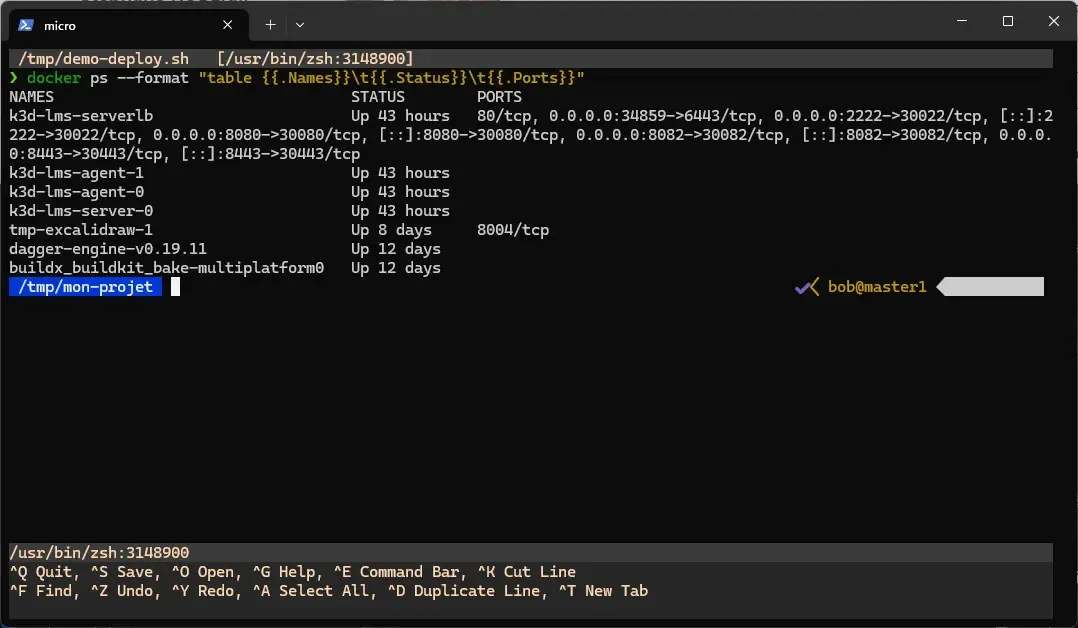
In a terminal pane, keystrokes go to the shell, so micro's shortcuts are
typed twice in a row. Ctrl+W Ctrl+W returns to the neighbouring
pane, Ctrl+Q Ctrl+Q closes the terminal. Typing exit in the shell closes
it too, as anywhere else.
Multiple cursors: edit several places at once
Multiple cursors let you change several places in the file at the same time. The feature was popularised by Sublime Text and VS Code, and micro offers it natively in the terminal.
Placing multiple cursors
The four methods do not serve the same job. Alt+N follows the content: it
looks for the next occurrence of the selected word, wherever it is, which suits
renaming a variable. Alt+M follows the geometry: it puts a cursor at
the start of each line of the selection, regardless of the text, which suits
column editing. Ctrl+Click and Alt+Shift+Arrows cover the irregular
cases that neither of them catches.
| Method | How to do it |
|---|---|
| Mouse | Ctrl+Click wherever you want a cursor |
| Next occurrence | Select a word, then Alt+N to add a cursor on the next occurrence (repeat to add more) |
| Start of each line | Select several lines, then Alt+M to put a cursor at the start of each selected line (vertical block style) |
| Line by line | Alt+Shift+Up / Alt+Shift+Down to add a cursor above or below |
Managing multiple cursors
These shortcuts are your reverse gear. The most useful day to day is
Alt+X: when you add cursors with Alt+N and the next occurrence must not
be changed, it skips it and puts the next cursor on the one after. Without
it, you have to leave multi-cursor mode and start again. Alt+P removes the
last cursor placed, which fixes one Alt+N too many without losing the
previous ones.
| Shortcut | Action |
|---|---|
Alt+P | Remove the last cursor added |
Alt+C | Remove all extra cursors |
Alt+X | Skip the current occurrence and move to the next |
Esc | Go back to a single cursor |
Step-by-step example: rename a variable
The situation: you have a Python script where the variable serveur_ip appears
6 times, and you want to rename it server_address.
-
Select the word
serveur_ip(double-click). -
Press
Alt+N5 times to add a cursor on each following occurrence. Each press adds a new cursor on the next occurrence ofserveur_ip. UseAlt+Xto skip an occurrence without placing a cursor on it. -
Type
server_address. All 6 occurrences are replaced at the same time. -
Press
Escto go back to a single cursor.
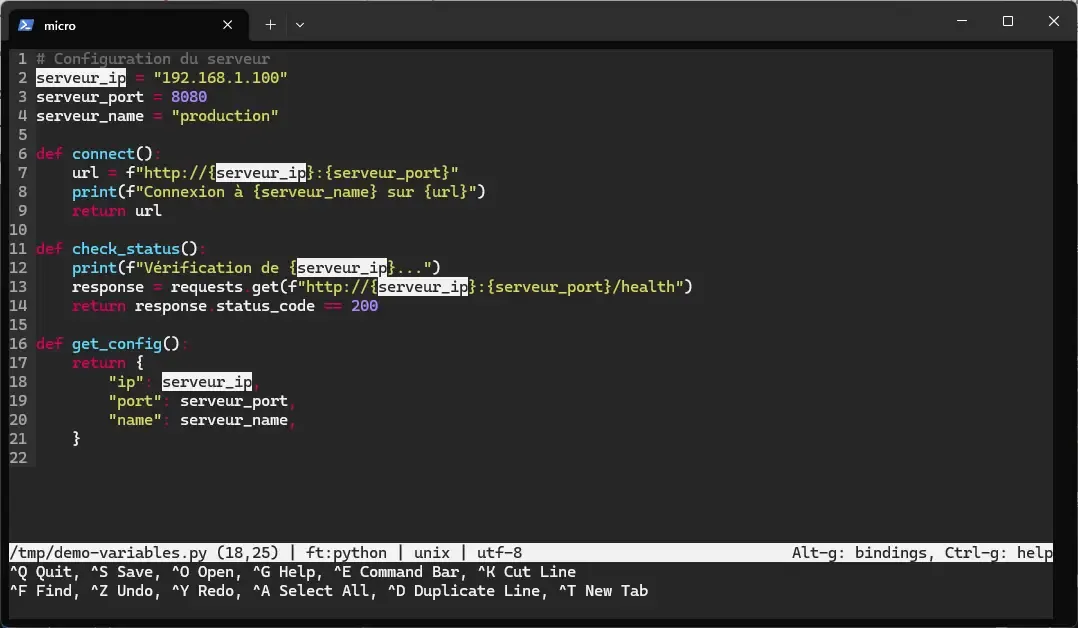
It is considerably faster than a find and replace, especially when you want to check each occurrence visually before changing it.
Step-by-step example: prefix several lines
The situation: you have a list of servers and you want to turn the first 5 lines into items of a YAML list, in one go.
-
Select the 5 lines to change (with
Shift+Down arrow). -
Press
Alt+M. A cursor appears at the start of each selected line. -
Type the prefix you want (for example
-). The text is inserted at the start of every line at the same time. -
Press
Escto go back to a single cursor.
Alt+M is ideal for column editing (adding a prefix, aligning text,
commenting several lines).
Customise micro
The default settings are fine for troubleshooting, but two of them deserve
a change from your first serious use: using spaces rather than tabs
(tabstospaces defaults to false), and saving the undo history.
The settings.json file
Micro's configuration lives in ~/.config/micro/settings.json. Every option
changed with the set command is saved automatically to this file. You can
also edit it directly: the JSON format is easy to version and to share
between machines.
Here is a recommended starting configuration for DevOps use:
{ "autoindent": true, "colorscheme": "gruvbox", "cursorline": true, "diffgutter": true, "hlsearch": true, "hltrailingws": true, "mouse": true, "rmtrailingws": true, "ruler": true, "savecursor": true, "saveundo": true, "scrollbar": true, "scrollmargin": 5, "softwrap": true, "tabsize": 4, "tabstospaces": true, "wordwrap": true}The key options explained:
| Option | Value | What it does |
|---|---|---|
diffgutter | true | Shows Git diff markers +/~/- in the gutter |
hltrailingws | true | Highlights trailing whitespace, very useful for YAML |
rmtrailingws | true | Removes trailing whitespace automatically on save |
savecursor | true | Remembers the cursor position between sessions |
saveundo | true | Keeps the undo history even after closing (persistent undo) |
scrollbar | true | Shows a scroll bar on the side |
softwrap | true | Wraps long lines automatically |
tabstospaces | true | Inserts spaces instead of tabs (recommended for YAML, Python) |
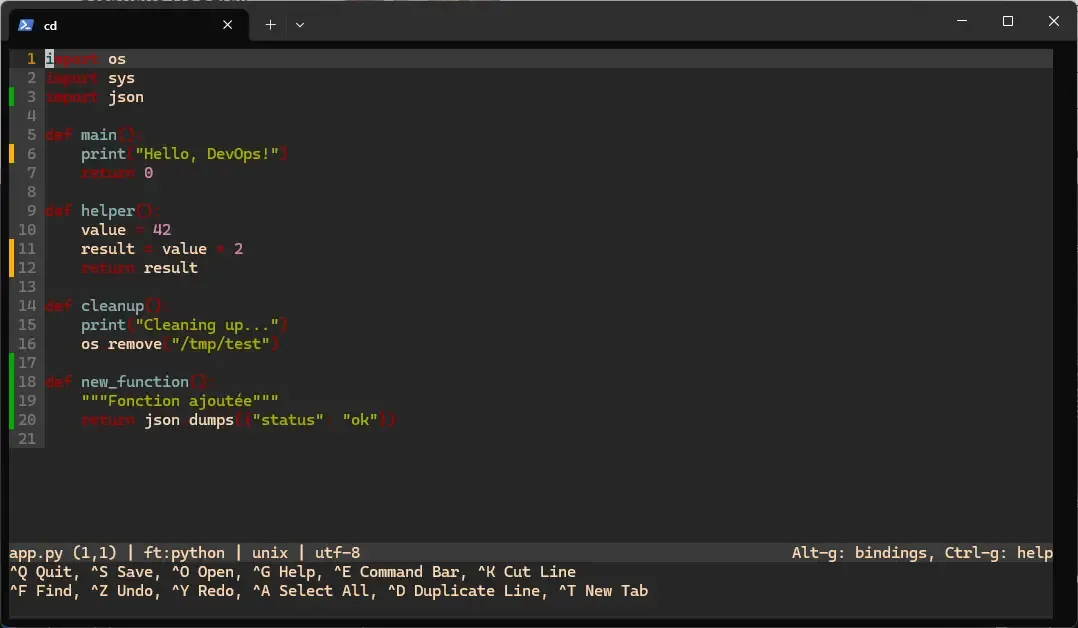
The diffgutter option is the most visible in use: as soon as the file is
tracked by Git, the left gutter marks every added, changed or deleted
line, without leaving the editor. It defaults to false, hence the point of
turning it on in a starting configuration.
Per file type configuration
Micro can apply different settings depending on the file type. It is very handy, since a YAML file uses 2-space indentation while a Python file uses 4.
Add these sections to your settings.json:
{ "ft:yaml": { "tabsize": 2 }, "ft:python": { "tabsize": 4, "tabstospaces": true }, "ft:go": { "tabstospaces": false, "tabsize": 4 }, "ft:markdown": { "softwrap": true, "wordwrap": true }, "*.yml": { "tabsize": 2 }}The ft:language syntax targets files by detected type, and *.extension
targets them by glob (file name pattern). Both work, but ft: is more
reliable because it relies on micro's automatic detection, which also
recognises a file without an extension.
Colour schemes
Micro offers several built-in colour schemes. Switch scheme with:
set colorscheme gruvboxThe available schemes depend on your terminal's colour support. The
default scheme is called default, and all it does is include monokai:
| Category | Available schemes |
|---|---|
| 256 colours (recommended) | monokai (default), gruvbox, zenburn, darcula, twilight, railscast, bubblegum |
| 16 colours | simple, solarized, cmc-16, geany |
| True colour (24-bit) | solarized-tc, atom-dark, gruvbox-tc, material-tc, cmc-tc |
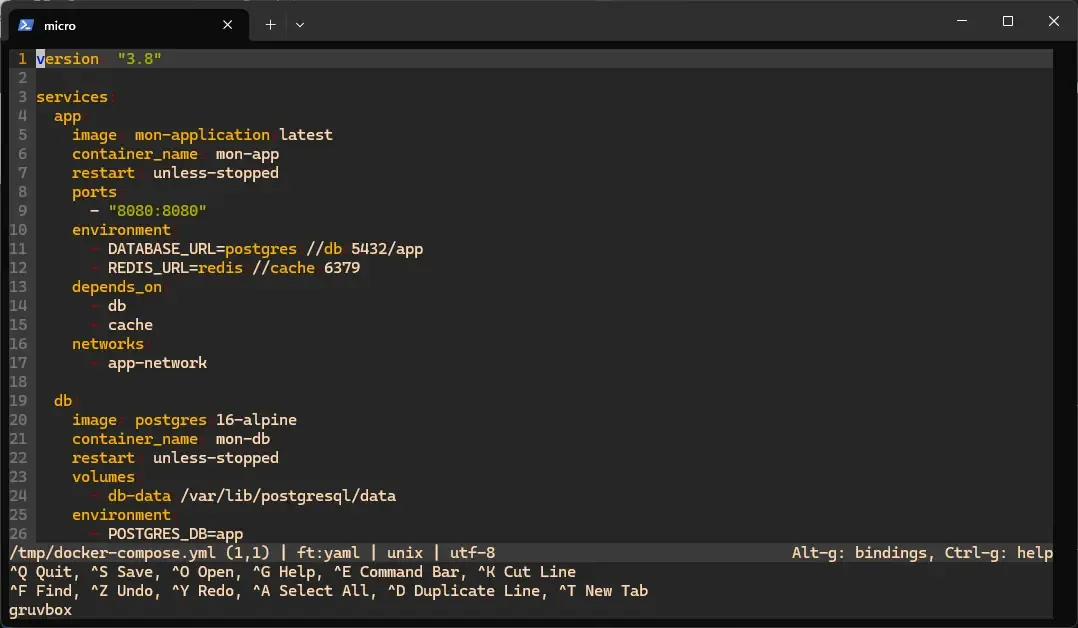
You choose by elimination, starting from what your terminal can do. Most modern
terminals handle 256 colours: so start with gruvbox or monokai. If the
colours look washed out or wrong, fall back on simple, which only uses the
16 basic colours and works everywhere, including on a serial console.
Conversely, if your terminal advertises true colour (24-bit), the schemes
ending in -tc, such as gruvbox-tc, render the most faithful shades.
Customise the keyboard shortcuts
Shortcuts are configured in ~/.config/micro/bindings.json. Each entry
binds a key combination to an action: an internal action name such as
Save, or a command prefixed with command:.
For example, to add custom shortcuts:
{ "Alt-s": "Save,Quit", "Ctrl-r": "command-edit:replace ", "F5": "command:term"}This file adds three shortcuts:
Alt+S: saves and quits in a single actionCtrl+R: opens the replace command straight away, instead of the defaultToggleRuleraction (show or hide line numbers)F5: opens a built-in terminal
The command: prefix is mandatory to run a command-bar command: an entry
"F5": "term" is rejected at startup with the message
Error in bindings: action term does not exist. The command-edit: prefix
pre-fills the bar without running it, which lets you type the arguments.
To see which action is bound to a key, use the command:
showkey Ctrl-cA key is not limited to a single action: three separators let you chain
them, and this mechanism explains micro's default behaviour. The comma ,
always runs the next action, the vertical bar | only runs it if the previous
one failed, and the ampersand & only runs it if the previous one
succeeded. That is how the Tab key is wired by default to
Autocomplete|IndentSelection|InsertTab: the editor first tries
autocompletion, falls back on indenting the selection if that fails, and only
inserts a tab as a last resort. This chain is also the first place to look when
a key "does not do what it should".
Macros: automate repetitive tasks
Macros let you record a sequence of actions and replay it. It works just like macros in other editors, with a single recording at a time.
| Shortcut | Action |
|---|---|
Ctrl+U | Start / stop recording a macro |
Ctrl+J | Replay the recorded macro |
Example: add a prefix to each line
The situation: you have a list of server names and you want to add ssh user@
in front of each name.
-
Put your cursor at the start of the first line.
-
Press
Ctrl+Uto start recording. -
Type
ssh user@at the start of the line. -
Press
HomethenDown arrowto go to the start of the next line. -
Press
Ctrl+Uto stop recording. -
Press
Ctrl+Jas many times as needed to apply the macro to the following lines.
Install and manage plugins
Micro has a built-in plugin manager that downloads and installs plugins from an official repository. Plugins are written in Lua and extend the editor's features.
Plugin manager commands
Open the command bar (Ctrl+E) and type:
| Command | What it does |
|---|---|
plugin available | Lists every available plugin |
plugin search word | Searches for a plugin by keyword |
plugin install name | Installs a plugin |
plugin remove name | Removes a plugin |
plugin update | Updates every plugin |
plugin list | Lists installed plugins |
Recommended plugins
Here is a selection of plugins that are useful for DevOps work:
| Plugin | What it brings |
|---|---|
filemanager | Tree file explorer (like NERDTree in Vim) |
jump | Jump quickly to a function or heading in the file |
quoter | Wrap a selection in quotes or brackets |
manipulator | Text transformations: uppercase, camelCase, snake_case... |
aspell | Spell checking |
wc | Word and character counter |
To install the filemanager plugin, for example:
plugin install filemanagerOnce installed, open the tree with the tree command. You can also bind
that command to a shortcut in bindings.json, choosing a free key:
Alt-n is already taken by multiple cursors.
{ "Alt-t": "command:tree"} 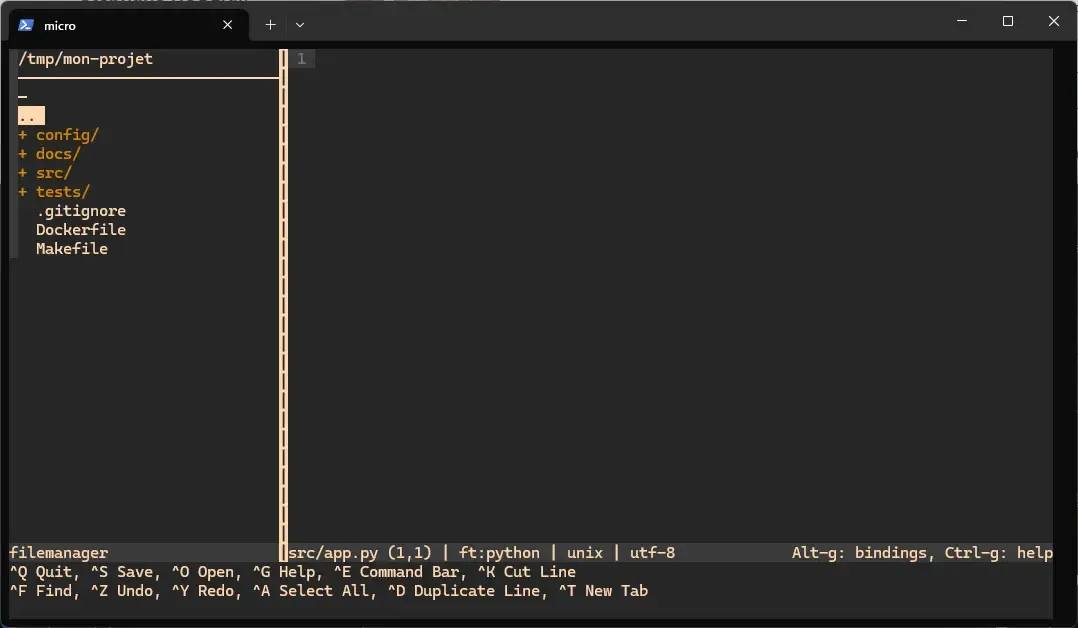
Plugins built in by default
Micro ships with several preinstalled plugins that you may already be using without knowing it:
| Plugin | What it does | Enabled by default |
|---|---|---|
autoclose | Automatically closes brackets, quotes and braces | Yes |
comment | Comments / uncomments the selection (detects the language) | Yes |
ftoptions | Adapts indentation to the file type | Yes |
linter | Analyses the code and shows errors in the gutter | Yes |
diff | Integrates the diff gutter with Git | Yes |
status | Adds Git information to the status bar | Yes |
literate | Highlighting for the Literate programming tool | Yes |
To comment or uncomment lines, the comment plugin provides the comment
command, available through Ctrl+E, and already binds it to two
shortcuts: Alt+/ and Ctrl+_, the sequence most terminal emulators send
when you type Ctrl+/. No configuration is needed; check the binding with the
showkey command:
showkey Alt-/The built-in help
Micro embeds complete documentation that you can read straight from the
editor. Press Ctrl+G to open the main help. You can also read specific
topics through the command bar:
| Command | Topic |
|---|---|
help | Help home page |
help keybindings | All default shortcuts |
help commands | All available commands |
help options | All configuration options |
help colors | Colour schemes and syntax highlighting |
help plugins | Writing and managing plugins |
help defaultkeys | JSON list of every default shortcut |
Help opens in a horizontal split. Close it with Ctrl+Q when you are done.
On a wide screen, this horizontal layout wastes space and truncates your
file. The helpsplit option, which defaults to hsplit, changes the split
direction so that help opens on the right and leaves the file readable on
the left:
set helpsplit vsplitTroubleshooting
Half of the problems listed here do not come from micro but from your
terminal or your graphical session. Before going further, print
echo $TERM and echo $LANG: a TERM value limited to xterm explains on its
own the lack of colours, and a LANG without UTF-8 explains unreadable
accented characters. The rows about the clipboard, rejected shortcuts
and the ftoptions plugin are the only ones whose cause really lies inside
the editor.
| Symptom | Likely cause | Solution |
|---|---|---|
| No syntax highlighting | Terminal does not support 256 colours | set colorscheme simple |
| Strange colours | Wrong TERM variable | export TERM=xterm-256color in your .bashrc |
| Copy and paste do not work with other applications | Clipboard tools missing | Install xclip (X11) or wl-clipboard (Wayland) |
| Tabs have the wrong width | Wrong tabsize option | set tabsize 2 (or 4 depending on your needs) |
| My options are ignored for some files | The ftoptions plugin overrides the values | set ftoptions false or configure with ft:type |
Error in bindings: action … does not exist at startup | Command written without its prefix in bindings.json | Write command:term, not term |
Invalid flag: -al on a replace | Flags combined | Separate them: -a -l |
| Text does not wrap | softwrap turned off | set softwrap true |
| The mouse does not work | Mouse support turned off | set mouse true |
micro: command not found | The binary is not in the PATH | sudo install -m 0755 micro /usr/local/bin/micro |
| Odd characters on screen | Incompatible encoding or terminal | Check that $TERM and $LANG are set correctly |
| Autocompletion does not trigger | Not enough context | Press Tab after typing at least 2-3 characters |
Key points
- Micro uses standard shortcuts (
Ctrl+S,Ctrl+C,Ctrl+V,Ctrl+Z): no modes to learn, no mnemonics to memorise. - Installation is instant: a single static binary, no dependency, no compilation, and a SHA-256 checksum to verify.
- Full mouse support (click, selection, wheel, multiple cursors) is a major asset for daily work in a terminal.
- Native multiple cursors (
Alt+Nfor occurrences,Alt+Mfor column editing,Ctrl+Clickwith the mouse) let you change several places at once, a considerable time saver. - Configuration is in JSON (
settings.json,bindings.json), easy to read, version and share; a command is bound there with thecommand:prefix. - The built-in plugin manager installs extensions in one command
(
plugin install name). - The built-in terminal (
term) lets you run commands without leaving the editor. - For syntax highlighting, micro supports more than 130 languages without any extra configuration.
Knowledge check
Check that the essentials of this guide are acquired. The questions only cover what has just been explained here.
Knowledge check
Check what you have learned with this interactive quiz
How it works
- The timer starts when you click Start
- Multiple choice, true/false and short answer questions
- You can move between questions
- Detailed results are shown at the end
Starts the quiz and the timer
Review
(0/0)Score by domain
A domain groups several guides and gets several questions, so its score is more reliable than a per-topic score, which often rests on a single question.
Summary
Strengths
No topic passed at 80% on at least two questions yet.
Weak areas
No topic below the pass mark.
Recommended next
Hints before you try again?
Continue the course: Administering with Neovim
A new full quiz with random questions
Work again only on the questions you missed
FAQ: frequently asked questions
A terminal editor built to be productive straight away
Micro is a terminal text editor designed to offer a familiar experience with no learning curve.| Feature | Detail |
|---|---|
| Shortcuts | Standard: Ctrl+S (save), Ctrl+C (copy), Ctrl+V (paste), Ctrl+Z (undo) |
| Installation | Single static binary, no dependency |
| Languages | Syntax highlighting for more than 130 languages |
| Mouse | Full support: click, selection, wheel |
| Multiple cursors | Edit several places at the same time |
| Plugins | Extensible through Lua plugins and a built-in manager |
Three installation methods
Verified archive (every distribution)
MICRO_VERSION=2.0.15
BASE="https://github.com/zyedidia/micro/releases/download/v${MICRO_VERSION}"
curl -sSLO "${BASE}/micro-${MICRO_VERSION}-linux64-static.tar.gz"
curl -sSLO "${BASE}/micro-${MICRO_VERSION}-linux64-static.tar.gz.sha"
sha256sum --check "micro-${MICRO_VERSION}-linux64-static.tar.gz.sha"
tar -xzf "micro-${MICRO_VERSION}-linux64-static.tar.gz"
sudo install -m 0755 "micro-${MICRO_VERSION}/micro" /usr/local/bin/micro
sha256sum --check command must answer OK before extraction.Package managers
| Distribution | Command |
|---|---|
| Ubuntu / Debian | sudo apt install micro |
| Fedora | sudo dnf install micro |
| Arch Linux | sudo pacman -S micro |
| macOS | brew install micro |
Snap
snap install micro --classic
micro -version. For the system clipboard, install xclip (X11) or wl-clipboard (Wayland).Shortcuts you already know
Micro uses the same shortcuts as most graphical editors:| Shortcut | Action |
|---|---|
Ctrl+S |
Save |
Ctrl+Q |
Quit |
Ctrl+Z |
Undo |
Ctrl+Y |
Redo |
Ctrl+C |
Copy the selection (or the line) |
Ctrl+X |
Cut the selection (or the line) |
Ctrl+V |
Paste |
Ctrl+D |
Duplicate the line or the selection |
Ctrl+K |
Cut the whole line |
Ctrl+F |
Find |
Ctrl+A |
Select all |
Ctrl+G |
Show help |
Ctrl+E |
Open the command bar |
Alt+G |
Show the shortcut menu |
Incremental search and interactive replace
Search
| Action | Shortcut |
|---|---|
| Open the search | Ctrl+F |
| Confirm the search | Enter |
| Next occurrence (from the file) | Ctrl+N |
| Previous occurrence (from the file) | Ctrl+P |
| Abandon the search | Esc |
Replace
Open the command bar withCtrl+E, then:replace "old" "new" # Interactive (y/n for each)
replace "old" "new" -a # Replace everything at once
replace "192\.168" "10.0" -a # With a regex
replace "special.text" "other" -a -l # Literal search (no regex)
-l flag turns off regular expression interpretation. Flags are written separately: a combined -al is rejected with Invalid flag: -al.Native multi-cursor editing
Multiple cursors let you change several places at the same time.Placing cursors
| Method | Shortcut |
|---|---|
| Next occurrence of the selected word | Alt+N |
| Start of each selected line | Alt+M |
| Cursor above / below | Alt+Shift+Up/Down |
| Multi-cursor click | Ctrl+Click |
Managing cursors
| Shortcut | Action |
|---|---|
Alt+P |
Remove the last cursor |
Alt+X |
Skip the occurrence and move to the next |
Alt+C |
Remove every extra cursor |
Esc |
Go back to a single cursor |
Alt+N as many times as there are occurrences left, then type the new name. Every occurrence changes at the same time.Tabs and splits for several files
Tabs
| Action | Shortcut |
|---|---|
| Open a file in a new tab | Ctrl+E then tab file.txt |
| Open an empty tab | Ctrl+T (then Ctrl+O to open a file in it) |
| Next tab | Alt+. |
| Previous tab | Alt+, |
| Close the tab | Ctrl+Q |
micro file1.txt file2.yml file3.py
Splits
Open the command bar (Ctrl+E) and type:vsplit file.txt # Vertical split (side by side)
hsplit file.txt # Horizontal split
Ctrl+W.Built-in terminal
Theterm command (through Ctrl+E) opens a terminal in a new tab if a single file is open, otherwise in place of the active pane. To get it below your code, first open an empty split with hsplit. Inside the terminal, micro's shortcuts are typed twice: Ctrl+W Ctrl+W changes pane, Ctrl+Q Ctrl+Q closes the terminal.Simple, readable JSON configuration
Micro's configuration lives in~/.config/micro/settings.json. Change options through the command bar (Ctrl+E):set tabsize 2
set colorscheme gruvbox
set softwrap true
Recommended options for DevOps
| Option | Value | Effect |
|---|---|---|
diffgutter |
true |
Git diff markers in the gutter |
hltrailingws |
true |
Highlights trailing whitespace |
rmtrailingws |
true |
Removes useless whitespace on save |
savecursor |
true |
Remembers the cursor position |
saveundo |
true |
Persistent undo history |
tabstospaces |
true |
Spaces instead of tabs |
Available colour schemes
Recommended 256-colour schemes:monokai (default), gruvbox, zenburn, darcula, twilight. True colour (24-bit) schemes: solarized-tc, atom-dark, gruvbox-tc, material-tc.The bindings.json file
Create or edit~/.config/micro/bindings.json:{
"Alt-s": "Save,Quit",
"Ctrl-r": "command-edit:replace ",
"F5": "command:term"
}
command: prefix: an entry "F5": "term" is rejected at startup (Error in bindings: action term does not exist). There is no need, on the other hand, to bind the comment plugin: it is already bound to Alt+/ and to Ctrl+_, which most terminals send for Ctrl+/.Chaining actions
| Separator | Behaviour |
|---|---|
, |
Always runs the next action |
| |
Runs the next one only if the previous one fails |
& |
Runs the next one only if the previous one succeeds |
showkey Ctrl-c command in the command bar (Ctrl+E). To disable a shortcut, bind it to None.Built-in plugin manager
Micro manages plugins straight from the command bar (Ctrl+E):| Command | Action |
|---|---|
plugin available |
List available plugins |
plugin search word |
Search for a plugin |
plugin install name |
Install a plugin |
plugin remove name |
Remove a plugin |
plugin update |
Update every plugin |
plugin list |
List installed plugins |
Recommended plugins
| Plugin | Use |
|---|---|
filemanager |
Tree file explorer |
jump |
Quick navigation within the file |
quoter |
Wrap in quotes or brackets |
manipulator |
Text transformations (uppercase, camelCase, snake_case) |
~/.config/micro/plug/.Seven preinstalled plugins
Micro ships with plugins enabled by default:| Plugin | What it does |
|---|---|
autoclose |
Automatically closes brackets, quotes and braces |
comment |
Comments or uncomments according to the detected language |
ftoptions |
Adapts indentation to the file type (Go, Python, Makefile) |
linter |
Shows syntax errors in the gutter |
diff |
Integrates the diff gutter with Git (added, changed, deleted lines) |
status |
Adds Git information to the status bar |
literate |
Highlighting for the Literate programming tool |
set plugin_name false. For example set ftoptions false if the plugin overrides your indentation settings.Three philosophies of terminal editing
| Criterion | nano | vim | micro |
|---|---|---|---|
| Availability | Preinstalled everywhere | Preinstalled (vi) | To install |
| Learning curve | Very easy | Hard (modes) | Very easy |
| Shortcuts | Specific | Specific | Standard (Ctrl+S, Ctrl+C) |
| Multiple cursors | No | With plugins | Native |
| Mouse | Limited | With config | Full |
| Plugins | No | Yes (19,000+) | Yes (Lua) |
| Built-in terminal | No | No | Yes |
| Use case | Quick editing | Experts, productivity | Comfortable daily use |
Micro's control centre
PressCtrl+E to open the command bar, then type a command:File commands
| Command | Action |
|---|---|
save |
Save |
open file |
Open a file |
tab file |
Open in a new tab |
quit |
Quit |
Navigation commands
| Command | Action |
|---|---|
goto 42 |
Go to line 42 |
replace "a" "b" -a |
Replace everywhere |
cd /path |
Change directory |
Advanced commands
| Command | Action |
|---|---|
set option value |
Change an option |
term |
Open a built-in terminal (new tab or active pane) |
textfilter sort |
Filter the selection through a shell command |
run command |
Run a command in the background, output shown on one line |
Tab key triggers completion in the command bar.Fixes for frequent problems
| Symptom | Cause | Solution |
|---|---|---|
| No syntax highlighting | 16-colour terminal | set colorscheme simple |
| Strange colours | Wrong TERM variable | export TERM=xterm-256color |
| Clipboard does not work | Missing tools | Install xclip (X11) or wl-clipboard (Wayland) |
| Wrong tabs | tabsize badly set | set tabsize 2 or set tabsize 4 |
| Ignored options | ftoptions plugin | set ftoptions false |
| Mouse inactive | Support turned off | set mouse true |
| Binary not found | Not in the PATH | sudo mv micro /usr/local/bin/ |
Ctrl+G, or Ctrl+E then help, for the full documentation.