You master the Vim basics, modes, motions, substitution, and you want to turn
it into a real working environment. This guide goes beyond the
certification corridor to cover what makes Vim productive day to day: working
on several files side by side, automating repetitive tasks with macros, and
extending the editor with plugins. By the end, you will have a complete
.vimrc and an ecosystem comparable to a lightweight IDE. The commands and
the configuration were replayed on Vim 9.1, the one shipped by Debian 13.
What you will learn
- Organise several files with buffers, splits and tabs
- Record and replay macros for repetitive tasks
- Use the
:gcommand to apply an action to every line matching a pattern - Install plugins with vim-plug
- Set up a complete
.vimrcthat stays maintainable - Use 12 essential plugins that turn Vim into a terminal IDE
In which context?
The features in this guide are outside the certification core (LFCS/RHCSA). They come into play when Vim becomes your main editor: development, writing long-lived scripts, comparing configuration files, reshaping a CSV export. They assume a personal workstation where you can configure your environment, not a throwaway SSH session on a customer's server.
| Situation | Useful feature |
|---|---|
| Compare two versions of a configuration file | Vertical splits (:vsp) |
| Reformat 100 lines of a CSV identically | Macros (qa ... q then 100@a) |
| Add a prefix to every line containing "debug" | Global command (:g/debug/normal I# ) |
| Navigate a project of 200 files | fzf plugin (:Files) |
| Comment/uncomment a block of code | vim-commentary plugin (gcc) |
| See Git changes in the margin | vim-gitgutter plugin |
Working with several files
As a sysadmin or developer, you rarely edit a single file. You often need to compare two configurations, read one file while changing another, or jump quickly between several scripts. Vim handles this with three complementary mechanisms: buffers, splits and tabs.
Buffers: keep several files in memory
When you open a file with :e, Vim loads it into a buffer (an area of
memory). Think of buffers as a browser's hidden tabs: the files are open,
but you only see one at a time.
| Command | What it does |
|---|---|
:e file | Opens a file in a new buffer |
:ls | Lists every open buffer |
:b2 | Switches to buffer no. 2 |
:bn | Moves to the next buffer |
:bp | Moves to the previous buffer |
:bd | Closes the current buffer (without quitting Vim) |
Splits: show several files side by side
Splits divide your screen to show several files at the same time. It is like having two sheets of paper open next to each other on your desk, each in its own window.
| Command | What it does |
|---|---|
:vsp file | Vertical split (side by side) |
:sp file | Horizontal split (one above the other) |
To move between windows, the combination is always the same: Ctrl+w followed
by the direction.
| Shortcut | Navigation |
|---|---|
Ctrl+w h | Go to the left window |
Ctrl+w l | Go to the right window |
Ctrl+w j | Go to the window below |
Ctrl+w k | Go to the window above |
Ctrl+w = | Equalise the size of every window |
Ctrl+w c | Close the current window |
Ctrl+w o | Keep only the current window |
Here is an example with three open files, a Python script, a YAML file and a Bash script, all visible at the same time:
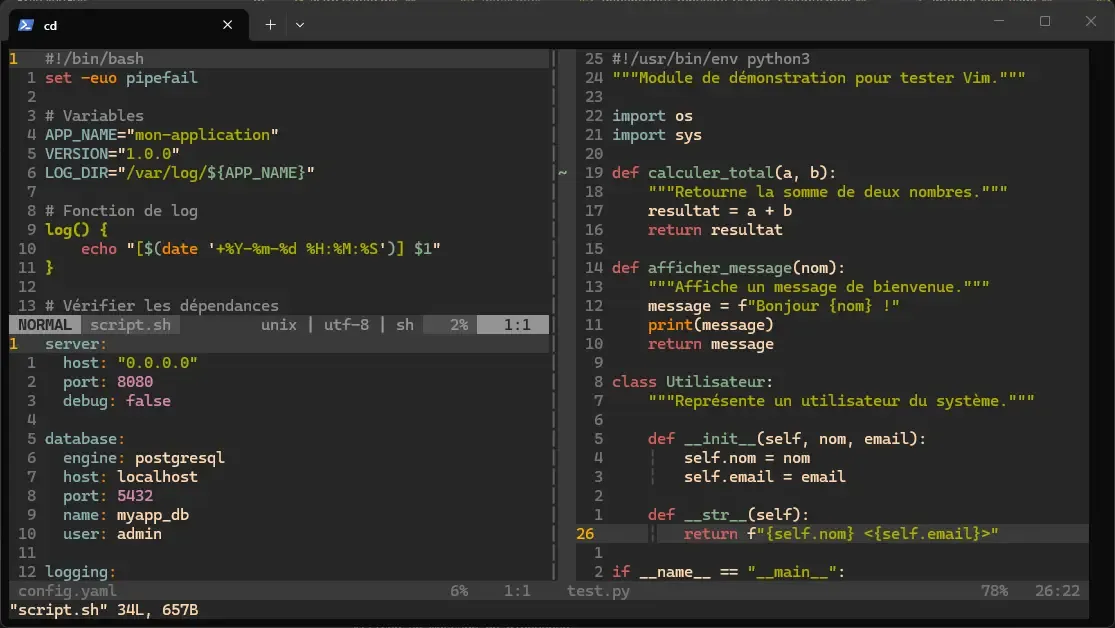
This layout is very handy to compare two configuration files or to edit code while reading the documentation in the neighbouring window.
Tabs: separate work contexts
Tabs group sets of splits. If splits are the windows on your desk, tabs are virtual desktops. Useful to separate contexts: one tab for the code, one for configurations, one for logs.
| Command | What it does |
|---|---|
:tabnew file | Opens a file in a new tab |
gt | Moves to the next tab |
gT | Moves to the previous tab |
:tabs | Lists every open tab |
:tabclose | Closes the current tab |
Automate with macros
Say you have a CSV file of 100 lines and you must reformat every line the same way: add a prefix, remove a column, change a separator. Doing it by hand would take hours. Vim macros let you record a sequence of actions and replay it as many times as needed.
Record and replay a macro
A macro is stored in a register (a memory slot identified by a letter).
-
Start recording: press
qfollowed by a letter to choose the register. For example,qarecords into registera. You seerecording @aappear at the bottom of the screen. -
Perform the actions: everything you type (moves, changes, insertions) is recorded. Work on a single line as a model.
-
Stop recording: press
q. Therecordingmessage disappears. -
Replay the macro: type
@ato run the macro in registera. Type@@to replay the last macro used.
Apply an action to a range of lines
The most direct way (without a macro) to comment lines 4 to 8:
:4,8normal I#This command tells Vim: "on lines 4 to 8, run the normal command I#"
(insert # at the start of the line). The normal keyword means that the
keys that follow are read as in normal mode. To get # followed by a space,
type a space after the #: it is invisible on screen, but Vim inserts it,
as checked on Vim 9.1.
Apply an action to every line matching a pattern
You want to comment every line that contains the word debug:
:g/debug/normal I#The :g/pattern/ command (for global) selects every line matching the
pattern, then applies the action that follows. It is extremely
powerful: you can, for example, delete every empty line with :g/^$/d.
Repeat a macro N times
To run macro a ten times in a row:
10@aYou do the work once by hand, then Vim repeats it 10, 100 or 1,000 times. For the repetitions to move forward, the macro must end with a move to the next line, otherwise they all apply to the same line.
Save a macro in .vimrc
Macros are lost when you close Vim. To keep one, add it to your .vimrc
file between double quotes:
let @a="I# \<Esc>j"This line pre-fills register a with the macro "insert # at the start of
the line, go back to normal mode, move down one line". The double quotes
are essential: between single quotes, Vim does not translate \<Esc>, and
the macro inserts the text # \<Esc>j literally instead of leaving insert
mode, as measured on Vim 9.1.
Customise Vim with .vimrc
The ~/.vimrc file is the heart of your Vim configuration. It is read at
every launch. Each line matches a command you could type by hand, but which is
applied automatically.
Think of .vimrc as your shell's .bashrc: it is where you define the
settings that match your way of working.
Structure of a complete .vimrc
Here is a solid starting point with an explanation for each block. The
set command accepts a comment at the end of the line, introduced by ":
not every command does, as the Leader key shows further down.
" === Appearance ===set number              " Line numbers on the leftset relativenumber      " Distance from the current lineset cursorline          " Highlight the cursor lineset showmatch           " Briefly highlight the matching bracketset laststatus=2        " Status line always shown
" === Indentation ===set tabstop=4           " A tab is worth 4 spacesset shiftwidth=4        " Automatic indentation shifts by 4 spacesset expandtab           " Tab inserts spaces (not \t)set autoindent          " Keep the previous line's indentationset smartindent         " Add a level after { or if
" === Search ===set incsearch           " Real-time results while typingset hlsearch            " Highlight every matchset ignorecase          " Case-insensitive searchset smartcase           " UNLESS you type an uppercase letter
" === Comfort ===set encoding=utf-8      " UTF-8 encodingset scrolloff=8         " 8 lines visible around the cursorset wildmenu            " Completion menu on :e <Tab>set mouse=a             " Mouse on (click, scroll, selection)set clipboard=unnamedplus " System clipboard integration
Persistent undo
By default, when you close a file and reopen it, the undo history is lost. Persistent undo saves that history to disk:
" === Persistent undo ===set undofileset undodir=~/.vim/undodirCreate the folder once and for all. Vim does not create it, and when it is missing, it writes no undo file without showing the slightest message: the history is lost on close as if the option were absent, which makes the failure hard to notice (measured on Vim 9.1):
mkdir -p ~/.vim/undodirThe Leader key
The Leader key is a prefix you choose to create custom shortcuts that do not get in the way of any existing Vim command. By convention, the Space key is ideal: easy to reach and unused in normal mode.
" === Leader key ===let mapleader = " "     " Space = Leader
" Space+w → savennoremap <leader>w :w<CR>" Space+q → quitnnoremap <leader>q :q<CR>" Space+h → clear the highlightingnnoremap <leader>h :nohlsearch<CR>
Here the comments go above the nnoremap lines, never at the end of the
line: for a mapping command, everything that follows is part of the
shortcut. Measured on Vim 9.1, a line nnoremap <leader>w :w<CR> " Space+w
records a shortcut that types :w, confirms, then replays the spaces and the
comment text in normal mode. :verbose nmap <leader>w shows what was really
recorded.
The Space h shortcut is very handy: after a search, every match stays
highlighted. Space h removes the highlighting without losing the search,
which n keeps walking through.
Adapt indentation to the file type
A Python file uses 4 spaces, a YAML file uses 2. Vim can adjust
automatically thanks to FileType autocommands:
filetype plugin indent on
autocmd FileType python set tabstop=4 shiftwidth=4 expandtabautocmd FileType yaml set tabstop=2 shiftwidth=2 expandtabautocmd FileType json set tabstop=2 shiftwidth=2 expandtabautocmd FileType sh set tabstop=2 shiftwidth=2 expandtab
Apply changes without restarting
After editing your .vimrc, there is no need to close and reopen Vim:
:source ~/.vimrcThis command rereads the configuration file and applies the changes
straight away. The autocmd lines are then registered a second time:
without an augroup group, each :source adds a duplicate, with no visible
effect here since each duplicate applies the same setting again.
Install plugins with vim-plug
So far, you have a well-configured but "bare" Vim. Plugins add features Vim does not have out of the box: a file explorer, Git integration, fuzzy search, modern colour schemes.
vim-plug is the most popular plugin manager (more than 35,000 stars on GitHub, 35,775 recorded on 1 October 2026). It downloads, installs and updates your plugins in one command.
Install vim-plug
The following command downloads vim-plug, pinned to the commit of its
version 0.14.0 rather than to the tag, which a maintainer can move, then
checks its SHA-256 checksum before Vim runs it. You only have to do it
once; the file lands in ~/.vim/autoload/, which Vim loads on demand:
curl -fLo ~/.vim/autoload/plug.vim --create-dirs \ https://raw.githubusercontent.com/junegunn/vim-plug/d80f495fabff8446972b8695ba251ca636a047b0/plug.vimecho "20b4c895f98d13848204698068c4dd031730d4e7c9c4b630d6273b9b9afcdcdb $HOME/.vim/autoload/plug.vim" \ | sha256sum --checkThe check must answer OK, recorded on 2026-10-01 against the 0.14.0 tag.
Declare plugins in .vimrc
Each Plug line matches one plugin. The quoted name is the GitHub
repository (author/name), and the lines go between plug#begin and
plug#end:
" === Plugins (vim-plug) ===call plug#begin('~/.vim/plugged')
" Navigation and filesPlug 'preservim/nerdtree'         " Tree file explorerPlug 'junegunn/fzf', { 'do': { -> fzf#install() } }  " Fuzzy searchPlug 'junegunn/fzf.vim'           " fzf commands for Vim
" EditingPlug 'tpope/vim-commentary'       " Comment/uncomment with gccPlug 'tpope/vim-surround'         " Change quotes/bracketsPlug 'tpope/vim-repeat'           " Make . work with pluginsPlug 'jiangmiao/auto-pairs'       " Automatic closing of (, [, {, "
" GitPlug 'tpope/vim-fugitive'         " Git commands from VimPlug 'airblade/vim-gitgutter'     " +/~/- markers in the gutter
" AppearancePlug 'morhetz/gruvbox'            " Pleasant colour schemePlug 'itchyny/lightline.vim'      " Coloured status linePlug 'yggdroot/indentline'        " Visual indentation guides
call plug#end()
Install the plugins
Save the .vimrc, restart Vim, then type:
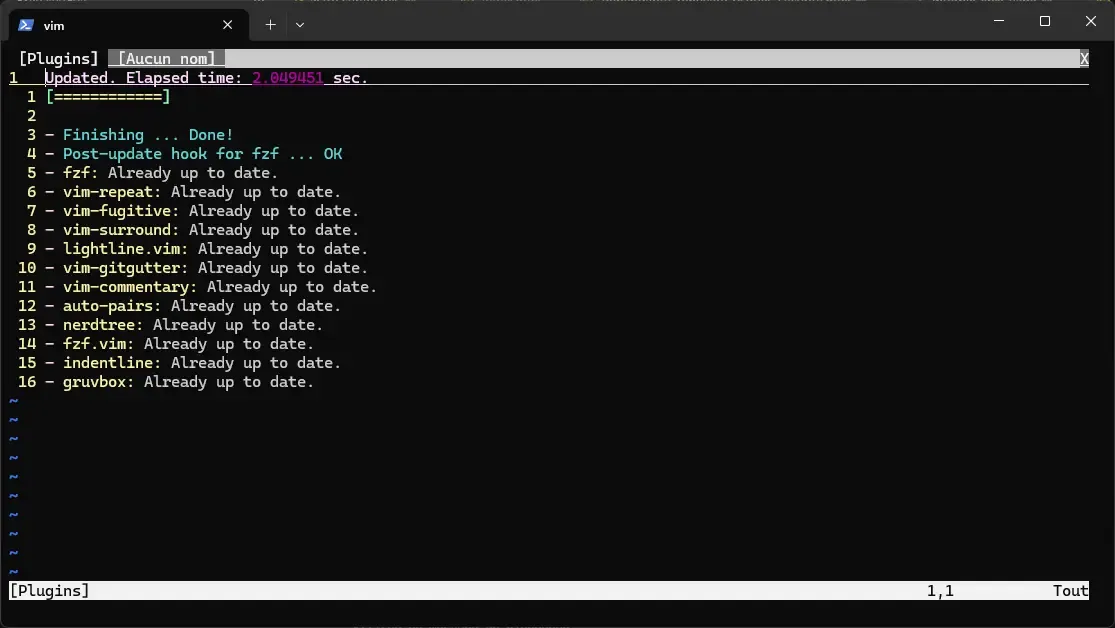
:PlugInstallvim-plug downloads and installs each plugin in parallel. The window shows the progress and a "Done!" message:
Manage plugins day to day
Four commands cover a plugin's whole life cycle, from installation to
clean-up; they all read the list declared in the .vimrc:
| Command | What it does |
|---|---|
:PlugInstall | Installs the new plugins added to .vimrc |
:PlugUpdate | Updates every installed plugin |
:PlugClean | Removes the plugins whose Plug line was deleted |
:PlugStatus | Shows the state of each plugin |
To remove a plugin: delete its Plug line from .vimrc, then run
:PlugClean.
The essential plugins in detail
The 12 plugins declared above cover common needs. Here is what each one brings, with the commands to know.
Gruvbox: a readable colour scheme
Problem solved: by default, Vim's scheme has little contrast. Gruvbox offers a palette of balanced warm colours, pleasant for long sessions. Keywords, strings, comments and functions each get a distinct colour.
Add these lines to your .vimrc after the plug#end() block:
" === Gruvbox scheme ===set background=darkcolorscheme gruvboxset noshowmode " Hide -- INSERT -- since lightline shows it 
NERDTree: browse your files
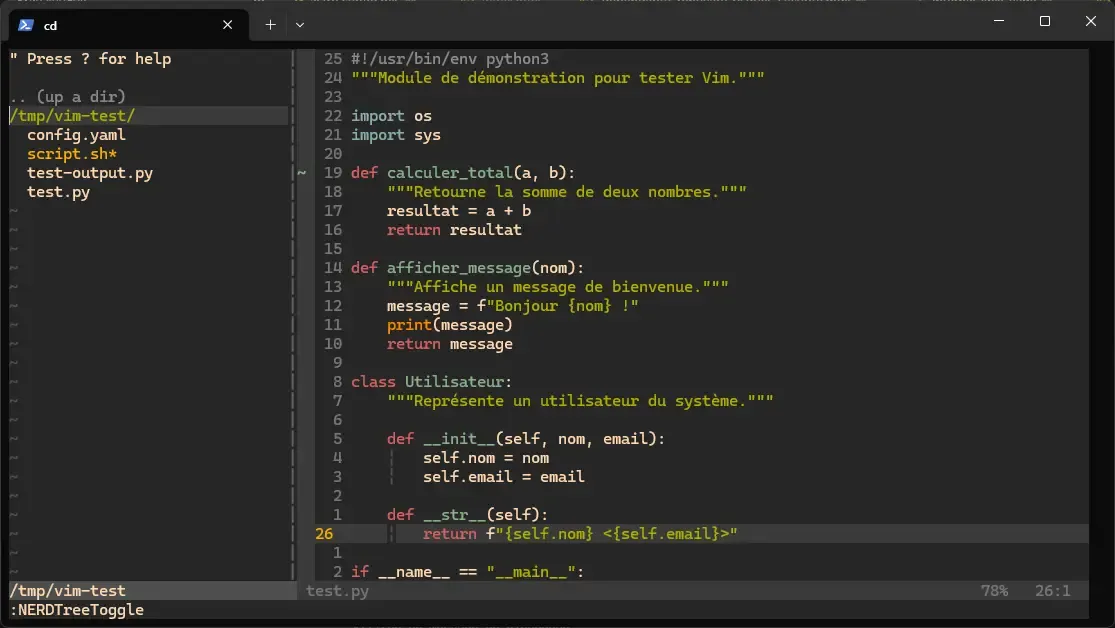
Problem solved: without a plugin, to open a file you must type its full
path with :e /path/to/file. NERDTree shows a tree on the left-hand
side, as in VS Code.
" === NERDTree ===nnoremap <leader>n :NERDTreeToggle<CR>Press Space n to show or hide the explorer:
Useful keys in NERDTree:
| Key | What it does |
|---|---|
o or Enter | Open the file or expand the folder |
s | Open in a vertical split |
i | Open in a horizontal split |
t | Open in a new tab |
R | Refresh the tree |
m | Open the menu (create, rename, delete) |
I | Show/hide hidden files |
q | Close NERDTree |
fzf.vim: find files instantly
Problem solved: on a project with hundreds of files, finding the right one by typing its full path is tedious. fzf (fuzzy finder) lets you type a few approximate letters and finds the file for you.
" === fzf ===" Find a file by namennoremap <leader>f :Files<CR>" Browse open filesnnoremap <leader>b :Buffers<CR>" Search text across the whole projectnnoremap <leader>r :Rg<CR> 
The :Rg command (Ripgrep) searches content inside files, like an
ultra-fast grep built into Vim, and shows the
matches in a filterable list.
vim-fugitive: use Git without leaving Vim
Problem solved: to run a git status, you normally have to leave Vim, type
the command, then come back. vim-fugitive brings Git straight into Vim,
with commands named after their shell equivalent:
| Command | Shell equivalent | What it does |
|---|---|---|
:Git or :G | git status | Interactive summary of the changes |
:Git diff | git diff | Compares with the last commit |
:Git blame | git blame | Who changed each line, and when |
:Git log | git log | Commit history |
:Gwrite | git add file | Stages the current file |
:Gread | git checkout file | Discards the local changes |
vim-gitgutter: see changes in the gutter
Problem solved: when you edit a versioned file, it is hard to know which lines changed. vim-gitgutter shows coloured markers in the gutter (the thin column left of the line numbers):
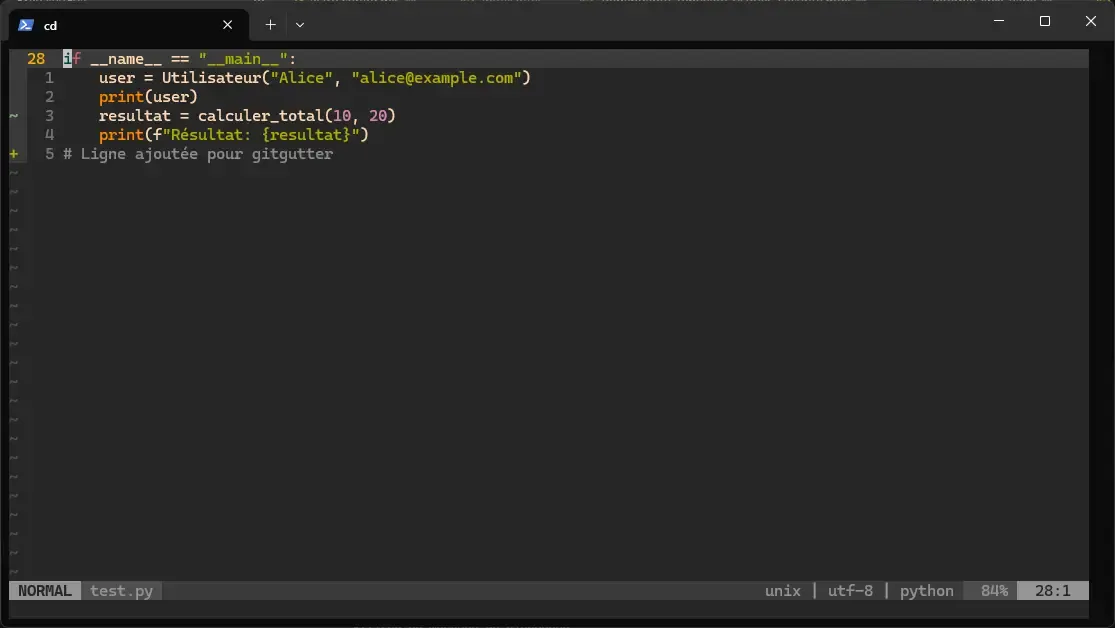
| Marker | Colour | Meaning |
|---|---|---|
+ | Green | Added line |
~ | Yellow | Changed line |
- | Red | Deleted line |
The quick navigation shortcuts only exist in a file tracked by Git: the plugin creates them buffer by buffer, when a versioned file is opened.
| Shortcut | What it does |
|---|---|
]c | Jumps to the next change |
[c | Jumps to the previous change |
<leader>hp | Previews the change |
<leader>hu | Undoes the local change |
vim-surround: handle quotes and brackets
Problem solved: changing single quotes into double ones, or wrapping a word in brackets, normally takes several steps. vim-surround does it in a single command, and every row of the table was replayed on Vim 9.1:
| Situation | Command | Before | After |
|---|---|---|---|
| Change the quotes | cs"' | "hello" | 'hello' |
| Turn into an HTML tag | cs'<p> | 'hello' | <p>hello</p> |
| Remove the quotes | ds" | "hello" | hello |
| Add quotes around a word | ysiw" | hello | "hello" |
| Wrap the line in brackets | yss( | hello world | ( hello world ) |
The syntax follows the principle action + s + old + new. cs"' =
change surround " into '. The opening bracket ( adds spaces
inside; the closing one ) leaves them out.
vim-commentary: comment with one key
Problem solved: commenting code means knowing the right character for
each language (# in Python, // in JavaScript, " in vimscript).
vim-commentary detects the language automatically:
| Command | What it does |
|---|---|
gcc | Comment/uncomment the current line |
gcap | Comment the whole paragraph |
gc3j | Comment the current line and the next 3 |
visual selection + gc | Comment the whole selection |
lightline.vim: an informative status line
Problem solved: Vim's default status line is hard to read. lightline replaces it with a coloured line that shows the mode (NORMAL, INSERT, VISUAL…), the file name, the encoding and the position.
" === Lightline ===let g:lightline = { 'colorscheme': 'gruvbox' }auto-pairs: automatic closing of delimiters
Problem solved: when you type (, you have to type ) later.
auto-pairs adds it automatically and puts the cursor between the two.
It works with [, {, ", ', `. To prevent the closing in a given
case, type Ctrl+v before the character, which is then inserted as is.
indentLine: visualise indentation
Problem solved: in YAML or Python files, indentation is significant: one space too many changes the meaning of the file. indentLine shows thin vertical lines at each indentation level to help you align correctly.
Complete .vimrc summary
Here is the complete configuration that gathers every setting and plugin
presented, followed by a quick installation in five commands. It was loaded
as is in a Debian 13 container: the 12 plugins install and colorscheme
answers gruvbox.
" ============================================" .vimrc: complete Vim configuration" ============================================
" === Appearance ===set numberset relativenumberset cursorlineset showmatchset laststatus=2set noshowmode
" === Indentation ===set tabstop=4set shiftwidth=4set expandtabset autoindentset smartindentfiletype plugin indent on
" === Search ===set incsearchset hlsearchset ignorecaseset smartcase
" === Behaviour ===set encoding=utf-8set scrolloff=8set wildmenuset mouse=aset clipboard=unnamedplus
" === Persistent undo ===set undofileset undodir=~/.vim/undodir
" === Leader key ===let mapleader = " "nnoremap <leader>w :w<CR>nnoremap <leader>q :q<CR>nnoremap <leader>h :nohlsearch<CR>
" === Plugins (vim-plug) ===call plug#begin('~/.vim/plugged')
Plug 'preservim/nerdtree'Plug 'tpope/vim-commentary'Plug 'itchyny/lightline.vim'Plug 'tpope/vim-fugitive'Plug 'airblade/vim-gitgutter'Plug 'tpope/vim-surround'Plug 'tpope/vim-repeat'Plug 'junegunn/fzf', { 'do': { -> fzf#install() } }Plug 'junegunn/fzf.vim'Plug 'jiangmiao/auto-pairs'Plug 'morhetz/gruvbox'Plug 'yggdroot/indentline'
call plug#end()
" === Scheme ===set background=darkcolorscheme gruvbox
" === NERDTree ===nnoremap <leader>n :NERDTreeToggle<CR>
" === fzf ===nnoremap <leader>f :Files<CR>nnoremap <leader>b :Buffers<CR>nnoremap <leader>r :Rg<CR>
" === Lightline ===let g:lightline = { 'colorscheme': 'gruvbox' }
" === Per file type configuration ===autocmd FileType python set tabstop=4 shiftwidth=4 expandtabautocmd FileType yaml set tabstop=2 shiftwidth=2 expandtabautocmd FileType json set tabstop=2 shiftwidth=2 expandtabautocmd FileType sh set tabstop=2 shiftwidth=2 expandtab
Copy and paste these commands to install everything in one go. On the very
first pass, step 4 reports E185: Cannot find color scheme 'gruvbox' and
returns code 1: the scheme is not installed yet when .vimrc is read. The
12 plugins install all the same, and the error disappears at the next
launch.
# 1. Install vim-plug 0.14.0 (pinned commit, checksum verified)curl -fLo ~/.vim/autoload/plug.vim --create-dirs \  https://raw.githubusercontent.com/junegunn/vim-plug/d80f495fabff8446972b8695ba251ca636a047b0/plug.vimecho "20b4c895f98d13848204698068c4dd031730d4e7c9c4b630d6273b9b9afcdcdb  $HOME/.vim/autoload/plug.vim" \  | sha256sum --check
# 2. Create the folder for persistent undomkdir -p ~/.vim/undodir
# 3. Copy the .vimrc (create ~/.vimrc with the content opposite)
# 4. Install every plugin automaticallyvim -es -u ~/.vimrc -c 'PlugInstall --sync' -c 'qa'
# 5. Install ripgrep for the fzf :Rg search (optional)sudo apt install ripgrep   # Ubuntu/Debiansudo dnf install ripgrep   # RHEL/Fedora
Leader shortcuts summary
Once your .vimrc is in place with the plugins, here are all the available
shortcuts with the Leader key (Space). :nmap <leader> lists them from
Vim, with their exact definition:
| Shortcut | Action |
|---|---|
Space w | Save |
Space q | Quit |
Space h | Clear search highlighting |
Space n | Open/close NERDTree |
Space f | Fuzzy file search |
Space b | Browse buffers |
Space r | Text search across the project |
Troubleshooting
Most failures of an enriched .vimrc come down to a plugin not installed,
a Vim binary built without a feature, or a misplaced line in the file.
The table follows that order.
| Symptom | Likely cause | Solution |
|---|---|---|
| The Gruvbox scheme does not show | Plugin not installed | :PlugInstall then restart Vim |
E185: Cannot find color scheme 'gruvbox' | First launch, before :PlugInstall | Install the plugins, then restart Vim |
E492: Not an editor command: PlugInstall | vim-plug missing | Rerun the installation curl command |
| System copy and paste do not work | Vim built without +clipboard | sudo apt install vim-gtk3 |
fzf :Rg finds nothing | ripgrep not installed | sudo apt install ripgrep |
| NERDTree does not open | Plugin not installed | Check the Plug line and rerun :PlugInstall |
The Space+... shortcut does nothing | Leader misplaced | let mapleader = " " must come before the nnoremap lines |
| A shortcut does strange things after its action | Comment at the end of an nnoremap line | Move the comment above, check with :verbose nmap |
A saved macro inserts \<Esc> literally | let @a='…' between single quotes | Write let @a="…" |
E518: Unknown option: undodir | Vim too old | Upgrade to Vim 7.3+ |
u no longer undoes anything after reopening, without any message | Missing undodir folder, which Vim does not report | mkdir -p ~/.vim/undodir |
Key points
- Buffers (
:ls,:bn,:bp) keep several files in memory, much faster than reopening them each time. - Splits (
:vsp,:sp,Ctrl+wnavigation) let you see several files side by side. - Macros (
qa ... qthen@aor10@a) automate repetitive tasks; in.vimrc, you freeze them withlet @a="…", between double quotes. - The global command
:g/pattern/actionapplies an action to every line matching a pattern, extremely powerful on log or configuration files. - An
nnoremapaccepts no comment at the end of the line: the text would become part of the shortcut. - vim-plug installs and manages plugins in one line; the 12 plugins presented cover everyday needs (files, Git, search, editing, appearance).
- The
.vimrcis built gradually: start minimal and add options when you feel the need. - Keep your
.vimrcin a Git repository (dotfiles) to find it on every machine.
Knowledge check
Check that the essentials of this guide are acquired. The questions only cover what has just been explained here.
Knowledge check
Check what you have learned with this interactive quiz
How it works
- The timer starts when you click Start
- Multiple choice, true/false and short answer questions
- You can move between questions
- Detailed results are shown at the end
Starts the quiz and the timer
Review
(0/0)Score by domain
A domain groups several guides and gets several questions, so its score is more reliable than a per-topic score, which often rests on a single question.
Summary
Strengths
No topic passed at 80% on at least two questions yet.
Weak areas
No topic below the pass mark.
Recommended next
Hints before you try again?
Continue the course: Nix: master the reproducible package manager
A new full quiz with random questions
Work again only on the questions you missed