
Are you copy-pasting the same jobs between your projects? GitLab CI/CD templates let you centralize and reuse your configurations. Change one place, propagate everywhere.
Two keywords share the work, and you need to tell them apart from the start. include brings in configuration: it loads a YAML file, from the same repository or from another project, into your .gitlab-ci.yml. extends makes a job inherit the definition of another job. So you import the template with include, then reuse its jobs with extends.
This guide is for you if...
Read this guide through the section that matches your need. If you
manage several projects with the same Node.js, Python or
Docker configuration, start with include, importing files.
To centralize a single source of truth, see
templates centralized in a dedicated project.
To version your templates with ref and control
updates, read versioning with ref. Finally, to include
depending on the branch or a variable, go to
conditional includes.
What you will learn
By the end of this module, you will be able to:
- Use the 5 types of include: local, project, remote, template, component
- Create a templates project: recommended structure and organization
- Version your templates:
refon a commit SHA, the only reference that cannot be moved - Share between projects: one source of truth for 50+ repos
- Make includes conditional: rules to include depending on the context
- Secure your templates: avoid supply chain risks
- Split a pipeline: one file per stage, a readable orchestrator
- Debug with the Pipeline Editor: view the merged config
Prerequisites
Before going on, make sure you are comfortable with:
Why factor out?
The problem: copy-paste debt
Without factoring, here is what happens:
| Situation | Concrete impact |
|---|---|
| Duplication | The same Node.js job copied into 50 projects |
| Drift | Each project diverges: Node 16 here, Node 18 there, Node 20 elsewhere |
| Maintenance | Vulnerability found? 50 merge requests to create... |
| Inconsistency | Project A tests with coverage, project B does not |
Concrete example: You discover that npm ci is faster and more reliable than npm install. To update 50 projects, you need:
- 50 branches
- 50 merge requests
- 50 reviews
- 50 merges
→ 1 day of work for a 2-word change.
The solution: a centralized template
With templates:
| Benefit | Result |
|---|---|
| One source of truth | The template defines the "right way" to build Node.js |
| Guaranteed consistency | All projects use the same version |
| Simple updates | 1 merge request in the templates project = 50 projects updated |
| Enforced standards | Tests, linting and security included by default |
include: importing files
The include keyword imports YAML from other files. It is the foundation of reuse.
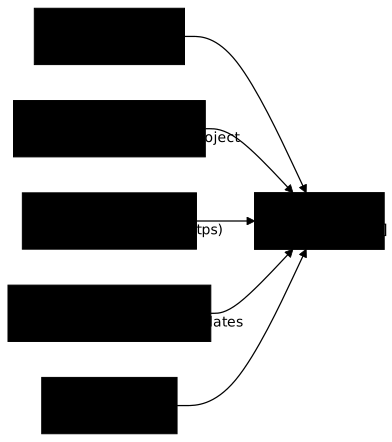
The 5 types of include
GitLab offers 5 ways to include files, depending on where they are:
| Type | Syntax | Where is the file? | Typical use case |
|---|---|---|---|
local | local: '/path/file.yml' | Same repository | Split a big .gitlab-ci.yml |
project | project: 'group/project' | Another GitLab project | Shared templates (recommended) |
remote | remote: 'https://...' | External URL | Open source templates |
template | template: 'Jobs/Build.gitlab-ci.yml' | Official GitLab templates | SAST, DAST, License Scanning |
component | component: 'gitlab.com/org/comp@v1' | CI/CD Catalog | Reusable versioned building blocks |
The diagram summarizes the table: the five possible sources, from the same
repository to the CI/CD catalog, all converge on the .gitlab-ci.yml
that imports them with include:.
Local include: organizing a big file
When your .gitlab-ci.yml goes beyond 200-300 lines, it becomes hard to read. The solution: split it into files by category.
# .gitlab-ci.yml (main file, short and readable)include:  - local: '/ci/build.yml'      # Build jobs  - local: '/ci/test.yml'       # Test jobs  - local: '/ci/deploy.yml'     # Deployment jobs
stages:  - build  - test  - deploy
workflow:  rules:    - if: $CI_PIPELINE_SOURCE == "merge_request_event"    - if: $CI_COMMIT_BRANCH == $CI_DEFAULT_BRANCH
# ci/build.yml (dedicated to the build)build: stage: build script: - npm ci - npm run buildWhy is it better?
- Readability: each file has a single responsibility
- Collaboration: the infra team edits
deploy.yml, developers edittest.yml - Navigation: you quickly find what you are looking for
The main file keeps what is common to all the stages: the stages: list, which gives the order of the stages, and the workflow: block, which says when a pipeline is created (see the trigger rules). Scattered across the included files, you would have to open them all to answer these two questions. What is specific to a stage (its jobs, its variables) goes with it into its own file.
Included files isolate nothing: GitLab merges all of them before evaluating anything. A hidden job declared in ci/build.yml is therefore visible from ci/test.yml, and a job can extend it with extends without importing anything more. A YAML anchor, on the other hand, does not cross files, because it is resolved file by file before the merge (extends and anchors). To share a model between several files, use extends.
Project include: sharing between projects
This is the most useful type of include. It imports templates from a dedicated GitLab project.
include: - project: 'devops/ci-templates' # Project containing the templates file: '/templates/nodejs.yml' # Path of the file inside that project ref: 'main' # Branch, tag or commitBreaking down the syntax:
| Option | What it does | Example |
|---|---|---|
project | Full path of the GitLab project | 'devops/ci-templates' |
file | Path of the file inside the project | '/templates/nodejs.yml' |
ref | Version to use (optional: without ref, GitLab uses the project's HEAD) | 'main', 'v1.0.0', a full commit SHA |
The project path explained:
devops/ci-templates└──┬── └────┬───────── group project nameIf your project is in a subgroup: 'company/devops/ci-templates'
Remote include
External file through a URL:
include: - remote: 'https://example.com/templates/ci.yml'Limits and traps of include
Official GitLab templates
GitLab provides ready-to-use templates:
include: - template: Jobs/Build.gitlab-ci.yml - template: Security/SAST.gitlab-ci.ymlOfficial documentation: GitLab CI/CD Templates, this page lists all the templates maintained by GitLab with their usage documentation.
Centralized templates in a dedicated project
Recommended structure
Create a devops/ci-templates project with this structure:
ci-templates/├── templates/│ ├── nodejs.yml│ ├── python.yml│ ├── docker.yml│ └── deploy/│ ├── kubernetes.yml│ └── aws.yml├── jobs/│ ├── lint.yml│ ├── test.yml│ └── security.yml└── README.mdExample of a Node.js template
Two approaches are possible. Choose only one to avoid confusion:
Principle: Each job runs npm ci, but the cache speeds up the download.
# templates/nodejs.yml: Cache pattern (recommended to start)
variables:  NODE_VERSION: "24"
# Shared base configuration.nodejs_base:  image: "node:${NODE_VERSION}"  cache:    key:      files:        - package-lock.json    # Invalidated if dependencies change    paths:      - .npm/                  # npm cache, NOT node_modules/    policy: pull-push  before_script:    - npm ci --cache .npm --prefer-offline
# Build: npm ci already done in before_script.nodejs_build:  extends: .nodejs_base  script:    - npm run build  artifacts:    paths:      - dist/    expire_in: 1 week
# Test: npm ci already done in before_script.nodejs_test:  extends: .nodejs_base  script:    - npm test  coverage: '/Lines\s*:\s*(\d+\.?\d*)%/'
Advantages: Simple, robust, works on all runners.
Principle: An install job produces node_modules/ as an artifact, the others fetch it through needs.
# templates/nodejs.yml: Artifacts pattern (optimized)
variables:  NODE_VERSION: "24"
.nodejs_base:  image: "node:${NODE_VERSION}"
# Install: produces node_modules/ only once.nodejs_install:  extends: .nodejs_base  script:    - npm ci  artifacts:    paths:      - node_modules/    expire_in: 1 hour
# Build: fetches node_modules/ through needs (NO npm ci).nodejs_build:  extends: .nodejs_base  script:    - npm run build           # node_modules/ already present  artifacts:    paths:      - dist/    expire_in: 1 week
# Test: fetches node_modules/ through needs (NO npm ci).nodejs_test:  extends: .nodejs_base  script:    - npm test                # node_modules/ already present  coverage: '/Lines\s*:\s*(\d+\.?\d*)%/'
Usage on the project side:
install:  extends: .nodejs_install
build:  extends: .nodejs_build  needs: ["install"]    # Fetches node_modules/
test:  extends: .nodejs_test  needs: ["install"]    # Fetches node_modules/
Advantages: Faster when there are many jobs (install only once). Drawback: More complex, large artifacts.
Cache: .npm/ rather than node_modules/. Cache the .npm/ directory (the package manager's cache) rather than node_modules/. It is more stable and avoids compatibility problems between OSes/architectures. Same principle for pip (.cache/pip), Maven (.m2), Go (go/pkg/mod).
Usage in a project
In the project that consumes the template, the two keywords follow one another: include first loads the file from the templates project, then each real job inherits from a hidden job with extends. A hidden job is a job whose name starts with a dot (.nodejs_build): GitLab never runs it on its own, it serves as a model. The example follows Pattern B (artifacts); with Pattern A (cache), remove the install job and the needs.
include:  - project: 'devops/ci-templates'    file: '/templates/nodejs.yml'    ref: 'a1b2c3d4e5f60718293a4b5c6d7e8f9012345678'  # commit SHA of v1.0.0
stages:  - install  - build  - test
install:  stage: install  extends: .nodejs_install
build:  stage: build  extends: .nodejs_build  needs: ["install"]
test:  stage: test  extends: .nodejs_test  needs: ["install"]
Read the example both ways. Without the include section, GitLab does not know .nodejs_build and extends fails. Without the extends, the imported file creates no runnable job, since it only contains hidden jobs. So include brings in the configuration, extends chooses what runs from it, and the project only writes what is specific to it (stage, needs).
Versioning with ref
Why it is critical
Without ref, GitLab uses the HEAD of the templates project, that is, its default branch. GitLab's documentation puts it this way: "Defaults to the HEAD of the project when not specified". If somebody pushes an untested change there, all your pipelines can break.
# ❌ Dangerous: always uses the latest versioninclude: - project: 'devops/ci-templates' file: '/templates/nodejs.yml' # No ref = project HEAD = can change at any timeWhy a tag is not always enough
A ref is a name that GitLab resolves to a commit on every pipeline run. Pinning means making sure that name always designates the same content. That depends on what the name designates:
- a branch moves on every
git push; - a git tag is also a name that can be moved:
git tag -f v1.0.0followed bygit push --forcemakes it point to another commit, without yourref: 'v1.0.0'changing by a single character. Checked locally: aftergit tag -f,git rev-parse v1.0.0^{commit}returns a different SHA; - a commit SHA is not a name, it is the fingerprint of the content: it cannot designate anything else.
GitLab offers a partial remedy, protected tags. The documentation presents them as a way to "Allow control over who has permission to create tags" and to "Prevent accidental update or deletion once created". A protected tag is therefore frozen under a condition: only the allowed roles can create or delete it. The documentation states that deleting a protected tag requires being in the "Allowed to create" list, and that this deletion only goes through the GitLab UI or API, not through a command-line git push. It does not say, however, whether a deleted protected tag can be recreated under the same name, so do not assume it is immutable. The protection must also actually exist on the templates project, which the consuming project does not always control.
GitLab's documentation also ranks the SHA first: "Using a specific SHA hash, which should be the most stable option". It advises the full 40-character SHA, because an abbreviated SHA can be ambiguous.
Controlling which version to use
The table ranks the ref forms from safest to least safe, with the condition that makes each one safe.
ref form | Can it change? | Condition |
|---|---|---|
| Full commit SHA (40 characters) | No | None: this is the immutable form |
Protected tag (v1.0.0) | No, under a condition | The protection must be set on the templates project, with creation rights restricted |
Unprotected tag (v1.0.0) | Yes | git tag -f and a forced push are enough |
Branch (main) | Yes, on every push | None |
ref omitted | Yes, it is the HEAD | None |
include:  # ✅ Immutable: full commit SHA, recommended in production  - project: 'devops/ci-templates'    file: '/templates/nodejs.yml'    ref: 'a1b2c3d4e5f60718293a4b5c6d7e8f9012345678'  # v1.0.0
  # Tag: frozen only if it is protected  - project: 'devops/ci-templates'    file: '/templates/nodejs.yml'    ref: 'v1.0.0'
  # ❌ Branch: can change on every push  - project: 'devops/ci-templates'    file: '/templates/nodejs.yml'    ref: 'main'
The version number stays useful: keep it as a comment next to the SHA, so the reader knows which version it is.
Recommended versioning strategy
The ref to choose depends on the environment: the closer you get to production, the more frozen it must be. The table gives one per environment.
| Environment | Which ref to use | Why |
|---|---|---|
| Production | Commit SHA (version in a comment) | Immutable: the executed content cannot change without a commit on your side |
| Staging | main branch | Tests the latest changes, accepting that they move |
| Development | feature/* branch | Tests a new feature |
Conditional includes
GitLab supports include:rules to make the included files conditional:
include:  # Always included  - local: '/ci/base.yml'
  # Only if the variable is set  - local: '/ci/security.yml'    rules:      - if: '$ENABLE_SECURITY == "true"'
  # Only on main  - local: '/ci/deploy-prod.yml'    rules:      - if: '$CI_COMMIT_BRANCH == "main"'
When to use it (and when to avoid it)
| Good use | Bad use |
|---|---|
Enable security through $ENABLE_SECURITY | Piling up conditions until it is unreadable |
Include the prod deployment only on main | Making every single template conditional |
| Disable jobs in "dry-run" mode | Creating complex logical branches |
Overriding templates
Jobs that extend a template can override any property. The include in the example carries a ref, for the reason seen above: without it, GitLab would use the templates project's HEAD, and the override would apply to a mutable template that can change under your feet.
include:  - project: 'devops/ci-templates'    file: '/templates/nodejs.yml'    ref: 'a1b2c3d4e5f60718293a4b5c6d7e8f9012345678'  # v1.0.0
build:  extends: .nodejs_build  variables:    NODE_VERSION: "22"          # Overrides the version  script:    - npm run build:prod        # Overrides the script  after_script:    - echo "Build finished"     # Adds an after_script
Recommended tools
To Be Continuous
A platform of GitLab CI/CD templates maintained by experts:
- Ready-to-use templates for many technologies
- Well documented and regularly updated
- Supports modern workflows (Gitflow, trunk-based)
Site: to-be-continuous.gitlab.io
R2DevOps
A template catalog with compliance auditing:
- Visual template catalog
- Detection of secrets and unprotected variables
- Automatic compliance audit
Site: r2devops.io
Template security
Pinning by tag or commit
Always use ref, and prefer the commit SHA to the tag: a SHA cannot be moved, a tag can be. The table and the three examples in the section versioning with ref show the safe forms and the ones to avoid; they apply to every include: project in your pipelines.
Checking integrity (GitLab 17.9+)
include:integrity lets you check the SHA256 hash of the included file:
include: - remote: 'https://example.com/templates/ci.yml' integrity: 'sha256:abc123def456...' # Hash of the filePin the components too
CI/CD Components (include: component) carry the same risk as classic includes if you do not pin them. A component version can be a commit SHA, a tag, a branch or ~latest. GitLab's component security documentation is clear: "Pin CI/CD components to a specific commit SHA (preferred) or release version tag", adding that a version tag should only be used if you trust the component maintainer, and that latest should be avoided.
# ❌ Dangerous: a branch moves on every pushinclude:  - component: 'gitlab.com/components/sast@main'
# Acceptable if you trust the maintainer: a tag can be movedinclude:  - component: 'gitlab.com/components/sast@1.2.0'
# ✅ Preferred: full commit SHA, which cannot be movedinclude: - component: 'gitlab.com/components/sast@a1b2c3d4e5f60718293a4b5c6d7e8f9012345678' # 1.2.0Mini-lab: Pipeline Editor and merged config
When you use include, the essential tool is GitLab's Pipeline Editor.
-
Open the Pipeline Editor
In your project: Build → Pipeline editor
-
View the complete configuration
Click the "View merged YAML" tab (or "Full configuration").
You see the configuration after all includes are resolved, this is what GitLab really runs.
-
Identify where a job comes from
In the merged view, look for the problematic job. You can see:
- All the inherited variables
- The resolved
extends - The final
rules
-
Validate before committing
The "Validate" button checks the YAML syntax and the references (jobs, stages).
GitLab's linter gives the same information through the API, which is how a lab can measure it. The call GET /projects/:id/ci/lint?dry_run=true&ref=main returns the compiled configuration (merged_yaml) and the includes list of the files GitLab actually pulled in. An inclusion is not resolved in the YAML but by the server: reading this list therefore proves that the split is really taken into account.
curl --header "PRIVATE-TOKEN: $GITLAB_TOKEN" \ "$GITLAB_URL/api/v4/projects/$PROJECT_ID/ci/lint?dry_run=true&ref=main"Read the token from an environment variable (read_api scope), never in clear text on the command line. The response must contain an includes field naming each of your files.
Best practices
1. Prefix hidden jobs by technology
Without a prefix, you risk conflicts between templates:
# ❌ Risk of conflict.build:        # What if another template also has .build?  script: ...
# Explicit prefix.nodejs_build:.python_build:.docker_build:
2. Document your templates
Each template should have a README with:
- What the template does (goal)
- How to use it (minimal example)
- Configurable variables (list with defaults)
- Supported versions (changelog of breaking changes)
3. Test your templates
Create a ci-templates-tests project that:
- Includes each template
- Runs a validation pipeline
- Checks that the jobs run without errors
4. Separate by technology
One file = one technology:
templates/├── nodejs.yml # Everything about Node.js├── python.yml # Everything about Python├── docker.yml # Docker image build/push└── security.yml # Security scans (SAST, DAST)5. Explicit default variables
Always define a default value in the template:
# In the templatevariables:  NODE_VERSION: "24"    # Default value
.nodejs_build:  image: "node:${NODE_VERSION}"
# In the project (optional override)variables: NODE_VERSION: "22" # Overrides the default value6. Always pin your refs
An include: project without ref takes the templates project's HEAD, hence content that can break your pipelines at any time. Pin the full commit SHA, with the version in a comment: it is the only immutable form, detailed in the section versioning with ref.
7. Adopt consistent naming conventions
When several teams share templates, conventions avoid conflicts and make reading easier:
| Element | Convention | Examples |
|---|---|---|
| Hidden jobs | .{techno}_{action} | .nodejs_build, .python_test, .docker_push |
| Version variables | {TECHNO}_VERSION | NODE_VERSION, PYTHON_VERSION, GO_VERSION |
| Stages | Predictable names | build, test, security, deploy |
| Files | {techno}.yml | nodejs.yml, python.yml, security.yml |
# Example of a well-named templatevariables:  NODE_VERSION: "24"       # Convention: TECHNO_VERSION
.nodejs_base:              # Convention: .techno_action  image: "node:${NODE_VERSION}"
.nodejs_build:  extends: .nodejs_base  stage: build             # Predictable stage
Common mistakes
1. file not found
Symptom: The pipeline refuses to be created.
include config from '/templates/nodejs.yml' not foundPossible causes:
- Wrong path (check the leading
/) - File renamed or deleted in the source project
refpointing to a branch/tag that does not exist
Solution: Check the exact path in the source project.
2. project not found or 403 Forbidden
Symptom: GitLab cannot find the templates project.
Possible causes:
- Wrong project path (
group/projectvsgroup/subgroup/project) - No permission to access the project
- Private project with no access for the runner
Solution:
- Check that you can access the project in the GitLab interface
- Ask for "Guest" access at minimum on the templates project
3. Inherited job not found
Symptom: extends: .nodejs_build fails.
Cause: The template does not export this job (different name, or deleted job).
Solution: Open the template file and check the exact name of the hidden jobs.
4. Name conflict between templates
Symptom: Odd behavior, overwritten variables.
Cause: Two templates define a job with the same name.
Solution: Use unique prefixes (.nodejs_, .python_).
5. Variables not overridden
Symptom: Your custom value is ignored.
# Template.job:  variables:    VERSION: "1.0"
# Your projectjob:  extends: .job  VERSION: "2.0"    # ❌ Wrong syntax!
Solution: Variables are defined inside variables:.
job: extends: .job variables: VERSION: "2.0" # CorrectHands-on lab
The lab "One orchestrator, one file per stage" replays this guide on a GitLab CE forge of your own, set up on a virtual machine with its runner and its registry, rather than on gitlab.com: no minute quota, no identity verification, and a project you can break as often as you need.
The pipeline is clean and eighty lines long: every change means rereading
all of it to find the three lines that matter. You move the jobs into
included files (section "Local include: organizing a big file") and keep an
orchestrator that answers two questions: in which order (stages) and when
a pipeline is created (workflow). The grade is based on the inclusions
GitLab reports, read as in the "Mini-lab" section, not on the files present;
the behaviour of the pipeline must not change.
The lab starts with dsoxlab run gl-14-externaliser-les-jobs, after dsoxlab provision prepares the virtual machine, its runner and its registry.
Installing DSOXLab and its prerequisites are described in the DSOXLab
documentation.
Key takeaways
include: localfor files in the same repoinclude: projectfor centralized templatesinclude: componentfor versioned building blocks of the CI/CD Catalogrefto version, pin on the commit SHA (components included!): a tag is only frozen if it is protected, a branch never isextendsto inherit and override- Prefix hidden jobs (
.nodejs_,.python_) - Avoid uncontrolled
include: remote(supply chain risk) - Choose ONE pattern for Node.js:
.npm/cache ORnode_modules/artifacts - Pipeline Editor → View merged YAML to debug includes
- Max 150 includes and 2 nesting levels to stay maintainable
Test your knowledge
Knowledge check
Check what you have learned with this interactive quiz
How it works
- The timer starts when you click Start
- Multiple choice, true/false and short answer questions
- You can move between questions
- Detailed results are shown at the end
Starts the quiz and the timer
Review
(0/0)Score by domain
A domain groups several guides and gets several questions, so its score is more reliable than a per-topic score, which often rests on a single question.
Summary
Strengths
No topic passed at 80% on at least two questions yet.
Weak areas
No topic below the pass mark.
Recommended next
Hints before you try again?
Continue the course: CI/CD Components and Catalog in GitLab
A new full quiz with random questions
Work again only on the questions you missed