
Where do you deploy your application: development, staging, production? GitLab CI/CD environments let you visualize, track and control your deployments to each target. You get the deployment history, a direct link to the deployed URL, one-click rollback, and, on the Premium and Ultimate tiers, protection of sensitive environments. It all starts from a single keyword, environment:, placed in the deployment job.
What you will learn
By the end of this guide, you will know how to:
- Create static environments (staging, production) and dynamic ones (review apps)
- Write the
deploy.shscript that the jobs call, making it deploy an image to a server over SSH and Docker Compose - Check that a deployment took, not just that the job is green
- Use the
CI_ENVIRONMENT_*variables in your deployment scripts - Configure scoped variables to have different secrets per environment
- Protect an environment with mandatory approval and allowed branches (Premium and Ultimate)
- Roll back to a previous version in one click
- Automate the cleanup of review apps with
on_stopandauto_stop_in
This guide is for you if...
This guide is read by the section that matches your need. If you
deploy to several targets (dev, staging, prod with different configs),
start with
creating a static environment. For an
environment per branch or per MR, see the
review apps. To go back quickly
to a previous version, read
one-click rollback. To understand what the deploy.sh script that the jobs call
really does, read
the deployment script.
Finally, to protect
production with mandatory approval and allowed branches, go to
protect an environment.
Prerequisites
Before continuing, make sure you are comfortable with:
- GitLab CI/CD rules (to control when to deploy)
- GitLab CI/CD variables
- GitLab Container Registry (the image to deploy is published there by a build job)
- The basics of SSH (connecting with a key) and of Docker Compose (starting a container from a
compose.yamlfile) - An application that answers
GET /healthwith a 2xx HTTP status: this guide's deployment script uses it to check that the deployment took (see what the script needs)
What is an environment?
An environment represents a deployment target: a server, a Kubernetes cluster, a cloud instance. GitLab uses this information to:
- Display the history of deployments to each environment
- Allow rollback to a previous version
- Provide a direct link to the deployed application
- Protect sensitive environments (approval, allowed branches; Premium and Ultimate)
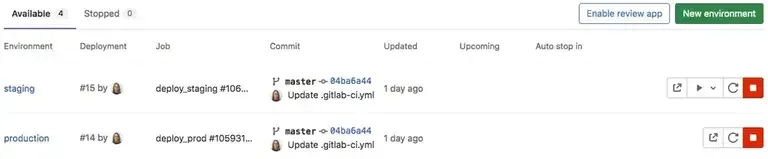
Types of environments
| Type | Name | Use case |
|---|---|---|
| Static | production, staging | Permanent environments, only one of each |
| Dynamic | review/$CI_COMMIT_REF_NAME | One per branch/MR, created and destroyed automatically |
Create a static environment
A static environment exists permanently. It is the typical case of your staging and production environments.
deploy_staging:  extends: .deploy  script: bash deploy.sh up staging  environment:    name: staging    url: http://staging.example.com:8080  rules:    - if: $CI_COMMIT_BRANCH == "main"
deploy_production:  extends: .deploy  script: bash deploy.sh up production  environment:    name: production    url: http://www.example.com:8080  rules:    - if: $CI_COMMIT_BRANCH == "main"      when: manual
Both jobs reuse a hidden .deploy job (defined in the section on the deployment script, it provides the image and the SSH client) and call a script from the repository, deploy.sh, which does the real work: GitLab deploys nothing by itself, it records a deployment when the job succeeds. The content of this script is written in full in the section on what the deployment script really does. In this example, the deployment to staging starts by itself on every commit to main. The one to production carries when: manual: the job waits for a click in GitLab, which lets a human decide the timing. In both cases, environment: is enough to make the target appear under Operate > Environments, with its deployment history and its link to the URL.
Properties of environment:
| Property | Description |
|---|---|
name | Name of the environment (appears in the interface) |
url | URL of the deployed application (clickable link in GitLab) |
deployment_tier | Tier: production, staging, testing, development, other |
What the deployment script really does
A GitLab deployment job deploys nothing by itself: environment: classifies the result, and it is a script in the repository that acts on the target. That script is the boundary between the pipeline and the server. This section writes a complete one for a common case: a Linux machine running Docker, reached over SSH, which starts the image built and published earlier in the GitLab registry. The section follows the reading order: what the script needs, the file it applies, the script itself, the job that calls it, then how to check the result.
What the script needs
The script contains no secret: everything that changes from one environment to another arrives through CI/CD variables, defined in Settings > CI/CD > Variables with the scope of the environment (see the scoped variables below). The table lists what the script requires.
| Variable | Role | Type and scope |
|---|---|---|
DEPLOY_HOST | Name of the target server | Plain variable, one value per environment |
DEPLOY_USER | Unix account used for deployment on the server | Plain variable |
SSH_PRIVATE_KEY | Private key of the deployment account | File type, protected |
SSH_KNOWN_HOSTS | Expected fingerprint of the server | File type |
CI_DEPLOY_USER, CI_DEPLOY_PASSWORD | Registry read token, so the server can pull the image | Provided by GitLab if a deploy token named exactly gitlab-deploy-token exists on the project, or on its direct parent group, in every tier |
The File type puts the value in a temporary file and gives the script its path, which keeps a private key out of the environment; the page on GitLab CI secrets details this mechanism. SSH_KNOWN_HOSTS is produced once, from a trusted workstation, with ssh-keyscan -t ed25519 staging.example.com, comparing the fingerprint obtained with the one the server announces on its console. The key and the account are created as in the guide on SSH keys. The deploy token is created in Settings > Repository > Deploy tokens, with the read_registry scope.
The script also requires two things that are not variables, which you must have before running the job. First, your application must expose a /health route that answers with a 2xx status when it is ready: the script calls it at step 6, and without it the job stays red even though the deployment succeeded. Second, the environment's url: must point to the port the server publishes (the 8080 of the compose.yaml below), because the script reads it to reach the application from the runner. In this guide's examples the URL therefore carries :8080 and stays in http: nothing terminates TLS in front of that port. For an https URL without a port, you need a reverse proxy with TLS in front of the service, which this guide does not set up.
The compose.yaml file
The compose.yaml file, versioned in the repository, describes what must run: one service, the image to start and the exposed port. The image is not hard-coded: it comes from the APP_IMAGE variable, which the script fills with the commit tag ($CI_COMMIT_SHORT_SHA). Each deployment thus designates a precise version, which makes rollback possible.
services: app: image: ${APP_IMAGE:?APP_IMAGE must be defined} restart: unless-stopped ports: - "8080:8000"The ${APP_IMAGE:?message} syntax makes Compose fail with that message if the variable is empty, instead of starting an unnamed image. Port 8000 is the one your application listens on inside the container; 8080 is the one the server exposes. Plan for one environment per server: two environments on the same machine would fight over port 8080. That port is also the one the environment's url: must carry (http://staging.example.com:8080), since it is the one the script queries.
The deploy.sh script
The script receives an action (up to deploy, down to destroy) and an environment name. It checks its variables, opens an SSH connection, connects the server to the registry, applies compose.yaml, then checks the result. Read it from top to bottom: each block matches a step of the diagram that follows.
#!/usr/bin/env bash# Usage: deploy.sh up|down <environment>set -euo pipefail
action="${1:?usage: deploy.sh up|down <environment>}"env_name="${2:?usage: deploy.sh up|down <environment>}"
# 1. Every expected variable must exist, otherwise stop immediately.for v in DEPLOY_HOST DEPLOY_USER SSH_PRIVATE_KEY SSH_KNOWN_HOSTS \         CI_REGISTRY CI_REGISTRY_IMAGE CI_COMMIT_SHORT_SHA \         CI_DEPLOY_USER CI_DEPLOY_PASSWORD; do  [ -n "${!v:-}" ] || { echo "missing variable: $v" >&2; exit 1; }done
# 2. Strict SSH connection: deployment key, known server, never any prompt.chmod 600 "$SSH_PRIVATE_KEY"ssh_cmd=(ssh -i "$SSH_PRIVATE_KEY"  -o UserKnownHostsFile="$SSH_KNOWN_HOSTS"  -o StrictHostKeyChecking=yes  -o BatchMode=yes  "$DEPLOY_USER@$DEPLOY_HOST")
project="app-${env_name}"image="${CI_REGISTRY_IMAGE}:${CI_COMMIT_SHORT_SHA}"
case "$action" in  up)    # 3. The server authenticates to the registry; the password goes through stdin.    printf '%s' "$CI_DEPLOY_PASSWORD" |      "${ssh_cmd[@]}" "docker login $CI_REGISTRY -u $CI_DEPLOY_USER --password-stdin"
    # 4. Send compose.yaml on stdin and start the commit image.    "${ssh_cmd[@]}" "APP_IMAGE=$image docker compose -p $project -f - up -d --remove-orphans" < compose.yaml
    # 5. Check: the server really runs the expected image ...    "${ssh_cmd[@]}" "docker compose -p $project ps --format '{{.Image}}'" | grep -Fx "$image"
    # 6. ... and the application answers, with a few retries.    curl --fail --silent --show-error --retry 10 --retry-delay 3 \      --retry-all-errors "$CI_ENVIRONMENT_URL/health" > /dev/null    echo "Deployment of $image to $env_name verified."    ;;  down)    "${ssh_cmd[@]}" "docker compose -p $project down --volumes"    ;;  *)    echo "unknown action: $action" >&2    exit 1    ;;esac
The set -euo pipefail line is what makes the script reliable: -e stops at the first failing command, -u refuses an undefined variable, pipefail makes a a | b pipeline fail if a fails, not only b. Without it, an SSH error in the middle would be swallowed and the job would stay green. The ssh_cmd array avoids repeating the options, and the StrictHostKeyChecking=yes option combined with SSH_KNOWN_HOSTS refuses an impostor server. The -p app-<environment> option gives Compose one project name per environment: down thus knows what to destroy without any other file, and --volumes also deletes the data, acceptable for a review app, to be removed for an environment that keeps data. The script is run with bash deploy.sh, which avoids having to set the executable bit in Git.
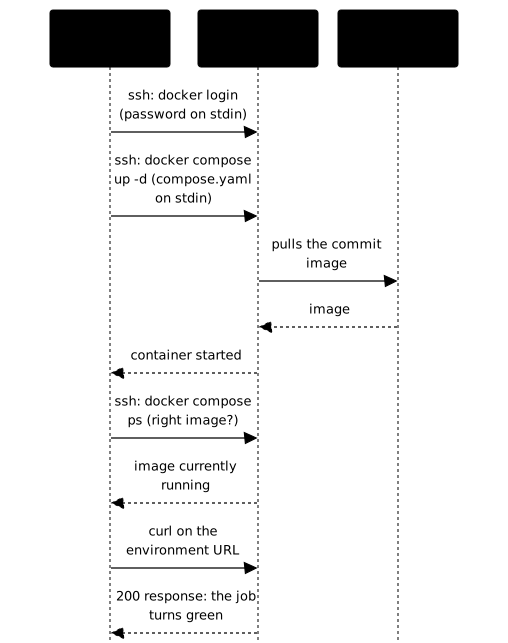
Look at the order of the arrows: the job drives everything from the runner, the host pulls the image itself from the registry, and the last step is a measurement, not a command.
The job that calls the script
The deployment job only needs a small SSH client, bash and curl. A minimal image pinned by digest is enough, and apk add installs the three tools just before the script. The environments share a hidden job (its name starts with a dot), which extends reuses.
.deploy:  stage: deploy  image: alpine:3.22@sha256:2e0b81d60597f449baa56dc25d355367869d2dca4cd57e866f1e2b52af3eb55f  before_script:    - apk add --no-cache bash openssh-client curl
deploy_staging:  extends: .deploy  script: bash deploy.sh up staging  environment:    name: staging    url: http://staging.example.com:8080  rules:    - if: $CI_COMMIT_BRANCH == "main"
The CI_ENVIRONMENT_URL variable, read by the script at step 6, equals the url: of the environment: the script therefore tests the address that GitLab displays as the link. That is why this URL must reach the port published by the compose.yaml, here :8080 over http. A url: of https://staging.example.com without a port would not answer: the runner would get no response, curl would exhaust its retries and the job would turn red, with no trace in the application logs.
How to check that the deployment took
A green job does not prove that the right version is running: docker compose up -d can succeed while leaving the old image in place. The script therefore checks two things and fails if either is missing. Step 5 compares the image running on the server with the commit one; step 6 calls your application's /health route, at the address of the environment's url:, and retries up to 10 times, while the application starts. In both cases, a non-zero exit code turns the job red, and GitLab does not record the deployment as successful.
To check by hand, from your workstation:
ssh deploy@staging.example.com "docker compose -p app-staging ps --format '{{.Image}}'"The output must show the address of your image in the registry, ending with the first 8 characters of the commit that Operate > Environments reports as deployed. The script can be replayed safely: up -d with the same image changes nothing, which makes it idempotent and compatible with the rollback described below, which replays the job of an older version and therefore its tag.
What if your target is not a Docker server?
The principle stays the same, only the way of talking to the target changes: the script receives the identity of the environment, applies the wanted version and fails if it did not take. The table places the other common targets and points to the guides that teach them, without repeating them here.
| Target | Script action | Where to learn it |
|---|---|---|
| A Linux server with Docker | ssh + docker compose up -d (this section) | Docker Compose |
| Static files on a web server | copy with rsync over SSH | rsync |
| Kubernetes cluster | kubectl apply or helm upgrade --install from the job | kubectl, Helm |
| Kubernetes cluster with GitOps | the job does not deploy: it edits a repository, and an agent in the cluster applies it | Argo CD, Flux CD |
Create dynamic environments (review apps)
Review apps create a unique environment for each branch or merge request. Ideal for testing a feature before merging it.
deploy_review:  extends: .deploy  script: bash deploy.sh up "$CI_ENVIRONMENT_SLUG"  environment:    name: review/$CI_COMMIT_REF_NAME    url: http://$CI_COMMIT_REF_SLUG.review.example.com:8080    on_stop: stop_review    auto_stop_in: 1 week  rules:    - if: $CI_MERGE_REQUEST_ID
stop_review:  extends: .deploy  script: bash deploy.sh down "$CI_ENVIRONMENT_SLUG"  environment:    name: review/$CI_COMMIT_REF_NAME    action: stop  rules:    - if: $CI_MERGE_REQUEST_ID      when: manual
Key points:
name: review/$CI_COMMIT_REF_NAMEcreates a unique environment per branchon_stop: stop_reviewdefines the job that will destroy the environmentauto_stop_in: 1 weekdestroys it automatically after 1 week of inactivityaction: stopin the stop_review job indicates that it is the destruction jobbash deploy.sh downcalls thedownaction of the script written above, which destroys the Compose project of the review app- each review app assumes its own host (value of
DEPLOY_HOSTfor thereview/*scope) as long as port8080is fixed; several review apps on the same machine need a reverse proxy that routes by host name, which this guide does not cover - the review app's
url:must, like the others, reach the published port: the name$CI_COMMIT_REF_SLUG.review.example.commust therefore resolve to the host of that scope, and the URL keeps:8080
Environment-specific variables
GitLab exposes automatic variables for each deployment:
| Variable | Description | Example |
|---|---|---|
CI_ENVIRONMENT_NAME | Full name of the environment | review/feature-login |
CI_ENVIRONMENT_SLUG | URL-safe name (max 24 chars) | review-feature-lo-a1b2c3 |
CI_ENVIRONMENT_URL | URL defined in environment.url | http://staging.example.com:8080 |
CI_ENVIRONMENT_TIER | Tier of the environment | production |
CI_ENVIRONMENT_ACTION | Action in progress | start, stop, prepare |
deploy: script: - echo "Deploying to $CI_ENVIRONMENT_NAME" - echo "URL will be $CI_ENVIRONMENT_URL" - bash deploy.sh up "$CI_ENVIRONMENT_SLUG" environment: name: staging url: http://staging.example.com:8080Scoped variables: variables per environment
Define different variables depending on the environment in Settings > CI/CD > Variables:
- Add a variable (e.g.
DATABASE_URL) - In "Environments", select the target environment
- The variable will exist only for jobs that deploy to that environment
# Variable DATABASE_URL with scope- Scope: staging → postgres://staging-db.example.com/app- Scope: production → postgres://prod-db.example.com/appProtect an environment
Sensitive environments (production) must be protected to avoid accidental deployments.
-
Go to Settings > CI/CD > Protected environments
-
Select the environment to protect (e.g.
production) -
Configure the restrictions:
- Allowed to deploy: who can deploy (Maintainers, groups, users)
- Required approvals: number of approvals before deployment
- Allowed to approve: who can approve
Result: on a Premium or Ultimate edition, a deployment to production will require an approval before it runs.
One-click rollback
GitLab keeps the history of all deployments to each environment. To go back to a previous version:
-
Go to Operate > Environments
-
Click the environment concerned
-
In the deployment history, find the version you want
-
Click the Rollback button (circular arrow)
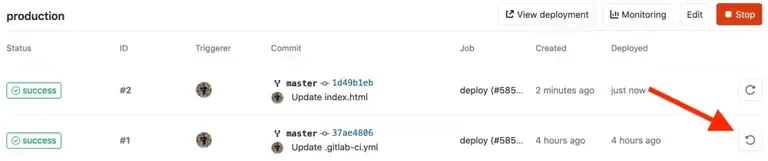
Automatic environment stop
To avoid the accumulation of environments, configure automatic stop:
deploy_review:  environment:    name: review/$CI_COMMIT_REF_NAME    on_stop: stop_review    auto_stop_in: 3 days  # Automatic stop after 3 days
stop_review:  environment:    name: review/$CI_COMMIT_REF_NAME    action: stop  when: manual
Formats for auto_stop_in:
30 minutes3 days1 week1 month
To extend the duration, pin the environment in the interface:
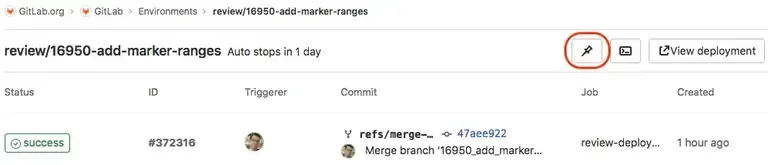
Complete example: multi-environment workflow
This example puts the pieces together: a build job publishes the commit image to the registry, the test reuses it, then the deployment jobs call the deploy.sh script of the previous section. The hidden .deploy job carries what they have in common.
stages:  - build  - test  - deploy
build:  stage: build  image: docker:27@sha256:aa3df78ecf320f5fafdce71c659f1629e96e9de0968305fe1de670e0ca9176ce  services:    - docker:27-dind@sha256:aa3df78ecf320f5fafdce71c659f1629e96e9de0968305fe1de670e0ca9176ce  variables:    DOCKER_TLS_CERTDIR: "/certs"  before_script:    - echo "$CI_REGISTRY_PASSWORD" | docker login "$CI_REGISTRY" -u "$CI_REGISTRY_USER" --password-stdin  script:    - docker build -t "$CI_REGISTRY_IMAGE:$CI_COMMIT_SHORT_SHA" .    - docker push "$CI_REGISTRY_IMAGE:$CI_COMMIT_SHORT_SHA"
test:  stage: test  image: $CI_REGISTRY_IMAGE:$CI_COMMIT_SHORT_SHA  script: npm test
.deploy:  stage: deploy  image: alpine:3.22@sha256:2e0b81d60597f449baa56dc25d355367869d2dca4cd57e866f1e2b52af3eb55f  before_script:    - apk add --no-cache bash openssh-client curl
# Review app for each MRdeploy_review:  extends: .deploy  script: bash deploy.sh up "$CI_ENVIRONMENT_SLUG"  environment:    name: review/$CI_COMMIT_REF_NAME    url: http://$CI_COMMIT_REF_SLUG.review.example.com:8080    on_stop: stop_review    auto_stop_in: 1 week  rules:    - if: $CI_MERGE_REQUEST_ID
stop_review:  extends: .deploy  script: bash deploy.sh down "$CI_ENVIRONMENT_SLUG"  environment:    name: review/$CI_COMMIT_REF_NAME    action: stop  rules:    - if: $CI_MERGE_REQUEST_ID      when: manual
# Staging: automatic on maindeploy_staging:  extends: .deploy  script: bash deploy.sh up staging  environment:    name: staging    url: http://staging.example.com:8080    deployment_tier: staging  rules:    - if: $CI_COMMIT_BRANCH == "main"
# Production: manual on maindeploy_production:  extends: .deploy  script: bash deploy.sh up production  environment:    name: production    url: http://www.example.com:8080    deployment_tier: production  rules:    - if: $CI_COMMIT_BRANCH == "main"      when: manual
Monitoring environments
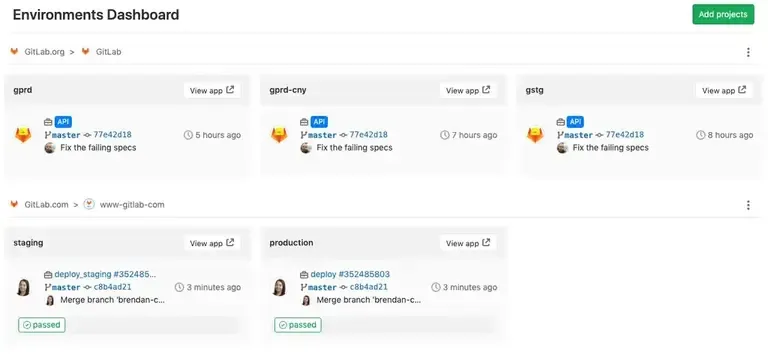
GitLab offers an environments dashboard (Operate > Environments) that shows:
- Current state of each environment
- Last successful deployment
- Branch/commit deployed
- Link to the application
Common errors
| Symptom | Likely cause | Solution |
|---|---|---|
| Environment not created | Job has no environment key | Add environment: to the job |
| Review apps piling up | No on_stop or auto_stop_in | Configure automatic cleanup |
| Rollback fails | Script is not idempotent | Make the script safe to rerun |
| Variable not found | Wrong scope on the variable | Check the scope in Settings |
| Production deployment blocked | Protected environment | Request approval or check permissions |
missing variable: DEPLOY_HOST | Variable absent or scope does not cover the environment | Check the name and the scope in Settings > CI/CD > Variables |
Host key verification failed | SSH_KNOWN_HOSTS does not contain the server fingerprint | Regenerate the file with ssh-keyscan and compare the fingerprint |
Permission denied (publickey) | Key missing from the deployment account's authorized_keys | Add the matching public key on the server |
Job red at step 5 (the grep does not find the image) | The expected image is not running on the server | Read docker compose -p app-<environment> ps then logs on the server |
| Job red at step 6 while step 5 passed, application logs clean | The environment's url: does not point to the published service (wrong port, https without a TLS proxy, name that does not resolve), or the application has no /health route | Compare the url: with the compose.yaml port; run curl -i <url>/health from the runner or a workstation; check that /health answers 2xx |
Key takeaways
environment.namecreates an environment in GitLab with a deployment history.- Static environments (
production) for permanent targets, dynamic ones (review/$BRANCH) for review apps. on_stop+auto_stop_into automatically clean up temporary environments.- Scoped variables to have different secrets per environment.
- Protected environments to control who can deploy to production (Premium and Ultimate, absent from GitLab Free).
- Rollback available in one click in the GitLab interface.
deploy.shis the boundary with the target: variables in,set -euo pipefail, an idempotent action, then a check that fails the job if the version did not take. That check assumes a/healthroute in the application and an environmenturl:that reaches the published port.
Test your knowledge
Knowledge check
Check what you have learned with this interactive quiz
How it works
- The timer starts when you click Start
- Multiple choice, true/false and short answer questions
- You can move between questions
- Detailed results are shown at the end
Starts the quiz and the timer
Review
(0/0)Score by domain
A domain groups several guides and gets several questions, so its score is more reliable than a per-topic score, which often rests on a single question.
Summary
Strengths
No topic passed at 80% on at least two questions yet.
Weak areas
No topic below the pass mark.
Recommended next
Hints before you try again?
Continue the course: GitLab CI/CD quality reports
A new full quiz with random questions
Work again only on the questions you missed