
Do you need to pass information to your jobs (URLs, tokens, configuration) without hardcoding it? GitLab CI/CD variables solve this problem. And for sensitive data (passwords, API keys), the protected and masked options keep it secure.
This guide shows you how to configure your pipelines and secure your secrets, two essential skills for any production pipeline.
This guide is for you if...
Read this guide through the section that matches your need. If you configure a pipeline (URLs, versions, settings passed to jobs), start with the different types of variables. If you manage secrets (API keys, passwords, certificates), go to Securing secrets. If a variable does not have the right value because of a conflict, the answer is in variable precedence. To separate dev and prod with different variables depending on the environment, see best practices.
What you will learn
By the end of this guide, you will be able to pass values to your jobs without hardcoding them, and to protect the secrets among them:
- Tell apart environment variables, file-type variables and predefined
CI_*variables, and know where to define them (YAML, project, group) - Protect a secret with the Protected, Masked and Hidden options, knowing the limits of masking
- Predict the value of a variable defined in several places thanks to the nine-level precedence
- Apply the rules for managing secrets: no secret in the YAML, environment scope, rotation, pipeline inputs
- Separate dev and prod with distinct variables, clear prefixes and a documented list of required variables
- Diagnose an empty variable, an unexpected value or a secret visible in the logs
Prerequisites
Before continuing, make sure you are comfortable with:
- Anatomy of a
.gitlab-ci.yml(stages, jobs, script) - Basic YAML syntax
The different types of variables
GitLab CI/CD offers several types of variables, each suited to a specific need. Understanding these types is essential to avoid configuration mistakes.
Environment variables (the most common)
Environment variables are text strings available in job scripts. They store configuration, URLs, versions, anything that may change between environments or runs.
variables:  DATABASE_URL: "postgres://db.example.com:5432/myapp"  APP_VERSION: "1.2.3"
test:  script:    - echo "Connecting to $DATABASE_URL"    - echo "Version: $APP_VERSION"
Where to define them?
| Level | Scope | Use case |
|---|---|---|
| In the YAML | This pipeline only | Project-specific configuration |
| Project (Settings > CI/CD) | All the project's pipelines | Secrets, production URLs |
| Group (Settings > CI/CD) | All the group's projects | Tokens shared between projects |
File-type variables
Sometimes you need a file rather than a simple string: an SSL certificate, a configuration file, a private key. GitLab creates a temporary file and stores its path in the variable.
deploy: script: # $DEPLOY_KEY contains the PATH to the file, not the content - scp -i "$DEPLOY_KEY" app.zip user@server:/deploy/To create a file variable:
- Go to Settings > CI/CD > Variables
- Click Add variable
- Select Type: File
- Paste the content of the file in Value
- GitLab will create the file for each job and put the path in the variable
Protected variables
Protected variables are only available in protected branches or tags. This is the first line of defense for your production secrets.
Why does it matter?
Without protection, anyone can create a hack branch, add echo $PROD_API_KEY to the .gitlab-ci.yml, and see your secret in the logs.
With a protected variable, since the hack branch is not protected, the variable is not provided to the job: the echo prints nothing of the secret.
To protect a variable:
- Go to Settings > CI/CD > Variables
- Check Protect variable
- The variable will only be injected into the pipelines of protected branches/tags
Masked variables
Masked variables are replaced with [MASKED] in the logs. They are indispensable to avoid accidental leaks of secrets.
job: script: - echo "Token: $API_TOKEN" # Prints: Token: [MASKED]Masked and Hidden (introduced in GitLab 17.4, generally available in 17.6). Since GitLab 17.4, behind a feature flag enabled by default, and generally available since 17.6, you can check Hidden in addition to Masked. The variable can then no longer be displayed in the Settings > CI/CD > Variables interface after it is created. A variable can only be hidden when it is created, never afterwards. Useful for very sensitive secrets.
Predefined CI_* variables
GitLab automatically injects dozens of variables into every job. The most useful ones:
| Variable | Content | Usage example |
|---|---|---|
$CI_COMMIT_BRANCH | Branch name | Conditions in rules |
$CI_COMMIT_SHA | Commit hash | Versioning artifacts |
$CI_PIPELINE_ID | Pipeline ID | Identifying a run |
$CI_JOB_TOKEN | Temporary token | Accessing the GitLab registry |
$CI_PROJECT_DIR | Checkout path | Referencing files |
$CI_ENVIRONMENT_NAME | Environment name | Deployment scripts |
build: script: - echo "Building branch $CI_COMMIT_BRANCH" - docker build -t myapp:$CI_COMMIT_SHA .Variable precedence
The problem: you define DATABASE_URL in the YAML, but also in the project settings. Which one wins?
GitLab applies a precedence hierarchy with nine levels. The diagram reads
from top to bottom, left column then right column: each level
wins over the one that follows it, from the pipeline variables (at the top)
down to the predefined CI_* variables (last).
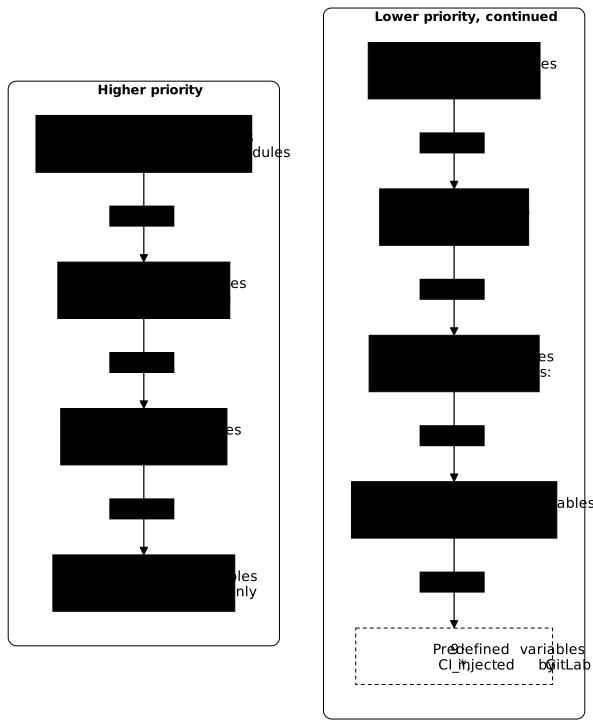
The following list repeats the same levels, from highest to lowest priority:
- Pipeline variables (UI, API, triggers, schedules, downstream)
- Project variables (Settings > CI/CD)
- Group variables (the closest subgroup wins)
- Instance variables (self-managed only)
- Variables from dotenv reports (
reports:dotenvartifacts) - Job variables (in the job's
variables:) - Global YAML variables (root
variables:section) - Deployment variables (tied to environments)
- Predefined variables (CI_*)
In practice:
# Global YAML: DATABASE_URL = "dev-db"variables:  DATABASE_URL: "dev-db"
test: # If the project defines DATABASE_URL = "test-db" in Settings, # "test-db" will be used (project > YAML) script: - echo $DATABASE_URLSecuring secrets
A poorly managed secret can compromise your whole infrastructure. Here are the rules to follow.
Rule 1: Never put a secret in the YAML
# ❌ DISASTER: the secret is in the Git historyvariables:  API_TOKEN: "sk-1234567890abcdef"
# CORRECT: the secret comes from the GitLab interfacejob:  script:    - curl -sS -H "Authorization: Bearer $API_TOKEN" https://api.example.com
Rule 2: Protected + Masked, systematically
For every secret:
- Protected: limits access to protected branches/tags
- Masked: prevents accidental display in the logs
Masked only acts on display, so you still have to avoid triggering that display. The masking example above is only a demonstration: in a real pipeline, never write echo "$API_TOKEN", and avoid verbose modes: curl -v prints the Authorization header with the token value, and set -x prints every command with its variables expanded. Call curl -sS instead (-s removes the progress meter and also the error messages, -S brings the latter back when -s is present): the job log stays readable. -sS does not protect a token on its own; it is the absence of a verbose mode, combined with Masked, that prevents the leak.
Rule 3: Environment scope whenever possible
You can limit a project variable to a specific environment (production, staging, or a wildcard such as review/*):
- Go to Settings > CI/CD > Variables
- In Environment scope, select the target environment
- The variable will only be injected for the jobs that use this environment
deploy_prod: environment: name: production script: - echo $PROD_SECRET # Available only hereRule 4: Regular rotation
Change your secrets periodically. If a secret is compromised, the attacker only has a limited window.
Tip: use a secrets manager (HashiCorp Vault, Infisical (in French)) to automate rotation.
Rule 5: Prefer pipeline inputs (GitLab 17.7+)
Since GitLab 17.7, pipeline inputs (spec:inputs) offer a more governable alternative to pipeline variables for non-secret parameters. They let you define default values, validations and built-in documentation. Reserve CI/CD variables for real secrets.
Best practices
Separate environments
Use different variables for dev, staging and prod:
stages:  - test  - deploy
test:  stage: test  variables:    DATABASE_URL: $DEV_DATABASE_URL  script:    - pytest --db=$DATABASE_URL
deploy_prod:  stage: deploy  variables:    DATABASE_URL: $PROD_DATABASE_URL  environment:    name: production  script:    - deploy.sh  rules:    - if: $CI_COMMIT_BRANCH == "main"      when: manual
Name things clearly
Use prefixes to identify origin and usage:
| Prefix | Meaning |
|---|---|
DEV_, STAGING_, PROD_ | Target environment |
SECRET_, KEY_, TOKEN_ | Sensitive data |
APP_, DB_, API_ | Component concerned |
Example: PROD_DB_PASSWORD, DEV_API_BASE_URL
Document the required variables
In your README or a dedicated file, list the variables to configure:
## Required CI/CD variables
| Variable | Type | Protected | Description ||----------|------|-----------|-------------|| `PROD_DEPLOY_KEY` | File | Yes | SSH key for the production server || `DOCKER_REGISTRY_TOKEN` | Var | Yes | Token to push to the registry || `SLACK_WEBHOOK_URL` | Var | No | Notifications (optional) |
Common mistakes
| Symptom | Likely cause | Solution |
|---|---|---|
| Empty variable in the job | Protected variable, unprotected branch | Protect the branch or remove the protection |
| Unexpected value | Precedence: project overrides YAML | Check Settings > CI/CD > Variables |
| Secret visible in the logs | Variable not masked, or value transformed (encoded, split) | Enable Mask variable, never print a transformed secret |
$VAR printed literally | Single quotes instead of double | Use "$VAR" not '$VAR' |
Hands-on lab
The lab "Get the secret out of the repository" replays this guide on a GitLab CE forge of your own (a GitLab server you host yourself), set up on a virtual machine with its runner and its container registry (the server that stores Docker images), rather than on gitlab.com: no minute quota, no identity verification, and a project you can break as often as you need.
A database password sits in plain text in two places of the repository, and a job prints it in its log. The lab has you take it out, declare it as a masked and protected variable, then prove it no longer leaks. Grading is taken on three states the forge shows: the repository, the project variables and the job logs; a secret removed from the file but still visible in a log counts as a leak.
Three points the lab relies on are worth keeping in mind. One of the two places is the fallback value of an environment lookup in the code: the rule "never a secret in the YAML" applies there too, and a fallback only ever carries a harmless development value. When you declare the variable, put the password alone in it, not a whole connection URL: you mask the secret, not the address. And removing a secret from the default branch does not erase it from the Git history, which is why a secret that was ever committed must be rotated (Rule 4 above).
The lab starts with dsoxlab run gl-05-sortir-les-secrets, after dsoxlab provision
prepares the virtual machine, its runner and its registry.
Installing DSOXLab (the command-line tool that runs this site's labs) and
its prerequisites are described in the DSOXLab documentation.
Key takeaways
- Environment variables for configuration, files for certificates/keys.
- Protected limits to protected branches, Masked hides in the logs, Hidden hides in the UI.
- Precedence: pipeline > project > group > instance > dotenv > job YAML > global YAML > deploy > CI_*.
- Never a secret in the YAML, use the GitLab interface.
- Never
exportorprintenvwithout a filter, as it exposes all the secrets; noechoof a secret, nocurl -vorset -x. - Environment scope to isolate dev/staging/prod secrets.
- Mandatory MR review, a malicious MR can exfiltrate your secrets.
Test your knowledge
Knowledge check
Check what you have learned with this interactive quiz
How it works
- The timer starts when you click Start
- Multiple choice, true/false and short answer questions
- You can move between questions
- Detailed results are shown at the end
Starts the quiz and the timer
Review
(0/0)Score by domain
A domain groups several guides and gets several questions, so its score is more reliable than a per-topic score, which often rests on a single question.
Summary
Strengths
No topic passed at 80% on at least two questions yet.
Weak areas
No topic below the pass mark.
Recommended next
Hints before you try again?
Continue the course: GitLab CI/CD execution conditions (rules)
A new full quiz with random questions
Work again only on the questions you missed