
You push your .gitlab-ci.yml, the pipeline fails with a syntax error, you fix it, you push again... and get a new error. This frustrating loop is avoidable: GitLab provides several tools to validate your configuration before the commit.
This guide presents 5 methods, from the simplest (web interface) to the most advanced (local execution). Pick the one that fits your workflow.
What you will learn
By the end of this module, you will be able to:
- Use the Pipeline Editor to visualize and validate your pipeline
- Use the CI Lint to check the YAML syntax
- Validate from VS Code with the GitLab Workflow extension
- Validate through the API in a script or a pre-commit hook
- Debug a job locally before pushing it
Prerequisites
Before continuing, make sure you are comfortable with:
- Writing a .gitlab-ci.yml file, the stages/jobs/script structure
The problem: the "push → error → fix → push" cycle
Without local validation, here is what typically happens:
1. You edit .gitlab-ci.yml2. git add . && git commit -m "fix pipeline" && git push3. Pipeline fails: "jobs config should contain at least one visible job"4. You fix it5. git add . && git commit -m "fix pipeline v2" && git push6. Pipeline fails: "invalid YAML syntax"7. ...Result: 5 commits for a change that could have been validated in 10 seconds.
Validation tools let you catch these errors before the push: you avoid pointless commits, a waste of time and, above all, frustration.
Which method should you choose?
The choice depends on where you write your pipeline and on the type of check you want. For each situation, the table gives the most suitable method and the effort it takes (setup time before the first use). Find the row closest to your case, then read the matching method: each one is detailed in the sections that follow.
| Situation | Recommended method | Effort |
|---|---|---|
| Quick change inside GitLab | Pipeline Editor | Low |
| Check a copy-pasted YAML snippet | CI Lint | Low |
| Daily development | VS Code extension | Medium |
| Automate the validation | GitLab API | Medium |
| Debug a complex script | gitlabci-local | High |
For most developers, the combination Pipeline Editor + VS Code extension covers most needs.
Method 1: Pipeline Editor (recommended)
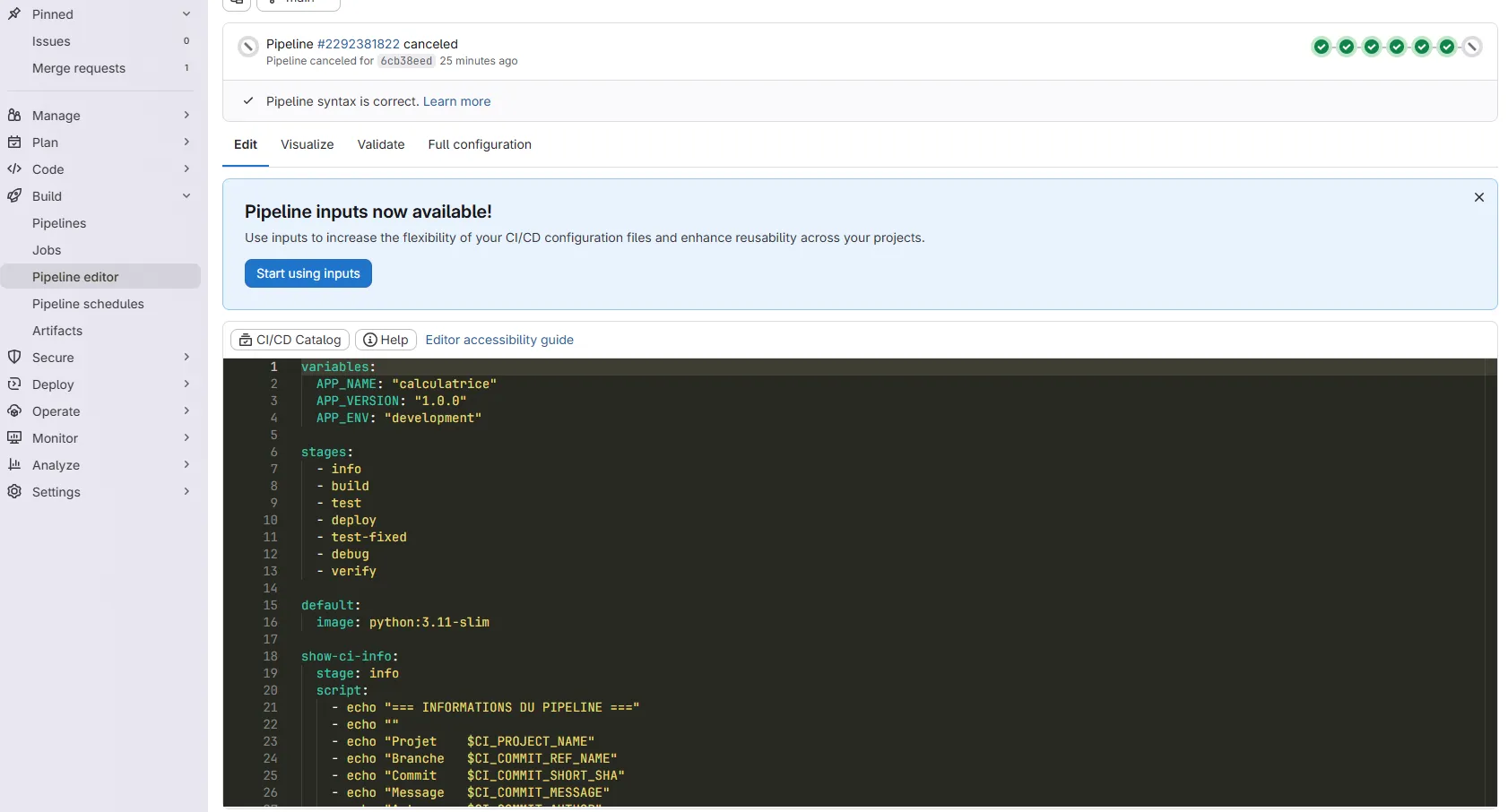
The Pipeline Editor is the most practical tool for working on your .gitlab-ci.yml. It combines editing, validation and visualization in a single interface.
-
Open the Pipeline Editor
In your GitLab project, go to: Build → Pipeline editor
You see your current
.gitlab-ci.ymlfile (or a template if the file does not exist yet). -
Edit your configuration
The editor offers autocompletion and syntax highlighting for GitLab CI/CD YAML.
On every keystroke, GitLab validates the syntax automatically. Errors appear in real time.
-
Visualize the pipeline
Click the "Visualize" tab to see the graphical representation of your pipeline:
- The stages and their order
- The jobs in each stage
- The dependencies (
needs)
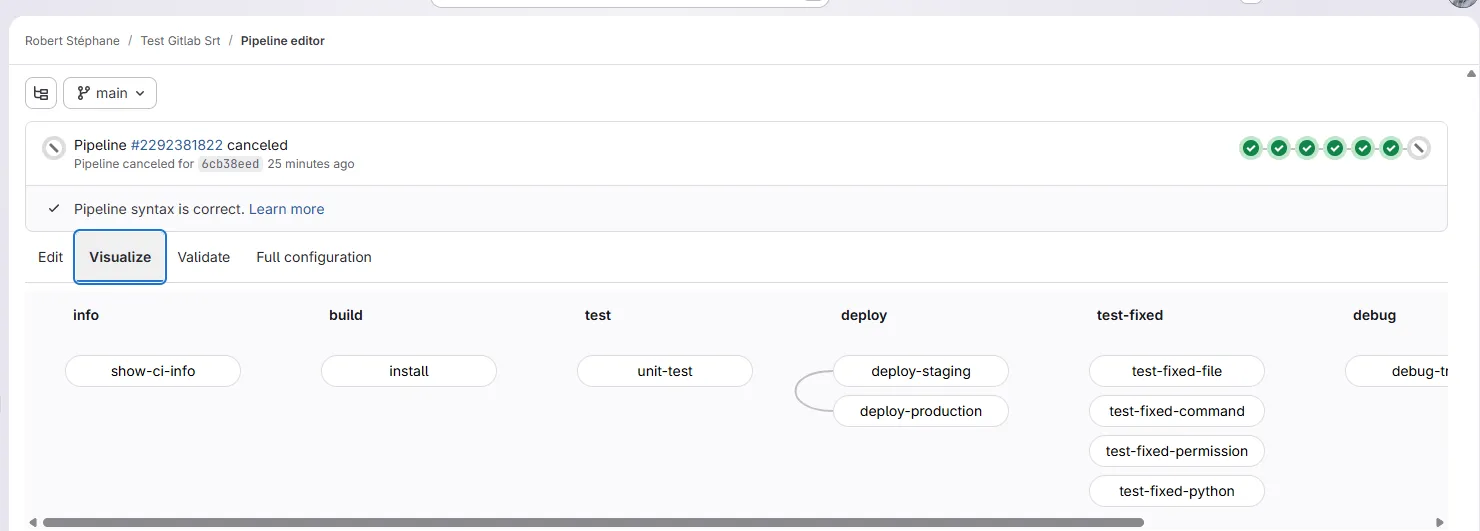
This is particularly useful when you use DAGs and parallelism.
-
See the complete (merged) configuration
The "View merged YAML" tab (or "Full configuration") shows the configuration after all
includestatements are resolved.This is essential when you use templates: you see exactly what GitLab is going to run.
-
Validate and commit
The "Validate" button checks:
- The YAML syntax
- The job references (extends, needs)
- The stage names
If everything is valid, you can commit directly from the interface.
Method 2: CI Lint (web interface)
The CI Lint is a standalone validator, useful when you want to test a snippet of YAML without touching your current file.
-
Open the CI Lint
In your project: Build → Pipelines, then click "CI lint" (top right).
Alternative: go directly to the URL
https://gitlab.com/<your-project>/-/ci/lint -
Paste your configuration
Paste the content of your
.gitlab-ci.ymlinto the text area. -
Validate
Click "Validate". GitLab displays:
Syntax is correctif all is wellSyntax is incorrectwith the details of the errors
-
Simulate the execution (optional)
Tick the "Simulate a pipeline created for the default branch" checkbox for a deeper validation.
The simulation evaluates your configuration as if a
pushpipeline were created on the default branch. It checks:- The
rulesand conditions (in that precise context) - The predefined variables available
- The job references
Warning: this does not simulate the other contexts (MR, schedule, web trigger, etc.).
- The
Validation example
Configuration with an error:
stages:  - build  - test
build:  stage: build  script: npm run build
test:  stage: test  script: npm test  needs: ["inexistant-job"]  # ❌ This job does not exist
CI Lint result:
Syntax is incorrect
'test' job needs 'inexistant-job' job, but it was not added to the pipeline
Method 3: VS Code extension (GitLab Workflow)
For those who work in VS Code, the GitLab Workflow extension lets you validate without leaving the editor.
-
Install the extension
In VS Code, search for and install: GitLab Workflow (publisher: GitLab)
-
Configure access
Create a Personal Access Token (PAT) in GitLab:
- Go to User Settings → Access Tokens
- Create a token with the scopes:
api,read_user
In VS Code, open the command palette (
Ctrl+Shift+P) and type:GitLab: Set GitLab Personal Access Token- Enter the URL of your GitLab (e.g.
https://gitlab.com) - Paste your token
-
Validate your file
Open your
.gitlab-ci.yml, then:- Command palette (
Ctrl+Shift+P) GitLab: Validate GitLab CI/CD Configuration
The extension sends the file to the GitLab API and displays the result.
- Command palette (
Bonus features of the extension
The GitLab Workflow extension also offers:
- Pipelines view: see the status of running pipelines
- Issues and MR view: manage tickets without leaving VS Code
- Quick links: clicking the GitLab icon opens the project page
Method 4: GitLab API (for automation)
The API lets you validate programmatically, useful for:
- Pre-commit scripts
- Verification pipelines
- Custom tools
Validate with curl
The call sends the file content as JSON: jq -Rs . turns the file into a properly escaped JSON string. The second call adds include_merged_yaml to also get the final configuration, after the include statements are resolved.
# The access token must already be in the GITLAB_TOKEN environment variableGITLAB_URL="https://gitlab.com"PROJECT_ID="12345"  # or encoded path: "group%2Fproject"
# Send the file for validationcurl --request POST \  --header "PRIVATE-TOKEN: $GITLAB_TOKEN" \  --header "Content-Type: application/json" \  "$GITLAB_URL/api/v4/projects/$PROJECT_ID/ci/lint" \  --data "{\"content\": $(jq -Rs . < .gitlab-ci.yml)}"
# To also get the merged YAML (with includes resolved)curl --request POST \  --header "PRIVATE-TOKEN: $GITLAB_TOKEN" \  --header "Content-Type: application/json" \  "$GITLAB_URL/api/v4/projects/$PROJECT_ID/ci/lint" \  --data "{\"content\": $(jq -Rs . < .gitlab-ci.yml), \"include_merged_yaml\": true}"
Response on success:
{ "valid": true, "merged_yaml": "...", "errors": [], "warnings": []}Response on error:
{ "valid": false, "errors": ["jobs config should contain at least one visible job"], "warnings": []}Pre-commit script
A Git hook named pre-commit runs before every commit and cancels it if it exits with an error. This one calls the validation API and refuses the commit when valid is not true. It assumes that GITLAB_TOKEN, GITLAB_URL and PROJECT_ID are exported in your environment.
#!/bin/bashif [ -f ".gitlab-ci.yml" ]; then  echo "Validating the GitLab pipeline..."
  RESULT=$(curl -s --request POST \    --header "PRIVATE-TOKEN: $GITLAB_TOKEN" \    --header "Content-Type: application/json" \    "$GITLAB_URL/api/v4/projects/$PROJECT_ID/ci/lint" \    --data "{\"content\": $(jq -Rs . < .gitlab-ci.yml)}")
  VALID=$(echo "$RESULT" | jq -r '.valid')
  if [ "$VALID" != "true" ]; then    echo "ERROR: invalid pipeline"    echo "$RESULT" | jq -r '.errors[]'    exit 1  fi
  echo "OK: valid pipeline"fi
Method 5: Local job debugging (advanced)
This method is useful to:
- Debug a complex script without pushing
- Test without consuming CI/CD minutes
- Develop offline
Why not gitlab-runner exec?
Many tutorials still recommend gitlab-runner exec docker build. This subcommand was announced as deprecated in GitLab 15.7 and then removed in GitLab Runner 17.0 (the removal, first planned for 16.0, was postponed): it no longer appears in the list of gitlab-runner commands. Do not copy it, and use the tool below.
Alternative: gitlabci-local (Python tool)
The gitlabci-local tool runs the jobs of your .gitlab-ci.yml locally, in containers, without going through a GitLab runner:
# Installationpip install gitlabci-local
# Launch the interactive menugitlabci-local
# Run the whole pipelinegitlabci-local -p
# Run a specific jobgitlabci-local "build"
# Debug mode (keeps the container)gitlabci-local "build" --debugWhat workflow is recommended?
-
Daily development: validate with the VS Code extension or the CI Lint before committing
-
Pipeline with templates/includes: use the Pipeline Editor to see the merged YAML (the final configuration)
-
Automation: integrate the lint API into a pre-commit hook or a CI verification job
What are the common errors?
1. "jobs config should contain at least one visible job"
Cause: All your jobs are "hidden" (they start with .) or excluded by rules.
Solution: Make sure you have at least one job whose name has no leading dot and whose rules do not always exclude it.
2. "unknown key" or "invalid property"
Cause: A typo in a YAML keyword, or use of a property that does not exist.
Solution: Check the spelling in the GitLab CI/CD YAML reference.
3. "needs 'job' was not added to the pipeline"
Cause: A job referenced in needs does not exist or is excluded by its rules.
Solution: Check that the job exists and that its rules do not exclude it in the current context.
4. I do not see the final configuration with my includes
Cause: You are using the standalone CI Lint without asking for the merged YAML.
Solution: Use the Pipeline Editor → View merged YAML to see the configuration after all include statements are resolved.
5. The pipeline is red, with no jobs at all, and nothing explains why
Cause: A job is placed in a stage that stages: does not declare. GitLab rejects the whole configuration: the pipeline is born failed with zero jobs, and nothing on the pipeline page names the cause. This is not "the job that does not run": no job runs.
Solution: Run the file through the CI Lint, the only tool that names the error, for example chosen stage orchestrate does not exist; available stages are .pre, lint, test, build, deploy, .post. Add the missing stage to stages: or fix the name in the job.
Hands-on lab
The lab "Validate before you push" is played on a GitLab CE forge of your
own (a GitLab server you host yourself), set up on a virtual machine with
its runner and its container registry (the server that stores Docker
images): no minute quota, no identity verification, and a project you
can break as often as you need. dsoxlab run prepares the starting project
there, with its faults added on purpose.
GitLab refuses the pipeline, and that refusal hides a second fault. A third one it accepts without complaint. The lab has you find all three without pushing to see, then prove the pipeline runs. Grading is taken on the configuration GitLab accepted and on the jobs that ran: a valid file proves nothing as long as no job has started.
The first fault is the one the CI Lint names, as in the common errors above.
The third one sits in a changes: pattern that GitLab accepts and that no
linter flags: the page Rules and conditions
explains the glob syntax of changes: (dir/**/*), and reading the merged
YAML is how you spot a pattern that does not mean what its author thought.
The lab starts with dsoxlab run gl-07-valider-avant-de-pousser, after dsoxlab provision
prepares the virtual machine, its runner and its registry.
Installing DSOXLab (the command-line tool that runs this site's labs) and
its prerequisites are described in the DSOXLab documentation.
The sections above explain each tool and the frequent errors: keep them at hand
during the lab.
Key takeaways
- Pipeline Editor = recommended entry point (validation + visualization + commit)
- CI Lint = quick validation of a snippet without touching the file, and the only tool that names an undeclared stage
- VS Code extension = validation without leaving the editor
- GitLab API = automation (pre-commit hooks, scripts)
- gitlabci-local = test of an isolated job (
gitlab-runner exechas been gone since 17.0) - View merged YAML = indispensable when you use templates
Test your knowledge
Ten questions to check that you can choose the right validation method, read a CI Lint message and know the limits of each tool.
Knowledge check
Check what you have learned with this interactive quiz
How it works
- The timer starts when you click Start
- Multiple choice, true/false and short answer questions
- You can move between questions
- Detailed results are shown at the end
Starts the quiz and the timer
Review
(0/0)Score by domain
A domain groups several guides and gets several questions, so its score is more reliable than a per-topic score, which often rests on a single question.
Summary
Strengths
No topic passed at 80% on at least two questions yet.
Weak areas
No topic below the pass mark.
Recommended next
Hints before you try again?
Continue the course: Debug: reading GitLab CI/CD logs
A new full quiz with random questions
Work again only on the questions you missed