
This guide takes you from installing Vault to a first persistent server. You start with dev mode (to learn), then configure a server with Raft storage, initialization and an audit log. Vault is a secrets manager: it stores secrets encrypted and hands them out only to clients that prove who they are.
What you will learn
- Install Vault from the official package (recommended) or a manual binary
- Start a dev mode server for tests
- Configure a first persistent server with Raft
- Understand Shamir vs auto-unseal
- Initialize and unseal Vault
- Enable the audit log for traceability
- SOCLE anchoring: this guide implements SOCLE-SEC-STO-1 (in French), secrets in a vault encrypted at rest, and SOCLE-SEC-STO-4 (in French), traceability of accesses
Prerequisites
This guide assumes you know the basics of Vault: its architecture, its secrets engines (plugins that store or generate secrets) and its authentication methods (the ways a client proves its identity), covered in the introduction to HashiCorp Vault. On the machine side, you need:
- Linux (Debian/Ubuntu, RHEL/Fedora, or another distribution)
- root or sudo access
curlandgpginstalled, pluswgetfor the Debian/Ubuntu package route
How do I install Vault on Linux?
Vault can be installed in two ways. Choose only one method: combining the
package and a binary dropped into /usr/local/bin leaves two executables
on the machine, and the one your shell runs is the one PATH finds first, not
necessarily the one systemd starts. The table steers the choice on a single
real criterion: who takes charge of the lifecycle (system user, systemd
unit, updates), you or the package manager.
| Method | Advantages | Drawbacks |
|---|---|---|
| Official package | systemd service included, simpler updates, user created | Depends on the HashiCorp repository |
| Manual binary | Full control, no external dependency | Manual service configuration |
The official HashiCorp package installs:
- The
/usr/bin/vaultbinary - A
vaultsystem user - A systemd unit (a service definition file) at
/usr/lib/systemd/system/vault.service - A base configuration at
/etc/vault.d/vault.hcl
Debian / Ubuntu
The procedure follows the pattern of a signed APT repository: first fetch
the HashiCorp public key, store it in its own keyring
(/usr/share/keyrings/), then declare the repository and bind it explicitly
to that key with signed-by=. That binding guarantees that another,
compromised repository cannot pass itself off as HashiCorp. Never replace this
pattern with apt-key add, which is obsolete and removed from recent APT
versions.
-
Add the HashiCorp GPG key
Terminal window sudo apt update && sudo apt install -y gpgwget -O- https://apt.releases.hashicorp.com/gpg | \sudo gpg --dearmor -o /usr/share/keyrings/hashicorp-archive-keyring.gpg -
Add the repository
Terminal window echo "deb [arch=$(dpkg --print-architecture) \signed-by=/usr/share/keyrings/hashicorp-archive-keyring.gpg] \https://apt.releases.hashicorp.com $(lsb_release -cs) main" | \sudo tee /etc/apt/sources.list.d/hashicorp.list -
Install Vault
Terminal window sudo apt update && sudo apt install -y vault -
Check the installation
Terminal window vault version# Vault v2.0.3 (7193f9a48ff6093ca61b3b627a8671e770428ba6), built 2026-06-17T12:39:45Z# Check that the service existssystemctl status vault# ○ vault.service - "HashiCorp Vault - A tool for managing secrets"# Loaded: loaded (/usr/lib/systemd/system/vault.service; disabled)# Active: inactive (dead)The empty circle and the
inactive (dead)are normal: the package installs the service but does not start it, and does not enable it at boot. This is deliberate, because the default configuration is not the one you want. Starting the service comes later in this guide, once/etc/vault.d/vault.hclis written.
RHEL / Rocky / Fedora
The principle is the same, but HashiCorp publishes two distinct
repositories, and picking the wrong one installs packages that do not match
your distribution. Distributions of the RHEL family (RHEL, Rocky,
AlmaLinux, CentOS Stream) use the /RHEL/ path, Fedora uses /fedora/. If
dnf config-manager reports an unknown command, install dnf-plugins-core
first.
# RHEL, Rocky, AlmaLinux, CentOS Streamsudo dnf install -y dnf-plugins-coresudo dnf config-manager --add-repo https://rpm.releases.hashicorp.com/RHEL/hashicorp.repo
# Fedora: dedicated repository# sudo dnf config-manager --add-repo https://rpm.releases.hashicorp.com/fedora/hashicorp.repo
# Install Vaultsudo dnf install -y vault
# Checkvault version
Manual installation gives you full control, but you must create the user, the directories and the systemd service yourself.
Download and verify the binary
Verification happens in two steps, and confusing them amounts to verifying
nothing. The SHA256SUMS file proves that the downloaded archive was not
altered in transit; the SHA256SUMS.sig file proves that this checksum file
really comes from HashiCorp. Checking the fingerprint without checking the
signature would let an attacker replace both files at once.
-
Download the binary and the verification files
Terminal window VERSION="2.0.3"ARCH="amd64" # or arm64cd /tmp# Download the binary, the checksums and the signaturecurl -LO "https://releases.hashicorp.com/vault/${VERSION}/vault_${VERSION}_linux_${ARCH}.zip"curl -LO "https://releases.hashicorp.com/vault/${VERSION}/vault_${VERSION}_SHA256SUMS"curl -LO "https://releases.hashicorp.com/vault/${VERSION}/vault_${VERSION}_SHA256SUMS.sig" -
Import the HashiCorp PGP key
Terminal window # Import the HashiCorp public keycurl -sL https://www.hashicorp.com/.well-known/pgp-key.txt | gpg --import# Check the fingerprint (must contain: 34365D9472D7468F)gpg --list-keys --fingerprint security@hashicorp.com -
Verify the signature of the checksums
Terminal window gpg --verify vault_${VERSION}_SHA256SUMS.sig vault_${VERSION}_SHA256SUMS# Must print: Good signature from "HashiCorp Security..." -
Verify the checksum of the binary
Terminal window sha256sum -c vault_${VERSION}_SHA256SUMS --ignore-missing# Must print: vault_2.0.3_linux_amd64.zip: OK -
Extract and install
Terminal window unzip vault_${VERSION}_linux_${ARCH}.zipsudo mv vault /usr/local/bin/sudo chmod +x /usr/local/bin/vaultvault version# Vault v2.0.3 (7193f9a48ff6093ca61b3b627a8671e770428ba6), built 2026-06-17T12:39:45ZPlan for disk space: the archive weighs about 170 MB (176 MB for 2.0.3) and the unpacked binary is larger still; measure it with
ls -lh vaultbefore sizing anything. On a CI runner with a tight disk, or on a small VM, this is a cost to anticipate, especially since the archive and the binary coexist during extraction.
Create the user and the directories
The package took care of this step; here it falls to you. The goal is that the
Vault process never runs as root: a system account without a shell
(--shell /bin/false) cannot be used to open a session, even if someone
managed to guess its password. The 700 permissions on data and logs are
the minimum: these directories hold, respectively, the encrypted storage
and the audit log, which records the paths of the secrets that were
accessed.
# Create the system user (no login)sudo useradd --system --home /opt/vault --shell /bin/false vault
# Create the directoriessudo mkdir -p /opt/vault/{data,config,tls,logs}
# Set the permissionssudo chown -R vault:vault /opt/vaultsudo chmod 700 /opt/vault/datasudo chmod 700 /opt/vault/logs
Create the systemd service
The unit below reproduces the one the official HashiCorp package installs,
with the path adapted to /usr/local/bin. Four points really matter.
LimitMEMLOCK=infinity combined with AmbientCapabilities=CAP_IPC_LOCK lets
Vault lock its memory so that it never goes to swap, without giving it root
privileges. LimitCORE=0 forbids core dump files, which would contain the
secrets in clear text. NoNewPrivileges and ProtectSystem limit what the
process can do if it is compromised. Finally, Type=notify: Vault tells
systemd when it is really ready, so a failing systemctl start returns an
error instead of a misleading success. Create the file
/etc/systemd/system/vault.service:
[Unit]Description="HashiCorp Vault - A tool for managing secrets"Documentation=https://developer.hashicorp.com/vault/docsRequires=network-online.targetAfter=network-online.targetConditionFileNotEmpty=/opt/vault/config/vault.hclStartLimitIntervalSec=60StartLimitBurst=3
[Service]Type=notifyUser=vaultGroup=vaultProtectSystem=fullProtectHome=read-onlyPrivateTmp=yesPrivateDevices=yesSecureBits=keep-capsNoNewPrivileges=yes# Allow mlock without root privilegesAmbientCapabilities=CAP_IPC_LOCKCapabilityBoundingSet=CAP_SYSLOG CAP_IPC_LOCKExecStart=/usr/local/bin/vault server -config=/opt/vault/config/vault.hclExecReload=/bin/kill --signal HUP $MAINPIDKillMode=processKillSignal=SIGINTRestart=on-failureRestartSec=5TimeoutStopSec=30LimitNOFILE=65536LimitMEMLOCK=infinity# No core dump: it would contain secrets in clear textLimitCORE=0
[Install]WantedBy=multi-user.targetsudo systemctl daemon-reloadWhat is Vault dev mode, and when should I use it?
Dev mode is built for learning and local tests. It starts a complete Vault server in a few seconds, with no configuration.
What dev mode does
Dev mode is not a stripped-down Vault, it is the complete server with
configuration shortcuts. Read the right-hand column as the list of disabled
protections: in-memory storage, plain HTTP, automatic unsealing and
a displayed root token. Each of these lines is exactly what you will spend
the rest of the guide setting up properly. Two terms appear here. A root
token is the all-powerful credential Vault issues at initialization. A
mount is a location, called a path such as secret/, where a secrets
engine is attached; clients address secrets by path.
| Characteristic | Value |
|---|---|
| Storage | Memory (lost on restart) |
| Protocol | HTTP (not encrypted) |
| Initial state | Already initialized and unsealed |
| Secrets engine | KV v2 enabled on secret/ |
| Root token | Displayed at startup |
How do I start the dev server?
In a first terminal:
vault server -dev -dev-root-token-id="root"The -dev-root-token-id option sets a predictable root token to simplify
tests. You will see:
==> Vault server configuration:
             Api Address: http://127.0.0.1:8200...Root Token: rootDevelopment mode should NOT be used in production installations!
How do I configure the client?
The server stays in the foreground in its terminal, so do not close it.
Open a second terminal: the vault CLI reads two environment
variables there, VAULT_ADDR to know whom to contact and VAULT_TOKEN to
authenticate. In dev mode only, this token is the one you imposed at startup.
export VAULT_ADDR='http://127.0.0.1:8200'export VAULT_TOKEN='root'
vault status
Expected output:
Key Value--- -----Seal Type shamirInitialized trueSealed false...Storage Type inmemInitialized: true and Sealed: false: you can use Vault.
Initialized says that Vault has already generated its encryption keys;
Sealed says whether it is locked: a sealed Vault can neither read nor
write a secret. Dev mode performs both operations for you. On a persistent
server, you will do them yourself, later in this guide.
How do I run a first quick test?
These two commands write then read back a secret in the KV v2 engine
(a key-value store that keeps versions of each secret), mounted automatically
on secret/ by dev mode. Look at the output of put: Vault answers with a
path secret/data/test, not secret/test. That data/ segment is a
particularity of KV v2, which stores values under data/ and their
metadata under metadata/. You will meet it again when writing your
policies (the rules that say which paths a token may access), where you must
use the full path.
vault kv put secret/test message="Hello Vault!"vault kv get secret/testIf the read returns your message, the installation works. The rest of the guide repeats the same mechanics on a persistent server.
How do I set up a first persistent Vault server?
This section configures a single-node Vault server with Raft storage. It suits:
- An advanced lab or a mock-up
- A shared development environment
- A small infrastructure that tolerates a temporary outage
Target architecture
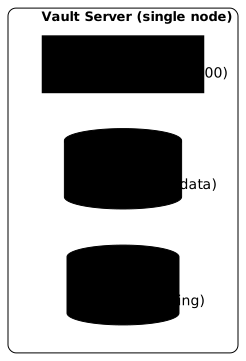
The diagram shows what you are about to assemble: a single Vault process, its built-in Raft storage sitting on the local disk, and a TLS listener in front. Raft deserves a word, because its name can mislead on a single server: it is a storage engine in its own right, which needs no external database, and which can later welcome other nodes without changing the storage configuration.
The configuration file
The configuration file is written in HCL (HashiCorp Configuration
Language) and its structure is the same whatever the installation method; only
its location changes. Four blocks are enough here: storage, listener,
advertised addresses and log level. The point most often overlooked is
api_addr: it is the address Vault returns to clients and to other nodes, so
it must be reachable from the network, not only from the server. The name
vault.example.com used below is an example name: replace it with the
real name of the machine, or, for a lab without DNS, declare it in
/etc/hosts.
Edit /etc/vault.d/vault.hcl:
# Web user interfaceui = true
# Storage with Raft (built-in)storage "raft" {  path    = "/opt/vault/data"  node_id = "vault-1"}
# HTTPS listenerlistener "tcp" {  address       = "0.0.0.0:8200"  tls_cert_file = "/opt/vault/tls/tls.crt"  tls_key_file  = "/opt/vault/tls/tls.key"}
# Addresses for the API and the clusterapi_addr     = "https://vault.example.com:8200"cluster_addr = "https://vault.example.com:8201"
# Log levellog_level = "info"Unlike the binary installation, you have no directory to create: the
package already sets up /opt/vault/data and /opt/vault/tls, both owned
by the vault user, the second with mode 0700. Check what you received
instead:
sudo ls -la /opt/vault/# drwxr-xr-x. 4 vault vault 29 ... .# drwxr-xr-x. 2 vault vault 6 ... data# drwx------. 2 vault vault 36 ... tlsTwo points about this default configuration. The package writes an
/etc/vault.d/vault.hcl that uses storage "file", not raft: the block
above replaces it. And the /opt/vault/logs directory, needed if you enable
the file audit log, is not created: you have to create it.
Create /opt/vault/config/vault.hcl:
# Web user interfaceui = true
# Storage with Raft (built-in)storage "raft" {  path    = "/opt/vault/data"  node_id = "vault-1"}
# HTTPS listenerlistener "tcp" {  address       = "0.0.0.0:8200"  tls_cert_file = "/opt/vault/tls/vault.crt"  tls_key_file  = "/opt/vault/tls/vault.key"}
# Addresses for the API and the clusterapi_addr     = "https://vault.example.com:8200"cluster_addr = "https://vault.example.com:8201"
# Log levellog_level = "info"
What is mlock, and do I need to disable it?
By default, Vault uses mlock (a system call that pins memory in RAM) to
prevent secrets from being written to swap, the disk area the system uses
when RAM is full, where they would persist unencrypted. It is an important protection in production.
| Environment | Recommendation |
|---|---|
| Lab / dev | disable_mlock = true is acceptable to simplify |
| Production | Keep mlock active + disable swap + systemd capabilities |
If you installed Vault from the package, you have nothing to do: its
systemd unit already grants AmbientCapabilities=CAP_IPC_LOCK and sets
LimitMEMLOCK=infinity. The service journal confirms it at startup:
Mlock: supported: true, enabled: trueThe problem therefore only arises with an installation from the binary,
where you write the unit yourself, or when running in the foreground.
Faced with a mlock: operation not permitted:
Option 1 (recommended): add the capabilities in systemd, as the package
unit does, with AmbientCapabilities=CAP_IPC_LOCK
Option 2 (lab only): add disable_mlock = true in the configuration
How do I set up TLS certificates?
Vault must use HTTPS, even for a lab. If you installed the package,
the self-signed certificate tls.crt and its key tls.key already exist in
/opt/vault/tls/: skip the command below, and read tls.crt wherever the
rest of this guide writes vault.crt. If you installed the binary, create
a self-signed certificate for a first test:
# Self-signed certificate (lab only)sudo openssl req -x509 -nodes -days 365 \  -newkey rsa:2048 \  -keyout /opt/vault/tls/vault.key \  -out /opt/vault/tls/vault.crt \  -subj "/CN=vault.example.com"
sudo chown vault:vault /opt/vault/tls/*sudo chmod 600 /opt/vault/tls/vault.keyHow do I start the server?
If the dev server is still running in a terminal, stop it first with
Ctrl+C: it already holds port 8200, which the new listener needs. enable
registers the service at machine boot, start launches it immediately.
The third call is not decorative: with Type=notify, a service that shows
active (running) has really finished initializing. If you see
activating then a failure, the cause is almost always in the HCL
configuration or the permissions of the data directory, and
journalctl -u vault -n 50 will give you the exact line.
sudo systemctl enable vaultsudo systemctl start vaultsudo systemctl status vaultHow do I check the status?
The vault client does not guess where to reach the server: without
VAULT_ADDR, it tries https://127.0.0.1:8200 and fails as soon as the
listener is somewhere else. So export the address, then say how to validate
the certificate. These two variables belong to your shell; remember to put
them back in your profile or in an environment file if you administer the
server regularly.
export VAULT_ADDR='https://vault.example.com:8200'
# With a self-signed certificate (lab only!)export VAULT_CACERT=/opt/vault/tls/vault.crt# OR (less secure)export VAULT_SKIP_VERIFY=1
vault statusExpected output (server not initialized):
Key Value--- -----Seal Type shamirInitialized falseSealed true...Shamir vs auto-unseal: which should I choose?
Before initializing Vault, understand the two unlocking mechanisms. Vault always starts sealed: its data is encrypted with a key that it does not hold in clear text. To unseal it is to give it back the means to decrypt that key. Two ways exist: key shares held by people (Shamir), or delegation to an external service (auto-unseal).
Shamir (default)
Vault uses the Shamir's Secret Sharing algorithm to split the master key into several parts (shares). You define:
- key-shares: total number of parts (e.g. 5)
- key-threshold: minimum number needed to unseal (e.g. 3)
Advantages:
- No external dependency
- Multi-person governance (several key holders)
- Good for understanding the mechanism
Drawbacks:
- Human intervention at every restart
- Complicates automation (CI/CD, auto-scaling)
- Risk of unavailability if the holders are absent
Auto-unseal (recommended for operations)
Vault delegates decryption to a trusted external service:
| Method | Provider | Prerequisites |
|---|---|---|
| AWS KMS | Amazon Web Services | KMS key + IAM role |
| Azure Key Vault | Microsoft Azure | Key Vault + managed identity |
| GCP Cloud KMS | Google Cloud | KMS key + service account |
| Transit | Another Vault | Dedicated Vault cluster |
| HSM | PKCS#11 | Hardware Security Module |
Advantages:
- Automatic unsealing on restart
- Compatible with automation (Kubernetes, auto-scaling)
- Better operational experience
Drawbacks:
- Dependency on an external service
- Cost of the KMS/HSM service
- More complex initial configuration
This guide uses Shamir
For this first deployment, we use Shamir because it needs no external infrastructure. Once you are familiar with Vault, set up auto-unseal for your operational environments.
How do I initialize Vault?
Initialization is a one-time operation that generates the master key and the unseal keys.
For a lab (1 key)
On a workstation, splitting the master key into several parts brings nothing: you already hold everything. A single share with a threshold of one shortens every restart to a single unseal command. Still, write down the key and the root token: persistent mode, unlike dev mode, will never display them again.
vault operator init -key-shares=1 -key-threshold=1For a shared environment (3 of 5)
The 5 shares / threshold 3 pair, the default of vault operator init,
balances two opposite risks. A threshold that is too low lets a single
person reopen the vault; a threshold equal to the number of shares makes
unsealing impossible as soon as one holder is absent or loses their key. With
3 of 5, it takes the collusion of three people to open it, and two keys of
margin remain in case of loss.
vault operator init -key-shares=5 -key-threshold=3Output:
Unseal Key 1: lWF1ue8BgtW3/19Uf49GaAicvaebxtFWlDFvEIKvs3s=Unseal Key 2: ...Unseal Key 3: ...Unseal Key 4: ...Unseal Key 5: ...
Initial Root Token: hvs.FkLQnkIPosIar9SSeDfdsFEb
Vault initialized with 5 key shares and a key threshold of 3.How do I unseal Vault?
After every restart, Vault starts sealed. You must unseal it with the Shamir keys.
Why this mechanism?
When Vault is sealed, the data is encrypted and inaccessible. Even if an attacker steals the server or reaches the storage, they cannot read anything without the unseal keys.
The procedure
Unsealing is cumulative and stateless on the client side: each call submits one share, and Vault only reconstructs the master key once the threshold is reached. The holders can therefore each enter their share from their own workstation; there is no need to gather the keys in one place. Repeat the command as many times as the threshold requires:
vault operator unseal <unseal_key_1>vault operator unseal <unseal_key_2>vault operator unseal <unseal_key_3>After each key, Vault shows the progress:
Unseal Progress 2/3Once the threshold is reached:
Sealed false <-- Unsealed!How do I log in after unsealing?
Unsealing is not logging in. An unsealed Vault still refuses every read until
the client presents a token (the credential Vault checks on each request;
it carries a TTL, a time-to-live after which it expires). Use the root
token only for this initial setup: its first task should be to create an
authentication method and policies, then revoke itself with
vault token revoke -self. An authentication method is a way for clients to
prove their identity and receive a token in return. If you come from dev mode,
first remove the test token from your shell: an environment variable wins over
the token that vault login stores.
unset VAULT_TOKENvault login <root_token>How do I enable the Vault audit log?
The audit log is essential for traceability. It records every operation on Vault: who read which secret, when, from which IP.
Enable the file audit device
One behavior to know before enabling auditing: if all the configured audit devices become unreachable (full disk, broken permissions), Vault stops answering requests rather than process an operation without logging it. It is a deliberate choice, but it turns a saturated disk into a complete outage. HashiCorp, by the way, recommends enabling at least two devices in production to avoid this failure. Watch the disk space of the log directory as you watch the service.
# Create the directory (already done with the binary installation)sudo mkdir -p /opt/vault/logssudo chown vault:vault /opt/vault/logs
# Enable the audit devicevault audit enable file file_path=/opt/vault/logs/vault-audit.log
Check that auditing works:
vault audit listPath Type Description---- ---- -----------file/ file n/aHow do I test the audit log?
Create a secret and check that the operation is logged. Unlike dev
mode, a persistent server mounts no KV engine on its own: the first
command enables one on secret/.
vault secrets enable -path=secret kv-v2vault kv put secret/test foo=bar
# Check the logsudo tail -1 /opt/vault/logs/vault-audit.log | jq .
You will see a JSON entry with the operation, the user, the date, and so on.
How do I rotate the audit logs?
The audit log grows fast, one JSON line per API request, and it is
precisely the file you must not let saturate the partition. The configuration
below keeps 30 days and compresses the archives. delaycompress
avoids compressing the file Vault has just closed, and the postrotate sends
a SIGHUP so that the process reopens its file descriptor; otherwise it would
keep writing into the renamed file. Create /etc/logrotate.d/vault:
/opt/vault/logs/*.log { daily rotate 30 compress delaycompress notifempty missingok su vault vault postrotate /bin/systemctl reload vault.service endscript}How do I check file permissions at startup?
For a stricter deployment, Vault can check the permissions of its configuration files at startup, which catches a key or a config file readable by other users:
# In the service environment file# or before starting Vaultexport VAULT_ENABLE_FILE_PERMISSIONS_CHECK=trueThis produces warnings if the configuration files are readable by other users.
Troubleshooting
Two reflexes before working through this table. First, check that the client
targets the right address: echo $VAULT_ADDR alone explains a good half of
the connection refused errors. Second, read journalctl -u vault -n 50,
where HCL configuration errors appear in clear text with the faulty line
number. The table handles the remaining cases, those where the service runs
but refuses to answer.
| Symptom | Likely cause | Solution |
|---|---|---|
connection refused | Vault is not started | systemctl start vault |
Vault is sealed | Vault is not unsealed | vault operator unseal |
permission denied | Invalid or expired token | vault login with the right token |
certificate signed by unknown authority | Self-signed certificate not trusted | export VAULT_CACERT=/path/to/ca.crt |
mlock: operation not permitted | Missing capabilities | Check AmbientCapabilities in systemd |
Listener config not found | HCL syntax error | Read journalctl -u vault -n 50 and fix the indicated line |
What this guide does not cover
This guide gives you a working base, but a real production deployment needs additional steps, from high availability to backups. The table lists them, with the reason each one matters.
| Topic | Why it matters |
|---|---|
| High availability (3+ nodes) | Fault tolerance, no service interruption |
| Auto-unseal (KMS/HSM) | Automatic restart with no human intervention |
| Raft backups / snapshots | Recovery after an incident |
| Monitoring / telemetry | Detect problems before they become critical |
| Load balancing | Load distribution and a single entry point |
| Certificates signed by a real CA | End-to-end TLS without VAULT_SKIP_VERIFY |
| Recovery procedures | What to do if you lose unseal keys |
| Root token lifecycle | The initial root token must not stay active |
| Namespaces (Enterprise) | Multi-tenant isolation |
| Replication (Enterprise) | DR and multi-region performance |
On the SOCLE side, installing the vault proves nothing about the lifecycle of the secrets it holds. The whole rotation family stays open after this guide: the renewal policy by criticality and the TTLs (SOCLE-SEC-ROT-1, in French), the emergency revocation test (SOCLE-SEC-ROT-3, in French) and leak detection (SOCLE-SEC-ROT-4, in French) are built with policies and dynamic secrets, not with installation. For day-to-day operations, the guide Auto-unseal and Recovery Keys covers sealing, and Operating Vault in production covers the HA cluster, backup and monitoring. Infrastructure certificates come with the PKI guide (in French).
Key points
- Two installation methods: package (recommended) or manual binary
- Always verify the checksums and signatures of downloaded binaries
- Dev mode: for learning only, never outside a local lab
- Shamir vs auto-unseal: Shamir to understand, auto-unseal to operate
- mlock: keep it active in production, disable swap
- Audit: enable it explicitly from the first deployment
- Certificates: self-signed for the lab, a real CA for production
- This guide is a starting point, not a complete production recipe
- Evidence expected by SOCLE: the initialized, unsealed Raft server proves SOCLE-SEC-STO-1 (in French), secrets in a vault encrypted at rest; the audit file proves SOCLE-SEC-STO-4 (in French), accesses traced; the seal plus audit pair covers the verifiable part here of SOCLE-SEC-STO-5 (in French), the separation of roles remaining to be built with policies
Knowledge check
Check that the essentials of this lesson are in place. The questions only cover what has just been explained here.
Knowledge check
Check what you have learned with this interactive quiz
How it works
- The timer starts when you click Start
- Multiple choice, true/false and short answer questions
- You can move between questions
- Detailed results are shown at the end
Starts the quiz and the timer
Review
(0/0)Score by domain
A domain groups several guides and gets several questions, so its score is more reliable than a per-topic score, which often rests on a single question.
Summary
Strengths
No topic passed at 80% on at least two questions yet.
Weak areas
No topic below the pass mark.
Recommended next
Hints before you try again?
Continue the course: Auto-unseal and recovery keys: understanding Vault sealing
A new full quiz with random questions
Work again only on the questions you missed