
This guide shows you how to install and use Harbor to store your container images, automatically scan for vulnerabilities and avoid Docker Hub rate limiting problems. You will learn to deploy Harbor with Docker Compose, configure the proxy cache to cache Docker Hub, and create robot accounts for your CI/CD pipelines. Prerequisite: a Linux server with Docker installed.
What you will learn
- Decide when to choose Harbor rather than Pulp, Nexus or Artifactory
- Install Harbor in production with HTTPS
- Understand the architecture and the key features
- Configure the proxy cache for Docker Hub (to avoid rate limiting)
- Create robot accounts for your CI/CD pipelines
- Automatically scan images with Trivy
- Replicate images between several registries
What is Harbor?
Harbor is an open source cloud-native artifact registry, initially developed by VMware and now a CNCF graduated project (the highest maturity level). Think of Harbor as a private Docker Hub hosted in your own infrastructure, with built-in security features.
Why not use Docker Hub directly?
Docker Hub, the default public registry, raises several problems in an enterprise:
| Problem | Impact | Harbor solution |
|---|---|---|
| Rate limiting | 100 pulls/6h anonymously, CI/CD builds blocked | Proxy cache: 1 external pull → N internal pulls |
| Availability | Docker Hub outages = deployments stop | Images cached locally |
| Security | No built-in vulnerability scanning | Trivy scans every push automatically |
| Compliance | Images stored with a third party (USA) | Data in your own datacentre |
| Cost | Paid plans for advanced features | Open source, full features |
What Harbor manages
Harbor is no longer limited to Docker images. Since version 2.x, it also stores:
- Container images: Docker, OCI, multi-architecture
- Helm charts: versioned Kubernetes charts
- SBOM (since v2.11): Software Bill of Materials for traceability
- AI/ML artifacts (since v2.13): models through CloudNativeAI
Harbor architecture
Harbor is made of several services that talk to each other. Understanding this architecture helps you diagnose an outage and size the installation correctly: every component has its own bottleneck.
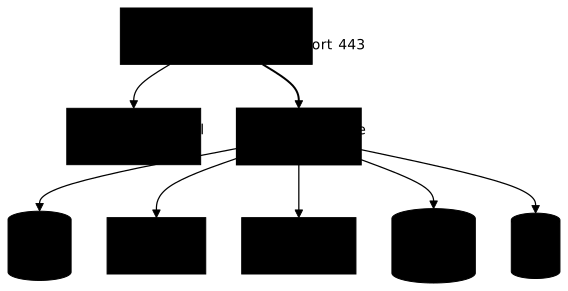
Main components:
| Component | Role | Why it matters |
|---|---|---|
| NGINX | Reverse proxy, TLS termination | Single entry point, HTTPS handling |
| Core | REST API, authentication, authorisation | The brain of Harbor |
| Registry | Image storage (Docker Distribution) | Where your images are actually stored |
| Trivy | Vulnerability scanning | Detects CVEs in your images |
| JobService | Asynchronous tasks (replication, scan, GC) | Background jobs |
| PostgreSQL | Database | Metadata, users, projects |
| Redis | Cache and sessions | Performance and user sessions |
Built-in security features
Harbor integrates Trivy as its default vulnerability scanner. Every pushed image can be automatically scanned to detect known CVEs.
Scan workflow:
- A developer pushes an image
- Harbor automatically triggers Trivy
- Trivy analyses each layer of the image
- The results are attached to the image in the interface
- If critical vulnerabilities are detected, the pull can be blocked
Access control and authentication
Harbor offers several authentication methods to fit your infrastructure:
- Local database: for small teams or labs
- LDAP/Active Directory: integration with the corporate directory
- OIDC (OpenID Connect): SSO with Keycloak, Azure AD, Okta, Google
- Robot accounts: technical accounts for CI/CD pipelines (see the dedicated section)
When to choose Harbor rather than Pulp, Nexus or Artifactory?
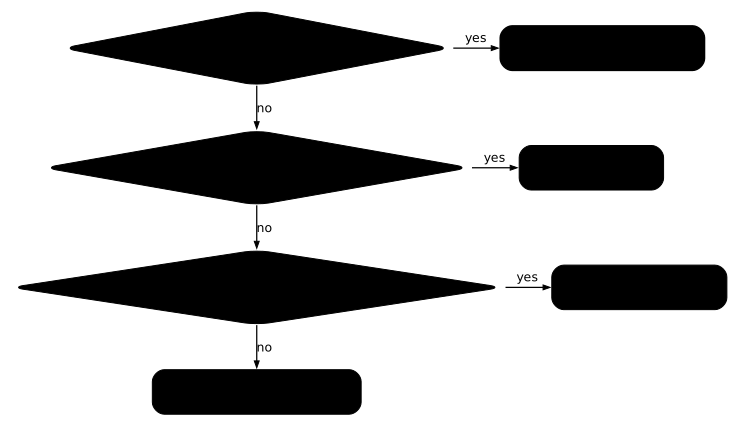
Choose Harbor when you only store container images and Helm charts, and you want a registry that scans, controls access per project and replicates without assembling anything. As soon as a single RPM, npm or Maven package also has to be hosted, Harbor is no longer enough. The choice and licence table on the course home page puts the four tools side by side; this section spells out what sets Harbor apart from the other three.
The following diagram is the same as the one in the Artifactory guide: read the first question, which on its own points to Harbor, then follow the "no" exits to see where you end up when the need goes beyond images.
The criteria that set them apart
Four criteria can be checked without debate. The Pulp and Nexus columns point to their guides, Pulp as a container registry and Nexus as a Docker registry, so that you compare at equal scope: images.
| Criterion | Harbor | Pulp | Nexus |
|---|---|---|---|
| Licence | Apache-2.0, CNCF graduated project | GPL-2.0, no EULA | Community Edition under EULA |
| Formats | OCI images, Helm charts, SBOM, AI artifacts | RPM, DEB, Python, npm, containers | Maven, npm, PyPI, Docker and many others |
| Free version limits | None: a single free edition | None | 40,000 components, 100,000 requests per day |
| Vulnerability scanning | Built-in Trivy, pull blocking possible | Trivy plugged into the CI | Not covered in the course |
One figure stands out from this table: the quota of 40,000 components in Nexus Community is worth watching for a very active image registry, since the CI pushes a new image on every commit. Harbor has no such ceiling, and the Nexus guide explains how to stay under the thresholds with cleanup policies.
What Harbor does that the others do not
Three functions justify it for images. The Trivy scan runs on every push and can block the pull of an image carrying critical CVEs, with no pipeline to write. Projects give each team its own rights, scan settings and revocable robot accounts. Finally replication, push and pull, as well as the proxy cache, synchronise images between registries without scripting.
Pulp also covers containers, but the scan is plugged in through the CI: the control has to be built, whereas it ships with Harbor.
What Harbor does not do
Harbor does not manage system packages (RPM, DEB) or libraries (Maven, npm, PyPI): it is an OCI artifact registry, not a universal repository. A team that also needs to cache PyPI or npm therefore adds a second tool, Pulp or Nexus, next to Harbor. Its installation is also heavier than a plain registry: seven services, including PostgreSQL and Redis, as the architecture diagram above shows.
The use case that justifies it
A Kubernetes platform where several teams push images, where you want to forbid the deployment of vulnerable images and protect yourself from Docker Hub rate limiting, justifies Harbor. Conversely, a team that only publishes Python or RPM packages has no use for it. As for Artifactory, it covers images like everything else, but under a commercial licence: as long as only images matter, Harbor avoids that cost.
Installing Harbor
Harbor can be installed in two ways depending on your environment:
| Method | Use case | Complexity |
|---|---|---|
| Docker Compose | Lab, small team, dedicated server | Simple |
| Helm on Kubernetes | Production, high availability, cloud | Medium |
In this guide, we cover both methods. Start with Docker Compose to get familiar with Harbor, then move to Helm for production.
System requirements
Required hardware and software configuration:
| Resource | Minimum (lab) | Recommended (prod) | Why |
|---|---|---|---|
| CPU | 2 cores | 4 cores | Trivy uses a lot during scans |
| RAM | 4 GB | 8 GB | PostgreSQL + Trivy + Redis |
| Disk | 40 GB | 160 GB+ | Depends on the volume of stored images |
Required software:
- Docker Engine (in French) 20.10.10+
- Docker Compose v2 (or v1.18+)
- OpenSSL (to generate the certificates)
Network ports to open:
| Port | Protocol | Usage |
|---|---|---|
| 443 | HTTPS | Harbor portal and API (default) |
| 80 | HTTP | Redirect to HTTPS |
| 4443 | HTTPS | Docker Content Trust (optional) |
Downloading Harbor
Download the installer from the official GitHub repository. Two options:
| Installer | Size | Use case |
|---|---|---|
| Online | ~50 MB | Downloads the images from Docker Hub at installation time |
| Offline | ~800 MB | Images included, for environments without internet |
-
Download the archive
Terminal window cd /optwget https://github.com/goharbor/harbor/releases/download/v2.15.2/harbor-offline-installer-v2.15.2.tgz -
Verify authenticity
Since late 2025, Harbor no longer signs its archives with GPG (the
.ascfile is gone) but with Sigstore/cosign: a.sigstore.jsonbundle accompanies each archive, plus anmd5sumfile. Check integrity first, then authenticity with cosign:Terminal window # Integrity (md5)wget https://github.com/goharbor/harbor/releases/download/v2.15.2/md5sumgrep offline md5sum | md5sum -c -# Authenticity (Sigstore/cosign)wget https://github.com/goharbor/harbor/releases/download/v2.15.2/harbor-offline-installer-v2.15.2.tgz.sigstore.jsoncosign verify-blob \--bundle harbor-offline-installer-v2.15.2.tgz.sigstore.json \--certificate-identity-regexp 'https://github.com/goharbor/harbor' \--certificate-oidc-issuer 'https://token.actions.githubusercontent.com' \harbor-offline-installer-v2.15.2.tgz# Verified OK -
Extract the archive
Terminal window tar xzvf harbor-offline-installer-v2.15.2.tgzcd harbor
Configuring Harbor
The harbor.yml file holds the whole Harbor configuration. Copy the template and edit it:
cp harbor.yml.tmpl harbor.ymlvi harbor.ymlHere are the essential settings to configure:
# Hostname or public IP (never localhost in production)hostname: registry.example.com
# HTTPS configuration (mandatory in production)https:  port: 443  certificate: /opt/harbor/certs/server.crt  private_key: /opt/harbor/certs/server.key
# Initial admin password (change it!)harbor_admin_password: YourSecurePassword
# Image storage directorydata_volume: /data
# Enable Trivy for vulnerability scanningtrivy: ignore_unfixed: false # Include CVEs without a fix security_check: vuln,config,secret skip_update: false # Update the CVE databaseRunning the installation
The --with-trivy option enables vulnerability scanning:
sudo ./install.sh --with-trivyThe script checks the prerequisites, generates the configurations and starts the containers. Once it has finished:
✔ ----Harbor has been installed and started successfully.----You can reach the Harbor web interface at https://registry.example.com
(or the URL configured in hostname).
Installing with Helm (Kubernetes)
For a production deployment on Kubernetes, use the official Helm chart. This method brings high availability and better integration with the cloud-native ecosystem than installing from the archive.
-
Add the Harbor Helm repository
Terminal window helm repo add harbor https://helm.goharbor.iohelm repo update -
Create a custom values file
values-harbor.yaml expose:type: ingressingress:hosts:core: harbor.example.comtls:enabled: truecertSource: secretsecret:secretName: harbor-tlsexternalURL: https://harbor.example.compersistence:enabled: truepersistentVolumeClaim:registry:size: 100Gitrivy:enabled: trueharborAdminPassword: "YourSecurePassword" -
Install Harbor
Terminal window helm install harbor harbor/harbor \--namespace harbor \--create-namespace \-f values-harbor.yaml -
Check the deployment
Terminal window kubectl -n harbor get pods
See the Harbor Helm documentation for advanced options (multi-replica HA, S3 storage, external PostgreSQL...).
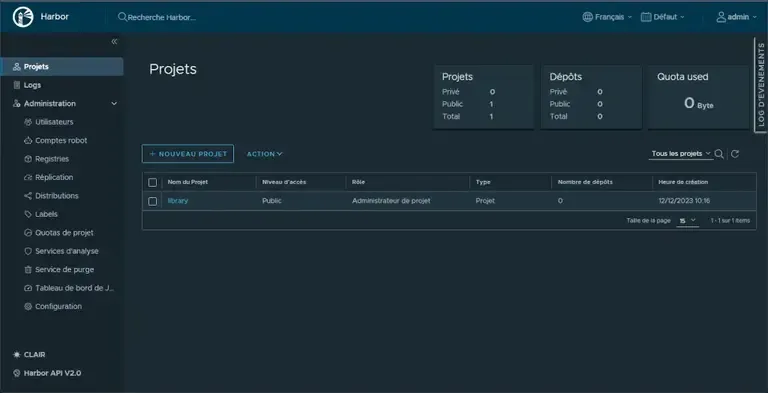
First access
On your first access to Harbor:
- Open
https://harbor.example.comin your browser - Log in with
adminand the password set inharbor.yml - Change the password immediately via Administration → Users
Using Harbor day to day
This section covers the everyday operations: pushing an image, pulling it, and understanding vulnerability scanning.
Pushing your first image
Let's take a concrete example: you have a simple web application to containerise.
-
Create a project in Harbor
Before pushing an image, create a project in the Harbor interface: Projects → New Project. A project groups related images, by application or by team, and carries its own rights and scan settings.
-
Create your Dockerfile
FROM nginx:1.31.3-alpine@sha256:4a73073bd557c65b759505da037898b61f1be6cbcc3c2c3aeac22d2a470c1752COPY index.html /usr/share/nginx/html/EXPOSE 80 -
Build the image
Terminal window docker build -t mywebserver:0.1 . -
Tag the image for Harbor
The tag format is:
<harbor-url>/<project>/<image>:<version>Terminal window docker tag mywebserver:0.1 registry.example.com/myproject/mywebserver:0.1 -
Log in to Harbor
Terminal window docker login registry.example.com# Enter your Harbor credentials -
Push the image
Terminal window docker push registry.example.com/myproject/mywebserver:0.1
Check: in the Harbor interface, go to Projects → myproject. You should see your image with its 0.1 tag.
Understanding vulnerability scanning
Once the image is pushed, Harbor automatically triggers a Trivy scan (if configured). In the interface:
- Click the image to see its tags
- Click a tag to see the detail
- The Vulnerabilities tab shows the detected CVEs
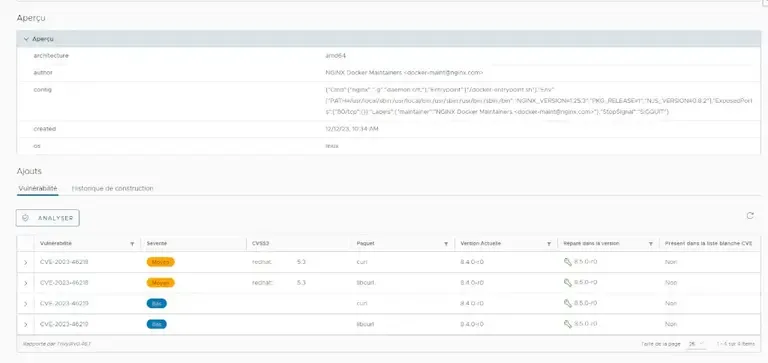
Interpreting the results:
| Severity | Meaning | Recommended action |
|---|---|---|
| Critical | Remotely exploitable flaw, major impact | Fix immediately |
| High | Serious flaw | Fix quickly |
| Medium | Moderate flaw | Plan the fix |
| Low | Minor flaw | Fix when possible |
Configuring the proxy cache
The proxy cache is one of Harbor's most useful features. It keeps a cache of the images of external registries, Docker Hub, Quay or GCR, in order to:
- Avoid Docker Hub rate limiting (100 pulls/6h anonymously)
- Speed up pulls (images served from your local network)
- Guarantee availability even if Docker Hub is down
How does the proxy cache work?
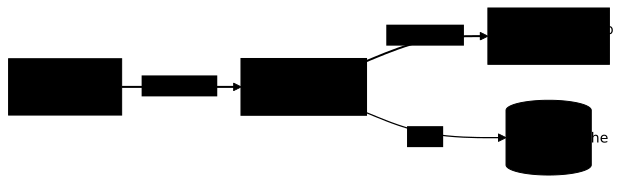
First pull: Harbor fetches the image from Docker Hub, stores it locally, and serves it to the client.
Subsequent pulls: Harbor serves the image from its local cache. Docker Hub is not contacted (except to check for updates).
Configuring a Docker Hub proxy cache
-
Create a registry endpoint
In the Harbor interface: Administration → Registries → New Endpoint
Field Value Provider Docker Hub Name dockerhub Endpoint URL https://hub.docker.com Access ID (optional, your Docker Hub username) Access Secret (optional, your Docker Hub token) Click Test Connection to check, then OK.
-
Create a proxy cache project
Projects → New Project
Field Value Project Name dockerhub-proxy Access Level Public (or Private depending on your needs) Proxy Cache Enabled Registry dockerhub (the endpoint created in step 1) -
Use the proxy cache
Instead of:
Terminal window # ❌ direct egress to Docker Hub, and a floating tagdocker pull nginx:latestUse:
Terminal window docker pull registry.example.com/dockerhub-proxy/library/nginx:1.31.3For non-official images, the publisher's path follows the same principle:
Terminal window docker pull registry.example.com/dockerhub-proxy/library/alpine:3.22@sha256:5291449c3df73caf6ed85e649dec1b9e818b39a5d8c871e97afc13e9cd5e8fa8
Supported registries
Harbor supports the proxy cache for many registries:
- Docker Hub
- Quay.io
- GitHub Container Registry (ghcr.io)
- AWS ECR
- Azure ACR
- Google Container Registry
- JFrog Artifactory
Robot accounts for CI/CD
Robot accounts are technical accounts designed for CI/CD pipelines. Unlike user accounts, they:
- Have no access to the web interface
- Have limited permissions (push/pull only)
- Can be revoked without affecting users
- Have a configurable lifetime
Creating a robot account
-
Navigate to the project
Projects → your-project → Robot Accounts
-
Create the robot
Click New Robot Account:
Field Recommended value Name ci-pipeline Expiration 365 days (or according to your policy) Permissions Push Artifact, Pull Artifact -
Save the credentials
Harbor displays the token only once. Copy it immediately and store it in your secrets manager (Vault, GitLab CI variables, GitHub Secrets...).
Using it in GitLab CI
variables:  HARBOR_URL: registry.example.com  HARBOR_PROJECT: myproject
build:  stage: build  script:    - docker login -u "${HARBOR_ROBOT_USER}" -p "${HARBOR_ROBOT_TOKEN}" ${HARBOR_URL}    - docker build -t ${HARBOR_URL}/${HARBOR_PROJECT}/myapp:${CI_COMMIT_SHA} .    - docker push ${HARBOR_URL}/${HARBOR_PROJECT}/myapp:${CI_COMMIT_SHA}
The HARBOR_ROBOT_USER and HARBOR_ROBOT_TOKEN variables are defined in Settings → CI/CD → Variables (type "masked").
Replication between registries
Replication lets you synchronise images between several Harbor instances or towards other registries. Use cases:
- Multi-datacentre: replicate images to a DR site
- Edge computing: pre-push images to edge clusters
- Migration: copy images from an old registry
Replication modes
| Mode | Direction | Use case |
|---|---|---|
| Push | Harbor → External | Distribute to other registries |
| Pull | External → Harbor | Import from Docker Hub, GCR, etc. |
Configuring push replication
-
Create the destination endpoint
Administration → Registries → New Endpoint
Configure access to the destination registry (remote Harbor, ECR, etc.).
-
Create a replication rule
Administration → Replications → New Replication Rule
Field Value Name prod-datacenter-2 Replication mode Push-based Source resource filter myproject/** Destination registry (the endpoint you created) Trigger mode Event Based (on every push) -
Test the replication
Push an image to the source project. It should appear in the destination registry after a few seconds.
Troubleshooting
Problems with Harbor show up in two ways: the interface is unreachable, or Docker operations fail at login, push or pull. The most frequent causes are the following.
Installation problems
| Symptom | Likely cause | Solution |
|---|---|---|
| Harbor does not start | A container is in error | docker compose ps then the logs of the failing container |
| "port already in use" error | Port 443/80 already used | Stop the conflicting service or change the port |
| Interface unreachable | HTTPS misconfigured | Check the certificate paths in harbor.yml |
| Database error | Corrupted PostgreSQL | Check the PostgreSQL logs in /var/log/harbor/ |
Docker connection problems
| Symptom | Likely cause | Solution |
|---|---|---|
x509: certificate signed by unknown authority | Self-signed certificate not trusted | Add the CA to the system (see below) |
unauthorized: authentication required | Wrong credentials | Check username/password, run docker login again |
denied: requested access to the resource is denied | Insufficient permissions | Check the rights on the Harbor project |
| Timeout when pushing | Network or firewall | Check connectivity on port 443 |
Trusting a self-signed certificate
If you use a self-signed certificate (lab), you must add it to the system:
# Copy the CA certificatesudo cp ca.crt /usr/local/share/ca-certificates/harbor-ca.crtsudo update-ca-certificates
# Restart Dockersudo systemctl restart docker# Copy the CA certificatesudo cp ca.crt /etc/pki/ca-trust/source/anchors/harbor-ca.crtsudo update-ca-trust
# Restart Dockersudo systemctl restart dockerReading the logs
Harbor logs are stored in /var/log/harbor/ with one file per component:
# Core component logs (API)tail -f /var/log/harbor/core.log
# Registry logstail -f /var/log/harbor/registry.log
# Trivy (scanner) logstail -f /var/log/harbor/trivy-adapter.log
For Helm installations, use kubectl:
kubectl -n harbor logs deployment/harbor-core -fKey takeaways
- Harbor is a cloud-native artifact registry that stores Docker images, Helm charts, SBOMs and AI artifacts
- The proxy cache solves Docker Hub rate limiting: 1 external pull → N internal pulls
- Trivy automatically scans images to detect CVEs
- Robot accounts are essential for CI/CD: dedicated, revocable credentials with minimal permissions
- Replication enables multi-datacentre setups and high availability
- HTTPS is mandatory in production; Docker refuses HTTP registries by default
- A CNCF graduated project = guaranteed maturity and longevity
- You choose Harbor when only images and Helm charts matter; as soon as you also need RPM, npm or Maven, you add Pulp or Nexus, or take a universal repository
Knowledge check
Eight questions on Harbor: what an OCI-only registry buys you, its proxy cache, and the criteria that set it apart from Pulp and Nexus.
Knowledge check
Check what you have learned with this interactive quiz
How it works
- The timer starts when you click Start
- Multiple choice, true/false and short answer questions
- You can move between questions
- Detailed results are shown at the end
Starts the quiz and the timer
Review
(0/0)Score by domain
A domain groups several guides and gets several questions, so its score is more reliable than a per-topic score, which often rests on a single question.
Summary
Strengths
No topic passed at 80% on at least two questions yet.
Weak areas
No topic below the pass mark.
Recommended next
Hints before you try again?
Continue the course: Securing npm, PyPI and Go dependencies
A new full quiz with random questions
Work again only on the questions you missed