Your VM cannot reach the network, or nobody can reach it? Do not start by blaming the switch or the firewall. In Proxmox VE, a VM reaches the network through a bridge, a virtual switch on the host, and an incident is located by observing separately the attachment to the bridge, the IP address, the route and the DNS. This lesson explains the path of a frame, where the host address lives, where DHCP comes from, then a layer-by-layer diagnostic method. It is written for a beginner who has already installed Proxmox VE. The VLAN, NAT, MTU and bonding procedures are kept at the end of the page as deeper dives.
What you will learn
- Follow the path of a connection between a client and a VM's service.
- Check that a guest network card is attached to the right bridge.
- Tell four observations apart: link (L2), IP, route and DNS.
- Avoid two wrong ideas about
pingand about DHCP. - Locate a failure at the right stage, then fix it without losing access.
- Check that a network configuration survives a reboot.
Prerequisites
Proxmox VE is installed and you can reach its web interface, as in the Proxmox VE installation guide (in French) (or its installation on an existing Debian). You know how to create a VM (create a KVM VM) and you know the essentials of an IP address and a netmask. If needed, review IP addresses and subnets (in French) and the MAC address (in French). You have a rescue console for the server (screen, IPMI or the hosting provider's console), because a badly prepared network test cuts the SSH session.
How does a frame travel between the client and the VM?
A Proxmox VM is connected to the network through a chain of four elements: the guest network card, a tap interface on the host side, a bridge, then the physical port towards the network switch. The bridge only looks at MAC addresses: it is a layer 2 (L2) switch, which forwards frames without ever reading or changing an IP address.
Here are the objects you will meet under Node → System → Network and in the configuration of a VM.
| Object | What it is | Example |
|---|---|---|
| Physical port | The server's real network card | eno1, enp3s0 |
| Bridge | Virtual switch created by Proxmox | vmbr0, vmbr1 |
| Guest network card | Virtual network card seen by the VM | net0 in the VM hardware, eth0 or ens18 inside the guest |
| tap | Host-side interface that extends the VM's card | tap100i0 (VM 100, card 0) |
| veth | Equivalent of the tap for an LXC container | veth101i0 (CT 101, card 0) |
| bridge-ports | The port or ports the bridge connects | bridge-ports eno1 |
The name tap100i0 encodes the VM identifier and the card index: it
tells you at a glance which instance sits behind which port of the bridge.
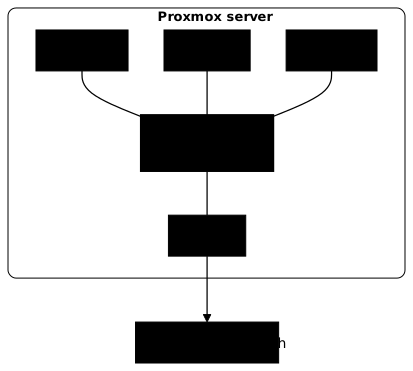
Read this diagram from top to bottom: each instance has its own card, all of them end up on the same bridge, and a single physical port goes out to the switch. A frame coming from the client follows the reverse path to the VM.
client -> physical switch -> eno1 -> vmbr0 -> tap100i0 -> VM 100 network cardThe vmbr0 bridge learns which MAC address sits behind which port, then
forwards each frame to the right port. For the logic of the switch and of ARP,
see ARP (in French).
Where does the Proxmox host's IP address live?
The host's management address is configured on the bridge (vmbr0), and
not on the physical port (eno1), as soon as the physical link is attached to the
bridge. The eno1 interface stays in manual mode: it carries
frames between the bridge and the switch, without owning an IP address.
The reason is simple: all traffic, the host's as well as the VMs', goes
through the bridge. By giving it the address, the host sits on the same L2
segment as its VMs, which become reachable without extra routing.
An address set on eno1, while eno1 is a bridge port,
would step outside the path taken by the VMs' traffic and create an ambiguous
configuration: keep it on the bridge.
auto loiface lo inet loopback
# The physical port: no IP, it is just a cableiface eno1 inet manual
# The bridge: it carries the host addressauto vmbr0iface vmbr0 inet static    address 192.168.1.100/24    gateway 192.168.1.1    bridge-ports eno1    bridge-stp off    bridge-fd 0
This configuration is that of a normal installation. The three lines to
look for are address on vmbr0, bridge-ports eno1 which attaches the port, and
iface eno1 inet manual. Check them on the host:
ip -br addr show vmbr0 # the host address is on the bridgebridge link show # eno1 and the taps are ports of vmbr0The output must show the host address on vmbr0 and, in bridge link show,
eno1 as well as one tap... per started VM card, with master vmbr0.
Where does the VM's IP address come from: does the bridge provide DHCP?
No: a bridge never creates a DHCP server. It forwards frames, including the broadcasts of DHCP clients, but the server that answers is provided by the environment: the ISP router, a LAN router, a DHCP server on the LAN or a dedicated VM. On a simple bridge, the VM therefore gets an address from the same range as the host because the physical network's DHCP answers, not because Proxmox provides one. See the principle in DHCP (in French).
This distinction explains two opposite symptoms. A VM on vmbr0 gets
an address if the network has a DHCP server and if the card reaches the right
segment. A VM on a bridge without a port (isolated) gets nothing: no
server answers there, and you must enter the address by hand or run a DHCP
server in another VM of that segment.
To check where an address comes from, look at what the guest received:
ip -br addr # from the VM: is the address in the expected range?ip route # does the default route point to the LAN gateway?An address in 169.254.x.x means the guest received no DHCP answer.
This is a link observation (the request did not reach a server),
not a DNS failure.
How do you follow a connection from the client to the VM's service?
Take a VM 100 that hosts a website on port 80 and a client on the LAN. The demonstration follows a request in order, observing at each stage what you expect. The addresses are those of an example LAN.
| Element | Value |
|---|---|
Proxmox host (on vmbr0) | 192.168.1.100/24 |
| LAN gateway | 192.168.1.1 |
VM 100, card net0 on vmbr0 | 192.168.1.120/24 |
| Client | 192.168.1.50/24 |
The client wants to open http://192.168.1.120/. The following four steps
describe what happens, in order.
-
L2 resolution by the client. The client is in the same
/24as the VM: it does not need a gateway. It broadcasts an ARP request "who has 192.168.1.120?". The physical switch forwards it to the Proxmox port. -
Crossing the bridge. The frame enters through
eno1,vmbr0broadcasts it to its ports, and only the card of VM 100, behindtap100i0, answers with its MAC. The client stores this MAC in its ARP table. -
Delivering the connection. The client sends its TCP request to port 80, in frames addressed to the VM's MAC. The bridge forwards them to
tap100i0without touching the IP. -
Reply. The service listens on port 80 in the VM, answers the client, and the reply comes back along the reverse path. The VM's route plays no part in answering a client in the same
/24.
Now observe each stage with a command, starting with the client and ending with the guest:
# On the client: is the VM resolved at L2?ip neigh show 192.168.1.120      # must show a MAC address and REACHABLE or STALE
# On the Proxmox host: is the VM's card a port of the right bridge?bridge link show | grep tap100i0 # must contain master vmbr0
# In the VM: is the service listening?ss -tln                          # must list a line with port 80 in LISTEN
The expected output chains the three clues: a MAC for the VM's IP, a
master vmbr0 for its tap, and port 80 in LISTEN. If one is missing, the failure
sits at the matching stage, which the next section systematizes.
How do you diagnose layer by layer instead of with ping?
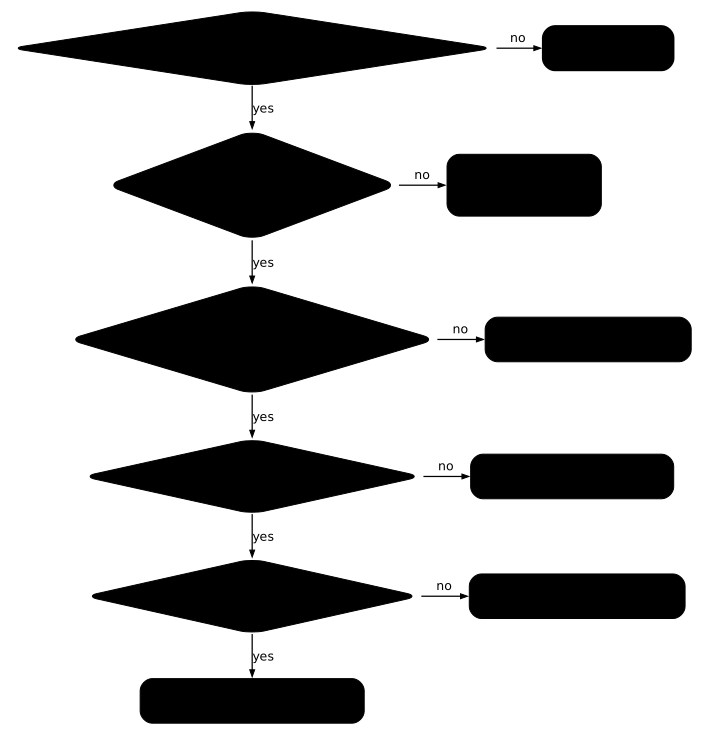
A network incident is located by observing four distinct things: the L2 attachment, the IP address, the route and the DNS. Each has its command and its own failure. Confusing them produces binary diagnoses such as "it pings so it's the firewall", which make you blame the wrong device.
| Observation | Question | Command (inside the guest) | What a failure shows |
|---|---|---|---|
| Link (L2) | Does the card reach its neighbors? | ip neigh show | FAILED or INCOMPLETE entries |
| IP address | Is the address in the right range? | ip -br addr | No address, 169.254.x.x, wrong netmask |
| Route | Where does traffic leaving the segment go? | ip route get 8.8.8.8 | No default route, wrong gateway |
| DNS | Does the name resolve? | getent hosts www.debian.org | Failure with a name, success with the IP |
The diagram below orders these observations and adds a fifth one, the listening service, detailed further down. Read it from top to bottom: as long as a question gets "no", the matching stage is the suspect, and the commands further down are useless.
Does a ping without reply prove an address is free?
No: a ping without reply proves nothing about the address. ping sends
ICMP (the protocol of network control messages, including the echo of
ping), and many machines do not answer it: guest firewall,
host rule, Windows depending on its network profile (the inbound ICMP echo rule
is often disabled or restricted there). An address can therefore be
taken and silent. Reusing an address that "does not ping" creates an IP
conflict, with random outages on both machines.
Conversely, a ping that answers proves little: it validates a path
for ICMP, not for the TCP port you are targeting. A service can be stopped
while the ping goes through.
To know whether an address is taken, use sources that do not depend on ICMP: the DHCP lease table, your address inventory, or an ARP request, which IP filtering does not block on the segment. For example, on the Proxmox host:
arping -D -I vmbr0 -c 2 192.168.1.120 # exit code 0 if nobody answers (free), 1 if the address is in useARP duplicate detection queries the L2 layer: a machine that
filters ICMP still answers ARP, barring specific layer 2
filtering. The arping package (iputils-arping on Debian) is not always
installed by default.
What should you check before blaming a firewall or a switch?
Before concluding there is filtering, check that the service listens and on the
right interface. A stopped website, or one bound to 127.0.0.1 instead of
0.0.0.0, produces exactly the symptom of a firewall: the connection fails
or is refused while the network is perfect.
ss -tln # in the VM: is the target port in LISTEN, and on which address?curl -sv http://127.0.0.1/ -o /dev/null # from the VM: does the service answer locally?If ss shows no line for the port, or shows 127.0.0.1:80, the
problem is the service, not the network: no bridge setting will fix it.
If the service answers locally but not from the client, only then does the
filtering policy become the suspect.
The policy is read in three places, which you must go through before concluding:
the guest firewall (nftables, iptables, ufw, Windows), the Proxmox
firewall (datacenter, node and VM levels, with an option per card) and
the host rules. Read the rules before disabling one: a
ping that goes through and a refused port are compatible with a policy that
allows ICMP and nothing else. Allowed routing between networks does not
imply that the service is reachable either. See the principle in
firewall (in French), and the general method in the
network diagnostic summary (in French).
What happens when the VM is attached to the wrong bridge?
A card attached to the wrong bridge is a classic failure of
beginners, and it looks like a failure elsewhere. Take VM 100 from the
demonstration again, but with net0 placed on vmbr1, a bridge created for a
second network card that has neither a physical port nor a cable plugged in.
The VM starts, its system shows a static address 192.168.1.120/24, the
web service listens on port 80. Yet the client gets no answer.
Here is what each observation shows, from closest to the VM towards the client.
# In the VMip -br addr # ens18 192.168.1.120/24: the address is correctip route # default via 192.168.1.1: the route is correctss -tln # 0.0.0.0:80 in LISTEN: the service is listeningip neigh show # 192.168.1.1 FAILED or INCOMPLETE: nobody answers at L2Three observations out of four are healthy, and the fourth is decisive:
ip neigh shows that the VM gets no ARP answer from its gateway. This
rules out an IP firewall, since ARP is a layer 2 resolution that IP
filtering rules do not see (layer 2 filtering remains possible,
but rarer), and it rules out a route or a DNS. The card simply does not reach
the LAN. On the host, the cause appears:
qm config 100 | grep ^net0 # net0: virtio=...,bridge=vmbr1: the wrong bridgebridge link show | grep tap100i0 # master vmbr1, a bridge without a physical portFix at the right stage. In the web interface, open the VM, Hardware,
Network Device, change Bridge to vmbr0 and confirm. Changing the
bridge of a card is applied live, without restarting the guest. Then check
from the guest that ip neigh show gives a MAC address for the
gateway, then from the client that the site answers.
This case illustrates the rule of order: diagnosing from the ping, you
would have suspected the LAN switch or the firewall, which are innocent. By
going through the observations in order, the L2 link points to the faulty stage
before you have touched any filtering.
How do you change the network without losing access, and make it survive a reboot?
Changing the host's network needs preparation. Proxmox uses ifupdown2, a
version of ifupdown able to apply a configuration live, without a reboot.
A change made in the web interface is not applied right away:
it is written to /etc/network/interfaces.new and stays pending until you
click Apply Configuration, which triggers ifreload -a.
This sequence keeps the safety net in place from start to finish.
-
Check the rescue access. IPMI console, hosting provider's console or physical access: test that you can open it before touching the network.
-
Back up the configuration.
Terminal window cp /etc/network/interfaces /etc/network/interfaces.backup-$(date +%Y%m%d-%H%M) -
Note the current state.
Terminal window ip -br addrip route | grep default -
Apply, then check immediately. Click Apply Configuration, read the Task log (it must end with
TASK OK), then from a second machine:Terminal window ping -c 2 <IP_PROXMOX>curl -k https://<IP_PROXMOX>:8006
If access is lost, everything is fixed from the console: list the backups
with ls -la /etc/network/interfaces*, put back the last version that
worked with cp, then reload with ifreload -a and check that
access comes back.
How do you know the configuration will survive a reboot?
A configuration applied with ip addr add or ip route add takes effect
immediately and disappears at reboot: these commands change the kernel
state, not the configuration. What survives is what is written in
/etc/network/interfaces (for the host) and in the guest's network
configuration (for example netplan or /etc/network/interfaces depending on the system).
The attachment of a card to a bridge is, for its part, carried by the VM's configuration
(qm config 100), hence persistent.
To prove it, reboot what you need to target, and nothing else: reboot
the VM to test the guest, or the host to test /etc/network/interfaces,
keeping the console open. After the reboot, replay the four
observations: address, route, L2 neighbor and service. If one has gone back to
its previous state, the change was only temporary.
Transfer exercise: connecting a VM to another topology
This exercise reuses the reasoning of the demonstration on a topology you have not seen. Try to answer before reading the answer key.
Imagine a server whose second card, eno2, is plugged into an administration
network 10.0.0.0/24, managed by another router, 10.0.0.1. You create
a vmbr1 bridge with bridge-ports eno2 and no IP address, then a VM 101
whose net0 card must be on vmbr1, with the address 10.0.0.30/24 and the
gateway 10.0.0.1.
First question: write the three checks that prove that the VM is connected to the expected network, one on the host, one inside the guest on the L2 side, one on the route side.
Second question: three different failures are reported on this VM. For each, say which stage is at fault and which command confirms it.
| Reported symptom | Observation made | Stage |
|---|---|---|
The VM's site answers from 10.0.0.50 by its IP, but not by its name | getent hosts name fails, the connection to the IP succeeds | for you to decide |
From the VM, the gateway does not answer, ip neigh shows FAILED | bridge link show puts the tap on vmbr0 | for you to decide |
The VM reaches 10.0.0.50 but not the Internet, with an empty ip route | No default via line | for you to decide |
Here is the answer key. The first line is a
DNS failure: the network works, only the resolver is wrong. The second is an
attachment to the wrong bridge: the card is on vmbr0 while it must
be on vmbr1. The third is a missing route: the address and the
link are fine, the gateway is not declared. For the first
question, bridge link show | grep tap101i0 on the host must contain
master vmbr1, ip neigh show in the guest must list 10.0.0.1 with a
MAC, and ip route must contain default via 10.0.0.1.
This exercise becomes autonomous when you replay it on your own Proxmox: create the bridge, connect the VM, deliberately inject one of the three failures (wrong bridge, deleted gateway, wrong resolver), then find it again with the observations of this lesson alone.
Troubleshooting: which stage for which symptom?
The table sorts symptoms by stage and not by tool, because it is the stage that determines the fix. The "Check first" column gives the observation that settles it, never a single test to take on faith.
| Symptom | Likely stage | Check first | Fix |
|---|---|---|---|
| VM without IP at startup | Attachment or the environment's DHCP | bridge link show (tap on the right bridge?), does a DHCP server answer on this segment? | Attach to the right bridge, or provide the address |
Neighbors FAILED or INCOMPLETE | Attachment (L2) | qm config <vmid>, then bridge link show | Change the card's bridge |
| IP present but out of range | Address | ip -br addr and the netmask | Fix the IP or the netmask |
| Local network OK, Internet down | Route | ip route get 8.8.8.8 | Declare the default gateway |
| Internet OK by IP, down by name | DNS | getent hosts <name> | Fix the guest's resolver |
| Connection refused on a port | Service | ss -tln in the guest | Start the service or change its listening interface |
| Timeout on a port, service listening | Policy | Guest, Proxmox and host firewalls, rules read before any change | Adjust the faulty rule |
| Access lost after Apply | Host configuration | Console: ip -br addr, ip route | Restore the backup then ifreload -a |
Two connection failures are told apart in the output of curl: an immediate
refusal (Connection refused) points to an absent service or another
port, a timeout (timed out) points to filtering or a silent route.
This reading guides the diagnosis, without replacing it.
To open the host's network state when a full output is unreadable,
the -br option of ip condenses each interface onto one line:
ip -br link # state of each interface, including the tapsip -br addr # addressesbridge link show # who is a port of which bridgeip route # routing tableGoing deeper: VLAN, NAT, MTU and bonding
The sections that follow keep useful explanations, but they go beyond the initial model. The course does not yet offer a dedicated lesson on VLAN, NAT, MTU or bonding: they are therefore still covered here, in condensed form. Read them when the simple bridge is no longer enough, and always replay the four observations of the lesson after each change.
The criterion for leaving the simple bridge is not technical but contractual: how many IP addresses does your network grant you, and do machines need to be partitioned from each other. A single public IP requires NAT, a need for isolation requires VLAN, and most other cases are solved with the simple bridge.
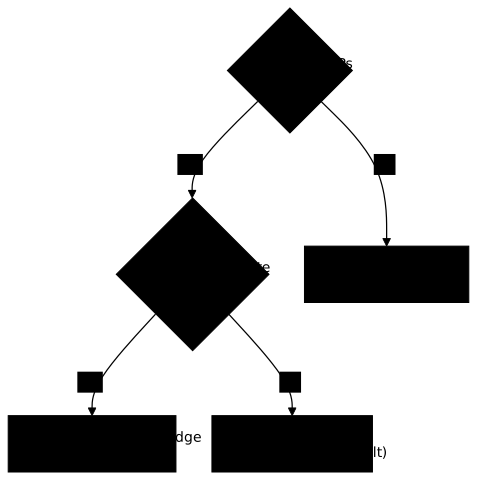
| Situation | Configuration | Why |
|---|---|---|
| Homelab, several IPs available | Simple bridge | It is the default, it just works |
| Company, 1 IP per VM | Simple bridge | Every VM is directly reachable |
| Isolate prod/dev/DMZ | VLAN-aware | One bridge, several isolated networks |
| VPS, only 1 public IP | NAT | VMs go out through the host's IP |
| Lab without a managed switch | Simple bridge or NAT | VLAN-aware is useless without a trunk |
VLAN-aware bridge: several isolated networks on a single bridge
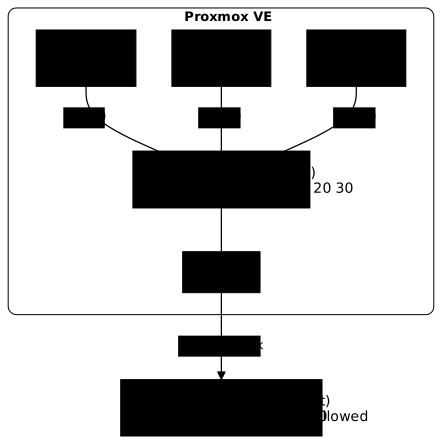
A single bridge handles several isolated networks thanks to VLAN tags (802.1Q). Each frame leaving a VM receives a numeric label that the physical switch uses to put it in the right network. Two VMs with different tags do not communicate directly, even on the same bridge and the same physical card. This configuration assumes a switch able to handle VLANs, otherwise the labels are lost. See the principle in VLAN and segmentation (in French).
The switch port connected to Proxmox must be configured as a trunk (tagged):
interface GigabitEthernet0/1 switchport mode trunk switchport trunk allowed vlan 10,20,30Without this configuration on the switch side, the tags are ignored. To enable VLAN support on an existing bridge, in the web interface:
-
Go to Node → System → Network.
-
Select
vmbr0and click Edit. -
Tick VLAN aware.
-
In Bridge VLAN IDs, list the allowed VLANs:
10 20 30. -
Click OK then Apply Configuration.
Or manually in /etc/network/interfaces, with the last two lines
that enable VLAN mode and list the allowed identifiers:
auto vmbr0iface vmbr0 inet static address 192.168.1.100/24 gateway 192.168.1.1 bridge-ports eno1 bridge-stp off bridge-fd 0 bridge-vlan-aware yes bridge-vids 10 20 30The tag is set on the Proxmox side, not in the guest system: the VM sees an ordinary network card and knows nothing about the VLAN. Edit the VM, Hardware, Network Device, then enter the number in VLAN Tag. This number must appear in the bridge's Bridge VLAN IDs, otherwise the frame is rejected.
VLAN isolation is not proven by what works, but by what must
fail. Check the bridge's VLANs with bridge vlan show, then test
that two machines in the same VLAN reach each other and that two machines in
different VLANs do not. But a failure between two VLANs does not necessarily
point to the switch: it can come from an intended lack of routing, a
filtering rule or a service that is not listening. Apply the same
questions as for the simple bridge, stage by stage. The classic symptom
"everything worked before I ticked the box" often comes from the switch
port that was not set to trunk, or from a tag missing in bridge-vids.
NAT: a single public IP address for several VMs
With NAT, the VMs have private IPs and go out to the Internet through the host's public IP. It is the usual option when the hosting provider only supplies one public address, a common case with a VPS or an entry-level dedicated server. The trade-off: the VMs are no longer reachable from outside without an explicit port forward. See the principle in NAT (in French).
The path of a packet changes: it goes through the host's routing, which replaces the VM's source IP with its public IP before sending, then does the reverse on the way back.
VM (eth0) -> tap100i0 -> vmbr0 -> ip_forward -> NAT (iptables) -> eno1 -> Internet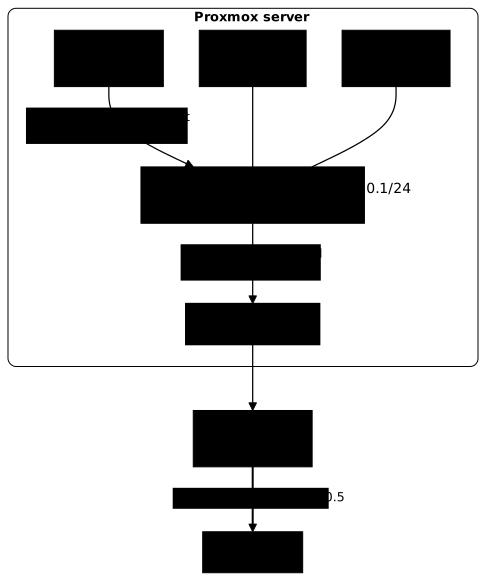
Two differences from the simple bridge: it is eno1 that carries the public
IP, and the bridge is declared bridge-ports none, hence disconnected from the
physical network. The post-up and post-down lines create and remove the
address translation rule when the interface goes up and down.
auto loiface lo inet loopback
# Public interfaceauto eno1iface eno1 inet static    address 198.51.100.5/24    gateway 198.51.100.1
# Private bridge for the VMsauto vmbr0iface vmbr0 inet static    address 10.10.10.1/24    bridge-ports none    bridge-stp off    bridge-fd 0    post-up   iptables -t nat -A POSTROUTING -s '10.10.10.0/24' -o eno1 -j MASQUERADE    post-down iptables -t nat -D POSTROUTING -s '10.10.10.0/24' -o eno1 -j MASQUERADE
IP routing must be enabled for NAT to work, and persistently:
an echo 1 > /proc/... is lost at reboot.
# Create the sysctl config fileecho "net.ipv4.ip_forward = 1" > /etc/sysctl.d/99-ip-forward.conf
# Apply immediatelysysctl -p /etc/sysctl.d/99-ip-forward.conf
# Checkcat /proc/sys/net/ipv4/ip_forward   # must show 1
With NAT, no DHCP server runs on the private bridge, which ties in with the
DHCP section of this lesson: the address must be entered in the VM
(for example 10.10.10.10/24), with the gateway 10.10.10.1, which is the IP
of the bridge on the host, and an external DNS resolver (for example 8.8.8.8). Without a
resolver, only pings to IP addresses work.
To make a service reachable from outside, a port forward is added with DNAT and a forwarding rule:
# Forward public port 80 to the VM 10.10.10.10iptables -t nat -A PREROUTING -i eno1 -p tcp --dport 80 -j DNAT --to 10.10.10.10:80iptables -A FORWARD -p tcp -d 10.10.10.10 --dport 80 -j ACCEPTThese rules added by hand are lost at reboot: to persist them,
use iptables-persistent or add them with post-up in
/etc/network/interfaces. To check NAT, check ip_forward, then
iptables -t nat -L -n -v | grep MASQUERADE on the host, then from the VM
curl -s ifconfig.me, which must show the host's public IP.
NAT accumulates points of failure, because it involves three distinct
mechanisms: the kernel's routing, the iptables rules and the
DNS in the VM. A NAT that breaks after a reboot often comes
from a non-persistent ip_forward. If the ping goes through but not HTTP, do not
conclude there is a firewall: first check that the service listens, then read
the rules before changing one.
MTU and jumbo frames: when should you increase the frame size?
For network storage (Ceph, NFS, iSCSI), raising the MTU to 9000 can improve throughput. Every device on the path must support the same value, otherwise packets are fragmented or lost, which degrades throughput without a clean cut. The principle is detailed in MTU and PMTUD (in French).
auto vmbr1iface vmbr1 inet static address 10.0.0.1/24 bridge-ports eno2 mtu 9000The end-to-end test forbids fragmentation with -M do and adds 28
bytes of headers to the requested size:
ping -M do -s 8972 10.0.0.2 # 8972 + 28 bytes of headers = 9000Bonding: aggregating several links for throughput and redundancy
Bonding combines several network cards for throughput and for tolerance of
a cable failure. The bond then becomes the bridge port, in place of
the physical interface. The choice of mode depends on what your switch accepts:
802.3ad requires a matching configuration on the switch side, the other two
do not.
| Mode | Usage |
|---|---|
active-backup | High availability, 1 active link |
802.3ad (LACP) | Throughput + HA, switch config required |
balance-alb | Load balancing without switch config |
auto bond0iface bond0 inet manual    bond-slaves eno1 eno2    bond-miimon 100    bond-mode 802.3ad    bond-xmit-hash-policy layer3+4
auto vmbr0iface vmbr0 inet static    address 192.168.1.100/24    gateway 192.168.1.1    bridge-ports bond0
VLAN sub-interfaces: the historical method
Before the VLAN-aware bridge, you created a sub-interface per VLAN, then a dedicated bridge on top. The result is functionally equivalent, but it multiplies the objects to maintain: a bridge and a sub-interface for each network. Prefer the VLAN-aware bridge for new installations.
auto eno1.10iface eno1.10 inet manual
auto vmbr10iface vmbr10 inet static    address 10.10.10.1/24    bridge-ports eno1.10
How do you document a hypervisor's network configuration?
The network configuration is rarely consulted, except on the day when nothing
works anymore. Keep an up-to-date diagram: the existing bridges, the physical
interfaces they use, the configured VLANs and the IP ranges in use.
Also comment /etc/network/interfaces: a comment survives
team changes and can be read from the console when the web interface is
unreachable. State the bridge's purpose and any non-obvious settings, such as
a different MTU from the default value.
auto vmbr0iface vmbr0 inet static    address 192.168.1.100/24    gateway 192.168.1.1    bridge-ports eno1    bridge-stp off    bridge-fd 0    # Main LAN - production VMs
auto vmbr1iface vmbr1 inet static    address 10.0.0.1/24    bridge-ports eno2    # Storage network - Ceph/NFS - MTU 9000    mtu 9000
Finally, test each change in a test environment before production. Some network defects do not show up right away: a fragmentation issue linked to the MTU or a badly negotiated link aggregation can hold for several hours before degrading the service.
Put it into practice
The lab replays, on a real node, the failure from the section "What happens when
the VM is attached to the wrong bridge?". The test VM 160 is running and its
service is listening, but its card is plugged into an isolated bridge, vmbr9,
with no physical port. You reattach it to vmbr0, without recreating the VM and
without giving the isolated bridge a port. The validation checks that net0 is
on vmbr0 and that tap160i0 is an effective port of vmbr0
(bridge link show), that a test page can be read from the node with the
session nonce, that the isolated bridge has been left intact, and then that the
fix holds after a restart of the guest and an ifreload -a on the node. It
therefore applies the layer-by-layer diagnosis of this lesson, and the rule that
only what is written in the configuration survives.
Key takeaways
- The bridge is a virtual L2 switch: it forwards frames based on MACs and does not read IPs.
- The path is: guest card, tap (veth for an LXC), bridge, physical port, LAN switch.
- The host address lives on the bridge when the physical port is attached to it;
the physical port stays in
manual. - DHCP comes from the environment, never from the bridge: an isolated bridge gives no address.
- L2, IP, route and DNS are four distinct observations; the first stage that fails is the suspect.
- A
pingwithout reply does not prove an address is free, and does not prove filtering either: check what is listening, then read the policy before concluding. - Keep a rescue console before any change, and back up
/etc/network/interfaces. - Only what is written in the configuration survives a reboot: prove it by rebooting the target then replaying the observations.
Knowledge check
Check that the essentials of this lesson are in place. The questions only cover what has just been explained here.
Knowledge check
Check what you have learned with this interactive quiz
How it works
- The timer starts when you click Start
- Multiple choice, true/false and short answer questions
- You can move between questions
- Detailed results are shown at the end
Starts the quiz and the timer
Review
(0/0)Score by domain
A domain groups several guides and gets several questions, so its score is more reliable than a per-topic score, which often rests on a single question.
Summary
Strengths
No topic passed at 80% on at least two questions yet.
Weak areas
No topic below the pass mark.
Recommended next
Hints before you try again?
Continue the course: Install Proxmox VE: complete guide with the official ISO
A new full quiz with random questions
Work again only on the questions you missed