You are writing a GitHub Actions workflow and you want to know which branch the code runs on, who triggered the pipeline, or how to read the value of a secret. How? That is where contexts and expressions come in.
This guide shows you how to reach all that information dynamically, without ever hardcoding values that change from one run to the next.
What you will learn
- Read the run information of a workflow through the
githubcontext - Pass data between steps and between jobs with
$GITHUB_OUTPUT,outputsandneeds - Handle secrets and environment variables without exposing them in the logs
- Write expressions: operators, status functions,
toJSON(),hashFiles() - Reuse ready-made patterns for conditional deployment and event filtering
This guide assumes you already know what a workflow is.
What is a context? (the essential idea)
Picture your workflow running inside a room. In that room there are several labelled boxes holding useful information:
- the github box holds everything about the repository, the branch, the commit author, the triggering event;
- the secrets box holds your API keys and sensitive tokens;
- the env box holds your environment variables;
- the matrix box holds the values of your test strategy, if you use one;
- and so on.
A context is simply one of those boxes. You reach into it with a special
syntax: ${{ box_name.what_you_want }}.

A first concrete example
Here is a minimal workflow that reads three different pieces of information from
the github context and prints them into the run logs.
name: My first workflow with contextson: push
permissions:  contents: read  # Minimal permissions
jobs:  print-info:    runs-on: ubuntu-24.04    steps:      - name: Who triggered this workflow?        env:          ACTOR: ${{ github.actor }}        run: echo "Triggered by $ACTOR"
      - name: On which branch?        env:          BRANCH: ${{ github.ref_name }}        run: echo "Branch: $BRANCH"
      - name: Which event?        env:          EVENT: ${{ github.event_name }}        run: echo "Event: $EVENT"
You can try it
Create this file in your repository and push it. In the workflow logs you will see the real values appear.
Anatomy of an expression
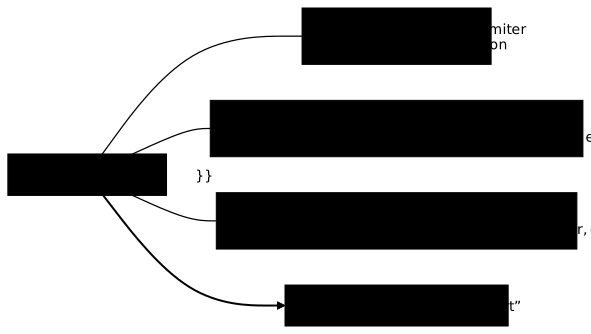
Before going further, let us look at the syntax. A GitHub Actions expression always follows this shape:
| Element | Role |
|---|---|
${{ and }} | Delimiters: they tell GitHub Actions to evaluate what sits between them |
github | Context: the "box" to look into |
.actor | Property: the specific piece of data to read |
You can reach nested properties with successive dots:
# A simple property${{ github.actor }}
# A nested property (inside a pull_request event)${{ github.event.pull_request.title }}
# An even deeper one${{ github.event.pull_request.user.login }}
The available contexts: an overview
Here are all the contexts you can use. Do not worry, you will not need to know them all by heart; the most useful ones are detailed right after.
| Context | What it holds | When to use it |
|---|---|---|
github | Repository, branch, event, author | Almost everywhere, the most used one |
env | Environment variables | Passing values between steps |
vars | Configuration variables (repo/org) | Shared non-sensitive configuration |
secrets | Secrets (API keys, tokens) | Authentication, deployment |
steps | Results of earlier steps | Reading a step output |
needs | Results of earlier jobs | Reading a job output |
matrix | Matrix strategy values | Multi-version, multi-OS tests |
job | Information about the running job | Rarely used directly |
runner | Information about the execution machine | Paths, runner OS |
strategy | The matrix configuration | Rarely used directly |
inputs | Inputs of reusable workflows | Workflows called by others |
The github context (the most important)
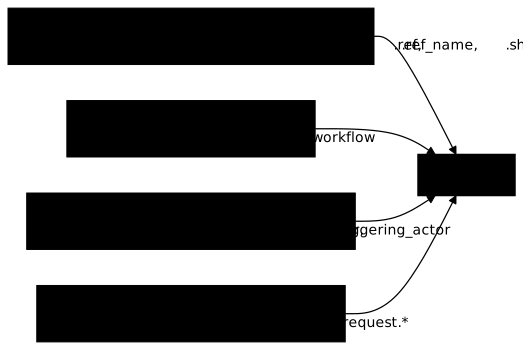
This is the context you will use most often. It holds all the information about:
- the repository (name, owner, URL);
- the event that triggered the workflow (push, pull_request, and so on);
- the branch or the tag concerned;
- the user who triggered the run;
- the run itself (number, unique ID).
The properties you cannot do without
The github context exposes dozens of properties. Here are the ones you will
handle day to day, grouped by theme in the tabs below.
steps: - name: Repository and code information env: REPOSITORY: ${{ github.repository }} OWNER: ${{ github.repository_owner }} BRANCH: ${{ github.ref_name }} FULL_REF: ${{ github.ref }} COMMIT_SHA: ${{ github.sha }} run: | echo "Repository: $REPOSITORY" # → "stephane-robert/my-project" echo "Owner: $OWNER" # → "stephane-robert" echo "Branch: $BRANCH" # → "main" or "feature/my-branch" echo "Full ref: $FULL_REF" # → "refs/heads/main" or "refs/tags/v1.0.0" echo "Commit SHA: $COMMIT_SHA" # → "a1b2c3d4e5f6..." (40 characters)steps: - name: Who triggered what? env: EVENT: ${{ github.event_name }} ACTOR: ${{ github.actor }} WORKFLOW: ${{ github.workflow }} RUN_NUMBER: ${{ github.run_number }} RUN_ID: ${{ github.run_id }} run: | echo "Event: $EVENT" # → "push", "pull_request", "workflow_dispatch" echo "Author: $ACTOR" # → "stephane-robert" (whoever triggered it) echo "Workflow: $WORKFLOW" # → "CI" (your workflow name) echo "Run number: $RUN_NUMBER" # → "42" (increments on every run) echo "Unique ID: $RUN_ID" # → "1234567890" (unique to this run)These properties only exist for the pull_request and
pull_request_target events:
on:  pull_request:    branches: [main]
jobs:  pr-info:    runs-on: ubuntu-24.04    steps:      - name: Pull request information        env:          PR_NUMBER: ${{ github.event.pull_request.number }}          PR_TITLE: ${{ github.event.pull_request.title }}          SOURCE_BRANCH: ${{ github.head_ref }}          TARGET_BRANCH: ${{ github.base_ref }}          PR_AUTHOR: ${{ github.event.pull_request.user.login }}          IS_DRAFT: ${{ github.event.pull_request.draft }}        run: |          echo "PR number: #$PR_NUMBER"          echo "Title: $PR_TITLE"          echo "Source branch: $SOURCE_BRANCH"          echo "Target branch: $TARGET_BRANCH"          echo "PR author: $PR_AUTHOR"          echo "Is a draft: $IS_DRAFT"
head_ref versus ref_name
github.head_refis the PR's source branch (for examplefeature/login)github.base_refis the PR's target branch (for examplemain)github.ref_nameon apull_requestevent is<number>/merge(for example42/merge), never the source branch
A practical example: a Docker tag with the short SHA
A very common case is tagging your Docker images with the commit SHA for traceability:
name: Build Dockeron:  push:    branches: [main]
permissions:  contents: read  # Reading the code only
jobs:  build:    runs-on: ubuntu-24.04    steps:      - uses: actions/checkout@3d3c42e5aac5ba805825da76410c181273ba90b1 # v7.0.1
      - name: Build and push        env:          REPOSITORY: ${{ github.repository }}        run: |          # Tag with the short SHA for traceability.          # GitHub Actions has no slicing function: we truncate the          # GITHUB_SHA shell variable to 7 characters.          IMAGE_TAG="$REPOSITORY:${GITHUB_SHA::7}"
          echo "Building $IMAGE_TAG"          docker build -t "$IMAGE_TAG" .          docker push "$IMAGE_TAG"
Reaching the full event
The github.event context holds the complete JSON payload of the webhook
event. Its structure depends on the event type:
steps:  # Print the whole event (useful for debugging)  - name: Debug, see the complete event    env:      EVENT_JSON: ${{ toJSON(github.event) }}    run: echo "$EVENT_JSON"
  # For a push: reach the commits  - name: The list of commits (on a push)    env:      COMMITS: ${{ toJSON(github.event.commits) }}    run: echo "$COMMITS"
  # For a release: read the tag  - name: The release tag    if: github.event_name == 'release'    env:      TAG: ${{ github.event.release.tag_name }}    run: echo "Release $TAG"
The env context (environment variables)
Environment variables store reusable values inside your workflow. They can be declared at three different levels, from the most global to the most local:
env:  WORKFLOW_LEVEL: "reachable everywhere"  # 1. Workflow level
jobs:  build:    runs-on: ubuntu-24.04    env:      JOB_LEVEL: "reachable inside this job"  # 2. Job level
    steps:      - name: First step        env:          STEP_LEVEL: "reachable inside this step only"  # 3. Step level        run: |          # All three are reachable here          echo "Workflow: $WORKFLOW_LEVEL"          echo "Job: $JOB_LEVEL"          echo "Step: $STEP_LEVEL"
      - name: Second step        run: |          # Only workflow and job are reachable          echo "Workflow: $WORKFLOW_LEVEL"          echo "Job: $JOB_LEVEL"          # STEP_LEVEL does not exist here!
Two syntaxes to read a variable
You can reach environment variables in two ways:
| Syntax | When to use it |
|---|---|
${{ env.MY_VAR }} | In YAML parameters (with, if, and so on) |
$MY_VAR or ${MY_VAR} | Inside shell scripts (run) |
steps: - name: Both syntaxes env: VERSION: "1.2.3" run: | # Shell syntax (recommended inside run:) echo "Version: $VERSION"Creating variables dynamically
Sometimes you want to compute a value in one step and reuse it later. That is
what the special $GITHUB_OUTPUT file is for:
steps:  - name: Compute the version    id: version  # The ID is required to reference this step    run: |      # Read the version from a file      VERSION=$(cat VERSION)      echo "Version found: $VERSION"
      # Write to GITHUB_OUTPUT so other steps can read it      echo "value=$VERSION" >> $GITHUB_OUTPUT
      # You can write several values      echo "sha_short=$(git rev-parse --short HEAD)" >> $GITHUB_OUTPUT
  - name: Use the computed values    env:      VERSION: ${{ steps.version.outputs.value }}      SHA_SHORT: ${{ steps.version.outputs.sha_short }}    run: |      echo "Version: $VERSION"      echo "Short SHA: $SHA_SHORT"
Do not forget the ID
To reach a step's outputs you must give it an id:. Without an ID, there is
no way to reference it with steps.<id>.outputs.
A practical example: automatic semantic versioning
This example combines an id:, the $GITHUB_OUTPUT file and the job's
outputs: block to compute a version from the Git repository and pass it to the
following jobs.
permissions:  contents: read
jobs:  version:    runs-on: ubuntu-24.04    outputs:      version: ${{ steps.calc.outputs.version }}  # Expose it to other jobs
    steps:      - uses: actions/checkout@3d3c42e5aac5ba805825da76410c181273ba90b1 # v7.0.1        with:          fetch-depth: 0  # Required to count the commits
      - name: Compute the version        id: calc        run: |          # Version = tag plus the number of commits since          LATEST_TAG=$(git describe --tags --abbrev=0 2>/dev/null || echo "v0.0.0")          COMMITS_SINCE=$(git rev-list "${LATEST_TAG}..HEAD" --count)          VERSION="${LATEST_TAG}-${COMMITS_SINCE}"
          echo "version=$VERSION" >> $GITHUB_OUTPUT          echo "Computed version: $VERSION"
  build:    needs: version    runs-on: ubuntu-24.04    env:      VERSION: ${{ needs.version.outputs.version }}    steps:      - name: Build with the version        run: echo "Building version $VERSION"
The secrets context (sensitive data)
Secrets store your sensitive information: API keys, tokens, passwords. They are
encrypted and never printed in the logs, since GitHub masks them
automatically with ***.
How to create a secret
Creating a secret happens in the repository's GitHub interface, in four quick steps.
- Go to Settings, then Secrets and variables, then Actions
- Click New repository secret
- Give it a name (for example
DOCKER_PASSWORD) and a value - The secret is now usable through
${{ secrets.DOCKER_PASSWORD }}
Using secrets safely
The golden rule: a secret travels through an environment variable, never directly inside a command where it would stay visible.
steps: - name: Log in to Docker Hub env: DOCKER_USER: ${{ secrets.DOCKER_USERNAME }} DOCKER_PASS: ${{ secrets.DOCKER_PASSWORD }} run: | echo "$DOCKER_PASS" | docker login -u "$DOCKER_USER" --password-stdinMistakes to avoid at all costs
Never print a secret into the logs:
# ❌ DANGEROUS: the secret could appear in clear text- run: echo ${{ secrets.API_KEY }}
# ❌ DANGEROUS: curl may print the header on error- run: curl -H "Authorization: Bearer ${{ secrets.API_KEY }}" https://api.example.com
The right way:
# ✅ SECURE: the secret stays inside an environment variable- run: ./my-script.sh env: API_KEY: ${{ secrets.API_KEY }}The GITHUB_TOKEN secret
GitHub creates a token automatically for every workflow run. That token lets you interact with the repository without configuring a secret:
steps: - name: Create a release env: GH_TOKEN: ${{ secrets.GITHUB_TOKEN }} run: | gh release create v1.0.0 --title "Version 1.0.0"GITHUB_TOKEN permissions
By default the token holds limited permissions. You can adjust them with the
permissions: block at workflow or job level.
The matrix context (multiple runs)
The matrix context goes with the matrix strategy, which runs the same job
several times with different values. It is ideal for testing across several
operating systems or versions.
permissions:  contents: read
jobs:  test:    strategy:      matrix:        node-version: [18, 20, 22]  # 3 values means 3 parallel runs
    runs-on: ubuntu-24.04    steps:      - uses: actions/checkout@3d3c42e5aac5ba805825da76410c181273ba90b1 # v7.0.1
      - name: Setup Node.js ${{ matrix.node-version }}        uses: actions/setup-node@949feb2413d6458794dcd2491c4babbbce0c15c1 # v7.1.0        with:          node-version: ${{ matrix.node-version }}  # Uses the matrix value
      - run: npm test
This workflow creates three parallel jobs: one with Node.js 18, one with Node.js 20, one with Node.js 22.
A multi-dimension matrix
You can combine several axes:
permissions:  contents: read
jobs:  test:    strategy:      matrix:        os: [ubuntu-24.04, windows-2025, macos-15]  # 3 different systems        node: [18, 20]        # = 3 systems × 2 versions = 6 parallel jobs
    runs-on: ${{ matrix.os }}  # A dynamic operating system    steps:      - uses: actions/setup-node@949feb2413d6458794dcd2491c4babbbce0c15c1 # v7.1.0        with:          node-version: ${{ matrix.node }}
      - run: npm test
Adding special cases with include
Sometimes you want to test one special configuration:
jobs:  test:    strategy:      matrix:        os: [ubuntu-24.04, windows-2025]        node: [18, 20]        include:          # Add a special case: Node 22 on Ubuntu only          - os: ubuntu-24.04            node: 22            experimental: true  # A custom property
    runs-on: ${{ matrix.os }}    steps:      - uses: actions/setup-node@949feb2413d6458794dcd2491c4babbbce0c15c1 # v7.1.0        with:          node-version: ${{ matrix.node }}
      - name: Experimental test        if: matrix.experimental == true        run: echo "This is an experimental build"
      - run: npm test
To go deeper on the matrix strategy, read the dedicated guide: Matrix strategy.
The needs and steps contexts (passing data)
These two contexts carry data from one part of the workflow to another. They are essential to build workflows whose jobs talk to each other.

The steps context: between steps of the same job
When you want a step to use a value computed by an earlier step inside the same job:
jobs:  build:    runs-on: ubuntu-24.04    steps:      - name: Generate a build number        id: build-number  # The ID is required        run: |          BUILD_NUM=$(date +%Y%m%d%H%M%S)          echo "number=$BUILD_NUM" >> $GITHUB_OUTPUT
      - name: Use the number        env:          BUILD_NUMBER: ${{ steps.build-number.outputs.number }}        run: echo "Build #$BUILD_NUMBER"
Properties available on steps.<id>:
| Property | Description |
|---|---|
outputs.<name> | Values written to $GITHUB_OUTPUT |
outcome | The result before continue-on-error (success, failure) |
conclusion | The final result (success, failure, skipped) |
The needs context: between different jobs
When you want a job to use a value computed by an earlier job, it takes more work, because jobs run on different runners.
Step 1: the source job declares its outputs
jobs:  build:    runs-on: ubuntu-24.04    outputs:      version: ${{ steps.version.outputs.value }}  # Expose the output      sha: ${{ steps.version.outputs.sha }}
    steps:      - name: Compute the version        id: version        run: |          echo "value=1.2.3" >> $GITHUB_OUTPUT          echo "sha=$(git rev-parse --short HEAD)" >> $GITHUB_OUTPUT
Step 2: the consuming job uses needs
deploy: needs: build # Required to reach the outputs runs-on: ubuntu-24.04 env: VERSION: ${{ needs.build.outputs.version }} SHA: ${{ needs.build.outputs.sha }} BUILD_RESULT: ${{ needs.build.result }} steps: - name: Deploy run: | echo "Deploying version $VERSION" echo "Commit: $SHA" echo "Build status: $BUILD_RESULT"A complete example: a workflow with dependencies
This example assembles everything above: four jobs chained by needs, passing
outputs, with a final conditional notification.
name: CI/CDon:  push:    branches: [main]
permissions:  contents: read  packages: write  # To push to ghcr.io
jobs:  # 1. Build and version computation  build:    runs-on: ubuntu-24.04    outputs:      version: ${{ steps.meta.outputs.version }}      image: ${{ steps.meta.outputs.image }}
    steps:      - uses: actions/checkout@3d3c42e5aac5ba805825da76410c181273ba90b1 # v7.0.1
      - name: Metadata        id: meta        env:          RUN_NUMBER: ${{ github.run_number }}          REPOSITORY: ${{ github.repository }}        run: |          VERSION="1.0.$RUN_NUMBER"          IMAGE="ghcr.io/$REPOSITORY:$VERSION"          echo "version=$VERSION" >> $GITHUB_OUTPUT          echo "image=$IMAGE" >> $GITHUB_OUTPUT
      - name: Build the image        env:          IMAGE: ${{ steps.meta.outputs.image }}        run: docker build -t "$IMAGE" .
  # 2. Tests (depends on the build)  test:    needs: build    runs-on: ubuntu-24.04    env:      IMAGE: ${{ needs.build.outputs.image }}    steps:      - name: Test the image        run: echo "Testing $IMAGE"
  # 3. Deployment (depends on the build AND the tests)  deploy:    needs: [build, test]    runs-on: ubuntu-24.04    env:      BUILD_RESULT: ${{ needs.build.result }}      TEST_RESULT: ${{ needs.test.result }}      IMAGE: ${{ needs.build.outputs.image }}    steps:      - name: Deploy        run: |          echo "Build: $BUILD_RESULT"          echo "Tests: $TEST_RESULT"          echo "Deploying $IMAGE"
  # 4. Notification (always, even on failure)  notify:    needs: [build, test, deploy]    if: always()  # Runs even when a job failed    runs-on: ubuntu-24.04    env:      DEPLOY_RESULT: ${{ needs.deploy.result }}      BUILD_RESULT: ${{ needs.build.result }}      TEST_RESULT: ${{ needs.test.result }}    steps:      - name: Notify        run: |          if [ "$DEPLOY_RESULT" = "success" ]; then            echo "Deployment succeeded"          else            echo "Failure. Build: $BUILD_RESULT, Tests: $TEST_RESULT"          fi
Expressions: operators and functions
Expressions are not only there to read values. You can also compare, combine logically, and call built-in functions.
Comparison operators
Expressions accept the usual comparison and logic operators, most useful inside
if: conditions.
# Equalityif: github.ref == 'refs/heads/main'if: github.event_name != 'pull_request'
# Numeric comparisonif: matrix.node >= 20if: github.run_number > 100
# Logical operatorsif: github.ref == 'refs/heads/main' && github.event_name == 'push'if: github.actor == 'dependabot[bot]' || github.actor == 'renovate[bot]'
# Negation (mind the quotes!)if: "!contains(github.event.head_commit.message, '[skip ci]')"
Quotes are mandatory for negation
If your expression starts with !, you must wrap it in quotes. Otherwise
YAML misreads it:
# ❌ A YAML syntax errorif: !contains(...)
# ✅ Correctif: "!contains(...)"
The ternary operator (a trick)
GitHub Actions does not support condition ? value1 : value2 directly. But you
can simulate it with && and ||:
env:  # If main then "production", otherwise "staging"  ENVIRONMENT: ${{ github.ref == 'refs/heads/main' && 'production' || 'staging' }}
  # If a PR then its number, otherwise "N/A"  PR_NUMBER: ${{ github.event.pull_request.number || 'N/A' }}
Status functions
These functions go inside if: conditions to react to the result of earlier
steps:
| Function | When it returns true |
|---|---|
success() | The earlier steps or jobs succeeded (the default) |
failure() | At least one earlier step or job failed |
always() | Always, including after a cancellation or a failure |
cancelled() | The workflow was cancelled |
steps:  - name: Tests    run: npm test
  - name: Failure notification    if: failure()  # Only runs when npm test failed    run: echo "The tests failed!"
  - name: Cleanup    if: always()  # Always runs, whatever the result    run: rm -rf temp/
String manipulation functions
GitHub Actions provides built-in functions to test the content of a string or to format one dynamically.
# contains() searches inside a string or an arrayif: contains(github.event.head_commit.message, '[skip ci]')if: contains(github.event.pull_request.labels.*.name, 'urgent')
# startsWith() and endsWith() check the beginning or the endif: startsWith(github.ref, 'refs/tags/')  # This is a tagif: endsWith(github.repository, '-demo')  # A demo repository
# format() formats a stringrun: echo ${{ format('Hello {0}!', github.actor) }}# → "Hello stephane-robert!"
JSON functions
Two functions convert data between objects and JSON text, which is essential for debugging and for handling data structures.
# toJSON() converts to JSON (perfect for debugging)- name: Debug the context  env:    CONTEXT: ${{ toJSON(github) }}  run: echo "$CONTEXT"
# fromJSON() parses JSON- name: Produce some JSON data  run: |    DATA='{"version": "1.2.3", "stable": true}'    echo "$DATA" > data.json
- name: Read the JSON  id: data  run: echo "json=$(cat data.json)" >> $GITHUB_OUTPUT
- name: Use it  env:    VERSION: ${{ fromJSON(steps.data.outputs.json).version }}  run: echo "Version: $VERSION"
The hashFiles() function (for caching)
This function computes a hash of files. It is essential to invalidate caches when the dependencies change:
- uses: actions/cache@55cc8345863c7cc4c66a329aec7e433d2d1c52a9 # v6.1.0 with: path: ~/.npm # The cache is invalidated whenever package-lock.json changes key: npm-${{ runner.os }}-${{ hashFiles('**/package-lock.json') }}Common patterns (ready-made recipes)
Here are the most frequent use cases. Copy them and adapt.
Deploying by branch
The most frequent case: triggering a different deployment depending on the branch that received the commit.
jobs:  deploy:    runs-on: ubuntu-24.04    steps:      - name: Deploy to staging        if: github.ref == 'refs/heads/develop'        run: ./deploy.sh staging
      - name: Deploy to production        if: github.ref == 'refs/heads/main'        run: ./deploy.sh production
      # An alternative with an environment variable      - name: Deploy (dynamic version)        env:          TARGET: ${{ github.ref == 'refs/heads/main' && 'production' || 'staging' }}        run: ./deploy.sh "$TARGET"
Skipping with [skip ci]
This condition avoids starting a build when the commit message carries the
[skip ci] marker, which is handy for documentation commits.
jobs: build: # Does NOT run when the message contains [skip ci] if: "!contains(github.event.head_commit.message, '[skip ci]')" runs-on: ubuntu-24.04 steps: - run: npm run buildIgnoring bots
To avoid rerunning the whole CI on every automatic dependency update, filter the
bot accounts with a condition on github.actor.
jobs: build: # Ignores PRs opened by update bots if: github.actor != 'dependabot[bot]' && github.actor != 'renovate[bot]' runs-on: ubuntu-24.04 steps: - run: npm testTelling push and pull_request apart
One workflow can react to both events and reserve certain steps, such as publishing or commenting on a PR, for one or the other.
on:  push:    branches: [main]  pull_request:    branches: [main]
permissions:  contents: read
jobs:  build:    runs-on: ubuntu-24.04    steps:      - uses: actions/checkout@3d3c42e5aac5ba805825da76410c181273ba90b1 # v7.0.1
      - name: Build        run: npm run build
      # On push only (merged into main)      - name: Publish        if: github.event_name == 'push'        run: npm publish
      # On PRs only      - name: Comment on the PR        if: github.event_name == 'pull_request'        env:          PR_NUMBER: ${{ github.event.pull_request.number }}        run: echo "Build succeeded for PR #$PR_NUMBER"
Notifying on failure
The failure() function sends an alert only when an earlier step failed,
without polluting successful runs.
jobs:  build:    runs-on: ubuntu-24.04    steps:      - name: Tests        run: npm test
      - name: Notify the failure        if: failure()        env:          SLACK_WEBHOOK: ${{ secrets.SLACK_WEBHOOK }}          REPOSITORY: ${{ github.repository }}          BRANCH: ${{ github.ref_name }}          ACTOR: ${{ github.actor }}          RUN_URL: ${{ github.server_url }}/${{ github.repository }}/actions/runs/${{ github.run_id }}        run: |          TEXT="Build failed on $REPOSITORY. Branch: $BRANCH. Author: $ACTOR. Logs: $RUN_URL"          jq -n --arg text "$TEXT" '{text: $text}' \            | curl -X POST "$SLACK_WEBHOOK" \                -H 'Content-type: application/json' \                -d @-
Triggering only on certain files
The paths filter only starts the pipeline when certain files changed;
paths-ignore does the opposite. The two cannot be combined for the same event,
so pick one.
on:  push:    paths:      - 'src/**'      - 'package.json'
jobs:  build:    runs-on: ubuntu-24.04    steps:      - run: npm run build
Debugging contexts
When something does not behave as expected, the first move is to look at what the contexts actually hold.
Printing a whole context
The toJSON() function serialises an entire context; it is reflex number one
for discovering what is really available at run time.
steps: - name: Debug, see every context env: CTX_GITHUB: ${{ toJSON(github) }} CTX_ENV: ${{ toJSON(env) }} CTX_JOB: ${{ toJSON(job) }} CTX_RUNNER: ${{ toJSON(runner) }} run: | echo "=== GITHUB ===" && echo "$CTX_GITHUB" echo "" echo "=== ENV ===" && echo "$CTX_ENV" echo "" echo "=== JOB ===" && echo "$CTX_JOB" echo "" echo "=== RUNNER ===" && echo "$CTX_RUNNER"Turning on debug logs
Two settings turn on verbose mode: ACTIONS_RUNNER_DEBUG (runner diagnostics)
and ACTIONS_STEP_DEBUG (detailed step logs). Create them as a repository
secret or variable with the value true. A workflow env: block does
not have this effect.
Settings → Secrets and variables → Actions ACTIONS_RUNNER_DEBUG = true # Runner diagnostics ACTIONS_STEP_DEBUG = true # Detailed step logsOne-off debugging
For a single run, tick Enable debug logging in Re-run all jobs: nothing to configure. For longer debugging, create the two entries above, rerun the workflow, then delete them once you are done.
Common errors
Here are the most frequent traps met with contexts, their cause and their fix.
| Symptom | Likely cause | Fix |
|---|---|---|
null or empty | The property does not exist | Check the exact name with toJSON() |
| YAML error | The expression starts with ! | Wrap it in quotes: "!contains(...)" |
| Secret not found | Wrong name, or missing permissions | Check the exact name in Settings, then Secrets |
needs.job.outputs empty | No outputs: declared | Add the outputs: block to the source job |
| Step ID not found | No id: on the step | Add id: my-step |
Key points
-
Contexts are boxes of information
Every context (
github,env,secrets,matrix,needs,steps) holds data reachable through${{ context.property }}. -
githubis the most used contextIt holds everything about the repository, the triggering event, the branch and the user.
-
To pass data between steps:
$GITHUB_OUTPUTWrite
echo "key=value" >> $GITHUB_OUTPUTand read it with${{ steps.<id>.outputs.key }}. -
To pass data between jobs:
outputsplusneedsDeclare
outputs:in the source job, then read${{ needs.<job>.outputs.<name> }}. -
Status functions control execution
success(),failure(),always()andcancelled()react to the results of earlier steps. -
Debug with
toJSON()When in doubt, print the full content of a context with
toJSON(github)passed throughenv:.
For the exhaustive reference of each context and each function, the official GitHub documentation stays the anchor to keep at hand: Contexts and Expressions.
Check your understanding
Make sure the essentials of this guide are yours. The questions only cover what was explained here.
Knowledge check
Check what you have learned with this interactive quiz
How it works
- The timer starts when you click Start
- Multiple choice, true/false and short answer questions
- You can move between questions
- Detailed results are shown at the end
Starts the quiz and the timer
Review
(0/0)Score by domain
A domain groups several guides and gets several questions, so its score is more reliable than a per-topic score, which often rests on a single question.
Summary
Strengths
No topic passed at 80% on at least two questions yet.
Weak areas
No topic below the pass mark.
Recommended next
Hints before you try again?
Continue the course: Variables and secrets in GitHub Actions
A new full quiz with random questions
Work again only on the questions you missed