A workflow is an automated process you define inside your repository. It tells GitHub: "when X happens, do Y". It is the heart of GitHub Actions.
What you will learn
- Place a workflow in the repository, under
.github/workflows/ - Read its four parts: trigger, jobs, steps and runner
- Tell a job from a step, and know what they share or not
- Write and run a first workflow, then follow its run in the Actions tab
- Use the
github.*context variables without pasting them into arun:
What is a workflow?
A workflow is a text file (YAML) that describes:
- When to run (on every push? every pull request? every Monday?)
- What to do (run tests? build an image? deploy?)
- Where to do it (on which machine?)
When the condition is met, GitHub runs the described actions automatically. You have nothing to do: everything happens in the cloud, on machines managed by GitHub.
Where do you put a workflow?
Workflows must live in a specific folder of your source code:
my-project/├── src/│ └── ...├── package.json└── .github/ └── workflows/ ├── ci.yml ← One workflow ├── deploy.yml ← Another workflow └── tests.yml ← And another oneThe rules to remember:
- The folder must be named exactly
.github/workflows/(with the leading dot) - Files must carry the
.ymlor.yamlextension - You can have as many workflows as you want
- The file name carries no technical meaning (but pick explicit names)
The essentials of workflow syntax
Workflows are written in YAML, a readable configuration format. Here are the essential rules that keep you out of trouble.
Indentation is critical
In YAML, indentation defines the structure. No braces, no parentheses: what counts is the number of spaces at the start of the line.
# Level 0 (no indentation)jobs: # Level 1 (2 spaces) build: # Level 2 (4 spaces) runs-on: ubuntu-24.04 steps: # Level 3 (6 spaces) - name: Checkout # Level 4 (8 spaces) uses: actions/checkout@3d3c42e5aac5ba805825da76410c181273ba90b1 # v7.0.1The classic mistake:
# ❌ WRONG: steps is not indented under buildjobs:  build:    runs-on: ubuntu-24.04steps:                        # ← Wrong level!  - run: echo "Hello"
# ✅ CORRECT: steps sits at the right level (4 spaces)jobs:  build:    runs-on: ubuntu-24.04    steps:      - run: echo "Hello"
Multi-line commands
To run several commands, use the | (pipe) character:
- name: Build and test run: | echo "Installing..." npm ci npm test npm run buildThe whole block forms a single script, which the runner hands to
bash -e {0} on Linux and macOS. Two consequences usually discovered the hard
way: the -e flag stops the step at the first failing command, so
npm test never runs if npm ci returns an error; and a variable set on one
line is still defined on the next, since it is the same interpreter.
That holds for the implicit shell only. Writing shell: bash explicitly
makes GitHub run bash --noprofile --norc -eo pipefail {0}, and pipefail
changes the behaviour: a failure in the middle of a pipe then fails the step,
where the default shell only looks at the last command of the pipe.
When do you need quotes?
Quotes are optional except when your text contains special characters
(: # { } & * ?):
# ❌ The colon breaks the parsingmessage: Note: important
# ✅ Quotes are requiredmessage: "Note: important"
The three main parts of a workflow
Every workflow is structured in three top-level keys, name, on and jobs. The four parts announced at the top of the page map onto them: the trigger is the on key, and each job carries its own runner (runs-on) and its steps.
1. The name (name)
name: Unit testsThis is the name displayed in the GitHub interface, under the "Actions" tab. Pick something descriptive so you can find your way once you have several workflows.
2. The trigger (on)
on: push: branches: [main]The trigger defines when the workflow runs. It is the event that wakes your workflow up. Without a trigger, the workflow never runs.
3. The jobs (jobs)
jobs: test: runs-on: ubuntu-24.04 steps: - run: npm testJobs define what the workflow does. A job is a set of tasks (steps) running on the same machine.
Triggers: when the workflow runs
The on: block defines the events that trigger your workflow. Here are the most
used ones:
| Trigger | When it fires | Typical use case |
|---|---|---|
push | When code is pushed | Tests, lint, build |
pull_request | When a PR is opened or updated | Validation before merge |
workflow_dispatch | Manually (a button in the interface) | On-demand deployment |
schedule | At fixed times (cron syntax) | Nightly security scans |
release | When a release is published | Publishing packages |
You can combine several triggers:
on: push: branches: [main] # On every push to main pull_request: branches: [main] # On every PR targeting main workflow_dispatch: # And manually when neededJobs: the units of work
A job is an independent unit of work. Each job:
- runs on its own virtual machine (called a runner);
- can contain several steps;
- can depend on other jobs or run in parallel.
jobs:  build:    runs-on: ubuntu-24.04    steps:      - run: echo "I build"
  test:    runs-on: ubuntu-24.04    steps:      - run: echo "I test"
By default, jobs run in parallel. In the example above, build and test
start at the same time.
Running jobs in a specific order
When a job must wait for another one to finish, use needs:
jobs:  build:    runs-on: ubuntu-24.04    steps:      - run: echo "Build"
  test:    runs-on: ubuntu-24.04    needs: build            # Waits for "build" to finish    steps:      - run: echo "Test"
  deploy:    runs-on: ubuntu-24.04    needs: [build, test]    # Waits for both to finish    steps:      - run: echo "Deploy"
Runners: where the code runs
The runner is the machine that executes your job. GitHub offers hosted runners, free within certain limits:
| Runner | System | Use case |
|---|---|---|
ubuntu-24.04 | Linux Ubuntu 24.04 | The most common, fast and cheap |
windows-2025 | Windows Server 2025 | .NET applications, Windows tests |
macos-15 | macOS 15 (Sequoia) | iOS and macOS applications |
jobs:  test-linux:    runs-on: ubuntu-24.04
  test-windows:    runs-on: windows-2025
test-mac: runs-on: macos-15Steps: the individual tasks
Steps are the tasks to run inside a job. They run sequentially, one after the other, on the same machine.
There are two kinds of steps.
1. Running a shell command (run)
steps:  - name: Print a message    run: echo "Hello!"
  - name: Several commands    run: |      echo "First line"      echo "Second line"      npm install      npm test
The | lets you write several commands across several lines.
2. Using an action (uses)
steps:  - name: Check out the code    uses: actions/checkout@3d3c42e5aac5ba805825da76410c181273ba90b1 # v7.0.1
  - name: Set up Node.js    uses: actions/setup-node@949feb2413d6458794dcd2491c4babbbce0c15c1 # v7.1.0    with:      node-version: 20
An action is a reusable block of code. Rather than rewriting the logic to "check out the repository code" or "install Node.js", you use an existing action.
Jobs versus steps: understanding the difference
This is a frequent source of confusion. Here is how to tell them apart:
Workflow├── Job 1 (machine A)│ ├── Step 1: check out the code│ ├── Step 2: install the dependencies│ └── Step 3: run the tests│└── Job 2 (machine B) ├── Step 1: check out the code └── Step 2: deploy| Concept | Definition | Environment |
|---|---|---|
| Job | A group of tasks | Each job gets its own machine |
| Step | An individual task | Every step of a job shares the same machine |
An important consequence:
- Files created by a step are available to the following steps of the same job (same machine).
- Files created inside a job are not available in another job (different machines). You need artifacts to share files between jobs.
Your first workflow
-
Create the folder
.github/workflows/at the root of your project -
Create a file named
hello.ymlin that folder, with this content:name: Hello Worldon:push:branches: [main]workflow_dispatch:jobs:hello:runs-on: ubuntu-24.04steps:- name: Say hellorun: echo "Hello, GitHub Actions!"- name: Print some context informationenv:REPO: ${{ github.repository }}BRANCH: ${{ github.ref_name }}AUTHOR: ${{ github.actor }}run: |echo "Repository: $REPO"echo "Branch: $BRANCH"echo "Commit author: $AUTHOR"Those three values go through an
env:block instead of being written straight into therun:script. The reason fits in one sentence: a branch name is chosen by whoever opens the pull request, and a value inserted by${{ }}is pasted as is into the script before it runs. The Security basics guide shows what an attacker can do with that. -
Commit and push to the
mainbranch -
Open the Actions tab of your repository on GitHub
-
Watch your workflow run
Where do you see the results?
Once your workflow has been triggered:
- Go to your GitHub repository
- Click the Actions tab
- You see the list of every run (workflow runs)
- Click a run to see its jobs
- Click a job to see the logs of each step
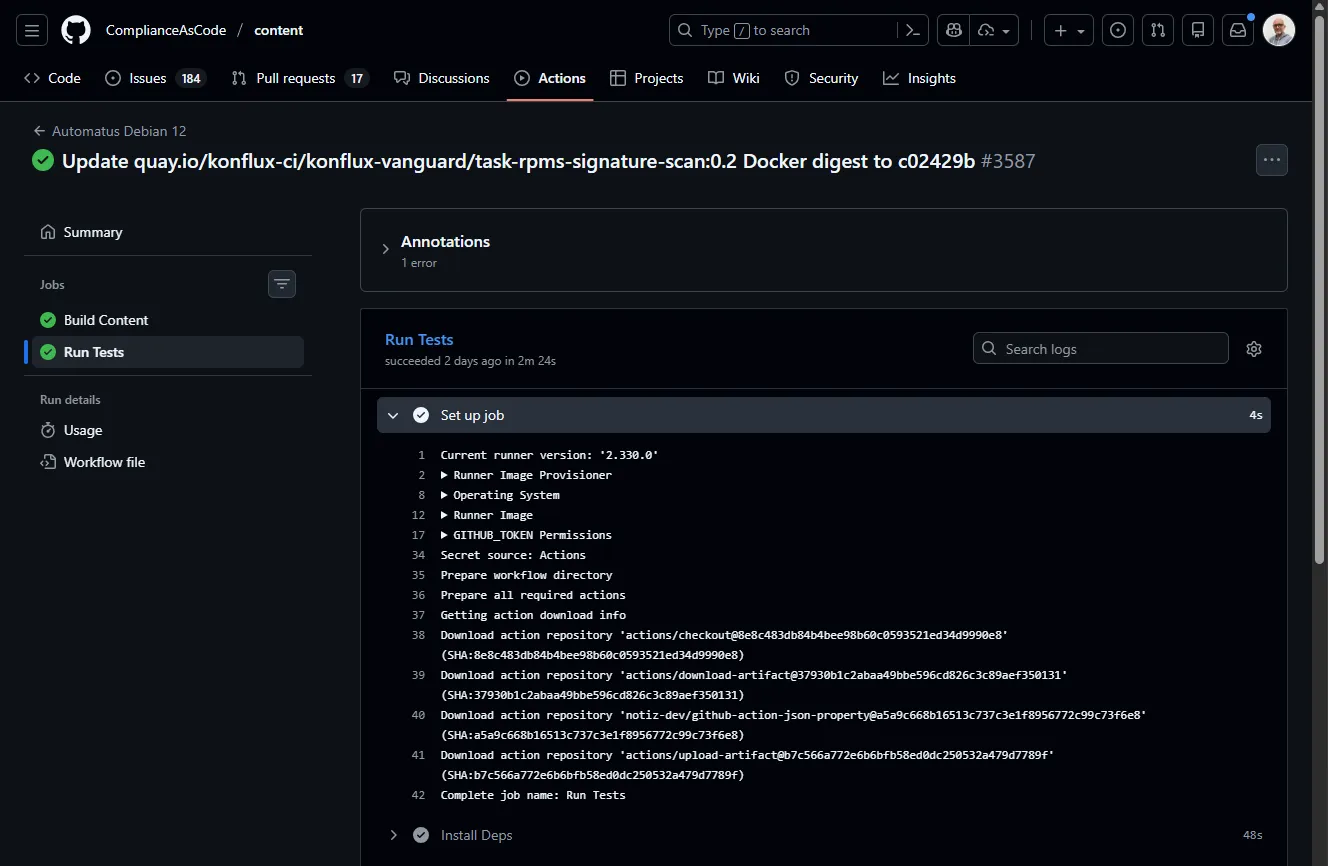
The interface shows you:
- the steps that succeeded (in green);
- the steps that failed (in red);
- the steps currently running;
- the detailed logs of every command.
The lifecycle of a workflow
When an event triggers a workflow, here is what happens:
- Event: someone pushes code, opens a PR, and so on
- Detection: GitHub detects the event and looks for matching workflows
- Queueing: the workflow is added to the execution queue
- Runner assignment: GitHub assigns a virtual machine
- Execution: the jobs and steps run
- Cleanup: the machine is destroyed, the results are kept
Every run is ephemeral: the machine is created for the occasion and
destroyed afterwards. That is why you always start by checking out the code
(actions/checkout).
Context variables
In the previous example you saw ${{ github.repository }}. That is a context
variable: GitHub exposes information about the current run.
A few useful variables:
| Variable | Content |
|---|---|
github.repository | The repository name (owner/repo) |
github.ref_name | The branch or tag name |
github.actor | The user who triggered the workflow |
github.event_name | The event type (push, pull_request, and so on) |
github.sha | The commit SHA |
github.run_id | The unique ID of this run |
Put it into practice
The lab starts from a small Python library whose nine tests nobody runs before merging. You write the workflow that runs them on every push and every pull request, then prove it by breaking a test. The check really runs your workflow with act and verifies five points: both triggers, the pipeline failing on a broken test, permissions limited to reading the code, and actions pinned on the SHA of their commit. Those last two reflexes are explained in the next lesson: the lab has you apply them right away.
Key points
- A workflow is a YAML file stored in
.github/workflows/: "when this happens, do that". - It is built from four parts: trigger (
on:), jobs, steps and runner (runs-on:). - Each job gets its own machine; the steps of one job share its filesystem.
- The machine is ephemeral: hence the
actions/checkoutat the top of almost every workflow. - A
${{ github.* }}value is pasted into the script before it runs: it goes throughenv:.
Check your understanding
Make sure the essentials of this guide are yours. The questions only cover what was explained here.
Knowledge check
Check what you have learned with this interactive quiz
How it works
- The timer starts when you click Start
- Multiple choice, true/false and short answer questions
- You can move between questions
- Detailed results are shown at the end
Starts the quiz and the timer
Review
(0/0)Score by domain
A domain groups several guides and gets several questions, so its score is more reliable than a per-topic score, which often rests on a single question.
Summary
Strengths
No topic passed at 80% on at least two questions yet.
Weak areas
No topic below the pass mark.
Recommended next
Hints before you try again?
Continue the course: First security reflexes for GitHub Actions workflows
A new full quiz with random questions
Work again only on the questions you missed