“My learning” is the page where the site tells you what to do now. It brings together your next step, your path and what you know, your reviews, your goals and your data, in five tabs. It opens from the “My learning” button at the top of every page. This lesson describes it tab by tab, card by card.
This button also carries the state of the optional account: a grey cloud as long as no account is linked, a cloud in the accent colour once this browser is linked. Its tooltip says “Account: not signed in, sync available” or “Account linked: progress synced”. The page header repeats it: “Saved in this browser, and in your account if you have one.”
Today: what should you do now?
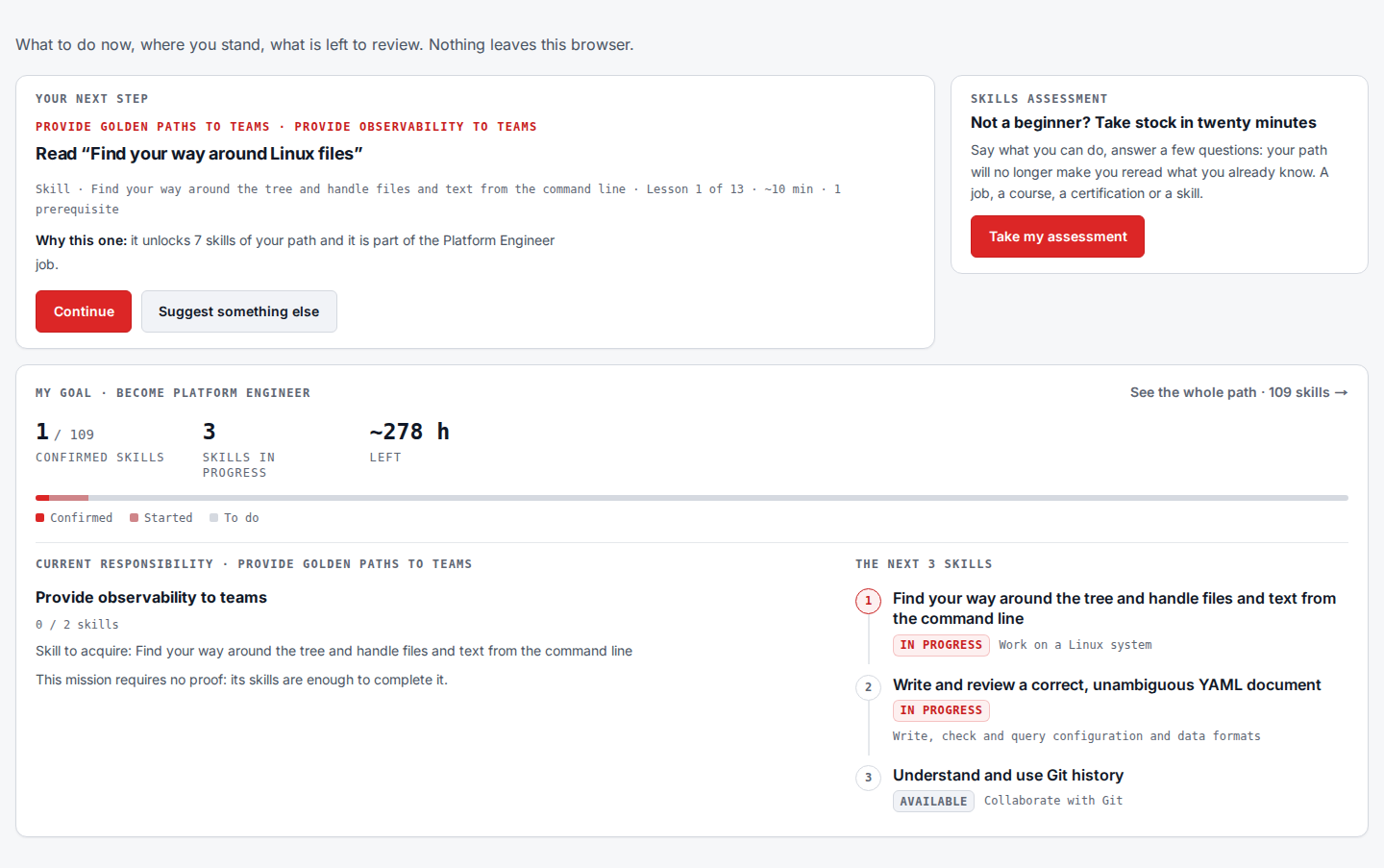
The Today tab answers a single question: what to do now? The “Your next step” card offers a precise action (read a lesson, review a subject, take a quiz, do a lab) and says why this one, for example because it unlocks other skills. Below it, two resume lines: the lesson where a course picks up, and the subjects to review. “Suggest something else” gives another action if this one does not suit you.
As long as this browser is linked to no account, a “Sync your devices” row completes the tab: it recalls that a free account lets you find your progress in another browser, and its link leads to the “Account” card of the My data tab. It disappears once the account is linked.
The “My goal” card measures the path to your job: the confirmed skills out of the total, those in progress, the hours left, and a three-colour gauge (Confirmed, Started, To do). It also names the current responsibility and mission, then the next three skills. Here is the tab for a platform engineer on the way:
My path: where do you stand in your job?
The My path tab shows the whole path and what you already know. At the top, four steps each measure one level of evidence: R for read, K for known (quiz passed), D for done (lab passed), P for proof passed. A step with no result shows “Not measured” rather than a zero. Below, the job's core reads by domain (Linux, Networking, Kubernetes…), each with its count and its state.
Further down, the job's missions read as a list and its detail: the responsibilities on the left, the chosen mission on the right, with its deliverable, the “To move forward” box and its skills. Each skill carries four boxes R, K, D and P, and its status (Available, In progress, Locked…); a locked skill names the prerequisite that blocks it. The “Last assessment” card and the table of started courses complete the tab. The lesson on the personalised path shows an annotated screenshot.
Reviews: what resisted?
The Reviews tab gathers the quiz subjects whose best score is still below
the 70% threshold. A subject leaves the queue as soon as it crosses it, and a
skill concerned moves to To consolidate in your path. A ring gives the
share of worked subjects that are understood, and “Start reviewing” opens
the review session (/en/review/): a single questionnaire that gathers the
questions you missed across all your courses. A right answer takes the question
out of the queue; the session does not count as a new attempt at the lesson's
quiz.
A subject can stay to review although none of its questions is wrong any more: its best score is still below 70%. The session then lists it under “Quizzes to retake”, with a link to the lesson quiz, the only way to raise that score.
The number on the “Review” badge of the header and on the “Review” card of the menu counts subjects to review, like this tab: both entries start the same session, without going through the page.
The queue reads in three groups: “To rework” (score below the threshold, repeated mistake or question to catch up on), “To prove” (subject passed in a quiz but not yet practised in a lab) and “Out of the queue”, kept as a record. Each subject offers to reread the lesson or retake the quiz.
My goals: how do you set what you aim for?
The My goals tab is the only place where you change what you aim for. The “Main job” card recalls the job aimed at, its coverage and its figures, with “See the job” and “Change job”. The “What is added to the job” card lists followed courses, targeted skills and certifications: each one can be removed without erasing anything you have learned, and the foot of the card adds a new one.
A targeted certification details its exam domains, each with its count and the domain to work on first. The “My tools” card sets tool choices and specialisations: the site first shows what will change, then applies it on request. “What I already know” opens a placement test, to take a skill you master off the path without rereading its lessons.
My data: how do you keep your progress?
The My data tab shows what is stored and lets you back it up. The “What is stored” card counts your lessons read, quizzes taken, labs imported, goals and courses opened. As long as no backup exists, a line recalls what lives only in this browser.
Next to it, the “Account” card, marked “optional”, is the only place to link or unlink an account. With no account, it shows “No account yet” and two buttons, “Create a free account” and “I already have an account”. Once linked, it shows “Synced” with the last sync date, or the part of your progress that is waiting to be sent, with the “Sync” button. A linked browser syncs when the page opens, and the backup reminder line disappears, the account standing in as a second copy.
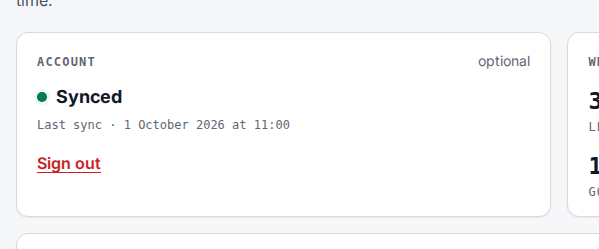
Here is the Synced state, with the “Sign out” link. The progress and data lesson details the rest of the card: the first sign-in, what combines and what you settle, the “Manage my account” menu and deleting the account.
Below, three actions: back up your progress to a file, restore it in another browser, and import DSOXLab lab results. “Start over” erases everything, after confirmation. The lesson on progress and data details what a backup contains.
Key takeaways
- Today says what to do now, with the reason, and measures the path to your goal.
- My path shows the whole path, what you know by domain and the job's missions.
- Reviews keeps subjects below 70% until you cross the threshold.
- My goals is the only place to set job, additions, tools and specialisations.
- Without an account, nothing is sent anywhere: the page reads your browser, and My data backs it up.
- The account is optional: the “Account” card of My data links it, and the cloud of the “My learning” button says whether it is.