

Claude Code CLI is installed with the official installer https://claude.ai/install.sh on Linux and macOS, or winget install Anthropic.ClaudeCode on Windows, then checked with claude --version and claude doctor. You will install it on your system, complete the first launch, then check that the command works before moving on to a full workflow. The goal is a reliable, reproducible base, without getting into advanced prompting or automation scenarios yet.
What you will learn
These four points cover the whole path between a blank system and a usable session. The last two matter as much as the first two: most of the blockages reported happen after the installation, during sign-in.
- Install Claude Code CLI on Linux, macOS or Windows
- Understand the normal screens of the first launch
- Complete sign-in without getting stuck
- Check the state of the CLI with diagnostic commands
Why take care of the installation before the first workflow
A badly installed CLI produces symptoms that look like usage problems: command not found, a session that will not open, a sign-in that loops. Treating them as prompting bugs wastes time, whereas three diagnostic commands identify them in a few seconds.
This guide is therefore for people starting with Claude Code CLI who want a clean base before moving to fuller workflows. It answers one simple question: how to install, sign in and check that everything works.
It does not yet cover how sessions work, advanced prompting or governance mechanisms. Those topics are handled in the guides that follow in the course.
Prerequisites
Three things are enough. The procedure below uses neither npm nor Node.js:
the official installers of each platform put the claude binary directly in
your PATH.
- A local terminal (Bash, Zsh, PowerShell or equivalent)
- An account or access compatible with Claude Code: Pro, Max, Team, Enterprise, Console, or a supported API provider
- Internet access
Step 1: install Claude Code CLI
Pick the tab for your system. On Linux and macOS, the official script is
downloaded, read, then run: three commands rather than a curl | bash
that would blindly run whatever the network returns. On Windows, prefer
WinGet, which installs a package listed in a manifest repository, over the
irm … | iex form that runs a remote script directly.
# Download the official script, inspect it, then run itcurl -fsSL https://claude.ai/install.sh -o claude-install.shless claude-install.shbash claude-install.sh# Download the official script, inspect it, then run itcurl -fsSL https://claude.ai/install.sh -o claude-install.shless claude-install.shbash claude-install.shOfficial alternative with Homebrew:
brew install --cask claude-codeTo install the latest published version:
brew install --cask claude-code@latestRecommended method, with WinGet:
winget install Anthropic.ClaudeCodeAnthropic also publishes an installation script, run directly from the network. It works, but nothing is read before it runs: keep it for disposable machines.
irm https://claude.ai/install.ps1 | iexNative Windows prerequisite: install Git for Windows before Claude Code. This prerequisite does not apply if you use WSL.
curl -fsSL https://claude.ai/install.cmd -o install.cmd && install.cmd && del install.cmdOfficial alternative with WinGet (to run from PowerShell):
winget install Anthropic.ClaudeCodeNative Windows prerequisite: install Git for Windows before Claude Code. This prerequisite does not apply if you use WSL.
Step 2: check the installation
Two commands are enough: claude --version confirms that the binary is in the PATH, claude doctor checks the environment around it. Always open a new terminal before running them: the one used for the installation does not know the updated PATH yet, and that is the number one cause of the famous claude: command not found.
-
Open a new terminal (to reload the PATH)
-
Check the version
Terminal window claude --version -
Run the basic diagnostic
Terminal window claude doctor
Step 3: get through the first launch
On the first claude, you will usually meet a visual setup sequence, then sign-in, before reaching a session ready to use.
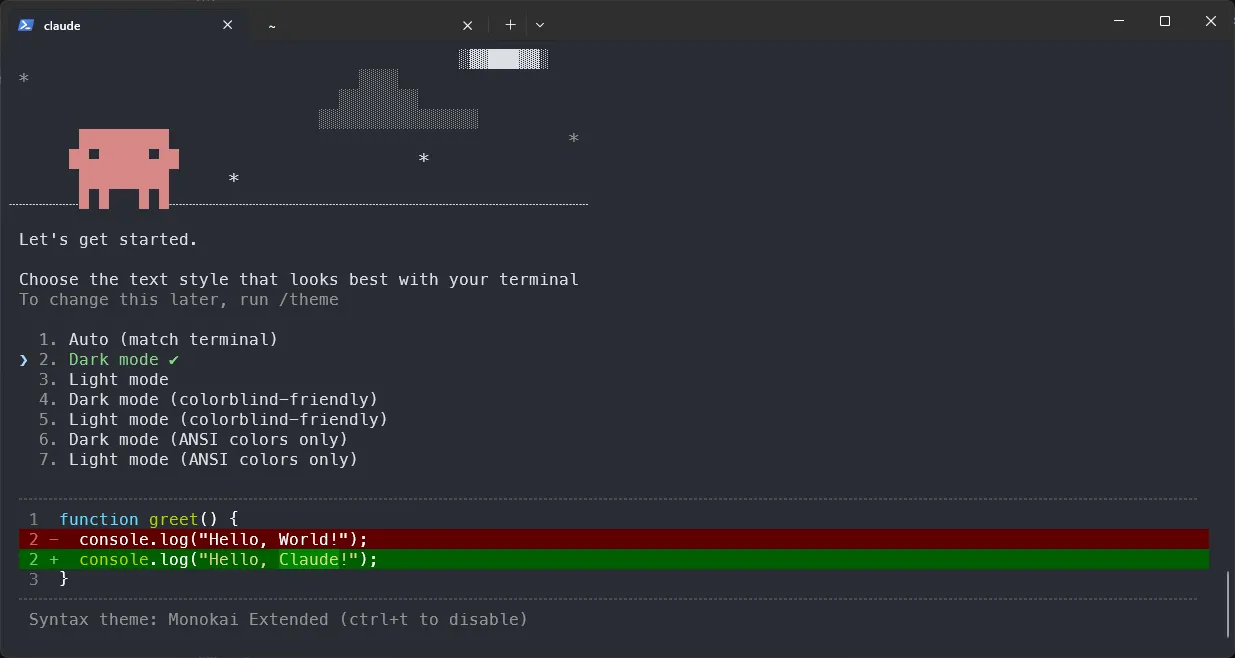
Screen 1: visual setup
You land on a start screen that offers a display theme.
- Use the arrow keys to choose
- Press Enter to confirm
- You can change this choice later
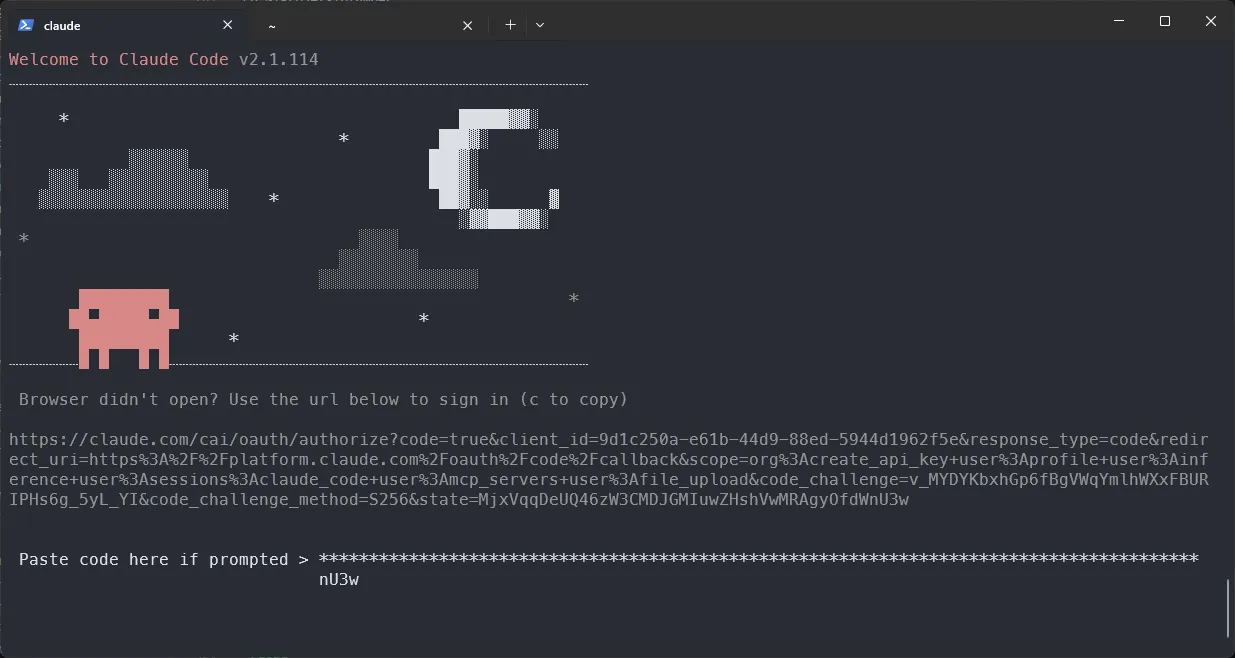
Screen 2: account sign-in
The CLI then shows a sign-in URL (OAuth) and may ask for a validation code.
Recommended procedure:
- Copy the URL shown in the terminal
- Open it in your browser
- Sign in to your Claude account
- If a code is requested, go back to the terminal
- Paste the code then confirm with Enter
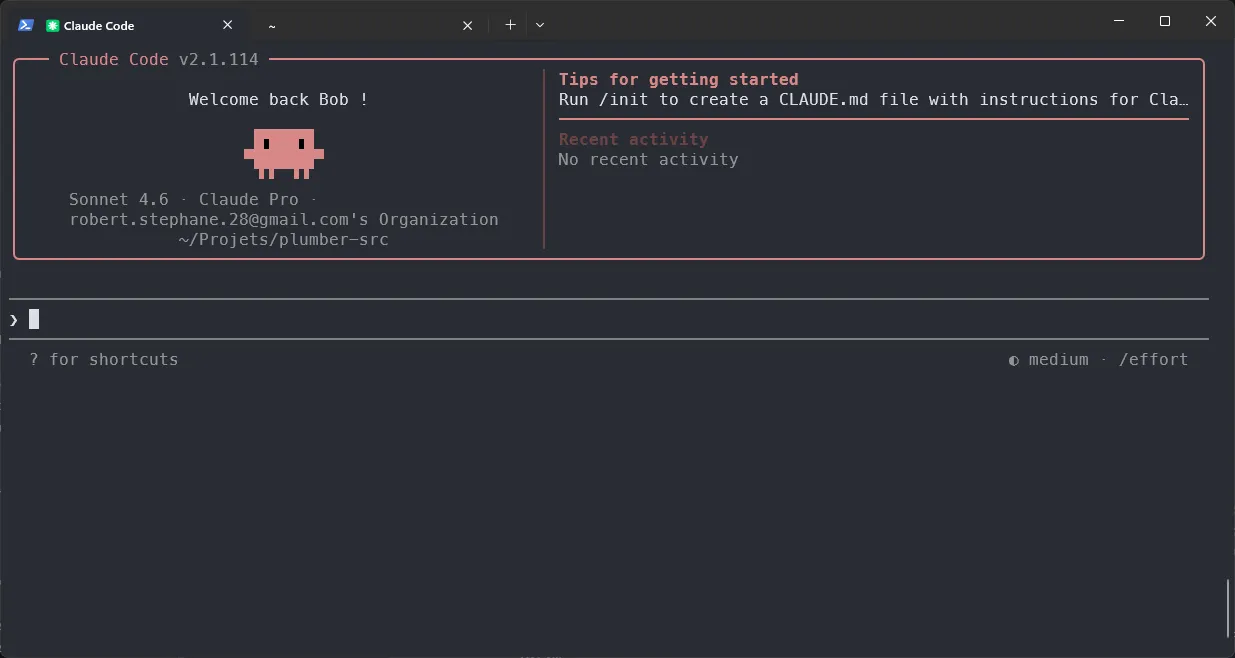
Screen 3: session ready
When a "Welcome back" type of screen appears, the CLI is operational.
- The
>line lets you type your requests - The current folder shows the working context
- You can run a first simple command to check the flow
Step 4: a quick tour of the CLI
Once the CLI is operational, take 2 minutes to make three useful settings.
-
Open the quick help
In the CLI session, type
?to display the available shortcuts. -
Change the theme
In the CLI session, type:
/themeChoose a theme that is readable for you, then confirm.
-
Switch the interface language
Open the configuration:
/configThen select the interface language if the option is available in your version.
At this stage, do not try to configure everything. The goal is simply to spot where the settings you will use next are located.
Recommended next step: start with the guide Claude Code CLI: create the lab-claude running project to set up a single practice ground, then continue with Claude Code CLI: getting started, commands and configuration.
Common errors
These three symptoms cover almost all installation blockages. The first two
have nothing to do with Claude Code itself: one comes from the terminal's
PATH, the other from the browser. Read the "Likely cause" column before
applying the fix, it avoids treating one symptom for another.
| Symptom | Likely cause | Fix |
|---|---|---|
claude: command not found | PATH not reloaded | Reopen the terminal, then retest |
| Sign-in loops | Incomplete browser session | Reuse the sign-in URL shown and finish the login |
claude doctor reports warnings | Missing local dependency | Fix the blocking warnings first, then rerun |
Key takeaways
Three points, and the last one is the one most often ignored: moving on to a complex workflow while the CLI is not stable produces symptoms that get blamed on the model, never on the installation.
- A successful installation is always validated with
claude --versionthenclaude doctor - A first launch with theme + sign-in + final screen is normal behaviour
- As long as the CLI is not stable, do not chain into complex workflows
Knowledge check
Check that you have the essentials of this guide. The questions cover only what was just explained here.
Knowledge check
Check what you have learned with this interactive quiz
How it works
- The timer starts when you click Start
- Multiple choice, true/false and short answer questions
- You can move between questions
- Detailed results are shown at the end
Starts the quiz and the timer
Review
(0/0)Score by domain
A domain groups several guides and gets several questions, so its score is more reliable than a per-topic score, which often rests on a single question.
Summary
Strengths
No topic passed at 80% on at least two questions yet.
Weak areas
No topic below the pass mark.
Recommended next
Hints before you try again?
A new full quiz with random questions
Work again only on the questions you missed
FAQ: frequently asked questions
These short answers cover the points that come up most: installation under
Windows and WSL, the claude: command not found message, checking the
installation and the special case of npm.
- Linux / macOS:
curl -fsSL https://claude.ai/install.sh | bash - Windows PowerShell:
irm https://claude.ai/install.ps1 | iex - macOS (Homebrew):
brew install --cask claude-code - Windows (WinGet):
winget install Anthropic.ClaudeCode
claude --version.- Native: in PowerShell,
irm https://claude.ai/install.ps1 | iexorwinget install Anthropic.ClaudeCode. Install Git for Windows first. - WSL (recommended if you hesitate): open your Linux distribution and install as on Linux, without Git for Windows.
curl -fsSL https://claude.ai/install.sh | bash
- Close the terminal completely.
- Open a new one.
- Run
claude --versionagain.
claude --version   # installed version
claude doctor      # full diagnostic of the environment
claude doctor checks the PATH, the dependencies and the connection, and flags the warnings to fix first.@anthropic-ai/claude-code package:npm install -g @anthropic-ai/claude-code
install.sh, Homebrew, WinGet): no dependency on a Node version, and automatic updates.